1
British International School Jakarta Activities Registration – CHQ
Parent Guide
Contents
1. How to access the system
2. Logging in to the system
3. Activity Sign-Up Periods
4. Registering for an activity
5. Amending an activity choice
6. Getting assistance and resetting passwords
1. How to access the system
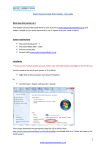
Open a web browser on any device and navigate to http://seasia.mychq.net/bis-jakarta
as below:
2. Logging in to the system
The CHQ system differs in many ways from our previous system (hopefully all
positive) but the key difference is that it is accessed using the student’s own
details rather than allocating each parent a login. The username and password
are the same as those that the students use each day to access the School’s
computer network. This not only eases the setup of the system but also fosters
and facilitates older students’ independence in selecting their own activity
choices.
You will be sent an email prior to the start of the activity registration period as a
reminder. For the initial sign-up – Term 1 2014/15 will begin on Monday 1st
September 2014.
To access the system simply enter the student’s username and password in the
appropriate fields and either press the “Enter” key or click on the arrow next to
“Log in” on screen.
You should now see a welcome screen with a series of tabs. This screen will be
used to provide instructions or information on the “Home” tab.
3. Activity Sign-Up Periods
Each Activity Sign-Up Period will relate to the term that follows and will last for a
period of a week. During that period students/parents can express preferences to
take part in available activities as detailed later in this document. Following the
sign-up period there will be an administrative period during which requested
activities will be considered and either approved or denied. It should be noted
here that expressing a preference to take part in an activity does not
mean that a place on that activity has been allocated. This has been
introduced to allow the School to analyse registered preferences and then reallocate resources to cater for those activities that are under and oversubscribed.
Once the administration period is complete an email notification will be sent to
the priority parental email address as specified to the School by the parents and
used for all parental emails by the School. Please ensure that your contact details
are up to date to avoid any problems.
4. Registering for an activity
As mentioned earlier in this document when first logging in to the system you will
see a screen with a number of tabs as below:
To view the available activities click on the “My Profile” tab which will reveal a
screen on the right hand side of which are a number of expandable sections as
below:
Click on the “+” sign next to “My Activities – Term 1” (or the appropriate term to
the date you may be reading this document) to reveal the available activities for
the student that you have logged on as.
These will appear in a similar way to that shown below:
If the pupil has more than one choice of activity within the same day, the pupil
can rank their preference as 1, 2, 3 etc. Once the pupil has made their selections
and saved each activity and submitted their choices, the requests become
pending applications. A teacher with requisite authority will then either approve
or deny the request during the Administration Period as detailed earlier. Ensure
that you click “Save” after each selection to log each activity choice.
5. Amending an activity choice
A useful feature of this system is that, until the end of the sign-up period, it is
possible to amend choices of activity. Simply by logging in as described in
Section 1 of this document and navigating to the “My Profile” tab as described
in Section 4 Activity choice preferences can be amended and saved. These
amendments will overwrite the previous choices.
6. Getting assistance and resetting passwords
It should be noted that whilst passwords can be reset by contacting the IT
Helpdesk, the username and password are those that the students use each day
at School. Changing will therefore cause the student to be unable to access
computers or systems unless they are aware of the change.
At the Primary Office it is intended that we will maintain an up to date list of
passwords for students at the IT Helpdesk so that parents calling in, or
telephoning, can be provided with this if they should forget (You may be asked a
security question just to prove you are someone authorised to get the password).
Password reminders can also be obtained via the [email protected] email
address. This email will only be responded to during normal School hours – i.e.
between 8:00am and 4:00pm Monday to Friday.
For the Secondary school only the students are aware of their passwords so it is
not possible to give these out. Any requests for password resets will be subject
to a delay whilst the student is contacted to provide their password or allow it to
be reset. For this reason the preferred option for parents of Secondary students
who need to obtain a password reset is to email the [email protected] email
address that has been in operation for some time. This email will only be
responded to during normal School hours – i.e. between 8:00am and 4:00pm
Monday to Friday.