1
JSP 822 Part 5 Chp 7 – MMST User Manual
Annex A to
DTSM 7 MMST User Manual
Dated Nov 2011
Setting Up V·I·S·A on your PC
1.
Administrator rights will be required to set up V·I·S·A on a standalone PC. Local
Information Systems Services should be able to advise. PCs such as laptops that are not
connected to a network may be most suitable.
2.
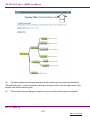
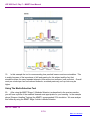
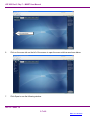
Open and extract the MMST V·I·S·A Zip Folder and you should see the files as shown
below
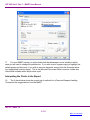
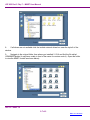
3.
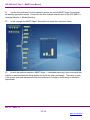
Click on the VisaWebSetup icon to start the installation and then click run in the new
window
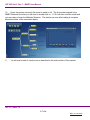
4.
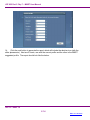
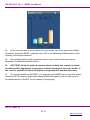
Continue by clicking next until you are asked for a license number which is in the text file
(VISA License – shown in above screenshot or you may have been given a license number by
DCTS Learning Technologies). On the next window you will be asked where you wish to install
VISA. This has to be within program files to work correctly (should be the default option).
Continue through the pages until V·I·S·A is installed.
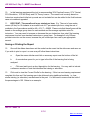
Opening the MMST models
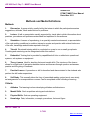
5.
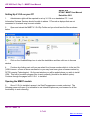
Once V·I·S·A is installed, access it via Start/Programmes or create a shortcut. The
following screen will open (It is advisable to use Internet Explorer as your browser for all the
functionality to work correctly).
Jan 12 – Issue 1.0
5-7-A-1
Back to Contents