1
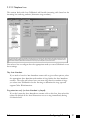
Centrepoint Technologies
Phone System Solutions for:
DESKTOP PHONE SYSTEM
User Guide
Smart homes
Home businesses
Small offices
Branch/Remote offices
Table of Contents
1.0 Installing TalkSwitch
1.1 What's included with TalkSwitch . . . . . . . . . . . . . . . . . . . . . . . . . . . . .1
1.2 Front Panel Descriptions
. . . . . . . . . . . . . . . . . . . . . . . . . . . . . . . .2
1.3 Back Panel Descriptions
. . . . . . . . . . . . . . . . . . . . . . . . . . . . . . . .3
1.3.1 The TalkSwitch 24 . . . . . . . . . . . . . . . . . . . . . . . . . . . . . .3
1.3.2 The TalkSwitch 48LS . . . . . . . . . . . . . . . . . . . . . . . . . . . .4
1.4 Plugging into the Back Panel . . . . . . . . . . . . . . . . . . . .
1.4.1 Attaching telephone lines to TalkSwitch line jacks
1.4.2 Attaching phones and other analog devices
to TalkSwitch extension jacks . . . . . . . . .
1.4.3 Connecting Devices to the Music and PA Jacks
1.4.4 Connecting TalkSwitch to a PC . . . . . . . . . . .
. . . . . . . . . . .5
. . . . . . . . . .5
. . . . . . . . . . .6
. . . . . . . . . . .7
. . . . . . . . . . .7
2.0 Configuring TalkSwitch
2.1 Installing the TalkSwitch Configuration Software
. . . . . . . . . . . . . . . . . . .9
2.2 Control Centre
. . . . . . . . . . . . . . . . . . . . . . . . . . . . . . .10
2.3 Configuration
. . . . . . . . . . . . . . . . . . . . . . . . . . . . . . .11
2.3.1 System Information . . . . . . . . . . .
2.3.1.1 Telephone Lines . . . .
2.3.1.2 Line Hunt Groups . . .
2.3.1.3 Fax Information . . . .
2.3.1.4 Local Extensions . . . .
2.3.1.5 Remote Extensions . .
2.3.1.6 Extension Ring Groups
2.3.1.7 Voicemail . . . . . . . .
2.3.1.8 Music-on-hold . . . . .
.
.
.
.
.
.
.
.
.
.
.
.
.
.
.
.
.
.
.
.
.
.
.
.
.
.
.
.
.
.
.
.
.
.
.
.
.
.
.
.
.
.
.
.
.
.
.
.
.
.
.
.
.
.
.
.
.
.
.
.
.
.
.
.
.
.
.
.
.
.
.
.
.
.
.
.
.
.
.
.
.
.
.
.
.
.
.
.
.
.
.
.
.
.
.
.
.
.
.
.
.
.
.
.
.
.
.
.
.
.
.
.
.
.
.
.
.
.
.
.
.
.
.
.
.
.
.
.
.
.
.
.
.
.
.
.
.
.
.
.
.
.
.
.
.
.
.
.
.
.
.
.
.
.14
.14
.16
.17
.18
.19
.21
.23
.25
2.3.2 Call Handling . . . . . . . . . . . . .
2.3.2.1 Modes . . . . . . . . . .
2.3.2.2 Auto Attendant . . . . .
2.3.2.3 Telephone Lines . . . .
2.3.2.4 Local Extensions . . . .
2.3.2.5 Remote Extensions . .
2.3.2.6 Extension Ring Groups
.
.
.
.
.
.
.
.
.
.
.
.
.
.
.
.
.
.
.
.
.
.
.
.
.
.
.
.
.
.
.
.
.
.
.
.
.
.
.
.
.
.
.
.
.
.
.
.
.
.
.
.
.
.
.
.
.
.
.
.
.
.
.
.
.
.
.
.
.
.
.
.
.
.
.
.
.
.
.
.
.
.
.
.
.
.
.
.
.
.
.
.
.
.
.
.
.
.
.
.
.
.
.
.
.
.
.
.
.
.
.
.
.
.
.
.
.
.
.
.26
.26
.27
.31
.32
.35
.37
...
...
..
...
.
.
.
.
.
.
.
.
.
.
.
.
.
.
.
.
.
.
.
.
.
.
.
.
.
.
.
.
.
.
.
.
.
.
.
.
.
.
.
.
.
.
.
.
.
.
.
.
.
.
.
.
.
.
.
.
.
.
.
.
.
.
.
.
.38
.40
.42
.44
..
.
..
..
..
.
.
.
.
.
.
.
.
.
.
.
.
.
.
.
.
.
.
.
.
.
.
.
.
.
.
.
.
.
.
.
.
.
.
.
.
.
.
.
.
.
.
.
.
.
.
.
.
.
.
.
.
.
.
.
.
.
.
.
.
.
.
.
.
.
.
.
.
.
.
.
.
.
.
.
.45
.45
.46
.47
.50
2.3.3 Call Back / Call Bridge . . . . .
2.3.3.1 Auto Call Back . .
2.3.3.2 Prompted Call Back
2.3.3.3 Call Bridge . . . .
2.3.4 Options
2.3.4.1
2.3.4.2
2.3.4.3
2.3.4.4
.............
Administrator Password
Manual Transfer . . . .
Miscellaneous . . . . .
Troubleshooting . . . .
3.0 Using Talkswitch
3.1 In the Office - Receiving Calls with the Auto Attendant
. . . . . . . . . . . . . .53
3.2 In the Office - Making and Receiving Calls . . . . . . . . . . .
3.2.1 Making calls from a Local Extension . . . . . . .
3.2.2 Receiving calls at a Local Extension . . . . . . . .
3.2.3 Placing calls on Hold at a Local Extension . . .
3.2.4 Transferring calls . . . . . . . . . . . . . . . . . . . .
3.2.5 Call Park - Parking and retrieving callers . . . . .
3.2.6 Call Queue - Queueing and retrieving callers .
3.2.7 Conference calling with TalkSwitch . . . . . . . .
3.2.8 Using Phones connected in parallel to TalkSwitch
3.2.9 External modem telephone line access . . . . . .
.
.
.
.
.
.
.
.
.
.
.
.
.
.
.
.
.
..
.
.
.
.
.
.
.
.
.
.
.
.
.
.
.
.
.
.
.
.
.
.
.
.
.
.
.
.
.
.
.
.
.
.
.
.
.
.
.
.
.
.
.
.
.
.
.
.
.
.
.
.
.
.
.
.
.
.
.
.
.
.
.
.
.
.
.
.
.
.
.53
.53
.54
.54
.55
.56
.56
.57
.58
.59
3.3 Out of the Office - Receiving Calls through Call Forwarding . . . . . . . . . .60
3.3.1 The three ways to forward calls . . . . . . . . . . . . . . . . . . . .60
3.3.2 Screening options for forwarded calls . . . . . . . . . . . . . . . .61
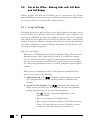
3.4 Out of the Office - Making Calls with Call Back and Call Bridge . . . . . . .62
3.4.1 Using Call Bridge . . . . . . . . . . . . . . . . . . . . . . . . . . . . .62
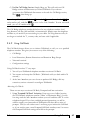
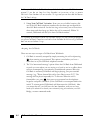
3.4.2 Using Call Back . . . . . . . . . . . . . . . . . . . . . . . . . . . . . .63
3.5 Using the Internal Voicemail System . . . . . . . . . . . . . . . . . . . . . . . . . .65
3.5.1 Activating Voice mailboxes . . . . . . . . . . . . . . . . . . . . . . .65
3.5.2 Accessing a Voice mailbox . . . . . . . . . . . . . . . . . . . . . . .65
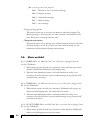
3.6 Music-on-Hold
. . . . . . . . . . . . . . . . . . . . . . . . . . . . . . .66
3.7 Mode Switching Options
. . . . . . . . . . . . . . . . . . . . . . . . . . . . . . .67
3.8 Upgrading the TalkSwitch Firmware
. . . . . . . . . . . . . . . . . . . . . . . . .68
Appendices
Appendix A - Help & Troubleshooting . . . . . . . . . . . . . . . . . . . . . . . . . . . .73
Appendix B - Using TalkSwitch with Telephone Company Calling Services
Appendix C - Quick Commands and DTMF Functions
Appendix D - Safety Precautions and Regulatory Information
Appendix E - TalkSwitch One Year Warranty
Appendix F - Return Policy
. . . .81
. . . . . . . . . . . . . . . . .85
. . . . . . . . . . . . .89
. . . . . . . . . . . . . . . . . . . . . . .93
. . . . . . . . . . . . . . . . . . . . . . . . . . . . . . .97
Appendix G - TalkSwitch and Power Interruptions
. . . . . . . . . . . . . . . . . . . .99
Glossary . . . . . . . . . . . . . . . . . . . . . . . . . . . . . . . . . . . . . . . . . . . . . . . . . . .101
Index
. . . . . . . . . . . . . . . . . . . . . . . . . . . . . . . . . . . . . . . . . . . . . . . . . . .109
1
Installing
TalkSwitch
1.1
What's included with TalkSwitch
The TalkSwitch products come shipped with the following items.
1. The TalkSwitch Unit
2. AC Power Adapter (Warning: never use any other Power Adapter other than
the one provided with the TalkSwitch.)
3. 9 pin Serial Cable
4. 6' RJ-11 Telephone Cable - (2)
5. Software CD (This contains the configuration software that you can use to
setup and configure TalkSwitch)
6. User Manual
If any of these items are missing, please contact Centrepoint Technologies Customer
Support at (613) 725-2980 or e-mail: [email protected].
1.0
Installing Talkswitch
1
1.2
Front Panel Descriptions
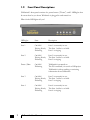
TalkSwitch's front panel consists of a power button ("Power") and 5 LED lights that
do more than let you know TalkSwitch is plugged in and turned on.
What do the LED lights tell you?
2
LED light:
State
Description
Line 1
On Solid
Pulsing Slowly
Flickering
Line 1 is currently in use.
The Line 1 caller is on hold.
Line 1 is ringing
Line 2
On Solid
Pulsing Slowly
Flickering
Line 2 is currently in use.
The Line 2 caller is on hold.
Line 2 is ringing.
Power / Data
On Solid
Flickering
TalkSwitch is powered on.
The PC connected (via serial or USB port)to
TalkSwitch is either sending or retrieving
information from TalkSwitch.
Line 3
On Solid
Pulsing Slowly
Flickering
Line 3 is currently in use.
The Line 3 caller is on hold.
Line 3 is ringing
Line 4
On Solid
Pulsing Slowly
Flickering
Line 4 is currently in use.
The Line 4 caller is on hold.
Line 4 is ringing.
Talkswitch User Manual
1.3
Back Panel Descriptions
What to plug-in and where for each model.
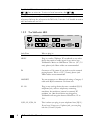
1.3.1 The TalkSwitch 24
Jacks/Ports
What to plug in
MUSIC
Plug in a radio, CD player, PC soundcard or any other
device that emits an audio signal if you wish to use
TalkSwitch's Music-on-Hold feature. This is a 1/8"
(3.5 mm) phono jack. Mono cables are recommended.
PA
Connect to a P.A. system if you wish to use the external
paging feature. This is a 1/8" (3.5 mm) phono jack.
Mono cables are recommended.
E1, E2, E3, E4
Plug in any analog device that uses a standard (RJ-11)
telephone jack, such as: telephones, answering
machines, fax machines, internal or external PC
modems. Once these devices are plugged in, TalkSwitch
will recognize them as Ext. 111, Ext. 112, Ext. 113, or
Ext. 114.
L1/L2, L2
This is where you plug in your telephone lines (RJ-11).
If you have 2 lines out of 1 phone jack, you can plug
into the L1/L2 jack.
USB
Use the USB port if your PC supports USB connectivity.
If you use the USB port, you cannot use the serial port
simultaneously.
SERIAL
Attach the supplied serial cable (RS232) that connects
TalkSwitch to your PC. If you use the serial port you
cannot use the USB port simultaneously.
POWER
Plug the supplied AC Power Adapter in here.
1.0
Installing Talkswitch
3
By default, TalkSwitch is set to Serial connection. To activate USB connection, dial
91
from an extension. To return to Serial connection, dial
90 .
The ‘PF’ box in between E4 and L1/L2 represents power failure support. In the event
of a power failure or loss of power to the TalkSwitch, Extension 4 will be able to receive
calls and make calls on Line 1.
1.3.2
The TalkSwitch 48LS
LAN
E5
E6
E7
E1
E2
E3
E8
L3/L4
L4
1/L2
L2
MEMORY SLOT
PF
MUSIC
4
PA
USB
SERIAL
POWER
Jacks/Ports
What to plug in
MUSIC
Plug in a radio, CD player, PC soundcard or any other
device that emits an audio signal if you wish to use
TalkSwitch's Music-on-Hold feature. This is a 1/8" (3.5
mm) phono jack. Mono cables are recommended.
PA
Connect to a P.A. system if you wish to use the external
paging feature. This is a 1/8" (3.5 mm) phono jack.
Mono cables are recommended.
LAN PORT
You can connect to an Ethernet hub using a Category 5
cable with RJ-45 connectors. For future use.
E1 - E8
Plug in any analog device that uses a standard (RJ-11)
telephone jack, such as: telephones, answering
machines, fax machines, internal or external PC
modems, etc. Once these devices are plugged in,
TalkSwitch will recognize them as Extensions 111 to
118.
L1/L2, L2, L3/L4, L4
This is where you plug in your telephone lines (RJ-11).
If you have 2 lines out of 1 phone jack, you can plug
into the 1/2 and 3/4 jacks.
Talkswitch User Manual
USB
Use the USB port if your PC supports USB connectivity.
If you use the USB port, you cannot use the serial port
simultaneously.
SERIAL
This is where you attach the supplied serial cable
(RS232) that connects TalkSwitch to your PC. If you
use the serial port, you cannot use the USB port simultaneously.
MEMORY SLOT
Memory expansion slot. Used to expand internal memory for voicemail and Auto Attendant messages.
TalkSwitch Memory cards can be purchased from your
reseller or from Centrepoint Technologies.
POWER
Plug the supplied AC Power Adapter in here.
By default, TalkSwitch is set to Serial connection. To activate USB connection, dial
91
from an extension. To return to Serial connection, dial
90 .
The ‘PF’ box in between E4 and L1/L2 represents power failure support. In the event
of a power failure or loss of power to the TalkSwitch, Extension 4 will be able to receive
calls and make calls on Line 1.
1.4
Plugging into the Back Panel
1.4.1 Attaching telephone lines to TalkSwitch line jacks
You can connect your telephone lines from the wall jack(s) to the TalkSwitch Line
jacks with the phone cables provided. Take note of which telephone line is connected
to which Tel Line number - this information will be used in the configuration
section.
TalkSwitch works with many telephone company services such as 3-Way Calling and
Distinctive Ring. For more information on phone company services, see Appendix B.
1.0
Installing Talkswitch
5
1.4.2 Attaching phones and other analog devices to TalkSwitch
extension jacks
You can connect any analog device to TalkSwitch's extension jacks. Multiple devices
can be connected to each extension jack by 'chaining' them together or using a line
splitter. In total, TalkSwitch is capable of managing a total of 20 electronic ringing
devices in addition to its internal modem, without overpowering the telephone lines.
Use TalkSwitch's extension jacks to connect your:
• Analog Telephones (single or multi-lined, corded or cordless)
• Fax Machine
• Answering Machine
• Internal or External PC Modem
To Attach a Single Line Corded or Cordless Telephone and/or a Fax Machine:
Connect your single line analog telephone or fax machines to one of
TalkSwitch's extension jacks (E1 to E4 for the TalkSwitch 24 and E1 to E8 for
the TalkSwitch 48LS) just as you would if you were plugging them into a
standard telephone wall jack.
To Attach a Two--line Analog Telephone:
Option # 1 (Use it as one TalkSwitch extension.)
Disregard the telephone's Line 2 jack (plug-in). Connect the telephone's Line 1
plug-in to any one of TalkSwitch's extension jacks. You will still be able to
access both telephone lines in the same manner as if you were using a single
line telephone attached to TalkSwitch.
Option # 2 (Use it as two TalkSwitch extensions.)
You could use your two-line telephone as two separate TalkSwitch extensions.
Connect the telephone's Line 1 and Line 2 plug-ins to two separate extension
jacks.
Most two-line phones have separate plug-ins for two incoming telephone lines (Line 1
and Line 2). If your two-line telephone does not have separate plug-ins, you can use a
"Line 1/Line 2" line splitter to separate the two lines.
To Attach an Answering Machine:
Connect your answering machine to TalkSwitch's extension jacks just as you
would if you were plugging it into a standard telephone wall jack. You can also
plug a telephone into the answering machine, which allows you to use the
extension for both messaging and telephone calls.
6
Talkswitch User Manual
To Attach an Internal or External Modem:
Simply plug the modem's telephone cable into one of TalkSwitch's extension
jacks. Your modem is now a TalkSwitch extension and will be able to access all
Lines and take advantage of TalkSwitch's call routing features.
If you would like to use a telephone on the same extension as your modem,
simply plug the telephone's cable into the modem's telephone jack. (Most
modems have a telephone jack, located beside the 'Line In' jack.)
You do not have to attach a PC to TalkSwitch (via the Serial or USB ports) for
your modem to be functional.
1.4.3 Connecting Devices to the Music and PA Jacks
The Music jack is designed to support any audio source (CD player, radio, tape player,
sound card etc.) for playing music or messages to callers while on hold. Simply
connect the audio source via it’s headphone output to the Music jack. The Music jack
requires a 1/8” (3.5mm) phono connector.
The PA jack can be connected to a P.A. System for external paging or to an
amplification system to screen voicemail or to use as a line simulator. The PA jack
requires a 1/8” (3.5mm) phono connector.
1.4.4 Connecting TalkSwitch to a PC
There are two ways to connect TalkSwitch directly to your PC for configuration Serial and USB.
Serial:
Use the provided serial cable (RS232) to connect TalkSwitch to an
open COM port on your PC.
USB:
Use a USB cable to connect TalkSwitch to an available USB port on
your PC or USB hub.
By default, TalkSwitch is set to Serial connection. To activate USB connection, dial
to enter command mode, if you have an Administrator password enabled, enter the
password. Dial 91 then
to complete the command. To return to Serial connection,
enter command mode then dial 90 .
1.0
Installing Talkswitch
7
2
Configuring
TalkSwitch
The following chapter describes how to configure TalkSwitch with the configuration
software, and in some cases, the corresponding touch tone commands for
configuration using a telephone. It also includes tips on selecting the configuration
option(s) best suited to your needs.
2.1
Installing the TalkSwitch Configuration Software
Insert the TalkSwitch CD into your CD drive. The Install program will automatically
launch. Double-click the Install icon and follow the instructions on the screen.
Configuration software system requirements:
PC running Windows 95/98
12 MB free hard disk space
An available Serial or USB port
800x600 minimum video resolution
2.0
Configuring Talkswitch
9
2.2
Control Centre
After installation is complete, double-click the TalkSwitch icon. Once TalkSwitch
software has been opened, the following screen will appear. This is the Control Centre
for the TalkSwitch software.
PC Connection:
Choosing PC Connection allows you to choose the correct COM port when
connecting TalkSwitch to the PC.
Configure:
Choosing Configure brings up the configuration software.
(see section 2.3)
Monitor:
Choosing Monitor brings up the TalkSwitch Monitor window. The Monitor
allows you to 'see' a graphical representation of the calls as they flow to and
from TalkSwitch and it’s extensions and lines. This feature is useful as a
diagnostic tool when testing your TalkSwitch settings. You should choose
‘Normal’ as the mode of operation unless you are using TalkSwitch as a Line
Simulator.
Flash Upgrade:
This activates the TalkSwitch Firmware Update procedure. Follow the
instructions accordingly.
10
Talkswitch User Manual
About:
Displays the TalkSwitch software version number, TalkSwitch version number
and Copyright information
2.3
Configuration
From the Control Centre choose Configure. The following screen will appear:
The configuration screen consists of 4 parts:
1
2
3
4
1. Menu Items
2. Configuration Navigation
Controls what is displayed in the configuration window
3. Configuration Window
Displays configuration tabs.
4. iGuide Window
Displays helpful information about what is displayed in the
configuration window
2.0
Configuring Talkswitch
11
Menu Items - File
Retrieve settings:
Retrieves settings from TalkSwitch connected to the PC.
Open File...
Opens existing configuration files from the PC. Default configuration files
are included with the software. TalkSwitch also backs up to a file called
“LastSavedConfig.dat” every time you save settings to TalkSwitch.
Save to TalkSwitch
Saves the current configuration to TalkSwitch.
Save to file...
Saves the current configuration to a file.
Exit
Closes the Configuration and returns to the Control Centre.
Menu Items - Setup
Set active mode
Changes the current mode of operation.
Add Local Extension
Allows you to easily configure a new Local Extension.
Add Remote Extension
Allows you to easily configure a new Remote Extension.
Add Ring Group
Allows you to easily configure a new Ring Group.
Defaults...
The feature brings up a dialog box which allows you to change the current
information in the Configuration window to its defaults, or change the whole
configuration to its defaults.
Menu Items - Utilities
Memory Usage:
Displays a dialog box showing internal memory usage for Voicemail or Auto
Attendant messages.
12
Talkswitch User Manual
Voicemail Manager:
Displays a dialog giving you options to check the status of all voicemail, delete
a mailbox password, and reset mailboxes (this resets the mailbox back to
factory default and clears all messages and greetings).
Menu Items - Help
TalkSwitch Help:
Opens the TalkSwitch Help file. You can search through the contents for useful
information. Help is also accessible by pressing the ‘F1’ key while the
Configuration is open.
Support on the Web:
Launches your browser and directs you to our support site.
TalkSwitch Help:
Displays the TalkSwitch software version number, TalkSwitch firmware version
number and Copyright information.
Configuration Navigation
The Configuration Navigation organizes all the configuration topics within folders.
There are two types of Configuration Navigation: Basic and Advanced. When you first
open the Configuration screen, the default is the Basic view. In the Basic
configuration, several features are hidden from view. It doesn’t mean that you can’t
use them, it simply hides some of the more advanced features that you may not use
initially. The following is a brief description of each configuration folder:
About TalkSwitch
This tab displays version information about the TalkSwitch software, firmware
and hardware. It also displays memory usage with details about voicemail
messages and Auto Attendants.
System Information
This folder allows you to configure the system setup. This includes activating
lines, extensions and voicemail.
Call Handling
This folder allows you to configure how you want incoming calls to be handled.
It allows you to setup your Auto Attendants and individual call handling for
each line and distinctive ring number for both operating modes.
2.0
Configuring Talkswitch
13
Call Back / Call Bridge Settings
TalkSwitch’s Call Back and Call Bridge features are configured from this folder.
Both of these features can reduce your company expenses by reducing long
distance costs.
Options
In this folder, advanced settings are configured including troubleshooting issues
and various operating options. Recommended for experienced users only.
2.3.1 System Information
2.3.1.1 Telephone Lines
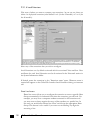
This section tells TalkSwitch about the telephone lines plugged into its back panel.
Simply select a line and fill in the information. For each line there is a status message
(“Line detected at initialization”) indicating if TalkSwitch detected a line plugged
into each of its line port. If a line is plugged into a line port and is not detected, check
your telephone line, and then choose File>Retrieve settings to update the screen.
In the “Phone numbers” section:
Enter the 'main' telephone number for the appropriate line connected to
TalkSwitch. Enable the Distinctive Ring Numbers 1 and/or 2 if you have this
service on the current line and wish to have incoming calls handled 'differently'
14
Talkswitch User Manual
on the basis of the distinctive ring. If you want Distinctive Ring numbers handled
the same way as your 'Main' number, do not place a check mark in the box.
Next, enter the 'Distinctive Ring' telephone number for each of the Distinctive
Ring numbers associated to this line. Distinctive Ring 1 corresponds to any
double ring pattern. Distinctive Ring 2 corresponds to any triple ring pattern.
In the “Other telephone company services” section:
Select any of the Telephone Company Services that you currently have for each
line. The following is an explanation of each service and the impact of selecting
each option with respect to how TalkSwitch handles calls.
3-Way Calling/Conference/Centrex Transfer:
If you select this option, TalkSwitch can work with this service to
forward calls to Remote Extensions or other external phone numbers
while using the same line (Same Line Connect). You can also use this
service as an option for bridging calls to external numbers when
calling into TalkSwitch from the outside. See Appendix B for a
definition of 3-Way Calling/Conference and Centrex.
Call Waiting:
Enable this option if you have Call Waiting service on the current
line.
Any other Flash activated service:
Enable this option if you use any other service that requires the use
of a flash or link key other than 3-Way Calling/Conference, Transfer
or Call Waiting.
Caller ID:
Enable this option if the current line provides Caller ID information
(service provided by your local telephone company). TalkSwitch will
pass on the Caller ID information to selected extensions. Also,
TalkSwitch can use the time information provided by Caller ID to
update TalkSwitch’s internal clock. (see section 2.3.4.3).
Telephone Company Voicemail:
Enable this option if you are subscribed to a Telephone Company
Voicemail service. If this service is enabled on a specific line, calls
can be routed to this voicemail service.
Hunt/Rollover:
Enable this option if the current line is associated with a Line Hunt or
Line Rollover service from the Telephone Company. You cannot use
the Auto Callback feature on that particular line if you have Hunt or
Rollover enabled. In general, any lines that belong to a Hunt/Rollover
group should be configured to handle calls the same way.
2.0
Configuring Talkswitch
15
In the “Calibration” section:
After you have configured the lines, it is recommended that you calibrate the
lines. Completing this procedure optimizes your telephone line volume levels for
the Call Bridge and Call Forwarding (with Remote Extensions) features.
Note: Only Lines that are detected are able to be calibrated.
2.3.1.2 Line Hunt Groups
There are a total of 9 Line Hunt Groups for controlling outgoing call line selections.
These Line Hunt Groups are used by the Local Extensions, Remote Extensions and
when using the Call Bridge feature. Each Hunt Group can support several line
choices and will attempt to grab an available line in the order that they are listed
(Lines to hunt) for that Hunt group.
The default setup:
16
Hunt Group 9:
selects any available line
Hunt Group 81:
selects Line 1
Hunt Group 82:
selects Line 2
Hunt Group 83:
selects Line 3 (for the TalkSwitch 48 LS only)
Hunt Group 84:
selects Line 4 (for the TalkSwitch 48 LS only)
Talkswitch User Manual
First select a Line Hunt Group then name the group(s) if desired.
Under Set Line Hunt Group, select the lines you wish to add to the Hunt Group from
the left column 'Lines available', then click the '>>' button to move it to the right
column 'Lines to hunt'. Repeat this process for the other Hunt Groups.
2.3.1.3 Fax Information
The information in this tab helps configure TalkSwitch to handle faxes.
If you have a dedicated fax line or a Distinctive Ring number for faxing associated to
a line, please choose this ‘Fax number’ in the list. If you don’t have a line dedicated
for inbound faxing, select ‘none’. If you do not see your fax number in the list, make
sure you have activated the appropriate line or Distinctive Ring number in the
Telephone Lines section under System Information.
Next, select the extension number where you have your fax device connected. For
example if you have your fax machine connected to E8 on the rear of the TalkSwitch,
then select extension number 118.
By default, when both a dedicated line and fax extension have been selected, the
software automatically configures the incoming call handling properties for that line
to ring only the fax extension you specified on this page.
2.0
Configuring Talkswitch
17
2.3.1.4 Local Extensions
Take note of where you want to connect your extensions. As you can see, there are
either 4 or 8 physical extension jacks labeled 1 to 4 (for the 24 models) or 1 to 8 (for
the 48 models).
Select any of the extensions that you wish to configure.
Local Extensions are by default activated with the associated Voice mailbox. Voice
mailboxes for each Local Extension can be de-activated in the Voicemail section in
the System Information folder.
If desired, name the extension in the 'Extension name' space. Whatever name is
entered will appear on the Caller ID of another Local Extension during an intercom
call.
Direct Line Access:
Direct line access allows you to configure the extension to access a specific Hunt
Group automatically for outbound calls when the extension goes off hook. For
example, you may have a computer modem connected to this extension and
you may want to always restrict the usage of that modem to a specific line. In
this case you would select 'Direct line access' and choose the appropriate Hunt
Group. This feature is also useful if you want to avoid dialing any digits for
accessing a line.
18
Talkswitch User Manual
Hunt Group Access:
This is used if you want to permit or restrict specific Hunt Group access to the
extension. Click the button and simply organize the appropriate Line Hunt
Groups that are permitted for this extension. (All extensions are defaulted to
have no restrictions.)
Warning: When using Direct Line Access, telephone company line dialtone is first
available when picking up the handset. The following features are only available from
TalkSwitch internal dialtone: Intercom Calling, Hold Retrieve, Line Hunt Groups,
Voicemail Retrieval/Access, Call Pick Up, P.A. Access, Parked Call Retrieval, Do Not
Disturb functions and entering Command Mode. To obtain internal dialtone from an
extension which has Direct Line Access enabled, dial 'flash' 4.
2.3.1.5 Remote Extensions
With TalkSwitch's Remote Extensions, you can have calls forwarded directly from
your home/office to any phone number you choose. Your cell phone, pager or any
out-of-office number becomes a 'Remote Extension' of your office system. You can
have calls forwarded directly or screen callers. If you are unavailable or choose not
to accept calls, they can be transferred back to your office (e.g. to voicemail or
another extension) or forwarded to another out-of-office telephone number (e.g. to
a business partner's cell phone) depending upon the Cascade configuration.
2.0
Configuring Talkswitch
19
TalkSwitch assigns a Remote Extension number to each call forwarding telephone
number. Calls can then be forwarded by the Auto Attendant or transferred by someone
in your office simply by dialing the Remote Extension number. There are 8 Remote
Extensions available per TalkSwitch unit.
Choose a Remote Extension to configure. After you have activated a Remote
Extension, you must first enter the phone number information. Once completed, the
Remote Extension is active.
Remote phone number:
Enter the phone number of the Remote Extension (note: no specific prefixes are
required - put the number in just as though you were dialing it from a regular
phone). You may use the following in the space provided: digits 0 - 9, space,
comma, dash, # and *.
Extension name:
If desired, name the extension in the 'Extension name' space.
Connect using:
Select the Line Hunt Group that TalkSwitch will use to connect to that Remote
Extension. For example if you have an inexpensive long distance carrier setup
for the lines in Hunt group 84, you may want to use this Hunt Group for your
long distance Remote Extensions.
Use Same Line Connect
Clicking this option allows incoming calls, when forwarded to the Remote
Extension, to use the same line in which the originating call came in. Using
this feature allows only one line to be used when forwarding incoming calls to
a Remote Extension. This feature can only be used when the line in which the
originating call came in on has the 3-Way Calling/Conference or Transfer
(Centrex/Plexar) service. If the line does not have any of these services, the call
will be forwarded using the Hunt Group chosen in the “Connect using:”
section.
20
Talkswitch User Manual
2.3.1.6 Extension Ring Groups
There are a total of 10 Extension Ring Groups available for your use. Ring Groups
are extensions 300 to 309. By default, extension 300 is configured to ring all
extensions.
Different uses for Extension Ring Groups:
Example 1: You are the president of a company and you don't want to handle
calls from the general public, yet you want to be alerted when your important
colleagues try to contact you. Your regular Local Extension may be 111 for
most people, but you can also configure a Ring Group such as extension Ring
Group 300 to ring your extension with a different ring pattern. You then tell
your colleagues to always choose extension 300 at the Auto Attendant or ask to
be transferred to extension 300 when speaking to someone in the office. Now
without being subscribed to Caller ID, you can tell just by how your phone rings
if you consider the caller to be important or not.
Example 2: You have a company with several departments . You may want to
configure Extension Ring Group 300 for the Sales Department, in which case it
will ring extensions 111, 112, 113, and 114. You may want to also set up Ring
Group 301 for Technical Support, in which case it will ring extensions 115 and
116.
2.0
Configuring Talkswitch
21
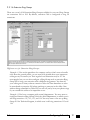
First select an Extension Ring Group (300-309) that you would like to configure and
activate it.
You will notice that a Ring Group must have extensions listed in the ‘Extensions to
ring’ section to allow access to the other information on the tab. If desired, name the
extension in the 'Ring Group name' space.
Ring pattern:
Choose how you want the phone(s) to ring for the Ring Group.
In the “Set Ring Group” section:
To configure, select each extension that you wish to add to that Ring Group
from the left column 'Extensions available', then click '>>' to move it to the
right column 'Extensions to ring'. Repeat this process for each of the Extension
Ring Groups activated. If you wish to remove an extension from a Ring Group,
highlight that extension in the right column then click the '<<' button.
Extensions available:
This is the list of available extensions from which the Extension Ring Group
may be built. Only active extensions will be available to add to the Ring
Group.
Extensions to ring:
This is the list of extensions that will ring when the Extension Ring Group
is selected from the Auto Attendant or Local Extension. All extensions listed
will ring simultaneously when this Ring Group is dialed from an extension
or at the Auto Attendant.
22
Talkswitch User Manual
2.3.1.7 Voicemail
This tab deals with the internal voicemail system included with TalkSwitch. It allows
you to activate General, Local and Remote mailboxes and view mailbox status.
In the “General mailbox activation” section:
This section allows you to activate General mailboxes as either a mailbox or an
announcement. All activated general mailboxes will be accessible from any
extension’s Call Cascade sequence.
In the “Local mailbox activation” section:
This section allows you to activate Local mailboxes as either a mailbox or an
announcement. All activated mailboxes will be accessible from any extension’s
Call Cascade sequence.
In the “Remote mailbox activation” section:
This section allows you to activate Remote mailboxes as either a mailbox or an
announcement. All activated mailboxes will be accessible from any extension’s
Call Cascade sequence.
2.0
Configuring Talkswitch
23
Record Mailbox Greeting:
Selecting this button brings up a dialog
screen which displays instructions for
recording mailbox greetings or
announcements. Simply follow the
instructions. By default, all mailboxes
will use the standard greeting until you
record a personal greeting.
View Mailbox Data:
Pressing this button brings up a dialog screen which displays memory usage of
the internal voice mailboxes including greeting time, message time and
number of messages.
Reset Mailbox Password:
Selecting this button brings up a dialog screen which allows you to reset the
password for any mailbox. This may be useful if someone has forgotten their
password or someone has left the company. If you want to reset a voice mailbox
completely, use the Voicemail manager located under the Utilities menu.
24
Talkswitch User Manual
2.3.1.8 Music-on-hold
If you wish to have callers listen to music or advertising while they are on hold, you
will need to enable Music-on-hold in this tab.
Note: If you connect a music source to the Music jack and do not enable Music-onhold, the caller will hear both music and a beep sound when on hold. Also when the
caller makes a selection at the Auto Attendant to go to an extension that has call
screening enabled, they will hear both ringing and music.
2.0
Configuring Talkswitch
25
2.3.2
Call Handling
2.3.2.1 Modes
The use of Modes allows you to run different call handling configurations at different
times. For example, you may want calls handled one way during business hours and
another way for non-business hours. Modes can be switched either manually or
automatically with the use of Automatic Mode Switching.
Name the modes if desired. The labels will be displayed elsewhere in the
configuration software whenever modes are used.
To use the Automatic Mode Switching feature, you must first activate it by clicking
'Use Automatic Mode Switching'. Next, set the start times for each mode. If you want
TalkSwitch to change modes more than twice in one day, you can activate up to two
extra mode changes for that day.
If you do not want to use Automatic Mode Switching, you can still switch modes
manually in the software or through any telephone using touch tone commands. Enter
command mode by dialing
then your password if required. Next, dial any of the
following commands followed by
to confirm.
31
Changes TalkSwitch to mode 1
32
Changes TalkSwitch to mode 2
30
TalkSwitch tells you what mode it currently is using
26
Talkswitch User Manual
2.3.2.2 Auto Attendant
The purpose of the Auto Attendant is to greet callers and instruct them as to which
number(s) they should press on their telephone keypad to reach a particular
extension, person, message, or department.
A total of 9 different Auto Attendants can be recorded with a combined total time of
25 minutes (shared with voicemail, but can be expanded on the TalkSwitch 48-LS
using TalkSwitch Memory cards). You do not have to use or record all 9 Auto
Attendants.
The Auto Attendants can be recorded from any Local Extension or remotely using
touch tone commands.
Recording Auto Attendant messages using touch tone commands:
Pick up any Local Extension or dial into TalkSwitch and at the Auto
Attendant enter command mode by pressing . If you have the
Administrator password enabled, you need to enter this password.
Next, begin entering any of the following touch tone commands (these
instructions are also available by pressing the 'Record Auto Attendant'
button on the Auto Attendant tab. After entering a command, you will
need to press
to confirm the entry before entering another
command or exiting command mode. To exit command mode,
press
or hang up.
2.0
Configuring Talkswitch
27
Auto Attendant
1
2
3
4
5
6
7
8
9
Record message
41
42
43
44
45
46
47
48
49
Playback message
51
52
53
54
55
56
57
58
59
Erase message
041
042
043
044
045
046
047
048
049
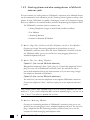
Example: Recording and playing back Auto Attendant
1. Press
to enter command mode, then dial 4 1 .
2. After the tone record your Auto Attendant message. Press
finished.
3. Press 5 1
to listen to your recording.
when you have
Note: If you have the Administrator password enabled, you will need to enter this
password after you hit
the first time to enter command mode.
Recording Auto Attendants from an out-of-office phone:
1. Dial into TalkSwitch and wait for the Auto Attendant message.
2. Once the Auto Attendant is playing, use the same keypad commands as you
would from a TalkSwitch extension (in the 'Recording Auto Attendants
using touch tone commands:' section). If you have Password Protection
enabled, you will be prompted for your password.
In the “At the Auto Attendant, perform the following actions:” section:
For each Auto Attendant, you can configure how you want TalkSwitch to handle
calls when a caller selects '0', '4', '5', makes 'no selection' or if a 'fax call is
detected'.
If 0 is dialed:
If the caller presses '0' at the specified Auto Attendant, TalkSwitch can
perform no action, or, route the call to any Local or Remote Extension,
Ring Group, Voice mailbox, Auto Attendant, or Announcement.
If 4 is dialed:
If the caller presses '4' at the specified Auto Attendant, TalkSwitch can
perform no action, or, route the call to any Local or Remote Extension,
Ring Group, Voice mailbox, Auto Attendant, or Announcement.
28
Talkswitch User Manual
If 5 is dialed:
If the caller presses '5' at the specified Auto Attendant, TalkSwitch can
perform no action, or, route the call to any Local or Remote Extension,
Ring Group, Voice mailbox, Auto Attendant, or Announcement.
If no selection is made:
If no selection is detected at the specified Auto Attendant, TalkSwitch can
route the call to any Local or Remote Extension, Ring Group, Voice
mailbox, Auto Attendant, Announcement or simply hang up. This feature is
included in case someone does not have a touch-tone phone or it may be a
fax call. It can also be used to forward calls immediately after the Auto
Attendant answers the call. You will notice that you can specify the length of
time after the Auto Attendant has finished playing before it performs the ‘no
selection’ action.
If a fax call is detected:
If TalkSwitch detects a fax call (by CNG detection), it has the ability to route
it to a Local or Remote Extension or if you do not want to use fax detection,
you can have TalkSwitch perform no action when detecting a fax call.
Fax calls are detected by what's called a CNG tone. If a fax machine sends this tone
while trying to establish a connection to a fax machine connected to TalkSwitch,
TalkSwitch will handle the call accordingly.
Auto Attendant Messages:
Play Instructions
Selecting this button displays a
dialog box showing the instructions
on how to listen to an Auto
Attendant using a telephone and
there is also a playback volume
control. Adjust the volume to a
comfortable level without distortion.
If you hear clipping or distortion at
any volume level, it may be that
your Auto Attendant recording level
was set too high when you recorded
your Auto Attendant.
2.0
Configuring Talkswitch
29
Record Instructions
Selecting this button displays a
dialog box showing the
instructions on how to record and
playback an Auto Attendant using
a telephone. There is also a record
volume control. Adjust the volume
to a comfortable level without
distortion. If you hear clipping or
distortion at any volume level, it
may be that your Auto Attendant
recording level was set too high
when you recorded your Auto
Attendant.
Erase Instructions
Selecting this button displays a
dialog box showing the
instructions on how to erase an
Auto Attendant using a telephone.
It is a good idea to erase any
unused Auto Attendants since they
share the same memory as
voicemail.
View Auto Attendant Memory Usage
Selecting this button displays the
amount of time used by all the
Auto Attendants. This feature helps
you keep track of memory usage as
you may have unused Auto
Attendant messages that can be
deleted to free up more memory.
30
Talkswitch User Manual
2.3.2.3 Telephone Lines
This section deals with how TalkSwitch will handle incoming calls based on the
incoming line and ring cadence (distinctive ring numbers).
First select a line to configure then the appropriate mode you want TalkSwitch to use
these settings.
Play Auto Attendant:
If you wish to have the Auto Attendant answer calls to give callers options, select
the appropriate Auto Attendant and number of rings before the Auto Attendant
answers . The caller will always hear one more ring than the number of rings
you select since TalkSwitch uses the first ring to determine the ring type and
support Caller ID information.
Ring extensions only (no Auto Attendant is played):
If you don’t want the Auto Attendant to answer calls on this line, then select this
option. By default all the Local Extensions are set to ring immediately during
an inbound call.
2.0
Configuring Talkswitch
31
The next section controls how the extensions will ring before the Auto Attendant
answers the call.
• If you have chosen the Auto Attendant to answer calls immediately, this
section does not require configuration and will be greyed out.
• If the Auto Attendant is set to answer after 1 or more rings, then you can
configure when
specific extensions will ring before the Auto Attendant answers.
• If no Auto Attendant is chosen to answer on the specified line, then you can
configure when specific extensions will ring (up to 9 rings).
Extensions to ring on incoming call (before Auto Attendant answers):
Select the Local Extensions you would like to ring before the Auto Attendant
answers. By default, all activated Local Extensions will ring. If you require
certain extensions to ring in a sequence, i.e. one extension rings first, then
another on the 2nd ring, click the “Adjust Sequence” button to configure.
Adjust Sequence:
The next section controls how the extensions will ring before the Auto Attendant
answers the call.
• If you have chosen the Auto Attendant to answer calls immediately, this
section does not require configuration and will be greyed out.
• If the Auto Attendant is set to answer after 1 or more rings, you can then
configure when specific extensions will ring before the Auto Attendant
answers.
• If no Auto Attendant is chosen to answer on the specified line, then you can
configure when specific extensions will ring up to 9 rings.
Note: The extensions that ring on incoming calls, do not follow their respective Call
Cascade settings. The Call Cascade options only occur after a call has passed through
an Auto Attendant.
2.3.2.4 Local Extensions
This section configures the incoming Call Cascade options for the Local Extensions.
The Call Cascade routing options are only engaged if the extension is chosen from
the Auto Attendant or if a call is manually transferred to the extension. Once a call
enters an extension’s Call Cascade sequence, the extension “owns” the call. It will not
follow any other extension’s options even if chosen in the Cascade sequence - what
you see in an extension’s Cascade sequence is exactly what you will get. You can set
up the Call Cascade sequences differently for both scheduling modes (the scheduling
for these modes are set up on the Modes tab).
32
Talkswitch User Manual
For Local Extensions, there are 4 different 'Call Cascade' situations; Busy at
extension, No answer at extension, Answer at extension(routing when a call is
rejected) and Do not Disturb (when turned on at an extension). For each of these
situations, you can control how and where you want the incoming call to the
extension handled with up to 3 'cascade' destinations available.
1. Busy at extension - routing options when this extension is busy
Cascade options include forwarding calls to a Local Extension, Remote
Extension, Extension Ring Group, built in Voicemail, Announcement, Auto
Attendant, play busy tone (for example: used if a fax machine is at the
extension), queue caller, or hang up. For more information on these
features, see chapter 3.0 - Using TalkSwitch.
2. No answer at ext. - routing options when this extension does not answer
after a specified number of rings.
Cascade options include forwarding calls to a Local Extension, Remote
Extension, Extension Ring Group, built in Voicemail, Announcement,
Auto Attendant or keep ringing.
3. Answer at ext. - routing options when this extension 'rejects' a screened
call.
Selecting 'play caller’s name first' will prompt callers, when they choose this
extension at the Auto Attendant, to record their name. When you answer
the call at the extension, it will announce the caller (by playing their
recording), at which time you can choose to accept the call by pressing
or reroute the call to the Cascade options on this tab by either hanging up
2.0
Configuring Talkswitch
33
or pressing . Routing options include forwarding calls to a Local
Extension, Remote Extension, Extension Ring Group, built in Voicemail,
Announcement, Auto Attendant or hang up. In the case where ‘hang up’ is
selected, TalkSwitch will first play the following prompt before hanging up:
“I’m sorry, that extension is unavailable at this time. Please try again later.”
4. Do not Disturb - routing options when this extension has engaged the 'Do
not Disturb' feature
The Do not Disturb feature is turned on (by dialing 61) or off (by dialing
60) from the extension’s handset. Cascade options include forwarding
calls to a Local Extension, Remote Extension, Extension Ring Group, built
in Voicemail, Announcement, Auto Attendant or hang up. When Do not
Disturb is enabled, you will hear “Do not disturb on” before the dialtone as
a reminder since no calls will ring through to your extension. You may still
dial any digits during this prompt.
In the Cascade sequence, only choosing an extension (Local, Remote or Ring Group)
will allow you to choose an option in the next line. Any other selection (Voicemail,
Announcement, Auto Attendant, Queue, Busy signal, Keep ringing and Hang up) is
considered an end-of-call option. Note as well that the last line in the Cascade
sequence only allows the choice of an 'end-of-call' option. This is done so the chance
of a caller being “looped” within the system is removed.
Adding selections to a Call Cascade that are not yet configured:
If while configuring the Cascade sequence you require a Local Extension,
Remote Extension, Ring Group, Voice mailbox or Announcement that has not
been activated as yet, (i.e. not displayed in the extension number drop-down
list) you can easily add the required selection by choosing 'new'. If chosen, a
screen will appear (depending upon which type is chosen). Simply fill in the
required information to add the new option to the selectable list.
The information given in the 'Add new...' screens will be reflected within their respective
sections. For example, if you add a new Remote Extension (let’s say 211), when you
go to the Remote Extensions section you will see that extension 211 has the information
previously filled in the 'Add new Remote Extension' screen. You will also note that not
all the information displayed in the extension tabs are available in the 'Add new...'
screens. This is because only the information that effects the original extension’s Call
Cascade functionality is offered.
34
Talkswitch User Manual
2.3.2.5 Remote Extensions
This section allows you to configure the incoming Call Cascade options for the
Remote Extensions. The Call Cascade routing options are only engaged if the
extension is chosen from the Auto Attendant or if a call is manually transferred to the
extension. Once a call enters an extension’s Call Cascade sequence, the extension
“owns” the call. It will not follow any other extension’s options even if chosen in the
Call Cascade sequence - what you see in an extension’s Call Cascade sequence is
exactly what you will get. You can set up the Call Cascade sequences for both modes
(the scheduling for these modes are set up in the Modes tab).
For Remote Extensions, there are 3 different 'Call Cascade' options. For each of these
options, you can control how and where you want the incoming call to the extension
handled with up to 3 'cascade' destinations available.
1. Busy at extension - routing options when this extension is busy
Cascade options include forwarding calls to a Local Extension, Remote
Extension, Extension Ring Group, built in Voicemail, Announcement,
Auto Attendant, play busy tone or hang up.
2. No answer at ext. - routing options when this extension does not answer
after a specified number of rings.
Cascade options include forwarding calls to a Local Extension, Remote
Extension, Extension Ring Group, built in Voicemail, Announcement or
Auto Attendant, keep ringing or hang up.
2.0
Configuring Talkswitch
35
3. Answer at ext. - routing options when this extension 'rejects' a call.
With Remote Extensions you have the choice between two different Call
Screening methods, 'play accept/reject prompt' and 'play caller’s name
first'. Selecting 'play accept/reject prompt' will prompt the Remote
Extension when answered by stating “This is call forward”. Selecting 'play
caller’s name first' will prompt callers to record their name. When you
answer the call at the extension, it will announce the caller (by playing
their recording). After hearing either message, the Remote Extension can
choose to accept the call by pressing
or reroute the call to the Call
Cascade options on this tab by either hanging up or pressing . Routing
options include forwarding calls to a Local Extension, Remote Extension,
Extension Ring Group, built in Voicemail, Announcement, Auto Attendant
or hang up.
If you select ‘stay connected’ you will notice that the Call Cascade options
are greyed out. TalkSwitch can only control forwarded calls when prompting is enabled. Also, if you use one of the prompted methods for this Remote
Extension, have Music-on-hold enabled, and are not using 3-way calling to
forward calls to this Remote Extension, the Call Cascade will be seamless to
the caller as they will only hear music throughout the entire process of
trying to locate you.
If a call is forwarded to a Remote Extension from a Call Cascade sequence and has
either ‘play caller’s name first’ or ‘play accept/reject prompt’ enabled, the person will
hear “This is Call Cascade...” instead of “This is Call Forward...”. This is done so that
you know when the call is rejected, it will send the caller to the next Call Cascade
option of the extension that forwarded the call and not follow the Remote Extension’s
‘Answer at ext.’ Call Cascade options.
36
Talkswitch User Manual
2.3.2.6 Extension Ring Groups
The following section configures the incoming call routing options for Ring Groups.
The Call Cascade routing options are only engaged if the Ring Group had been
chosen from the Auto Attendant or if a call had been manually transferred to the
Ring Group. Once a call enters a Ring Group’s Call Cascade sequence, the Ring
Group “owns” the call. It will not follow any other extensions options even if chosen
in the Call Cascade sequence - what you see in a Ring Group’s Call Cascade sequence
is exactly what you’ll get.
For Ring Groups, there are 3 different Call Cascade options. For each of these options,
you can control how and where you want the incoming call handled with up to 3
'cascade' destinations available. You can set up the Call Cascade sequences for both
Modes (the scheduling for these modes are set up on the Modes tab).
1. Busy at extension - routing options when all the extensions in the Ring
Group are busy
Cascade options include forwarding calls to a Local Extension, Remote
Extension, Extension Ring Group, built in Voicemail, Announcement,
Auto Attendant, play busy tone or hang up.
2. No answer at ext. - routing options when all the extensions in the Ring
Group do not answer after a specified number of rings.
Cascade options include forwarding calls to a Local Extension, Remote
Extension, Extension Ring Group, built in Voicemail, Announcement,
Auto Attendant, keep ringing or hang up.
2.0
Configuring Talkswitch
37
3. Answer at ext. - routing options when any of the extensions in the Ring
Group 'rejects' a screened call.
Selecting 'play caller’s name first' will prompt callers (when they choose
this Ring Group at the Auto Attendant) to record their name. When you
answer the call at a Ring Group extension, it will announce the caller (by
playing their recording), at which time you can choose to accept the call by
pressing
or reroute the call to the Cascade options on this tab by either
hanging up or pressing . Routing options include forwarding calls to a
Local extension, Remote Extension, Extension Ring Group, built in
Voicemail, Announcement, Auto Attendant or hang up.
2.3.3
Call Back / Call Bridge
Working together, Call Back and Call Bridge act as your personal long distance
operator. Whether you are across town or around the world, you can place calls from
your home/office telephone line(s) accessing your long distance savings plan. Call
Bridge allows you to place calls from your office telephone lines when you are not in
the office. You can make a direct call to TalkSwitch, activate Call Bridge and enter
the telephone number you want to dial. TalkSwitch dials the number from your
home/office telephone lines and connects the two calls together (the call you made
to TalkSwitch and the call TalkSwitch made from your home/office to the dialed
party).
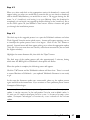
Here is how it works:
Step 1: Call your TalkSwitch
telephone number to
activate Call Back.
Hang up.
Step 2: TalkSwitch calls you
back within 10 seconds.
You answer and accept
Call Back. Your Auto
Attendant will play or if
you have none recorded,
the TalkSwitch message
will play.
38
Talkswitch User Manual
Step 3: You can now access
any TalkSwitch extension,
voice mailbox or use
Call Bridge to make calls
around the globe just as
if you were sitting in
your own office.
There are two ways to activate Call Back:
1. Auto Call Back - Auto Call Back is immediate and eliminates the initial
long distance call charge required to activate Call Back. When using Auto
Call Back, all the Call Back settings must be pre-configured before Call
Back is activated. To use Auto Call Back activation, simply dial your
home/office telephone number, let the call ring twice and then hang up.
Call Back is instantly activated!
2. Prompted Call Back - Prompted Call Back offers the convenience of
entering or changing your Call Back telephone number and message each
time Call Back is activated. To use Prompted Call Back activation, simply
dial your home/office telephone number. When the Auto Attendant answers
your call, you dial ‘6’ to access the Call Back settings through a series of
prompts which allow you to:
a) Enter the telephone number where you would like TalkSwitch to
call you.
b) Record an 'Announced' message if required. Call Back will be
activated right after you initiate Prompted Call Back and hang
up. It is important to remember that a small initial long
distance charge will be incurred at your current location when
activating Prompted Call Back.
2.0
Configuring Talkswitch
39
2.3.3.1 Auto Call Back
There are 4 Auto Call Back numbers that can be configured. Choose an Auto Call
Back to configure and then activate it.
Initiate Call Back using:
Select the line/phone number when out of the office that you will be dialing to
activate the Call Back. TalkSwitch will initiate the Call Back using the same
line you initially called. You can also configure this Call Back by dialing into
this phone number only.
Call Back number:
Enter the Call Back number. This phone number should be entered exactly as
you would normally have to dial the number from this line (i.e. do not enter a
Line Hunt Group in the dialing string).
Use dialing prefix:
If you usually have to dial the same prefix when using Auto Call Back (for
example a long distance calling card number), you may want to enable 'Use
dialing prefix with Call Back number'. Enter the dialing prefix including any
required pauses or feature keys such as
or . The corresponding key for
inserting a 2-second pause is the comma. For example, if you want to disable
Call Waiting and want to dial a long distance prefix before dialing the long
distance number you could enter the following:
*70,1010555,, This corresponds to 70 for disabling the
Call Waiting feature, a 2 second pause to wait for the new dialtone,
40
Talkswitch User Manual
then 1010555 for the long distance prefix, and a 4 second pause to
wait for the new dialtone before dialing the actual long distance
phone number.
In essence this saves you the hassle of having to always enter the same prefix
every time you want to set up an Auto Call Back phone number.
Use Password on Call Back:
This option is designed to give you security and to restrict who can use this
particular Call Back number. Simply fill in a 4 to 8 digit password for the Call
Back. When TalkSwitch calls you back, you will be prompted to input the
password to accept Call Back to access Call Bridge or any TalkSwitch extension.
Use Announced Message:
This option is recommended if the number TalkSwitch will be calling back
corresponds to a hotel or a location where somebody else will be answering the
call. The Announced Message option allows you to record a message that will be
played when the call is initially answered during a Call Back. For example, you
may want to say "Please transfer this call to Bob in room 307". When the hotel
receptionist gets the Call Back and hears this message, they will know to
transfer the call to your room.
The Announced Message can be recorded using an extension handset or
remotely when you access Call Back from the Auto Attendant. The Record
message button gives the instructions to record the message. They are as
follows:
Pick up a telephone handset connected to the TalkSwitch and use
the following keypad commands to record the specific Auto Call
Back Announced Message:
1) Press
to enter command mode. If required, enter the
password.
2) Next, enter the appropriate command as listed below. After each
command, press
to confirm the entry.
Auto Call Back
Recording
Playback
1
61
71
2
62
72
3
63
73
4
64
74
If you need to configure and/or record an Announced Message from a remote location
and do not have the Auto Attendant set to answer this Call Back line, you can call your
Call Back number and let it ring 15 times. A generic Auto Attendant will answer and
you will can configure Call Back by pressing 6.
2.0
Configuring Talkswitch
41
Allow Call Bridge:
To allow Call Bridge after a Call Back has been accepted, check the Allow Call
Bridge box. You may also restrict the Hunt Group access using Call Bridge from
this Call Back by choosing the Hunt Group Access button. By default, Call
Bridge is enabled when Call Back is activated. You will not be prompted for
another password when you choose a Hunt Group at the Auto Attendant.
When entering a Call Back phone number using a telephone, you can enter special
characters using a special prefix. The default prefix is the
key. To enter a
in a
dialing string you will need to dial
, for a 2 second pause dial
0, and for a
, dial
. When you have completed the entire dial string you need to dial
.
2.3.3.2 Prompted Call Back
Call Back number.
This phone number should be entered exactly as you would normally have to
dial the number from this line (do not enter a Line Hunt Group in the dialing
string). TalkSwitch will Call Back out on the same line the call originated.
When you access Prompted Call Back from out of the office, you may change this
number before activating. This is the benefit of Prompted Call Back - you do not need
to preset the number before you leave the office.
42
Talkswitch User Manual
Use dialing prefix with Call Back number:
If you usually have to dial the same prefix when using Prompted Call Back (for
example a long distance calling card number), you may want to enable 'Use
dialing prefix with Call Back number'. Enter the dialing prefix including any
required pauses or feature keys such as * or #. The corresponding key for
inserting a 2-second pause is the comma. For example, if you want to disable
Call Waiting and want to dial a long distance prefix before dialing the long
distance number you could enter the following:
*70,1010555,, This corresponds to 70 for disabling the Call Waiting
feature, a 2 second pause to wait for the new dialtone, then 1010555
for the long distance prefix, and a 4 second pause to wait for the new
dialtone before dialing the actual long distance phone number.
In essence this saves you the hassle of having to always enter the same prefix
every time you want to set up a Prompted Call Back phone number.
Use password on Call Back:
This option is designed to give you security and to restrict who can use
Prompted Call Back. Simply fill in a 4 to 8 digit password and when TalkSwitch
calls you back, you will be prompted to input the password to accept Call Back
to access Call Bridge or any TalkSwitch extension.
Use Announced message:
As with described in the Auto Call Back section, this option is recommended if
the number TalkSwitch will be calling back corresponds to a hotel or a location
where somebody else will be answering the call. The Announced message
option allows you to record a message that will be played when the call is
initially answered during a Call Back. For example, you may want to say
"Please transfer this call to Bob in room 307". When the hotel receptionist gets
the call and hears this message, they will know to transfer the call to Bob’s
room.
The Announced Message can be recorded using an extension handset or
remotely when you access Call Back from the Auto Attendant. The Record
message button gives the instructions to record the message. They are as
follows:
Pick up a telephone handset connected to the TalkSwitch and use
the following keypad commands to record the Prompted Call Back
Announced Message:
1) Press
to enter command mode. If required, enter the password.
2) Next, enter the appropriate command as listed below. After each
command, press # to confirm the entry.
To record message:
65
To playback message: 75
2.0
Configuring Talkswitch
43
Allow Call Bridge:
To allow Call Bridge after a Call Back has been accepted, check the Allow Call
Bridge box. You may also restrict the Hunt Group access using Call Bridge from
this Call Back by choosing the Hunt Group Access button.
The call back number shown will always be the last number TalkSwitch dialed in the
last Prompted Call Back session.
When entering a Call Back phone number using a telephone, you can enter special
characters using a special prefix. The default prefix is the
key. To enter a
in a
dialing string you will need to dial
, for a 2 second pause dial
0, and for a
, dial
. When you have completed the entire dial string you need to dial
.
2.3.3.3 Call Bridge
How to use Call Bridge:
1. Call into TalkSwitch from any out-of-office telephone.
2. At the Auto Attendant message, dial the Hunt Group you know you have the
account password for, (let’s say it’s 9 - the default) you will then be prompted
for the account password.
3. You dial the password and then the
key to access a TalkSwitch telephone
line.
4. At this point you can dial a number as though you were sitting in the office.
44
Talkswitch User Manual
There are four Call Bridge accounts activated by passwords. Each account can be
configured to allow access to certain Hunt Group(s) when using Call Bridge. To
activate an account, check the ‘Activate Call Bridge’ box and fill in a 4 to 8 digit
password. Next, select ‘Hunt Group Access’ and assign the Hunt Groups you want to
make available for this account.
Call Bridge account passwords are only valid when using Call Bridge by itself, not
when used in conjunction with Call Back.
2.3.4 Options
2.3.4.1 Administrator Password
This tab allows you to set up the Administrator password for TalkSwitch. The
Administrator password gives access to all configuration options. The password that
is entered here will be used at configuration start-up and through DTMF
configuration.
Administrator password:
To activate the use of an administrator password, enter a 4 to 8 digit password
and then confirm the password. Next, click the ‘Verify Password’ button to have
the software validate the password.
If there is a problem with the password, you will need to re-enter the password
and then confirm it. If you do not want a password or want to delete the
2.0
Configuring Talkswitch
45
existing password, simply clear the password field and click ‘Verify Password’.
TalkSwitch will no longer require a password for configuration.
If the administrator forgets their password, the only option to gain access to the
configuration settings is to contact Centrepoint Technologies.
2.3.4.2 Manual Transfer
This section deals with actions TalkSwitch makes when calls are transferred
manually.
Transferring a caller to a Local Extension:
When performing this action, in the case of the extension not answering or
being busy, you have the choice of TalkSwitch either ringing back the extension
who transferred the call or performing the “no answer” or “busy” action of the
extension who the call was intended for.
You also have the choice to adjust this setting for both the Remote Extensions and
Extension Ring Groups.
46
Talkswitch User Manual
Transferring from a Home phone:
You can transfer a call from a phone connected in parallel to one of the
incoming TalkSwitch lines (Home phone) to a Local or Remote Extension,
Extension Ring Group, an Announcement, or a Voice mailbox. This section
allows you to choose which transfer prefix you would like to use to perform the
action. The transfer prefix ‘wakes up’ TalkSwitch and can be considered the
equivalent of the Flash or Link action at a Local Extension. By default the
prefix is
.
Example: Let’s say you receive a call on a phone in your home that is not an
extension of TalkSwitch and you want to transfer the caller to Remote
Extension 215. You would then dial
, wait for the ‘double beep’ then dial
215 and hang up. TalkSwitch will now handle the call.
2.3.4.3 Miscellaneous
All of the following options affect TalkSwitch as a system. Adjust them according to
your needs.
Caller in queue reminder
When a caller is in queue at an extension which is off-hook, a reminder tone is
played at the extension to let them know they have a caller in their queue. This
option allows you to turn off this function.
2.0
Configuring Talkswitch
47
Call Back ring return
You can adjust the number of rings during a Call Back session before
TalkSwitch disengages the Call Back (i.e. hangs up). Depending upon the
situation you may want to give yourself more time to pick up and accept the
Call Back by increasing the number of rings.
If being used with another PBX
This feature can only work with PBXs that use "flash-hook" as its transfer method. Please
contact your PBX manufacturer for transfer details.
PBX extension length:
If TalkSwitch is being used as an Auto Attendant with another PBX, you
can set the number of digits the PBX uses for its extensions. This allows
TalkSwitch to know what digits to pass on to the PBX to complete the
transfer.
Setting up TalkSwitch behind an existing PBX:
1. Connect the PBX extension to one of TalkSwitch’s Line jacks. You may do
this with all your TalkSwitch lines (1 PBX extension per line) depending
upon how many Auto Attendant ports you would like on the PBX.
2. Configure your PBX on incoming calls to ring the extensions you have
allocated to the TalkSwitch Lines.
3. Configure TalkSwitch’s Auto Attendants to answer at which ring (answer
immediately is used most commonly).
4. Record your Auto Attendants. The Auto Attendants should indicate that the
digit '7' with the PBX extension should be dialed.
For example: If you have chosen the PBX extension length to be 3 digits (and
let's say John Doe's extension is 111 on the PBX), the Auto Attendant should say
"To speak with John Doe, press 7111…". Now when 7111 is dialed, TalkSwitch
puts the caller on hold and transfers the caller to extension 111.
Internal clock setting:
TalkSwitch can obtain time information from Caller ID for it’s internal clock. If
you have indicated that you do have Caller ID on any of the lines, this option
defaults to the active position. If it is de-activated, TalkSwitch can obtain it’s
time information from the time and date set in the ‘Mode’ tab under Automatic
Mode Switching. TalkSwitch’s clock information is used for Automatic Mode
Scheduling and for internal Caller ID information when intercom calls are
placed in the office.
48
Talkswitch User Manual
Prompt function key options:
Some phone cards and phone services use different keypad digits for some of
their features. Four options are given to allow flexibility with other systems. If
required, choose an option that best suits working with your phone card or
phone service. You can use these prefixes for entering phone numbers when
calling into TalkSwitch and using Call Back and Call Bridge using 3-way
calling.
The following describes how to input special prefixes depending upon which
key is used.
When using the
key:
When using the
key:
=
0 = 2 second pause
1 = Wait for dial tone
=
=
0 = 2 second pause
1 = Wait for dial tone
=
Example: You want to change the Prompted Call Back phone number remotely
and the special prefix key is the
key. After you dial into TalkSwitch and press
‘6’ for Call Back, you go into the options for Prompted Call Back and select to
change the phone number. When prompted to enter the phone number, you
enter:
70
018005551212
This tells TalkSwitch that you want it to dial:
70 (2 second pause) 1-800-555-1212
Prompt message volume:
If needed, adjust the internal TalkSwitch prompt message volume with the
slider control provided.
Audio output options:
The following controls can be used for various reasons including demonstrating
TalkSwitch and screening callers using Voicemail. By default the system is set to
play only PA announcements through the PA output when
0 is dialed at a
Local Extension.
If you are a single person operation and would like to screen all voicemail
messages being left on TalkSwitch, you can connect a speaker to the PA output
and select ‘Play Voicemail prompts and recordings through PA’. When a caller
goes to voicemail, you will hear your greeting and the caller leaving a message. If
you wish to interrupt and speak to the caller, dial
9 from any Local Extension.
2.0
Configuring Talkswitch
49
2.3.4.4 Troubleshooting
The following controls should not be changed unless you are familiar with the effect
they will have on TalkSwitch’s operation. If your system does not appear to be
functioning properly, please contact Centrepoint Technologies for assistance.
Flash Lengths
Accepted Flash Length:
This option controls the allowable Flash length from a Local Extension that
TalkSwitch will consider to be an intentional Flash. The value can be
adjusted from greater than 50 ms to greater than 900 ms but less than 1
second. The default setting is 300 ms.
Transmitted Flash Length:
This option controls the transmitted Flash length from TalkSwitch to the
Telephone Company lines. TalkSwitch emits a Flash when forwarding or
bridging calls using the 3-Way Calling/Conference or Centrex Transfer service, or when transferring calls through an existing PBX system. The value
can be adjusted from 50 ms to 900 ms. The default setting is 300 ms.
Double Flash time:
When two flashes are detected, TalkSwitch needs to calculate the time between
the flashes to establish if they were intended to propagate a flash at the CO or if
it was the intention to place a caller on hold then quickly retrieve them. The
50
Talkswitch User Manual
Double Flash time values signify the maximum time between two flashes that
TalkSwitch will recognize as an intended flash to the CO. When two flashes are
detected with a time gap larger than the value displayed, no flash will be
propagated at the CO. The value can be adjusted from 200ms to 2000ms with
the default set at 1000ms.
3-Way Calling wait time:
This option adjusts the time required between flash hook and a dial string.
Some telephone company 3-Way Calling/Conference services require different
time allowances after the flash signal to re-establish dial tone.
Direct line access and modems:
Some modems emit a flash signal when going off hook. If this occurs in
unison with direct line access, the modem can potentially put the outside line
“on-hold” when going off-hook. By activating this option, TalkSwitch captures
and ignores the first flash signal thus avoiding potential problems.
Non-detection of disconnect-clear:
This option controls the length of time when TalkSwitch will "drop" a line
when silence is heard. This safeguard is very useful when a telephone line does
not send out the disconnect-clear signal that tells TalkSwitch the call is
finished.
Calibration:
Once lines are calibrated, the settings for each calibrated line is shown. If you
are experiencing problems with feedback, echoing or low volume levels when
bridging calls across 2 lines, you can individually adjust the amplification of
each line signal.
Note: Moving the slider into the red region may cause feedback when bridging calls
over 2 lines.
2.0
Configuring Talkswitch
51
3
Using
TalkSwitch
3.1
In the Office - Receiving Calls with the
Auto Attendant
The Auto Attendant functions automatically. Once it has been configured and its
messages have been recorded, that's it! The Auto Attendant takes care of the rest. It
will follow whatever instructions (configuration) it was given.
If you subscribe to Caller ID service, you may want to set the Auto Attendant to answer
after at least 1 ring to give TalkSwitch a chance to capture the Caller ID information.
3.2
In the Office - Making and Receiving Calls
3.2.1 Making calls from a Local Extension
Placing Intercom calls from one Local Extension to another Local Extension,
Remote Extension or Extension Ring Group:
You can place intercom calls from one Local Extension to another Local
Extension, Remote Extension or Extension Ring Group by simply picking up
the extension's handset and dialing the number of the extension with which
you wish to intercom. An Intercom call can be identified by a unique ring
cadence (2 short rings) except in the case of a Remote Extension Intercom call
where the phone will ring as usual or if a Ring Group has selected a different
ring cadence other than 'normal'.
3.0
Using Talkswitch
53
Placing 'out-of-office' calls from a Local Extension:
To place a call to an out-of-office telephone number from a Local Extension
you must first access an available line by choosing a Hunt Group (9, 81-88) at
the internal dial tone. Restrictions to specific Line Hunt Groups can be
configured per extension. Your extension can also be configured to Directly
Access a specific line (i.e. when a handset is picked up, you will hear the
Telephone Company dial tone (not TalkSwitch's) and can dial an outside
telephone number as usual).
If you have Direct Line Access enabled for a Local Extension, you will need to dial
‘Flash’ then ‘4’ before dialing any extensions.
3.2.2 Receiving calls at a Local Extension
To receive calls at a Local Extension, simply pick up the extension's handset when
the extension rings. If the call went through the Auto Attendant to the extension and
it has call screening enabled (configured on the Local extension and Ring Group
pages), you have the choice of accepting the call by pressing
or, re-routing the call
to it’s ‘Answer at ext.’ Call Cascade options by pressing
or hanging up.
Call Pick Up/Call Grab:
To intercept a call that is ringing at another Local Extension before the Auto
Attendant has engaged, pick up your handset and at the TalkSwitch internal
dial tone, dial 9. This will route the call to your Local Extension. It is
important to note, however, that you cannot "Grab" calls ringing at other
extensions once the Auto Attendant has answered the call.
3.2.3 Placing calls on Hold at a Local Extension
To Place calls on hold:
To place callers on hold, press Flash. Follow the same procedure to take callers
off immediate hold. If you have multiple callers on hold or in queue at your
extension, you can press 'flash' '7' to retrieve callers on a first in / first out
basis.
54
Talkswitch User Manual
3.2.4 Transferring calls
From a Local Extension to another Local Extension, Remote Extension or
Extension Ring Group:
To initiate an Unscreened Transfer - Put the caller on hold (by dialing 'flash'),
dial the appropriate extension number and hang up. The caller will be taken
off hold when the receiving extension is answered. If the transferred call is not
answered after the number of rings specified in the No Answer setting for the
destination extension or, if the extension is busy, either of the following will
happen:
Default:
The transferred call will be handled according to the
destination extension's No Answer or, Busy at extension
settings.
Option:
The call will be transferred back to the transferring
extension.
These options are chosen in the Transfer Options tab in the Advanced Settings folder.
To announce calls before transferring (Screened Transfer) - Put the caller on
hold and dial the appropriate extension number. If the person at the receiving
extension answers and wishes to take the call, simply hang up or optionally,
dial 'flash' ‘4’ to complete the transfer and get internal dialtone. The caller will
immediately be taken off hold and connected with the receiving extension. If
the person at the receiving extension does not wish to take the call, you can
press 'flash' ‘5’ to return to the caller.
If you tend to handle many calls, you may want to complete or cancel a transfer without
hanging up. Flash '4' will complete the transfer and then provide internal dialtone while
flash '5' will cancel the transfer and connect you back to the caller.
From a Local Extension to any outside telephone number:
To initiate an Unscreened Transfer - Put the caller on hold, select a Line Hunt
Group (dial 80 for Same Line Connect), then dial the outside telephone
number and hang up. The caller will be taken off hold and connected to the
outside person as soon as you hang up.
To announce calls before transferring - Put the caller on hold, select a Line
Hunt Group, then dial the outside telephone number. If the person at the
receiving extension answers and wishes to take the call, simply hang up or
optionally, dial 'flash' 4 to complete the transfer and get internal dialtone. The
caller will immediately be taken off hold and connected with the receiving
3.0
Using Talkswitch
55
extension. If the person at the receiving extension does not wish to take the call,
you can press 'flash' 5 to return to the caller.
If you have the 3-Way Calling/Conference or Centrex Transfer feature enabled on the
current line, you can select the Same Line Connect (80) to make use of these features.
Everything proceeds as outlined above other than the fact that you are using the same
line to transfer the call.
3.2.5 Call Park - Parking and retrieving callers
Call Park is a useful feature for placing a caller on hold and then being able to
retrieve them from any other Local Extension. TalkSwitch has 10 Park Orbits for all
models.
To place a caller in a Park Orbit, press Flash then
and choose a Park Orbit (500
to 509). You will hear a confirmation after parking the caller, it means the caller has
been parked successfully. If the Park Orbit is already occupied, you will hear “I’m
sorry, that extension is unavailable at this time.” then dialtone. Once again press
and choose a new Park Orbit. Once the caller is parked, you can retrieve the caller at
another extension by pressing
and the appropriate Park Orbit.
If you have the External Paging option enabled on TalkSwitch, you may choose to
announce over the P.A. system (by pressing 0) that there is a call parked in a
specific Park Orbit for a co-worker. (For example: "Bob, please pick up 501." - which
tells Bob that he can retrieve the parked call from any extension by getting dial tone
and pressing
501. The caller will now be connected to Bob at that extension.)
3.2.6 Call Queue - Queueing and retrieving callers
Call Queue is a useful feature for placing multiple callers on hold at your extension.
It is similar to the telephone company feature Call Waiting. Call Queue is enabled
in the Call Cascade section for Local Extensions and Extension Ring Groups. Callers
will get queued at your extension if you set the first level in the ‘Busy at extension’
Call Cascade to ‘queue caller’.
If an extension is chosen at the Auto Attendant or the caller is transferred from
another extension and the extension is currently busy and has ‘queue caller’ set for
the ‘Busy at extension’ Call Cascade, the caller will hear one of the following
prompts:
56
Talkswitch User Manual
If the call came from the Auto Attendant and the extension has a voice
mailbox:
“The extension you have reached is currently busy. If you wish to continue
holding, please remain on the line. To leave a voicemail message, press 1,
and to return to the main menu, press ”
If the call came from the Auto Attendant and the extension has no voice
mailbox:
“The extension you have reached is currently busy. If you wish to continue
holding, please remain on the line and to return to the main menu, press
.”
If the call was transferred from another extension, there is no Auto Attendant
on this line and the extension has a voice mailbox:
“The extension you have reached is currently busy. If you wish to continue
holding, please remain on the line. To leave a voicemail message, press 1.”
If the call was transferred from another extension,there is no Auto Attendant
on this line and the extension has no voice mailbox:
“Your call is important to us, please remain on the line.”
While the caller is on hold at your extension you will hear a ‘Call Waiting’ beep in
your ear every 45 seconds. If you want to rotate through queued callers, dial Flash
then ‘7’. The caller you are speaking to will be placed on hold, and the first caller in
the queue will be retrieved. If you have multiple callers queued up, pressing Flash
then ‘7’ will retrieve callers on a first in/first out basis.
Queuing callers from an Extension Ring Group
If you want to queue callers for a Ring Group, you can only queue callers to
one of the extensions in the Ring Group and not to the entire Ring Group.
TalkSwitch does not have the resources to perform Automatic Call Distribution
with Ring Groups.
3.2.7 Conference calling with TalkSwitch
2 TalkSwitch Local Extensions and 1 outside caller:
You do not require access to the telephone company's 3-Way
Calling/Conference service to use TalkSwitch's conference calling capabilities.
1. Establish a call with an outside party.
2. Place the outside caller on hold by pressing Flash and dial the number of
the Local Extension you wish to conference with.
3.0
Using Talkswitch
57
3. When the extension is picked up, you can establish the 3-way call at
anytime by pressing Flash then '6'.
2 outside callers and 1 Local Extension (Line 1 and Line 2):
You can do this type of conference call using two different methods.
The first method is similar to above, using only TalkSwitch for the conference
function.
1. Establish a call with an outside party.
2. Place the outside caller on hold and dial the number of the other outside
party you wish to conference with.
3. When the call is answered, you can establish the 3-way call at anytime by
pressing Flash '6'.
When using the telephone company's 3-Way Calling/Conference service you
can conference by following the instructions below:
1. Establish a call with an outside party.
2. Place the outside caller on hold by pressing Flash twice and then dial the
number of the other outside party you wish to conference with.
3. When the call is answered, you can establish the 3-way call at anytime by
pressing Flash twice.
3.2.8 Using Phones connected in parallel to TalkSwitch
Phones connected in parallel with TalkSwitch will always ring at least once before
TalkSwitch starts ringing its extensions or the Auto Attendant answers the call . This
occurs because TalkSwitch uses the first ring to identify the incoming call before
passing it on to the extensions or the Auto Attendant (e.g. TalkSwitch determines if
the call is a Distinctive Ring and detects any Caller ID information). A parallel phone
can 'barge in' on any telephone call on any of TalkSwitch's Lines (e.g. any calls to
or from a TalkSwitch extension).
Making and receiving calls on phones connected in parallel with TalkSwitch:
Making Calls: Make calls on parallel connected phones just as you would if
TalkSwitch were not sharing the telephone line with them.
Answering Calls: If a call is answered on a parallel connected phone before the
Auto Attendant engages, simply continue with the call as per usual, TalkSwitch
will take no further action. If a call is answered on a parallel connected phone
after the Auto Attendant engages, you can turn off the recorded Auto Attendant
0'. You may
message by using the phone's touchtone keypad to dial '
then continue the call on the parallel connected phone.
58
Talkswitch User Manual
Transferring calls on parallel connected phones:
Calls answered on a parallel connected phone can be transferred to any
TalkSwitch extension or voice mailbox. If you want to transfer the caller, simply
key in the 'Transfer Prefix
', then after you hear 2 ‘beeps’, enter the
extension or voice mailbox number then hang up. You cannot announce a
caller to the transferred extension, but if you do stay on the line, you will be in
a ‘conference call’ state. You can hang up at any time.
If you transfer a call from a parallel connected phone and then hang up, the
extension will ring the number of times selected for that extension. If the
extension is not answered within the specified number of rings, the call will be
handled according to that extension’s Call Cascade actions.
You have the ability to change the Transfer Prefix to
instead of
. You may
need to change the prefix if the default prefix conflicts with another device or service.
To change the Transfer Prefix, open the configuration software and change the setting
in the Manual Transfer tab under ‘Options’.
3.2.9 External modem telephone line access
If your external modem has been attached to TalkSwitch as an extension, you can
configure it to access your telephone lines in one of two ways:
1. Direct Line Access: You can give the extension to which your modem is
attached 'Direct Access' to one of your telephone lines (i.e. you don't have to
dial 9, or any other Hunt Group to access an outside line). This can be a
useful option if you have decided not to use a telephone on the same extension as your modem.
2. Hunt Group Restriction: If you have decided to use a telephone and modem
on the same extension, 'Direct Access' may not be the best solution.
TalkSwitch extensions with 'Direct Access' immediately connect to one of
your lines when you pick up the telephone's "hand set". Therefore, you are
unable to select a specific telephone line or use the extension for 'Intercom'
calls or to configure TalkSwitch.
To have your modem access a specific line or Hunt Group:
Change your modem's 'Dial Properties' to include the intended Hunt Group
(81-88 or 9) followed by the letter 'w', before the 'Dial up Networking'
telephone number (e.g. 9w555-5555). Including the letter 'w' after your 'Dial
out Access' number instructs your modem to a) dial the access number 81-88
or 9, and b) wait until it detects a dialtone, and then c) dial your 'Dial up
Networking' number. If your modem is having problems dialing out, you may
have to use a comma ‘,’ which represents a 2 second pause, instead of the ‘w’
for ‘wait for dialtone’.
3.0
Using Talkswitch
59
To change your modem's dial properties in Windows 95/98:
1. 'Double Click' on the 'My Computer' icon on your Windows screen. Then
'double click' on 'Control Panel', and finally 'Modems'.
2. When the 'Modems Properties' screen opens, click on the 'Dialing
Properties' button.
3. In the section labeled 'To access an outside line, first Dial', enter the Dial
out Access number (81-88, or 9) that you have chosen to use. (Enter your
Dial out Access number for both local and long distance numbers.) Then
type in the letter 'w' or ‘,’ directly after the Dial out Access number.
4. Click the 'OK' button to save your changes and close the screen; then close
the 'Modems Properties' screen.
3.3
Out of the Office - Receiving Calls through Call
Forwarding
3.3.1 The three ways to forward calls
1. Automatic call forwarding - The Auto Attendant can automatically forward
office calls to your call forwarding telephone number(s) (Remote
Extensions). This is done by using the Auto Attendant message to prompt
callers to select your Remote Extension number(s). (e.g. "To speak to John
Doe, press 211.")
2. Manual call forwarding - If someone in your office has answered a call at a
Local Extension, the call can be 'transferred' to one of the call forwarding
(Remote Extension) numbers. Simply put the call on hold at the Local
Extension, dial the Remote Extension number (e.g. 211) to which you want
the call forwarded and then hang-up. The call will be handled according to
the Call Cascade options of that Remote Extension.
3. Conditional call forwarding - If the Auto Attendant answers a call and the
caller selects an extension or Ring Group number that is already busy or is
not answered, the Auto Attendant can forward the call to a Remote (out of
office) extension number. Conditional call forwarding is configured using
the Call Cascade’s 'No answer' or 'Busy at extension' settings configurable
for each Local Extension, Remote Extension and Ring Group.
60
Talkswitch User Manual
3.3.2 Screening options for forwarded calls
The screening options for Call Forwarding are configured using the Call Cascade’s
'Answer at ext.' options available in the 'Remote Extension' tab, see section 2.3.2.5
Forwarding calls with screening:
When 'play accept/reject prompt' is configured in the 'Answer at ext.' Call
Cascade option, TalkSwitch plays a pre-recorded prompt to the caller asking
them to hold, and then dials your call forwarding telephone number. When you
answer the forwarded call, TalkSwitch plays a pre-recorded prompt to you that
identifies the call as having been forwarded from your home/office ("This is
Call Forward"). You then have the choice of accepting the forwarded call by
pressing
on your telephone keypad or, re-routing the call to it’s call
screening Call Cascade options by pressing
or hanging up.
When 'play caller’s name first' is configured in the 'Answer at ext.' Call Cascade
option, TalkSwitch plays a pre-recorded prompt to the caller asking them to
record their name at the sound of the tone. TalkSwitch then asks the caller to
hold and dials your call forwarding telephone number. When you answer the
forwarded call, TalkSwitch plays a pre-recorded prompt identifying the call as
having been forwarded from your home/office ("This is Call Forward, you have
a call from...") and then plays the recording of the callers name. You have the
choice of accepting the forwarded call by pressing
on your telephone keypad
or, re-routing the call to it’s call screening Call Cascade options by pressing
or hanging up.
If a forwarded call is not answered or the line is busy, TalkSwitch will perform the
following based upon how the call was originally forwarded:
If the call was automatically forwarded: the call will follow the Remote
Extension’s 'No answer at ext.' or 'Busy at extension' Call Cascade action.
If the call was manually forwarded: The call will follow the Remote
Extension’s 'No answer at ext.' or 'Busy at extension' Call Cascade action. This
action can be changed to ring the extension back who performed the transfer in
the Options>Manual Transfer tab.
If the call was conditionally forwarded: The call will follow the following Call
Cascade action in the 'No answer at ext.' or 'Busy at extension' for the original
extension chosen.
3.0
Using Talkswitch
61
3.4
Out of the Office - Making Calls with Call Back
and Call Bridge
Working together, Call Back and Call Bridge act as your personal long distance
operator. Whether you are across town or around the world, these two features allow
you to place calls from your home/office telephone line(s).
3.4.1 Using Call Bridge
Call Bridge allows you to place calls using your office telephone lines when you are
not in the office. You can make a direct call to TalkSwitch, access a telephone line
connected to TalkSwitch and enter the number you want to dial. This is especially
useful when out of the office with your cell phone and need to dial a long distance
number. To avoid the inflated long distance cell rates all you need to do is make the
local call to TalkSwitch to access Call Bridge, then make the long distance call accessing your office savings plan.
How to use Call Bridge:
Dial into one of TalkSwitch's Lines (Main or Distinctive Ring). When the Auto
Attendant answers, select a Hunt Group (81-88 or 9) or Same Line Connect
(80). You will then be asked to supply your Account password to receive dial
tone. If you are using Same Line Connect 80, and the line you are on supports
the 3-Way Calling/Conference service, you will be prompted to enter the phone
number.
When you have completed your call or if the telephone number dialed was
busy; you can do one of the following:
. TalkSwitch will disconnect you from the
A) Make another call: Press
call in progress and you can dial another number or redial the same
number.
. TalkSwitch will end the Call
B) Activate the Auto Attendant: Press
Bridge session and activate the Auto Attendant. Once the Auto Attendant
message begins playing, you have the following options:
• Dial (and enter a password if applicable) to enter
Command Mode.
• Dial '6' to change/enter Call Back settings.
• Dial one of your extension numbers (Local, Remote or Ring
Group). This option allows you to use Call Back to contact
someone in your office, check your voicemail, etc.
62
Talkswitch User Manual
C) End the Call Bridge Session: Simply Hang up. This will end your Call
Bridge session and disconnect you from TalkSwitch. If you want to
guarantee that TalkSwitch disconnects at the end of a Call Bridge session,
dial
, then hang up.
If you changed the ‘Special Prefix’ to
instead of
, you will need to dial
to
make another call, and dial
to return to the Auto Attendant. To enter command
mode, you will still need to enter
.
The Call Bridge telephone number dialed can be any telephone number: local,
long distance, toll free (800 and 888) or international. Simply enter the telephone
number as you would if you were sitting in your office. For long distance calls, do
not forget to include the '1', country code, and area code if applicable.
3.4.2 Using Call Back
The Call Back feature allows you to initiate TalkSwitch to call you at a specified
telephone number. This gives you access to any of the following:
• Call Bridge
• Local Extensions, Remote Extensions and Extension Ring Groups
• Voicemail retrieval
• Configuration settings
Using Call Back involves '3' easy steps:
1. You call your TalkSwitch telephone number to activate Call Back.
2. You answer and accept the Call Back. (TalkSwitch calls you back within 30
seconds.)
3. At the Auto Attendant you can: choose to perform Call Bridge, dial any
extension, retrieve voicemail or configure TalkSwitch.
Activating Call Back:
There are two ways to activate Call Back, Prompted and Auto activation:
1. Using 'Prompted Call Back' Activation: From your out-of-office location,
dial a TalkSwitch telephone number ('Main' or 'Distinctive Ring'). Let the
line ring until the Auto Attendant answers your call and then dial '6' on the
telephone keypad. If you have enabled password protection you will be
asked to supply your password and TalkSwitch will then offer a series of
prompts. Now you can either enter 1 and hang up to initiate the Call Back
or, if you need to enter a new Prompted Call Back number, enter 2 to access
the Prompted Call Back settings then follow the prompts.
3.0
Using Talkswitch
63
For Prompted Call Back, TalkSwitch always dials the last Prompted Call Back number
entered. If you do not have the Auto Attendant set to answer a line, a generic
TalkSwitch Auto Attendant will answer after 15 rings and you can then dial 6 to access
the Call Back settings.
2. Using 'Auto Call Back' Activation: From your out-of-office location, dial
one of the Call Back telephone numbers that has been pre-configured for
Auto Call Back activation. Let the line ring at least once, but no more than
three times and then hang-up (before the call is answered). Within 30
seconds, TalkSwitch will dial your Auto Call Back number.
It is important to remember that all the Call Back settings must be pre-configured before
using Auto Call Back. Please be sure that the Auto Attendant for the line using Call Back
does not answer before 4 rings.
Accepting the Call Back:
There are two ways to accept a Call Back from TalkSwitch.
1. Call Back is normally accepted by simply answering the call and pressing
, then entering your password. This option is used when you have a
direct line in at your Call Back telephone number.
2. The 'Use Announced message' option allows the Call Back from TalkSwitch
to reach you even when you are staying at a hotel or are in an office where
calls are intercepted by a receptionist or switchboard operator. When the
Call Back is answered, TalkSwitch will begin playing your pre-recorded
message (e.g. "Please forward this call to Jane Doe in room 312"). The
message will be played repeatedly for '2' minutes. When the call is
forwarded to you, press , then enter your password on the telephone
keypad to accept the Call Back. (If the Call Back is not accepted within the
initial '2' minute period, TalkSwitch will disconnect the Call Back.) After
you accept the call, you will hear the Auto Attendant, and you can now
make your selection to check your voicemail, ring an extension, use Call
Bridge, or enter command mode.
64
Talkswitch User Manual
3.5
Using the Internal Voicemail System
3.5.1 Activating Voice mailboxes
A Voice mailbox is activated from the TalkSwitch configuration software. There are 3
series of Voice mailboxes that can be activated in the Voicemail secion of the
configuration:
Local Extensions mailboxes:
These mailboxes are generally associated to the Local Extensions. By
default, all Local Extensions are activated with their respective mailbox
Remote Extension mailboxes:
The Remote mailboxes are associated with the Remote Extensions. If you
activate a Remote Extension and want a voice mailbox associated with that
extension, you can activate that mailbox in the Voicemail tab.
General mailboxes:
These mailboxes are activated in the Voicemail tab. They are not associated
to any particular extension.
3.5.2 Accessing a Voice mailbox
To access a mailbox to retrieve messages or change mailbox options, dial
<mailbox number> either from a Local Extension or at the Auto Attendant if dialing
from an outside location.
Once you are in your mailbox, through prompt instructions, you may do the
following:
Listen to messages: (if any are present), with the ability to perform the
following actions:
While messages are being played:
Dial 1: Rewind 5 seconds
Dial 11: Rewind to beginning of message
Dial 2: Pause message (dial 2 again to continue playing message)
Dial 3: Skip ahead 5 seconds
Dial 33: Skip to end of message
Dial 7: Delete message
Dial 9: Save message
3.0
Using Talkswitch
65
After a message has been played:
Dial 1 : Rewinds to last 5 seconds of message
Dial 11: Replays message
Dial 6: Forward the message
Dial 7: Delete message
Dial 9: Save message
Change greeting options:
This section allows you to record a new personal voicemail greeting. The
default greeting is “The extension you have reached is unavailable at this
time. Please leave a message after the tone”.
Change personal options:
This section allows you to change your current password and turn auto date
and time stamp on or off. If you turn auto date and time stamp on, this
information will be played following each message.
3.6
Music-on-Hold
If you ENABLE Music-on-Hold and have an audio device plugged into the
back of TalkSwitch:
1. When callers are put on hold at an extension, callers will hear your music
instead of TalkSwitch's default on hold beeping tone.
2. When the Auto Attendant answers a call and transfers the caller to an
extension; the caller will hear a pre-recorded message saying "please hold",
and then hear your music.
If you ENABLE Music-on-Hold and do not have an audio device plugged into
the back of TalkSwitch:
1. When callers are put on hold at an extension, TalkSwitch will not play its
default on hold beeping tone. The caller will hear silence.
2. When the Auto Attendant answers a call and transfers the caller to an
extension, the caller will hear a pre-recorded message saying "please hold"
and then hear silence.
If you DO NOT ENABLE Music-on-Hold and have an audio device plugged into
the back of TalkSwitch:
1. When callers are put on hold at an extension, callers will hear TalkSwitch's
default on hold beeping tone and your music.
66
Talkswitch User Manual
2. When the Auto Attendant answers a call and transfers the caller to an
extension, the caller will not hear any pre-recorded message. They will
hear your extension ringing and your music.
What happens if you DO NOT ENABLE Music-on-Hold and do not have an
audio device plugged into the back of TalkSwitch:
1. When callers are put on hold at an extension, they will hear TalkSwitch's
default on hold beeping tone.
2. When the Auto Attendant answers a call and transfers the caller to an
extension, callers will hear your extension ringing.
Music-on-Hold and Call Forwarding:
If you are using the telephone company's 3-Way Calling/Conference service to
activate TalkSwitch's Call Forwarding, callers will not hear your 'music' when
being forwarded to a Remote Extension. When calls are forwarded, the caller is
put on hold by the telephone company central office switch rather than at
TalkSwitch. Therefore, the caller hears silence while being transferred.
3.7
Mode Switching Options
Manual Mode Switching:
You can use Telephone Keypad Commands to have TalkSwitch switch Modes.
First dial
to enter command mode, then enter a password if necessary. Next,
dial any of the following Quick Commands followed by the
sign:
Activate Mode 1:
31
Activate Mode 2:
32
Check Current Mode: 3 0
Automatic Mode Switching using the Time Scheduler:
Use the Configuration software or Telephone Keypad Commands to activate
TalkSwitch's Time Scheduler feature. You can configure TalkSwitch to
automatically switch between Modes by configuring the times for Mode changes
in the ‘Modes’ tab located under Call Handling in the configuration software.
3.0
Using Talkswitch
67
3.8
Upgrading the TalkSwitch Firmware
We are continually looking for ways to enhance your communications capabilities.
When new features are added, we want TalkSwitch users to have immediate access to
the update.
The ease with which TalkSwitch's firmware program can be updated and the
convenience of having updates readily available to users on our website, makes it
possible for us to provide quick and easy TalkSwitch enhancements!
TalkSwitch’s firmware program (or the programming code that operates your
TalkSwitch) is located on a 'Flash EPROM'. This means that the Code operating your
TalkSwitch can be 'updated' without removing the chip that contains the code.
Because of this, you can easily update your TalkSwitch by disk or by visiting our
website at www.talkswitch.com and downloading an update from the Support area.
Step # 1
The first step is to select and download the proper update file from the Centrepoint
Technologies website (www.talkswitch.com). It is possible that you will also need to
download the corresponding configuration software. In this case, the firmware and
software will be integrated in one file.
To
identify
the
appropriate update
file, you must first
determine
your
TalkSwitch firmware
and software version.
You can find your
TalkSwitch version
numbers by selecting
'About' from the main
splash screen or on
the 'About' tab in the
configuration.
Write down the software and firmware version numbers and then go to the Support
section of our website at www.talkswitch.com. You will find instructions there to help
you to select and download the appropriate upgrade.
68
Talkswitch User Manual
Step # 2
When you select and click on the appropriate version for download, a screen will
appear asking you what you would like to name the file you are about to download,
and in which folder/directory you would like to save it. We suggest leaving the file
name 'as is' (install.exe) and saving it on your Desktop. Once the download is
completed, you can begin your upgrade by double clicking on the 'install.exe' file or
use the 'Run' option on your Window's 'Start' menu. A series of screens will guide
you through the installation process.
Step # 3
The final step in the upgrade process is to open the TalkSwitch software and select
'Flash Upgrade' from the main splash screen. A screen will appear warning you not
to interrupt the update process once it has begun. Click on the "Yes" button to
proceed. A second screen will then appear asking you to select the appropriate update
(.bin) file. If you see more than one .bin file, select the most recent file (the one with
the highest number).
Highlight the newest firmware file, then click the "Open" button.
The final stage of the update process will take approximately 3 minutes, during
which time the LED lights on TalkSwitch’s front panel will flicker.
When the update is complete, the following screen will appear:
Click the "OK" button and the TalkSwitch software will then close. There is no need
to restart Windows or TalkSwitch - your updated TalkSwitch Firmware is now ready
to go!
In the event the firmware update was unsuccessful, please try the update process
again and follow the instructions. If you continue to have problems please contact
Centrepoint Technologies.
Firmware updates will not alter your system configuration. In the event of a major system
update, it may be necessary for the configuration file to be reset to default values. In
this case you will need to reconfigure the entire system. In the case of a major system
update, Centrepoint Technologies will mention any issues involved with the firmware
update.
3.0
Using Talkswitch
69
Appendices
Appendix A - Help & Troubleshooting
Appendix B - Using TalkSwitch with Telephone
Company Calling Services
Appendix C - Quick Commands and DTMF
Functions
Appendix D - Safety Precautions and Regulatory
Information
Appendix E - TalkSwitch One Year Warranty
Appendix F - Return Policy
Appendix G - TalkSwitch and Power Interruptions
3.0
Using Talkswitch
71
Appendix A - Help & Troubleshooting
If you are having problems with the configuration or operation of TalkSwitch, please
check the Troubleshooting section starting on this page. If you don’t find the solution
to your problem, next try checking the FAQ section located under the Support area at
our website: www.talkswitch.com.
If you cannot resolve your problem and require further assistance, you can do one of
the following:
1. Contact our Customer Support department by e-mail:
[email protected].
2. Ask for a 'Technical Support Specialist'. If you would like to speak with a
Technical Support Specialist, call Centrepoint Technologies at
(613) 725-2980 weekdays between 9:00 a.m. and 5:00 p.m. EST.
Please have the following information available when you call:
a) Your e-mail address and telephone number.
b) The serial number located on the bottom of TalkSwitch and your date of
purchase.
c) The number of telephone lines that you have connected to TalkSwitch.
d) The telephone company services that you are using with TalkSwitch.
e) Your PC's operating system (e.g.Windows 95, 98, 2000 etc.)
You can also write us at Centrepoint Technologies, Technical Support Department,
1545 Carling Ave., Suite 510, Ottawa, Ontario, Canada, K1Z 8P9.
Troubleshooting
This section of the manual is designed to help you quickly resolve problems that
can be experienced by new TalkSwitch users. The problems and their corresponding
solutions are organized in the following manner.
1. Problems that can occur when installing the Configuration software.
2. Problems that can occur during Configuration.
3. Problems that can occur while using TalkSwitch's features.
Before examining the 'Problems', review these common installation checks first!
Appendices
73
The first things you should check
1. Check that your telephone cables are connected to a wall jack at one end
and TalkSwitch at the other. Ensure the devices you are using as TalkSwitch
extensions (phones, faxes, etc.) are plugged into the extension jacks located
on the back panel of TalkSwitch. (Do not plug your extensions directly into
a wall jack.)
2. Check the Serial cable or USB connection between TalkSwitch and your PC.
3. Ensure that TalkSwitch's power adapter is plugged into a working power
outlet and that TalkSwitch is turned on. Please make sure that you are
using the power adapter that was provided with TalkSwitch. This is a unique
adapter and it cannot be substituted with any other adapter. If your adapter
appears to be defective, please contact Centrepoint Technologies to order the
proper replacement adapter.
Problems that may occur during Configuration
Problem: I am not able to “Retrieve settings” from my TalkSwitch.
• Make sure your TalkSwitch is turned on and plugged into a working power
outlet. Then select "Retrieve settings", available under the File menu in the
Configuration Software.
• Make sure the serial or USB cable connecting TalkSwitch and your PC is
securely attached to the serial ports. "Retrieve settings", available under the
File menu in the Configuration Software.
• From the Control Centre, choose 'PC Connection' and then select COM Port.
Ensure that the Configuration Software is using the correct port to communicate with TalkSwitch. Then select "Retrieve settings", available under the
File menu in the Configuration Software.
• Try 'resetting' TalkSwitch (turn the power off and then back on). Then
select "Retrieve settings", available under the File menu in the
Configuration Software. This will often correct any 'miscommunication'
that may have occurred between TalkSwitch and your PC.
74
Talkswitch User Manual
Problem: I am unable to configure TalkSwitch using a touchtone phone and the
Keypad Commands.
• TalkSwitch cannot be configured using a phone connected in parallel to
TalkSwitch.
• If you are trying to configure TalkSwitch using an Out-of-Office phone, you
must first enter Command Mode. If you have enabled password protection,
you must also first enter the correct password.
• If you are trying to configure TalkSwitch using a Local Extension, make
sure the extension has not been given 'Direct Access' to your telephone
lines. If so, you will have to dial flash 4 to receive internal dialtone.
Problems that may occur while using TalkSwitch's features
The Auto Attendant:
Problem: The Auto Attendant does not play when calls come in.
• Make sure you have recorded the Auto Attendant message.
• Check your Call Handling settings for the 'Auto Attendant answers' number
of rings. It may be that the number of rings after which the Auto Attendant
is set to answer calls is set too high.
Problem: The Auto Attendant message is broken up or very faint.
• Adjust the Auto Attendant Playback volume setting located in the Auto
Attendant tab in your Incoming Calls folder of the Configuration software.
You may also attempt to re-record the Auto Attendant after increasing the
record volume.
• The quality of the microphone in the telephone handset that you are using
to record your Auto Attendant also affects the quality of your recording. Try
recording the Auto Attendant using another extension/telephone.
Problem: The Auto Attendant answers calls before any of the extensions ring.
This is a problem for those TalkSwitch users who wish to have their local
extensions ring before the Auto Attendant picks up incoming calls.
• Check the 'Extensions to ring on incoming call before Auto Attendant
answers' setting in the Call Handling tab in the 'Inbound Calls' folder. It
may be that the number of rings after which the Auto Attendant is set to
answer calls is set too low. (More specifically, check to see if the Auto
Attendant is set to answer calls before the extensions are set to begin ringing
in the extensions to ring on incoming call section.)
Appendices
75
Problem: The Auto Attendant is transferring calls to the wrong extension.
• Verify which extension jacks your devices (phones, faxes) are attached to.
Problem: The Auto Attendant answers calls, but does not transfer them to the
extensions.
• Make sure your extensions are plugged into the extension jacks on the back
panel of TalkSwitch (instead of your telephone wall jacks).
Music-on-Hold:
Problem: Callers hear music and 'ringing' when the Auto Attendant transfers
their call to an extension.
• You have an audio device plugged into TalkSwitch, but have not enabled
(turned on) the Music-on-Hold feature found on the Auto Attendant tab in
the Inbound Calls folder.
Problem: Callers hear music and a beeping sound when put on hold at an
extension.
• You have an audio device plugged into TalkSwitch, but have not enabled
(turned on) the Music-on-Hold feature found on the Auto Attendant tab in
the Inbound Calls folder.
Problem: Callers hear a 'Please Hold' message and then total silence when the
Auto Attendant transfers their call to an extension.
• You have enabled (turned on) the Music-on-Hold feature, but have not
attached an audio device to TalkSwitch.
Problem: Callers hear only silence when put on hold at an extension.
• You have enabled (turned on) the Music-on-Hold feature, but have not
attached an audio device to TalkSwitch.
76
Talkswitch User Manual
Call Routing with Local Extensions and Home Phones (Transfer and Intercom):
Problem: Callers are disconnected when transferring calls from one extension to
another.
• It is possible that if you are using the hookswitch to put callers on hold
rather than a Flash button, you may be holding the hookswitch down too
long, and as a result are actually hanging up on the caller.
Problem: Unable to place intercom calls from a Local Extension.
• You can not use a Local Extension that has been given 'Direct Access' to
your telephone lines for intercom calling. To change this setting, go to the
Local Extension configuration tab and make the necessary adjustment by
giving access to a Line Hunt Group or dial Flash then ‘4’ to get internal dial
tone.
Call Hold:
Problem: Unable to place calls on hold (Calls are disconnected).
• Extensions that have been given 'Direct Access to Telephone Lines' cannot
use TalkSwitch's 'Call Hold' feature. These extensions will also not have
access to any of the call handling features which require the use of Hold,
such as transfer call Grab, etc.
Answering and Fax Machines:
Problem: The answering machine and/or fax machine picks up calls before
they can be answered by telephone extensions.
• Check your settings in the 'Call Handling' tab in the Software
Configuration. The problem may be that your fax machine/answering
machine extension is set to answer calls at the same time as your telephone
extensions. To fix this problem, click the “Adjust sequence” button and set
the slider bars for your telephone extensions so that they will ring a few
times before your fax/answering machine begins ringing.
Appendices
77
Problem: Incoming faxes are not automatically detected and routed to the fax
machine.
On the Auto Attendant tab of the configuration software, check to ensure that
you have chosen the appropriate extension for the field labeled 'if a fax call is
detected'.
• Not all fax machines emit a CNG tone that TalkSwitch can detect and route.
Therefore, it is wise to consider incorporating an additional method of fax
routing. This may include the use of a distinctive ring number or giving the
caller the option to select the fax extension.
• On average, fax machines/modems will 'time out' or disconnect after 20
seconds if they have not connected with another fax machine/modem. If
you are using the 'User does not make a selection' option to route incoming
faxes, the fax call may 'time out' before it reaches your fax extension. If
your Auto Attendant is lengthy, you may want to shorten it or use another
fax routing option.
• The level of the Auto Attendant is too loud and as a result is overpowering
the CNG tone effecting detection. You may want to lower the volume level of
the Auto Attendants.
Other Possible Local Extension Problems:
Problem: I am unable to access TalkSwitch's Lines with a Local Extension.
• Check your 'Dial Out Access' settings on the Local page under 'Extensions'
of the Software Configuration. If a Local Extension has not been given
'Direct Access' to your telephone lines, you must dial (81-88 or 9) to access
one of TalkSwitch's Lines.
Problem: My PC attached (Internal or External) Modem cannot dial out.
• If the extension to which your Modem is attached has not been given 'Direct
Access' to telephone lines, you will have to include a Line Hunt Group prefix
(81-88 or 9) before the number you are dialing. For more information
about Dial Out Access and changing your Modem's dial properties, see
section 3.2.9, "External modem telephone line access".
• You may have to change your Modem's properties so that it waits for a
'dialtone' before it begins dialing your Dial Up Networking number. For
more information about changing your Modem's properties, see section
3.2.9, "External modem telephone line access".
78
Talkswitch User Manual
Problem: One of the Local Extensions (telephones) does not ring.
• Some telephones require more 'voltage' in order to ring. These phones are
usually the older 'Bell' phones that have mechanical ringers. These phones
are simply too much of a load for TalkSwitch and should not be used as an
extension.
Problem: Extension(s) ring, but there is no caller.
• This can occur when a caller hangs up after the Auto Attendant has begun
to play. In some areas, the Telephone Company's 'disconnect/clear' signal is
weak. This is the reason the Auto Attendant may not pick up the disconnect
signal right away when a caller hangs up. Because the Auto Attendant will
receive no response after playing its message, the call will fall through to
your settings for the 'User does not make a selection' option associated with
that Auto Attendant.
Appendices
79
Appendix B - Using TalkSwitch with Telephone
Company Calling Services
Many of the calling services offered by your local telephone company are compatible
with and enhanced by TalkSwitch's capabilities.
Caller ID (Call Display) - Displays the telephone number and name associated with
an incoming call.
TalkSwitch is capable of regenerating the Caller ID and passing the information
to its Local Extensions When incoming calls are transferred by the Auto
Attendant, TalkSwitch regenerates the Caller ID and passes it only to the selected
Local Extension. If a Local Extension is configured to ring at least twice before
the Auto Attendant answers, TalkSwitch will pass the Caller ID information to
that extension. If a call is transferred from one extension to another, the Caller
ID information will also be passed. TalkSwitch can also use the Caller ID’s time
stamp to set it’s internal clock.
Distinctive Ring - The ability to have more than one telephone number that callers
can dial to reach the same telephone line. (Distinctive Ring is also referred to as:
Ident-A-Ring, Ident-A-Call, Ring Master, Teen Service, Double Number, Personal
Ringing, Ring Plus, Smart Ring Service, Special Ring or Customized Ringing.)
TalkSwitch can detect Distinctive Ring telephone numbers and use them to
route incoming calls automatically. TalkSwitch gives you the ability to use two
Distinctive Ring telephone numbers on all lines. Distinctive Ring numbers on
TalkSwitch's Lines also have access to the Auto Attendant and all of
TalkSwitch's other call routing features.
TalkSwitch's Distinctive Ring call routing features can be used a number of
ways. Routing fax/modem calls, routing voice messaging, separating
home/office calls, and making use of TalkSwitch's Auto Call Back feature. Each
Distinctive Ring number has a 'distinctive' ring cadence or ring sequence,
which allows you to identify the telephone number that was dialed.
Voicemail (Call Answer) - A service which gives callers the opportunity to leave a
message when your phone line is busy or unanswered.
TalkSwitch can work in conjunction with your telephone company's Voicemail
Service.
Call Waiting - If you are already on the phone, the Call Waiting service will emit a
soft beeping sound to let you know you have another call waiting to be answered.
To talk to the other caller when you hear a Call Waiting beep, press the Flash
button twice. To return to the other caller, you will need to press the Flash
button twice again.
Appendices
81
3-Way Calling/Conference - The 3-Way Calling/Conference service allows you to
add a third party to a call already in progress.
The 3-Way Calling/Conference service enhances TalkSwitch's capabilities
whether you have 1 or more telephone lines. Using only one telephone line
with 3-Way Calling/Conference service , gives you access to TalkSwitch's Call
Forwarding, Call Back and Call Bridge features.
Centrex/Plexar Transfer - The Centrex Transfer service is similar in function to the
3-Way Calling/Conference service. The primary difference is that two external
parties can still remain in conversation even after you hang up. TalkSwitch does not
disconnect after the transfer since we need to track the call progress.
Using only one telephone line with Centrex Transfer service gives you access to
TalkSwitch's Call Forwarding, Call Back and Call Bridge features.
Hunt or Rollover - When using two or more lines, calls coming in on a busy line can
be "rolled over" to an available line in a "hunt" pattern that you can set. There are
two types of hunting - Sequential and Circular. Sequential hunting starts at the
number dialed and ends in the last number in the assigned Group. Circular hunting
hunts all the lines in the hunting Group, regardless of the starting point. (It will only
circle once through the Hunt Group).
TalkSwitch has the same functionality available on all lines and therefore can
work in conjunction with the Hunt and Rollover services.
Call Hold and Flash
TalkSwitch uses 'Flash' to put calls on hold. A Flash signal is produced by pressing
the 'Flash' or 'Link' button on your telephone (Link is another name for Flash). If
you do not have these buttons on your telephone, you can produce a 'Flash' by
quickly depressing and releasing the telephone's 'Hangup Hook' or 'Hook Switch'.
Single Flash - is pressing the 'Flash' or 'Link' button once. You can also depress and
release the telephone's 'Hangup Hook' or 'Hook Switch' once.
Double Flash - is pressing the 'Flash' or 'Link' button twice. You can also depress and
release the telephone's 'Hangup Hook' or 'Hook Switch' twice. When using your
telephone's 'Hangup Hook' to initiate a 'Double Flash', do not try to initiate the
second Flash too quickly or you may lose or 'disconnect' your caller. Press and release
the 'Hangup Hook' once, count to '2', then initiate the second Flash.
82
Talkswitch User Manual
When would you use double flash?
1. If TalkSwitch is to connected to any other system/service that uses 'Flash' to
activate its features (e.g. a Key Telephone System, PBX, or telephone line
with the Centrex service from your phone company).
2. If you are using any of your local telephone company services that are
activated with 'Flash' (e.g. Call Waiting, 3-Way Calling/Conference, etc.).
What does Single and Double Flash do?
TalkSwitch and the above-mentioned systems/services use 'Flash' to activate
their calling features. TalkSwitch therefore needs a way to tell which (or whose)
features you want to access when you press the 'Flash' button.
Using a 'Single Flash': places the caller on hold. (The Flash is not passed to
the CO line, solving problems associated with Flash causing a hang-up at
some COs.)
Using a 'Double Flash': first Flash places the caller on hold, and the second
Flash (if pressed within 2 seconds) tells TalkSwitch to pass a Flash to the CO
line to activate the CO or PBX intended feature.
Appendices
83
Appendix C - Quick Commands and DTMF Functions
These DTMF Quick Commands can be dialed from a Local Extension or an outside
telephone at the Auto Attendant. To enter Command mode, dial
at a Local
Extension or at the Auto Attendant. If you are requested to enter a password, enter
the Administrator password. Next, enter any command followed by the
sign.
Command
Action
30
TalkSwitch tells you which mode it is currently using
3x
Switch Modes (x = 1or 2)
4x
Record Auto Attendant (x = 1 to 9)
04x
Erase Auto Attendant messages (x = 1 to 9)
5x
Playback Auto Attendant messages (x = 1 to 9)
61
Record Auto Call Back Announced Message 1
62
Record Auto Call Back Announced Message 2
63
Record Auto Call Back Announced Message 3
64
Record Auto Call Back Announced Message 4
65
Record Prompted Call Back Announced Message
06x
Erase Call Back Announced Message (x = 1 to 5)
71
Playback Auto Call Back Announced Message 1
72
Playback Auto Call Back Announced Message 2
73
Playback Auto Call Back Announced Message 3
74
Playback Auto Call Back Announced Message 4
75
Playback Prompted Call Back Announced Message
90
Set to Serial connection mode (default)
91
Set to USB connection mode
2xx 8<phone number>
Enter Remote ext. (2xx) phone number
2xx 980 0
Enter Remote ext. (2xx) Turn off “Same Line Connect”
2xx 980 1
Enter Remote ext. (2xx) Turn on “Same Line Connect”
2xx 9 <Hunt Group>
Enter Remote ext. (2xx) “Connect using:” Hunt Group
(Hunt Group = 9, 81-88)
Appendices
85
DTMF descriptions dialed from a Local Extension.
DTMF
Function performed
Notes
111-114
(24 models)
111-118
(48 models)
Intercoms a Local Extension
Direct dial from dialtone.
119
Reserved
Direct dial from internal dialtone.
211-218
Dials a Remote Extension (associated
with an external phone number).
Direct dial from internal dialtone.
300-309
Dials an Extension Ring Group - 10 in
total for the entire system. Mapped to
local extensions(s), with specific fall
through options.
Direct dial from internal dialtone.
<flash> if
connected to a
caller
Puts caller on hold.
After putting a caller on hold, you receive
internal dialtone.
<flash> at
internal dialtone
It retrieves the most recent caller put on
hold.
To retrieve the caller on hold for the most
time, dial 7 at internal dialtone
<flash> at
external dialtone
Switches to internal dialtone. Used
mainly when an extension has Direct
Line Access enabled.
Dialed when connected to an outside line.
Dials into a voice mailbox.
To transfer a caller to a mailbox, press
111-118
211-218
'flash' to place a call on hold, then
410-419
118,
211-218, or
hang up.
111-118
Internal voicemail retrieval/access.
211-218
0
86
111-118,
211-218,
or
410-419 from internal dialtone to
retrieve voicemail.
410-419
<flash>4
Direct dial
111-
410-419 and
Completes a transfer and returns to
internal dialtone <or> disconnects
TalkSwitch from external dial tone and
gives internal dial tone.
Action performed after putting a caller on
Hold then dialing an indented destination.
<or> Action performed with Direct Line
Access enabled at a Line.
External P.A. Access
Direct dial
0 at dial tone to make an
announcement through the attached
external P.A. system.
Talkswitch User Manual
DTMF
Function performed
Notes
<flash>5
Disconnects current caller and
reconnects immediately to the last
caller put on hold.
Action performed after putting a caller on Hold
and dialing an intended destination.
Call Parking Spaces - 10 in total for
the entire system.
Press 'flash' to place a call on hold, then assign
Parked Call Retrieval
Direct dial
500-509 from dial tone to pick
up a parked call.
<flash>6
Conference Call for 3 parties.
Press 'flash' to put the first caller on hold, dial
another extension or external number, then
press 'flash' 6.
61
Enables 'Do Not Disturb' at the
current extension
Direct Dial
61 at a local extension. User will
hear confirmation. Reminder is played
everytime the extension is picked up.
60
Disables 'Do Not Disturb' at the
current extension.
Direct Dial
60 at a local extension. User will
hear confirmation.
<flash>7
Hold Retrieve - used for retrieving any
calls placed on hold at that extension.
Direct dial from dial tone or by pressing 'flash'
then 7 to cycle through on a first in / first out
basis.
80
Accesses Same Line Connect when
transferring an outside caller to
another outside number.
Put the caller on Hold, dial 80, and then dial
the outside number. Hang up to complete the
transfer. Can only be used when the line has
3-Way Calling/Conference or Transfer
(Centrex/Plexar) service.
81-88, 9
Line Hunt Groups used to access a
line.
Direct dial from dial tone.
8
Play music source through PA output
Direct dial from dial tone to toggle on or off
music through the PA port. Useful for office
background music.
9
Call Pick up
Direct dial from dial tone to pick up a call
ringing at another extension before the Auto
Attendant answers the call.
Enters command mode
Direct dial
500-509
500-509
a parking space
500-509.
at a Local Extension
Appendices
87
DTMF descriptions dialed at the Auto Attendant message
Digit dialed
Function performed
0
User Defined - Mapped to an Extension, Ring Group, Auto
Attendant, Voice mailbox, Announcement or perform no
action.
111-114 (118)
Dials Local Extensions (For the TalkSwitch 48 models, the
extensions are 111-118).
211-218
Dials Remote Extensions associated with an external phone
number. Functionality similar to a Local Extension.
300-309
Dials Extension Ring Groups - 10 in total for the entire
system. Mapped to Local Extensions(s), with specific fall
through options.
4
User Defined - Mapped to an Extension, Ring Group, Auto
Attendant, Voice mailbox, Announcement or Perform no
action.
5
User Defined - Mapped to an Extension, Ring Group, Auto
Attendant, Voice mailbox, Announcement or Perform no
action.
6
Enters Call Back configuration.
7(xxx...)
PBX Transfer - A flash hook transfer with
disconnect after dialed.
81-88, 9
Access to line Hunt Groups for Call Bridge - Password
protected at the Auto Attendant.
80
Call Bridge using Same Line Connect. Requires 3-Way
Calling/Conference on the line.
111-118
211-218
410-419
111-118
211-218
410-419
88
Enter Internal voicemail to leave a message.
Internal voicemail retrieval/access.
Talkswitch User Manual
Appendix D - Safety Precautions and Regulatory
Information
Safety Precautions
Before using TalkSwitch, please review and ensure the following safety instructions
are adhered to:
1. Read, Follow and Retain Instructions - All safety and operating instructions
should be read before operating the equipment, followed and retained for
future reference.
2. Heed Warnings - All warnings on the equipment and in the operating
instructions should be adhered to.
3. Moisture - Do not place TalkSwitch in a high humidity environment.
4. Heat - Never place TalkSwitch near heat sources such as radiators, floor
registers or direct sunlight.
5. Power Supply - The equipment should only be connected to an approved
power supply of the type described in the operating instructions or marked
on the equipment. Use only the power adapter supplied with TalkSwitch.
6. Damage requiring service - Do not attempt to service the TalkSwitch
yourself. Unplug TalkSwitch and refer servicing to a licensed technician
when:
• The plug or power cord has been damaged.
• TalkSwitch has been exposed to moisture.
• TalkSwitch does not appear to be operating properly or exhibits a
marked change in performance.
Appendices
89
Important Notices
FCC and IC Warnings
This equipment complies with Part 15 and 68 of the Federal Communications
Commission (FCC) rules in the United States. It also complies with regulations
RSS210 and CS-03 of Industry Canada and Science Canada. Operation is
subject to the following two conditions: (1) this device may not cause
interference, and (2) this device must accept any interference, including
interference that may cause undesired operation of the device.
FCC Part 15:
NOTE: This equipment has been tested and found to comply with the limits for
a "CLASS B" Digital Device pursuant to Part 15 of the FCC rules. These limits
are designed to provide a reasonable protection against harmful interference in
a residential installation. This equipment generates, uses and can radiate radio
frequency energy, and if not installed and used in accordance with these
instructions, may cause harmful interference to radio communications.
However, there is no guarantee that interference will not occur in a particular
installation. If this equipment does cause harmful interference to radio or
television reception, which can be determined by turning the equipment off and
on, the user is encouraged to try to correct the interference by one or more of
the following measures:
• Reorient or relocate the receiving antenna.
• Increase the separation between the equipment and receiver.
• Connect the equipment to an outlet on a circuit different to that which the
receiver is connected.
• Consult the dealer or an experienced Radio/TV technician for help.
This CLASS B Digital apparatus meets all requirements of the Canadian interferencecausing equipment regulations.
Changes or modifications not expressly approved by Centrepoint Technologies
could void the user's authority to operate the equipment.
90
Talkswitch User Manual
FCC Part 68
Notice: The Industry Canada label identifies certified equipment. This certification
means that the equipment meets telecommunications network protective,
operational and safety requirements as prescribed in the appropriate Terminal
Equipment Technical Requirements document(s). The Department does not
guarantee that the equipment will operate to the user's satisfaction.
Before installing this equipment, users should ensure that it is permissible to be
connected to the facilities of the local Telecommunications Company. The
equipment must also be installed using an acceptable method of connection. The
customer should be aware that compliance with the above conditions may not
prevent degradation of service in some situations.
Repairs to certified equipment should be coordinated by a representative designated
by the supplier. Any repairs or alterations made by the user to this equipment, or
equipment malfunctions, may give the telecommunications company cause to
request the user to disconnect the equipment.
Users should ensure, for their own protection, that the electrical ground connections
of the power utility, telephone lines and internal metallic water pipe system, if
present, are connected together. This precaution may be particularly important in
rural areas.
Caution: Users should not attempt to make such connections themselves, but should
contact the appropriate electric inspection authority, or electrician, as appropriate.
A label is located on the underside of the base unit containing both the FCC
registration number and Ringer Equivalency Number (REN) or the IC registration
number and Load Number. You must, upon request, provide this information to your
local telephone company.
The REN is used to determine the quantity of devices that may be connected to the
telephone line. Excessive RENs on the telephone line may result in the devices not
ringing in response to an incoming call. In most, but not all areas, the sum of RENs
should not exceed five (5.0). To be certain of the number of devices that may be
connected to a line, as determined by the total RENs, contact the local Telephone
Company.
This equipment is compatible with inductively coupled hearing aids.
Appendices
91
Service
Should you experience trouble with this telephone equipment, Model CT-TS01,
TalkSwitch, for repair or warranty information, please contact Centrepoint
Technologies. See Appendix E, “TalkSwitch One Year Limited Warranty”, for contact
information.
If the equipment is causing harm to the telephone network, the Telephone Company
may request that you disconnect the equipment until the problem is corrected.
This equipment cannot be used on public coin telephone services provide by the
telephone company. Connection to party line service is subject to state tariffs.
The FCC requires that you connect your cordless telephone to the nation-wide
telephone network through a modular telephone jack (USOC, RF11C, RJ11W, or
RJ14).
Your telephone company may discontinue your service if your equipment causes
harm to the telephone network. They will notify you in advance of disconnection, if
possible. During notification, you will be informed of your right to file a complaint
to the FCC.
Occasionally, your telephone company may make changes in its facilities,
equipment, operation, or procedures that could affect the operation of your
equipment. If so, you will be given advance notice of the change to give you an
opportunity to maintain uninterrupted service.
Fax Branding
The Telephone Consumer Protection Act of 1991 makes it unlawful for any person to
use a computer or any other electronic device, including Fax machines and Fax
modems, to send any message unless such message clearly contains a margin at the
top or bottom of each transmitted page or on the first page of the transmission, the
date and time it is sent and an identification of the business or other entity, or other
individual sending the message and the telephone number of the sending machine
or such business, other entity, or individual. (The telephone number provided may
not be a 900 number or any other number for which charges exceed local or longdistance transmission charges.)
92
Talkswitch User Manual
Appendix E - TalkSwitch One Year Warranty
The Original end-user purchaser acknowledges that he or she has read the limited OneYear Warranty and Warranty Disclaimers and understands the same and agrees to be
bound by its terms and conditions.
Centrepoint Technologies warrants to the original end-user purchaser that
TalkSwitch meets applicable specifications (as set forth in the product descriptions in
the technical manuals) and to be free from defects in materials and workmanship
for a period of one year from the date of purchase (proof of purchase required). If
Centrepoint Technologies receives notice of such defects, Centrepoint Technologies
will, at its discretion, either repair or replace products that prove to be defective.
The above warranty shall not apply to defects resulting from improper or inadequate
maintenance, installation, end-user supplied software or interfacing, modifications
or attempted modifications, misuse, damage from corrosive environments, moisture,
shipping, high voltage surges from external power sources such as power line,
telephone line or connected equipment, or operation outside of the specifications for
the product. This warranty is not valid when the product is sold by the original 'enduser' purchaser or to any product with an altered or defaced serial number.
Incidental and consequential damages caused by malfunction, defect, or otherwise
and with respect to breach of any expressed or implied warranty are not the
responsibility of Centrepoint Technologies and to the extent permitted by law, are
hereby excluded both for property and to the extent not unconscionable, for personal
injury or damage.
In no event will Centrepoint Technologies be liable to the user for damages,
including any lost profits, lost savings or other incidental or consequential damages
arising out of or inability to use such product, even if Centrepoint Technologies or an
authorized Centrepoint Technologies dealer has been advised of the possibility of
such damages, or for any claim for any other party. In any event, the liability of
Centrepoint Technologies shall not exceed the purchase price of the product.
There is no assumption of liability as a consequence of any of the following events:
1. Shipment to or from Centrepoint Technologies or the customer; and
2. Forces beyond the control of Centrepoint Technologies including, but not
limited to, an act of God, war, insurrection, civil disturbances, natural
disasters, labour disputes or government regulations.
The original 'end-user' purchaser's sole and exclusively remedy hereunder shall be
limited to repair or replacement specified herein.
Appendices
93
DOC Compliance
This digital apparatus does not exceed the Class B limits for radio noise emissions for
digital apparatus as set out in the Radio Interference Regulations of the Canadian
Department of Communications.
The FCC Statement is located in Appendix D, “Safety Precautions and Regulatory
Information”.
Warranty Service
To be eligible to obtain warranty service you must first complete and send or fax the
Warranty Registration Card to Centrepoint Technologies. If you fail to do so,
Centrepoint Technologies will not be able to provide you with any kind of warranty
service.
(The Warranty Registration Card is included with this manual).
To obtain warranty service, products must be sent to a service facility designated by
Centrepoint Technologies. The original end-user purchaser shall pay all shipping
charges, duties and taxes for products sent to Centrepoint Technologies for warranty
service. Centrepoint Technologies shall pay for return of the product to the end-user
purchaser.
94
Talkswitch User Manual
To obtain Warranty service:
1. Obtain a Warranty Return Authorization (WRA) number. You can obtain
this number by contacting the Technical Support department at Centrepoint
Technologies (613) 725-2980. Please have your model and serial number
available when you call.
2. Include a copy of your proof of purchase and a written explanation of the
problem; this will enable us to expedite your repair.
3. Attach the shipping label to the exterior of the package.
4. On the shipping label, be sure to include the WRA number obtained from
Centrepoint Technologies.
5. Ship the product (prepaid) to:
Centrepoint Technologies
1545 Carling Ave. Suite 510
Ottawa, Ontario
K1Z 8P9
Canada
If the product is being shipped from outside of Canada, the following statement must
be included on the package. 'Canadian Goods Being Returned to Canada'.
Failure to include the information indicated above will result in the package being
refused.
Appendices
95
Appendix F - Return Policy
Products purchased directly from Centrepoint Technologies:
To the original end-user purchaser Centrepoint Technologies offers a '30 day moneyback' guarantee (from date of purchase). For information regarding product
servicing, please refer to the TalkSwitch One Year Limited Warranty. Centrepoint
Technologies will not accept product returns outside of its return policy.
To Return products which were purchased directly from Centrepoint
Technologies:
1. Obtain a Return Merchandise Authorization (RMA) number. You can
obtain this number by contacting the Technical Support department at
Centrepoint Technologies (613) 725-2980. Please have your model and
serial number available when you call.
2. Include a copy of your proof of purchase and a written explanation of the
reason for the return; this will allow us to expedite your refund.
3. Attach the shipping label to the exterior of the package.
4. On the shipping label, be sure to include the RMA number obtained from
Centrepoint Technologies.
5. Ship the product (prepaid) to:
Centrepoint Technologies
1545 Carling Ave. Suite 510
Ottawa, Ontario
K1Z 8P9
Canada
If the product is being shipped from outside of Canada, the following statement must
be included on the package. 'Canadian Goods Being Returned to Canada'.
Important: The Centrepoint Technologies Return Policy applies only for products
purchased directly from Centrepoint Technologies. The Return Policy for products
purchased from an authorized Centrepoint Technologies dealer is determined by the
dealer (the retail outlet where the product was purchased). Please contact your retailer
for information regarding their return policy; do not return the product directly to
Centrepoint Technologies.
Appendices
97
Appendix G - TalkSwitch and Power Interruptions
TalkSwitch settings and configurations:
In the event of a power failure, your TalkSwitch settings and configurations will not
be lost.
TalkSwitch’s feature settings (configuration) are stored in an EEPROM. An EEPROM
is a form of non-volatile memory. Non-volatile memory means that your feature
settings (configurations) remain in TalkSwitch's memory despite interruptions in
TalkSwitch's power supply.
Calling Features:
In the event of a power failure, no TalkSwitch features or capabilities will be available
other than:
• Local Extension 114 can make or receive calls on Line 1
In the event of a power return, all TalkSwitch features and capabilities will be reestablished.
Mode Scheduling and Power Interruptions:
When the power supply to TalkSwitch has been interrupted, TalkSwitch's internal
clock will continue to run for approxiamtely 12 hours. If you have enabled
TalkSwitch's Automatic Mode Scheduling feature, it will not function properly until
TalkSwitch's internal clock is reset via a Caller ID call or with the TalkSwitch
configuration software in the Mode tab under Call Handling. When power is restored
to TalkSwitch, TalkSwitch will check the time and determine the mode it should be
in according to the configuration and set itself to that mode.
To check the current mode of operation, dial
at a Local Extension to enter
command mode then enter a password if required. Next, dial 30 then . TalkSwitch
will report the current mode.
Appendices
99
Glossary
* (Star/Asterisk Sign)
The character on the bottom left of your
touchtone telephone keypad.
# (Pound Sign)
The character on the bottom right of
your touchtone telephone keypad. It is
also commonly called the number sign.
3-Way Calling/Conference
A service provided by telephone
companies which allows you to connect
parties on three different telephone lines
together for one conversation.
3-Way Conference Call
Connecting three parties together for one
telephone conversation. TalkSwitch offers
its own 3-Way Conference feature and
also allows you to use the 3-Way
Conference (Calling) service provided by
local telephone companies.
Analog
All sound actually begins in the form of
sine waves and must be in this form to be
heard by the human ear. Analog devices
(phones, answering machines, etc.)
transmit and receive sound in the form
of 'sine waves'. The telephone lines in
your home are also designed to carry
analog signals (sine waves). TalkSwitch
is an analog device and will work with
any other analog device or telephone
system.
BPS
Bits Per Second. A measure of how fast a
modem can transmit and receive data.
The TalkSwitch modem can transmit and
receive data at a rate of up to 56,000 bps.
Call Back
A TalkSwitch feature which, once
activated, instructs TalkSwitch to call you
back at a preset Out-of-Office telephone
number. You can then access
TalkSwitch's Call Bridge feature.
TalkSwitch offers two ways to activate
Call Back - Prompted and Auto
Call Bridge
A TalkSwitch feature which 'bridges'
together calls from two different remote
locations. Call Bridge allows you to place
long distance calls from your office
telephone lines even when you are
out of the office.
Call Forward
A TalkSwitch feature which forwards calls
to one of 10 or more Remote Extensions.
Caller ID
A service provided by telephone
companies which transmits information
about incoming calls (callers name and
telephone number). The Caller ID
information is transmitted between the
first and second ring.
Call Waiting
Auto Attendant Message
TalkSwitch's electronic attendant. A
self-recorded message that greets and
directs callers to select an extension
number based on information provided
in the message.
A service provided by telephone
companies which allows you to accept a
second incoming call on a telephone line
that is already in use. Call Waiting Allows
you to 'toggle' from one caller to the
other.
Glossary
101
Central Office
Your local telephone company or public
exchange network.
Centrex/Plexar
Central Office Exchange Service. A type of
PBX service offered by the telephone
company on a 'pay per service' basis. All
call switching occurs at a local telephone
station instead of a company's premises.
CNG
A 'chirping' tone emitted by fax modems
and most fax machines to initiate
contact with another fax
machine/modem.
CO
Central Office.
COM Port
Communications Port. Internal virtual
pathways used to transmit data to and
from a PC's exterior Serial Port and
software running on the PC. The majority of PCs have four Com Ports: COM1,
COM2, COM3, and COM4. Most software
programs gain access to the Com Ports
via system interrupts (IRQs) and only
two IRQs are reserved for the four ports.
If you have two devices using Com Ports
that share an IRQ, you cannot use the
devices simultaneously. Typically, COM1
and COM3 use IRQ4, while COM2 and
COM4 use IRQ3.
Communications Software
Software that makes it possible to send
and receive data over telephone lines via
modems.
Compression (Data)
Storing information in a format that
requires less space than usual.
Compression saves transmission time,
capacity and storage space.
102
Talkswitch User Manual
Computer Telephony Integration
Refers to systems that enable a computer
to act as a call center, accepting
incoming calls and routing them to the
appropriate device or person. Today's CTI
systems, like TalkSwitch, are quite
sophisticated and can handle all sorts
of incoming and outgoing
communications, including phone
calls, faxes, and Internet messages.
Conference Call
Connecting three or more parties
together for one conversation.
Configuration
The way a system is setup. For TalkSwitch
the configuration is the collection of
values or options you have chosen for
each of TalkSwitch's features. Together,
the settings for each of these features
(The configuration) determine what
TalkSwitch will do. TalkSwitch can be
configured using the Configuration
software or Telephone Keypad
Commands.
Connector
The part of a cable that plugs into a port
or interface to connect one device to
another. Most connectors are either male
or female.
CTI
Computer Telephony Integration.
Dialtone
A tone used by the telephone company to
indicate to the user that the line is 'free'
and available for making calls.
Dial Up Networking
A component in Windows 95/98 that
enables you to connect your computer to
a network via a modem.
Digit
Any whole number from 0 to 9. The
numbers on your telephone keypad can
also be referred to as digits.
DSP
Digital Signal Processing. Refers to
manipulating analog information, such
as sound or video that has been
converted into a digital form.
Digital
Digital devices (phones, answering
machines, etc.) convert analog sine
waves into digital signals (a combination
of zeroes and ones) for storage and/or
transmission over digital lines.The digital
signal is then converted back to analog
sine waves, that can be heard by human
ears.
Digitize
To translate into a digital form. For
example, optical scanners digitize images
by translating them into bit maps. It is
also possible to digitize sound, video, and
any type of movement. In all these cases,
digitization is performed by sampling at
discrete intervals. To digitize sound, for
example, a device measures a sound
wave's amplitude many times per second.
These numeric values can then be
recorded digitally.
DTMF
Dual Tone Multi-Frequency. The system
used by touchtone telephones. DTMF
assigns a specific frequency, or tone, to
each key so that it can easily be identified
by a microprocessor.
EEPROM
TalkSwitch's feature settings
(configuration) are stored in EEPROM
which is a form of non-volatile memory.
This means that the feature settings
(configurations) remain in TalkSwitch's
memory despite interruptions in
TalkSwitch's power supply.
Extended AT Commands
An extension of the standard AT
Command Set that is specific to
TalkSwitch modems. The extended
command is indicated by an '!'
(e.g. AT!TS).
Distinctive Ring
The ability to have more than one
telephone number that callers can dial to
reach the same telephone line. Each
Distinctive Ring number has a distinctive
ring cadence or ring sequence.
TalkSwitch recognizes Distinctive Ring 1
as 2 short rings. Distinctive Ring 2 is
identified as 3 short rings. (Distinctive
Ring is also referred to as: Ident-A-Ring,
Ident-A-Call, Ring Master,Teen Service,
Double Number, Personal Ringing, Ring
Plus, Smart Ring Service, Special Ring or
Customized Ringing.)
Driver
A program that controls a device. Every
device, whether it is a printer, disk drive,
or keyboard, must have a driver program.
A driver acts like a translator between the
device and programs that use the device.
Extension (Local)
A Local Extension is any telephone or
analog device (answering machine, fax,
etc.) that is plugged into one of the
'Extensions' jacks located on the back
panel of your TalkSwitch.
Extension (Remote)
A call forwarding number that can be
any telephone number, in any location.
FCC
Federal Communications Commission.
The FCC is the United States federal
regulatory agency responsible for the
regulation of interstate and international
communications by radio, television,
wire, satellite and cable.
Glossary
103
Firmware
Firmware is a combination of software
and hardware. More precisely, it is
software (programs or data) that has
been written onto hardware
(micro-chips). Micro-chips (ROMs,
PROMs and EPROMs) that have data or
programs recorded on them are called
firmware.
Flash button
A button on your telephone. Pressing the
Flash button has the same effect as pressing the Link button or depressing and
releasing the 'hang up' (switch) hook on
a telephone. All of these actions will send
a signal to TalkSwitch to put calls on or
off hold.
Intercom
A dedicated voice service within a
specified user environment. TalkSwitch
offers intercom capabilities between its
Local Extensions.
Interface
Something that connects two separate
entities. A user interface is the part of a
program that connects the computer with
a human operator (user).
Internet
A global network connecting millions
of computers. Unlike online service
networks (.com, .ca, .net, etc.) which are
centrally controlled, the Internet is
decentralized by design. Each Internet
computer, called a host, is independent.
Flash EPROM
TalkSwitch's firmware program (the
programming code that operates
TalkSwitch) is located on a 'Flash
EPROM' chip. This means that the code
operating TalkSwitch can be erased and
reprogrammed (upgraded) without
replacing the chip that contains the code.
Home phone
A Home phone is any telephone using the
same telephone line as one of
TalkSwitch's Lines, but is not plugged
directly into the back of TalkSwitch as an
extension.
Icon
A small picture that represents a
program, action or feature in the
Configuration Software. When you click
on an icon, that program, action or
feature is activated.
Auto Call Back
Allows you to activate Call Back by
dialing one of TalkSwitch's telephone
numbers, letting the call ring at least
once and then hanging up.
104
Talkswitch User Manual
IRQ
Interrupt Request Line. Hardware lines
found in PCs over which devices can send
interrupt signals to the microprocessor.
IRQs allow multiple devices attached to
your PC to share the micro processors
resources in an orderly fashion. When
you add a new device to a PC, you
sometimes need to set which IRQ
number the device will use.
ISDN
Integrated Services Digital Network. The
same lines are used for many different
types of services, such as telephone, data,
electronic mail and facsimile. ISDN
specifications let large quantities of data
(wide-bandwidth) flow from one location
to another using the public telephone
network. Under ISDN, a phone call can
transfer 64 kilobits of digital data per
second.
Keypad Commands
Combinations of digits that are used to
configure TalkSwitch from a touchtone
telephone.
Keypad (Telephone)
The push buttons on a telephone.
Key Telephone System
With Key Telephone Systems, access to
telephone lines and calling features is
controlled internally within each telephone unit. Users can gain direct access
to telephone lines, etc. by pressing a key
(or button) on their telephone.
LED
Light Emitting Diode. An electronic
device that lights up when electricity is
passed through it. LEDs are used in displays on electronic devices such as computers. TalkSwitch has five LEDs on its
front panel. They show which telephone
is in use, whether data is being transferred to or received from an attached PC,
and which Mode setting is in use.
Link button
On most telephones, pressing the Link
button has the same effect as pressing the
Flash button or depressing and releasing
the 'hang up' (switch) hook. However, on
some telephones, the function of the Link
button is internal to the telephone and
pressing it will have no effect on
TalkSwitch.
Modem
Acronym for MODulator-DEModulator. A
modem is a device or program that
converts digital information stored on a
Computer into analog signals for
transmission over telephone lines and, in
reverse, converts analog signals into
digital. TalkSwitch has a built-in modem
which can switch between transmitting
data, voice or fax.
Modem (External)
A separate self-contained unit which
attaches to your PC via a Serial Port or
USB port.
Modem (Internal)
Modems that come as an expansion
board that can be inserted into a vacant
expansion slot on a PC. These are also
called onboard modems.
Modem (voice/fax/data)
A modem which supports a switch to
change between voice and data modes.
In data mode, the modem acts like a
regular modem. In voice mode, the
modem acts like a regular telephone.
Modems that support a voice/data switch
have a built-in loudspeaker and
microphone for voice communication.
Modes
A TalkSwitch feature which allows you to
store two distinct incoming call handling
configurations (Mode 1, Mode 2, Mode 3,
and Mode 4).
Monitor (TalkSwitch Monitor)
A feature included with the Software
Configuration package. The Monitor
provides a graphical representation of
telephone traffic as it flows through the
TalkSwitch system.
Msec - Millisecond
One thousandth of a second or one
thousand microseconds.
Network
A Group of two or more computer
systems linked together.
PBX
Private Branch Exchange. A PBX is a
private telephone network used within an
Enterprise. Access to telephone lines and
services are controlled by the PBX. A PBX
allows many users (extensions) to share
a smaller number of telephone lines and
have access to additional call handling
benefits (call hold, intercom calling,
etc.). TalkSwitch is a 'mini' or 'micro'
PBX.
Glossary
105
Phone Load
See Ringing Equivalency.
Prompt
Recorded instructions delivered by voice
processing units. TalkSwitch provides
prompts for you when using such
features as Call Back, Call Bridge and
Selective Call Forward. Prompts are also
provided when configuring TalkSwitch
using a telephone Keypad and for callers
being put 'on hold'.
Registered Jacks
Telephone and data plugs registered with
the FCC.
Ringing Equivalency
(Ringer Equivalency Number [REN]) A
number, determined in accordance with
the US Code of Federal Regulations,
which represents the ringer loading effect
on a line. A ringer equivalency number
of 1 represents the loading effect of a
traditional telephone set ringing circuit.
RJ-11
Registered Jacks 11 is the most common
modular jack in the world. It is usually
used to connect 'single line' telephonic
devices such as telephones, fax machines
and modems. It supports 2 conductors.
RJ-14
Registered Jacks 14 is a technical term
for a telephone jack that looks similar to
the standard RJ-11. However, the RJ-14 is
usually used to connect 'two line' telephonic devices. It supports 4 conductors.
RJ-45
Registered Jacks 45 is a technical term
for a telephone jack that supports 8
conductors and is used generally for
Networking applications.
106
Talkswitch User Manual
Prompted Call Back
Allows you to activate Call Back by
dialing one of TalkSwitch's telephone
numbers, letting the Auto Attendant
answer and then entering the Call Back
settings.
Routing
Determining the path that a message or
call is to take over circuits. TalkSwitch
offers 'routing' of incoming calls using
DSP technology.
Serial Communication
A type of electronic communication that,
unlike parallel communication, requires
that data bits be sent one after the other.
Modems rely on serial communication to
send data over telephone lines.
Shortcut Key
A special key combination that causes a
specific command to be executed.
Typically, shortcut keys combine the
Ctrl or Alt keys with some other keys. In
Windows environments, for example,
Ctrl +C is used as the shortcut key to
copy. On PCs, the function keys are also
often used as shortcut keys.
S/sec
Samples per second.
Serial Port
Serial Ports are physical 'plug-ins'.
They allow two devices to exchange
information or data. A Serial Cable is
used to connect the two Serial Ports
together.
SOHO
Acronym for Small Office/Home Office.
It's a burgeoning market comprised of
solo professionals, part-time work-athomes, telecommuters and small
businesses.
TAPI
Abbreviation of Telephony Application
Programming Interface, TAPI, introduced in 1993 as the result of joint
development by Microsoft and Intel, is a
standard for applications connecting a
PC running Windows to telephone
services. TAPI defines standards for
simple call control and for manipulating
call content. TalkSwitch's modem is TAPI
compliant.
Telephony
The science of translating sound into
electrical signals, transmitting them, and
then converting them back to sound; that
is, the science of telephones. The term is
used frequently to refer to computer
hardware and software that performs
functions traditionally performed by
telephone equipment.
Tel Lines 1, 2, 3, or 4
A jack or plug-in on the back panel of
TalkSwitch which can accept a RJ-11
plug from either a telephone line or PBX
system. A single line telephone cable can
be plugged into this jack and will
become a usable TalkSwitch Line.
Telephone Keypad
The collection of push buttons on a
touchtone telephone.
Telephone Wall Jack
A wall outlet for a standard telephone
jack.
Touchtone telephone
A push-button telephone which emits
distinctive (DTMF) tones as different buttons on the keypad are pressed.
Two Line Telephone
A telephone which allows you to make
and receive calls on two separate
telephone lines.
TX/RX
An acronym for transmit and receive.
USB
Short for Universal Serial Bus, the USB
connection supports more bandwidth
than a serial or parallel connection.
Virtual Extension
A telephone or other communications
device not physically connected to
TalkSwitch as an extension, but which
provides the same functionality. In
general, the term 'virtual' distinguishes
something that is merely conceptual
from something that has physical reality.
TalkSwitch's Remote Extensions are
virtual extensions.
Voicemail (Call Answer)
A service provided by TalkSwitch or
telephone companies which gives callers
the opportunity to leave a message when
your extension or telephone line is busy
or unanswered.
Terminal Adapter
A device that allows analog devices to be
used on ISDN (digital) lines. Terminal
Adapters are somewhat similar to
modems.
Glossary
107
Index
# (Pound Sign), 101
* (Star/Asterisk Sign), 101
3-Way Calling, 15
3-Way Calling wait time, 51
3-Way Calling/Conference, 82, 101
3-Way Conference Call, 101
6' RJ-11 Telephone Cable, 1
9 pin Serial Cable, 1
About (Menu item), 11
About TalkSwitch, 13
AC Power Adapter, 1
Accepting the Call Back, 64
Accessing a Voice mailbox, 65
Activate the Auto Attendant, 62
Activating Call Back, 63
Add Local Extension, 12
Add Remote Extension, 12
Add Ring Group, 12
Adjust Sequence, 32
Administrator Password, 45
Allow Call Bridge, 42, 44
Analog, 101
Announced Message, 41, 43
Answer at ext., 33, 36, 38
Attach an Answering Machine, 6
Attach a Modem, 7
Attaching phones, 6
Attaching telephone lines, 5
Audio output options, 49
Auto Attendant, 27
Auto Attendant Message, 29, 101
Auto Call Back, 39, 40, 64
Automatic call forwarding, 60
Automatic mode switching, 26, 67
Back Panel, 3
Busy at extension, 33, 35, 37
Calibration, 16, 51
Call Back, 38, 101
Call Back / Call Bridge, 14, 38
Call Back number, 40, 42
Call Back ring return, 48
Call Bridge, 44, 101
Call Cascade, 33, 34, 35
Call Forward, 36, 60, 101
Call Handling, 13, 26
Call Hold and Flash, 82
Call Park, 56
Call Pick Up/Call Grab, 54
Call Queue, 56
Call Waiting, 15, 81, 101
Caller ID (Call Display), 15, 53, 81, 101
Caller in queue reminder, 47
Central Office, 102
Centrex Transfer, 15, 56
Centrex/Plexar, 82, 102
Centrex/Plexar Transfer, 82
CNG, 102
CO 102
COM, 74, 102
COM Port, 75, 102
Communications Software, 102
Compression (Data), 102
Computer Telephony Integration, 102
Conditional call forwarding, 60
Conference, 15
Conference Call, 102
Index
109
Conference calling, 57
Configuration, 10, 11, 102
Configuration software, 9
Connect using, 20
Connecting devices to the music and PA
jacks, 7
Connecting TalkSwitch to a PC, 7
Connector, 102
Copyright Information, ii
Customer support, 73
Dialing prefix 40, 43
Dialtone, 102
Direct Line Access, 18, 59
Direct line access and modems, 51
Distinctive Ring 81, 103
Distinctive Ring numbers, 14
Do not Disturb, 34
Double flash, 83
Double Flash time, 50
DTMF, 103
DTMF functions, 85
Erase instructions, 30
Extension Ring Groups, 21, 37
Extensions to ring on incoming call
(before Auto Attendant answers), 32
External modem, 59
Fax call is detected, 29
Fax information, 17
Fax machine, 6
FCC, 90, 103
Firmware, 68, 104
Flash activated service, 15
Flash button, 104
Flash EPROM, 104
Flash lengths, 50
Flash upgrade, 10
110
Talkswitch User Manual
Front panel, 2
General mailbox activation, 23
General mailboxes, 65
greeting options, 66
Home phone, 104
How to use Call Bridge, 44, 62
Hunt Group access, 19
Hunt Group restriction, 59
Hunt or Rollover, 15, 82
iGuide, 11
Initiate Call Back, 40
Intercom, 104
Internal clock setting, 48
Internal voicemail, 65
LAN port, 4
LED lights, 2
Line Hunt Groups, 16
Link button, 105
Local extensions, 18, 32
Local extensions mailboxes, 65
Local mailbox activation, 23
Making and receiving calls, 53
Manual call forwarding, 60
Manual mode switching, 67
Manual transfer, 46
Memory Usage, 12
Memoryslot, 5
Menu Items, 11
File, 12
Help, 13
Setup, 12
Utilities, 12
Miscellaneous, 47
Mode switching, 26, 67, 105
Modes, 26, 67, 105
Monitor, 10, 105
Music, 3, 4
Music-on-hold, 25, 66
No answer at ext., 33, 35, 37
No selection is made, 29
Non-detection of disconnect-clear, 51
Open file, 12
Options, 14, 45
PA, 3, 4
Parallel phone, 58
Park Orbit, 56
Part number, ii
Password on Call Back, 41, 43
PBX, 48, 105
PBX, extension length, 48
PC Connection, 10
Personal options, 66
Placing calls on Hold, 54
Placing Intercom calls, 53
Play Auto Attendant, 31
Power, 3, 5
Power / Data, 2
Power Interruptions, 99
Prompt, 106
Prompt function key options, 49
Prompt message volume, 49
Prompted Call Back, 39, 42, 63
Quick Commands, 85
Record instructions, 30
Record mailbox greeting, 24
Recording Auto Attendant messages, 27
Regulatory information, 89
Remote extension mailboxes, 65
Remote Extensions, 19, 35
Remote mailbox activation, 23
Reset mailbox password, 24
Retrieve settings, 12
Return Policy, 97
Ring extensions only (no Auto Attendant
is played, 31
Ring pattern, 22
RJ-11, 106
Routing options, 33
Safety precautions, 89
Save to file, 12
Save to TalkSwitch, 12
Screened transfer, 55
Screening options, 61
Serial, 3, 5, 7, 74
Service, 92
Set active mode, 12
Set Ring Group, 22
Software version, 68
System information, 13, 14
System requirements, 9
TalkSwitch 24, 3
TalkSwitch 48LS, 4
TalkSwitch CD, 9
TalkSwitch help, 13
TalkSwitch memory cards, 27
Technical support, 73
Telephone Company calling services, 81
Telephone Company voicemail, 15, 81
Telephone Lines, 14, 31
Time Scheduler, 67
Touchtone phone, 75
Transferring calls, 55
Transferring from a Home (parallel)
phone, 47
Troubleshooting, 50
Two--line nnalog telephone, 6
Unscreened transfer, 55
Upgrading the TalkSwitch firmware, 68
Index
111
USB, 3, 5, 7, 74
Use Same Line Connect, 20
View Auto Attendant memory usage, 30
View Mailbox data, 24
Virtual extension, 107
Voice mailboxes, 23, 65
Voicemail, 23, 65, 81
Voicemail manager, 13
Warranty, 93
Warranty service, 94
112
Talkswitch User Manual