1
USB Media Browser - continued
This TV allows you to enjoy photo, music or video files stored on a USB memory
English
Slideshow Feature
You can use this feature to display photos on your TV.
•Pause (
• Continue (
button) : Pauses the slideshow.
button) : Continues the slideshow.
•Loop/Shuffle (GREEN button): Press once to
disable Loop. Press again to disable both Loop and
Shuffle. Press once more to enable only Shuffle.
Press again to enable all. You can follow the disabled
functions with the change of the icons.
LANG. (Play Preview): Displays selected file in a
small preview screen.
RED: Sorts files by name.
Play ( button) : Plays all media files starting with
the selected one.
YELLOW Button: Change viewing style
Loop/Shuffle (GREEN button): Press once to disable
Loop. Press again to disable both Loop and Shuffle.
Press once more to enable only Shuffle. Press again
to enable all. You can follow the disabled functions
with the change of the icons.
BLUE: Changes media options.
•Previous/Next (Left/Right buttons): Jumps to
previous or next file on slideshow.
•Rotate (Up/Down buttons): Rotates the image
using up/down buttons.
Play (
button): Starts the video playback.
•RETURN (Exit): Back to file list.
Stop (
button): Stops the video playback.
•INFO button: Displays help screen.
Pause (
button): Pause the video playback.
Video Playback
Rewind (
button): Goes backward.
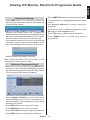
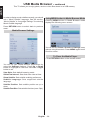
When you select Videos from Media Browser,
available video files will be filtered and listed on this
screen. You can use Up or Down button to select a
video file and press OK button to play a video.
Forward (
button): Goes forward.
Note: If you set View Style from Media Browser
Settings menu as ‘Folder’, media browser main
selection screen will include All tab as well.
Previous/Next (Left/Right button): Plays the previous/
next file.
Subtitle/Audio (LANG. button): Sets subtitle/Audio.
Green: Jumps to the selected time.
Yellow: Opens subtitle time correction menu.
Ret/Back (RETURN button): Back to previous menu.
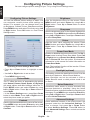
If you select a subtitle file and press OK button, you
can select or deselect that subtitle file.
Jump (Numeric buttons):The TV will jump to the
file starting with the letter you input via the numeric
buttons on your remote control.
Play This (OK button) : Plays the selected file.
/ : Navigate menu
Press OK to confim
Press BLUE button for clear
Press RET/BACK button to switch back to previous
menu.
Note:
You can set subtitles by using OK button before
starting the playback or by using LANG. button during
the playback. Selected subtitles may not be displayed
correctly in some cases.
English - 35 -