1
ii.
Create Print Control in device type
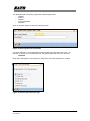
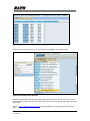
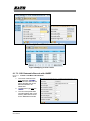
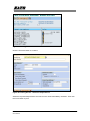
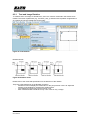
Figure 27 Defining Print Control in Device type
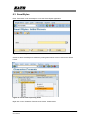
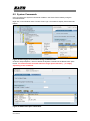
Use SPAD->Full Administration->Device Types to open the Print Controls tab of the
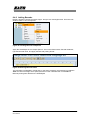
device type. Add a new barcode print control (Prefix SB) and input the hex value of
Control Character Sequence. In this example, the hex value of “<Esc>EU1203” is
entered for Print Control SB012.
This print control defines Sato Barcode commands for GS1-128 (UCC/EAN128) with
CC-C with Narrow Barcode with = 3 dots. The Barcode Height will be extracted from the
Barcode Definition (Figure 26 Customized Barcode Definition). The Barcode Data will
be supplied from SmartForms or SAP Database.
iii.
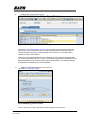
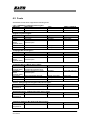
Mapping of Barcode Definition to Print Control
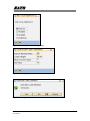
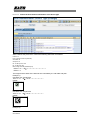
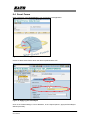
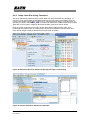
Go to SE73->Printer Bar Codes
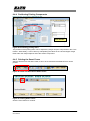
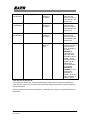
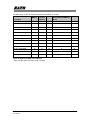
Figure 28 Mapping of Print Control
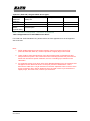
Click on the Device Type to add the barcode mapping to Print Control.
SAP Device Driver for SATO Printers
User Manual
27-57