1
Programming the Multiplex Profi mc3030
5. Press M until you get back to the opening screen.
6. Plug a servo into channel 1, switch on the transmitter and receiver, and move the right
hand stick from side to side. The servo should follow the stick.
Note that there were three “things” involved in the programming process, namely
Sticks
Controls
Servos
These can be represented as three layers with sticks and switches at the top, servos at the
bottom and controls in the middle. For a servo to function there must be a route from servo to
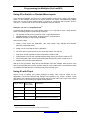
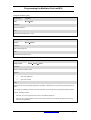
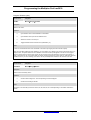
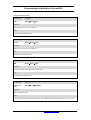
stick. We can show this diagrammatically:
Figure 1
Assigning Controls and Servos
As you can see from Fig. 1, the Assign Controls
screen is used to create the link between controls
and sticks. Similarly the Assign Servos screen links
servos to controls.
Notice the direction of the arrows. The Assign Servo
screen assigns a servo to a control (not the other
way round), so the arrow is shown pointing upwards.
Same applies to Assign Control – a control is
assigned to a stick so again the arrow is an upward
pointing one.
Stick (A-H)
Assign Control
Control (aileron, elevator etc.)
Assign Servo
Servo Channel (1 – 9)
When you set up a new configuration you will always
start with the Assign Control and Assign Servo
screens, in that order. These are the two most
important screens in the system! Note that there are
also two corresponding “Adjust” screens, namely
Adjust Control and Adjust Servo. These are used
only after the control and servo assignments. It’s a
little confusing because the Assign screens are at the
Menu 2 level even though they are the first ones
you’ll be using to set up your model. The rationale
behind this is that although you use the Assign
screens first, you will probably end up using the
Adjust screens more often during day to day flying.
Widgets, Controls and Servos
Now you’ve looked at a simple example, let’s take a detailed look at the objects involved in
programming the transmitter, namely Widgets, Controls, Servos and Mixers.
Widgets and Ports
Widgets are things which the user can move on the transmitter front panel, i.e. the sticks,
switches, sliders and knobs. I’ve called them widgets because it’s more convenient than
“sticks, switches, sliders and knobs” although I will occasionally slip into the old terminology!
Each widget has a wiring harness which plugs into a port on the main board inside the
transmitter. Each port has a code embossed next to it. The codes are used in the various
programming screens to identify the individual sticks and switches.
Send feedback to [email protected]
Page
4