1
pDoc Signer User Manual
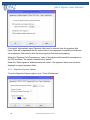
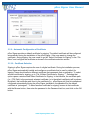
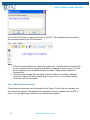
The licensed version of pDoc Signer supports signing using Pen Display devices. If a Pen
Display device is connected to the PC, the signature capture screen is displayed on the Pen
Display (an extended monitor). The signer can use the stylus that is attached to the Pen
Display to scribble the signature.
3.3.3 – Validation of Signatures
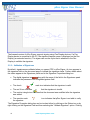
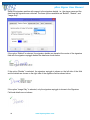
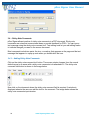
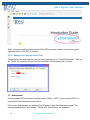
By default, signatures are validated when you open a PDF in pDoc Signer. An icon appears in
the signature field on the document page to indicate the signature status. Further details about
the status appear in the Signatures panel and in the Signature Properties dialog box.
•
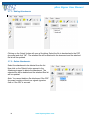
The digital signature icon
along with the name of the field in the Signatures panel
indicates the presence of an unsigned signature field.
•
The check
•
The red X icon indicates
•
The caution triangle icon indicates that the document was modified after the signature
was added.
•
The question mark
the signature.
mark icon indicates that the signature is valid.
that the signature is invalid.
icon indicates that pDoc Signer is not able to verify
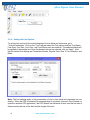
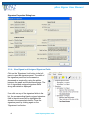
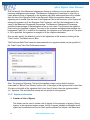
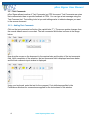
The Signature Properties dialog box can be invoked either by clicking on the Status icon or by
right clicking on the Signature Field and then selecting the “Validate Signature” option. Clicking
12
www.topazsystems.com