1
To change how projects are sorted in gallery:
•
Right-click on the background of the right side of the window and choose a sort order
from any of the following: status, title, last modified date, or date created.
The Open Project Menu
Here’s a power-user trick. If you hold Option which clicking the Projects toolbar button
you’ll see a project menu instantly appear showing all your existing projects, grouped by
category. Simply choose a project and it will open in the existing window. If you continue
to hold the Option key when you choose the project then it will open in a new window.
The New Project Gallery
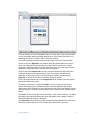
The gallery window can also be used to create brand new projects. These projects can
either be blank or based on a template.
The templates listed include all accessible repositories including your personal templates
that you create and any bundled templates that are included with Curio.
It also lists any shared repositories which can contain project templates shared within
your organization or with others across the Internet.
Your personal project templates are stored within the ~/Library/Application Support/
Repository/Project Templates directory found on your hard disk.
To show the New Project Gallery window:
•
Choose the File > New Project From Gallery menu, or...
•
Click the Projects button on the toolbar then click the Switch To New Project Gallery
button, or...
•
Shift-Click the Projects button on the toolbar.
To create a new, blank project:
•
Choose the File > New Blank Project menu, or...
•
From the New Project Gallery window click the Blank Project button.
To see a Quick View of a project template:
•
Select the project template in the gallery window then press spacebar.
To create a personal template folder:
•
Right-click in the template list and choose Add Template Folder. Curio will create an
actual folder on your hard disk with the given name within the ~/Library/Application
Support/Repository/Project Templates directory. This is where your templates will be
stored on disk.
To rename a personal template folder:
•
Double-click the template folder in the list and rename it.
To delete a personal template folder:
•
!
Select the template folder in the list and press the Delete key. After confirming the
template folder and any templates it contains will be sent to the Trash.
Curio User Manual!
7