1
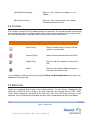
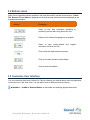
PRODUCT GUIDE ©Lepide Software Private Limited Table of Contents 1. 2. 3. Introduction to Kernel for Calc ....................................................................................................................................... 5 1.1 Using this Manual ................................................................................................................................................... 5 1.2 About Kernel for Calc ............................................................................................................................................. 6 1.3 Salient Features ....................................................................................................................................................... 6 1.4 Who Should Use this Software? ............................................................................................................................. 6 Getting Started ................................................................................................................................................................ 7 2.1 Installation Pre-requisites ........................................................................................................................................ 7 2.2 Downloading Kernel for Calc for the First Time .................................................................................................... 8 2.3 Install Kernel for Calc ............................................................................................................................................. 8 2.4 Start Kernel for Calc ............................................................................................................................................... 8 2.5 Uninstall Kernel for Calc ........................................................................................................................................ 9 Software Interface ......................................................................................................................................................... 10 3.1 Menu-bar ............................................................................................................................................................... 10 3.2 Tool-bar................................................................................................................................................................. 12 3.3 Status bar ............................................................................................................................................................... 12 3.4 Buttons Used ......................................................................................................................................................... 13 3.5 Customize User Interface ...................................................................................................................................... 13 4. Performing .ods Recovery............................................................................................................................................. 14 5. Full Version .................................................................................................................................................................. 15 5.1 Requirement of Full Version................................................................................................................................. 15 5.2 Purchasing Full Version ........................................................................................................................................ 15 6. Support .......................................................................................................................................................................... 16 7. Troubleshooting ............................................................................................................................................................ 17 8. 7.1 Common Issues ..................................................................................................................................................... 17 7.2 Frequently Asked Questions ................................................................................................................................. 17 Legal Notices ................................................................................................................................................................ 18 8.1 Copyright .............................................................................................................................................................. 18 8.2 Trademark ............................................................................................................................................................. 18 8.3 Disclaimer ............................................................................................................................................................. 18 ©Lepide Software Private Limited 8.4 License Agreement ............................................................................................................................................... 19 ©Lepide Software Private Limited Table of Figures Figure 3.1: File Menu ................................................................................................................................................... 10 Figure 3.2: View Menu ................................................................................................................................................. 11 Figure 3.3: Help Menu .................................................................................................................................................. 11 Figure 3.4 Status bar ..................................................................................................................................................... 12 ©Lepide Software Private Limited 1. Introduction to Kernel for Calc Welcome to the user manual for Kernel for Calc, the most effective and convenient .ods file repair tool available that repairs corrupt Open Office Calc documents. This user manual comprises step by step guidelines on using Kernel for Calc. 1.1 Using this Manual This user manual is intended to guide users on using Kernel for Calc. We suggest that first time users should read this user manual completely and carefully before proceeding to use the software. However, if you are an experienced user, you can use the table of contents to find out information pertaining to the tasks that you need to perform by using Kernel for Calc. You can use the table of contents to navigate through different sections of this user manual. The table of contents lists all the sections that are contained in this user manual in chronological order. The user manual comprises the following sections: Introduction Getting Started Software Interface Repairing .ods files Full Version Support Troubleshooting Legal Notice Certain abbreviations have been used throughout this manual. For clear understanding of the contents of this user manual, please go through the list of abbreviations, mentioned below, before reading the manual. 1.1.1 Abbreviations: ODS: Open Document Spreadsheets MS: Microsoft RAM: Random Access Memory MB: Mega-Byte ©Lepide Software Private Limited GB: Giga-Byte 1.2 About Kernel for Calc Kernel for Calc is file repair and data recovery software for Open Office Calc. This software repairs Open Office Calc document files that become inaccessible due to unexpected system shutdown, power failure, virus attacks, media errors, etc. Kernel for Calc quickly and effectively resolves the above mentioned corruption types and repairs the corrupt ods file and makes the files accessible to its users. It restores rows and column information with text, images, text formatting, Unicode characters, hyperlinks, tables, graphs, charts and other items which exist in corrupt ods file. It successfully saves all the recovered items to new ods file, keeping the original document remains intact 1.3 Salient Features Salient features of Kernel for Calc include: Efficient embedded repair algorithms to quickly repair even heavy files Support for all versions of Open Office Calc Complete and accurate recovery of ods file components User friendly graphical user interface Support for batch repair of .ods files Free demo to test the capabilities of the tool before purchasing it 1.4 Who Should Use this Software? The capability of Kernel for Calc to repair large sized .ods files makes it appropriate for use by professional authors who keep their important data stored in Open Office Calc documents. The software is also suitable for other Open Office Calc users who have lost their important data stored in .ods files due to .ods file corruption. This corruption could have been caused due to virus attacks, improper system shutdown, installation of unsupported software, software errors etc. ©Lepide Software Private Limited 2. Getting Started Now that you have understood the features and potential of Kernel for Calc, you are ready to get a hand on experience of the software. To start repairing .ods files, you will first need to download and install this software. However it is strongly recommended that before installing Kernel for Calc, you should go through the installation pre-requisites for the software to ensure that your computer is appropriately configured to run the software. 2.1 Installation Pre-requisites The various pre-requisites for installing and running Kernel for Calc can be broadly classified into two major categories – Hardware requirements and Software requirements 2.1.1 Hardware Requirements: The hardware requirements for installing the software are as follows: Pentium class processor Minimum 64MB RAM (128 MB recommended) 10MB for Software installation Disk Space - Enough space to store the repaired files You should have at-least 10 MB of free disk space if you want to repair and save a 10 MB.odf file. 2.1.2 Software Requirements: The software requirements for installing the software can further be grouped into two categories – Operating system requirements and Open Office version requirements. The requirements are as follows: Operating System Requirements Supported operating systems: Windows Vista Windows XP Windows 2003 ©Lepide Software Private Limited Windows 2000 Open Office Version Requirements Supported Open Office versions: All versions of Open Office 2.2 Downloading Kernel for Calc for the First Time After checking your computer with the prescribed system requirements for Kernel for Calc, you can download and install the software on your computer. You can buy the full version of the software from any one of our authorized resellers– Element5, Asknet and 2CO. If you want to try using Kernel for Calc before buying it, you can download the evaluation version from the following link: http://www.nucleustechnologies.com/download-openoffice-calc-recovery.php You can repair .ods files saved on your system by using the evaluation version of Kernel for Calc; however, the repaired file will display the text ‘Demo’ in some cells instead of the original text until you purchase the full version of the software. 2.3 Install Kernel for Calc After downloading the installer file for Kernel for Calc, you can install the software by running the file. To install Kernel for Calc: 1. Double-click the Kernel for Calc installer. 2. Follow the on-screen instructions. The Setup Installation Complete screen will be displayed. 3. Click Finish to launch the software. 2.4 Start Kernel for Calc To start Kernel for Calc: Click the Start All Programs Kernel for Calc ©Lepide Software Private Limited Alternatively, you can launch Kernel for Calc by double-clicking the shortcut icon available on the desktop and Quick Launch icon. 2.5 Uninstall Kernel for Calc You may need to uninstall and re-install Kernel for Calc. To uninstall Kernel for Calc: 1. Click the Start All Programs Kernel for Calc Uninstall Kernel for Calc. A warning message will be displayed. 2. Click ‘Yes’ to uninstall Kernel for Calc Before proceeding to uninstall Kernel for Calc, you must ensure that the software is not running. You can alternatively uninstall Kernel for Calc from the Control Panel by performing the following steps: 1. Click the Start Menu Control Panel and then double click the Add or Remove Programs icon. 2. Select Kernel for Calc and click Remove. A warning message will be displayed. 3. Click ‘Yes’ to uninstall Kernel for Calc ©Lepide Software Private Limited 3. Software Interface Now that Kernel for Calc has been installed on your computer, you can start using the software after getting acquainted with the software interface. 3.1 Menu-bar The menu-bar of Kernel for Calc comprises three main menus – File, View, and Help. 3.1.1 File Menu The File menu comprises four menu items. Figure 3.1: File Menu Menu items in the File menu: Field Name Field Description Select Files Select to browse and list corrupt .ods files stored on your hard disk Remove Files Select to remove selected files from the list Repair Select to start the repairing corrupt files Exit Select to close the software 3.1.2 View Menu The View menu comprises three menu items. ©Lepide Software Private Limited Figure 3.2: View Menu Menu Items in the View menu: Field Name Field Description Toolbars and Docking Windows Select to show or hide Tool bar/Standard bar Status Bar Select to show or hide Status bar Application Look Select to change the software theme 3.1.3 Help Menu The Help menu comprises three menu items. Figure 3.3: Help Menu Menu items in Help menu: Field Name Field Description Software Help Select to view help information pertaining to performing various tasks using Kernel for Calc. ©Lepide Software Private Limited Visit Software Homepage Select to visit software homepage on our website About Kernel for Calc… Select to view version-related and support information of Kernel for Calc 3.2 Tool-bar The tool-bar in Kernel for Calc is displayed below the menu-bar. The tool-bar provides a convenient and user-friendly method to perform certain actions that can also be performed by using the menubar. Read the information in the table below to find out about the tool-bar buttons: Button Button Name Button Description Select File(s) Select to browse and list corrupt .odf files stored on your hard disk Remove File(s) Select to remove selected files from the list Repair File(s) Select to start the repairing of corrupt odf files About Select to view version-related and support information of Kernel for Calc You can display or hide the tool-bar by using the Toolbars and Docking Windows menu item in the View menu of the menu-bar. 3.3 Status bar Status bar is displayed at the bottom of the software window. The text ‘Ready’ is displayed on the status bar if Kernel for Calc is ready to be used. Status bar also displays the text ‘CAP’, ‘NUM’, ‘SCRL’ which respectively correspond to the Caps Lock, Num Lock, and Scroll Lock keys on your keyboard. If any of these keys are pressed, the color of the corresponding text will turn blue/black. Figure 3.4 Status bar ©Lepide Software Private Limited 3.4 Buttons Used Apart from the standard options available in the menu-bar and the tool-bar, three buttons – Select File, Remove File and Next are displayed on the main window with other buttons displayed on the corresponding windows. Buttons Description Select to view help information pertaining to performing various tasks using Kernel for Calc Select to visit software homepage on our website Select to view version-related information of Kernel for Calc and support Click to stop the repair and save process Click to view main window of the software Click to close the software 3.5 Customize User Interface You can customize the theme of Kernel for Calc by selecting your desired theme from the Application Look menu item in the View menu. You can add or remove toolbar buttons by clicking: Standard Add or Remove Buttons in the toolbar and selecting appropriate buttons. ©Lepide Software Private Limited 4. Performing .ods Recovery Now that you have complete familiarity of the user interface of Kernel for Calc, you are ready to repair .ods files. To repair .ods files: 1. Launch Kernel for Calc. 2. Click the Select Files button to browse and list corrupt ODS files. You can select multiple .ods files to repair them in one repair cycle. You can remove any file from the list by selecting the file from the list and clicking Remove Files. 3. Click Next to start with the .ods file repairing process. After you click Next, the software asks you to define the location to save the repaired file. 4. Browse to your desired location and click OK. As soon as the Kernel for Calc finishes the repairing and saving process, it displays the message ‘The repairing process was completed successfully’ along with a link that points to the location where the repaired .ods files are saved 5. Click the link to view the repaired files or click OK to close the message box. The names of the repaired .ods files will be the original file name prefixed by the text ‘REC’. ©Lepide Software Private Limited 5. Full Version Although you can use Kernel for Calc evaluation version for free and experience the capabilities of the software, there are certain features that are not available in the evaluation version. 5.1 Requirement of Full Version By using the evaluation version of Kernel for Calc, you can repair corrupt .ods files; however, you cannot view the original content of the repaired files. Few of the limitations with evaluation version are as follows: 1. The text ‘demo’ will be displayed in some of the cells of the repaired ods files 2. The text ‘demo restriction’ will be displayed instead of original image. Any three images from the ods file will be recovered. 3. Alternate numeric values will be converted to ‘0’ You will need to buy the full version of the software to view the original content of the .ods files. 5.2 Purchasing Full Version You can buy the full version of Kernel for Calc from any one of our authorized resellers – Element5, Asknet and 2CO. As soon the purchase transaction with our resellers gets completed, our sales team will send you an email comprising the URL to download the full version of Kernel for Calc and activation details of the software. ©Lepide Software Private Limited 6. Support We have an extensive and efficient support system in place to assist our customers with all issues related to using Kernel for Calc. The software comes with an embedded help manual that can be accessed by clicking HelpSoftware Help in the menu-bar. You can also press the F1 key on the keyboard of your computer to access the embedded help of Kernel for Calc. You can access the online help for Kernel for Calc at http://www.nucleustechnologies.com/OnlineHelps.html We also have live support wherein you can chat with our software experts at http://www.nucleustechnologies.com/Support.html To talk on phone with our software experts call: Help line: +91-9818725861 1-866-348-7872 (Toll Free for US/CANADA) You can also email us about your queries at; [email protected] for Sales [email protected] for Support [email protected] for General Queries ©Lepide Software Private Limited 7. Troubleshooting This section deals with your generic and specific queries pertaining to using Kernel for Calc. 7.1 Common Issues Why does Kernel for Calc have limitations in evaluation copy? The free evaluation version of Kernel for Calc is intended to enable you to experience the capabilities of the software. You will need to buy the software to view and save restricted text and images. 7.2 Frequently Asked Questions How to Buy Kernel for Calc? You can buy Kernel for Calc online at http://www.nucleustechnologies.com/buy-openoffice-calcrecovery.php I have lost my full version for Kernel for Calc. Can you help me? Please email us at [email protected]. Please include your name, address, email address, and order confirmation number (if you have it). We will be happy to help you. I cannot view the toolbar. How can I view it? The tool-bar in Kernel for Calc is by default visible. It might have become invisible by someone accidentally changing the settings Click View Toolbars and Docking Windows Standard to make the tool-bar visible again. ©Lepide Software Private Limited 8. Legal Notices This section comprises the legal specification about Kernel for Calc and the company LEPIDE SOFTWARE PRIVATE LIMITED 8.1 Copyright LEPIDE SOFTWARE PRIVATE LIMITED, Kernel for Calc accompanied user manual and documentation are copyright of LEPIDE SOFTWARE PRIVATE LIMITED, with all rights reserved. Under the copyright laws, this user manual cannot be reproduced in any form without the prior written permission of LEPIDE SOFTWARE PRIVATE LIMITED. No Patent Liability is assumed, however, with respect to the use of the information contained herein. © LEPIDE SOFTWARE PRIVATE LIMITED. All rights reserved. 8.2 Trademark Kernel for Calc® is a copyright work of LEPIDE SOFTWARE PRIVATE LIMITED. Windows 95®, Windows 98®, Windows ME®, Windows NT®, Windows 2000 Server®, Windows 2000 Advanced Server®, Windows 2003 Server®, Windows XP®, Windows Vista, MS-DOS and Open Office are registered trademarks of Microsoft Corporation and Sun Microsystems, Inc. All other brand and product names are trademarks or registered trademarks of their respective companies. 8.3 Disclaimer The Information contained in this manual, including but not limited to any product specifications, is subject to change without notice. LEPIDE SOFTWARE PRIVATE LIMITED provides no warranty with regard to this manual or any other information contained here in and here by expressly disclaims any implied warranties of merchantability or fitness for any particular purpose with regard to any of the foregoing LEPIDE SOFTWARE PRIVATE LIMITED assumes no liability for any damages incurred directly or indirectly from any technical or typographical errors or omissions contained herein or for discrepancies between the product and the manual. In no event shall LEPIDE SOFTWARE PRIVATE LIMITED, be liable for any incidental, consequential special, or exemplary damages, whether based on tort, contract or otherwise, arising out of or in connection with this manual or any other information contained herein or the use there of. ©Lepide Software Private Limited 8.4 License Agreement Kernel for Calc Copyright © by LEPIDE SOFTWARE PRIVATE LIMITED Your Agreement to this License You should carefully read the following terms and conditions before using, installing or distributing this software, unless you have a different license agreement signed by LEPIDE SOFTWARE PRIVATE LIMITED. The terms and conditions of this License describe the permitted use and users of each Licensed Copy of Kernel for Calc. For purposes of this License, if you have a valid license, you have the right to use a single Licensed Copy of Kernel for Calc. Scope of License Each Licensed Copy of Kernel for Calc may either be used by a single person or used nonsimultaneously by multiple people who use the software personally installed on a single workstation. All rights of any kind in Kernel for Calc, which are not expressly granted in this License, are entirely and exclusively reserved to and by LEPIDE SOFTWARE PRIVATE LIMITED. You may not rent, lease, modify, translate, reverse engineer, decompile, disassemble, or create derivative works based on, Kernel for Calc, nor permit anyone else to do so. You may not make access to Kernel for Calc available to others in connection with a service bureau, application service provider, or similar business, nor permit anyone else to do so. Warranty Disclaimers and Liability Limitations Kernel for Calc, and any and all accompanying software, files, data and materials, are distributed and provided AS IS and with no warranties of any kind, whether expressed or implied. In particular, there is no warranty for the quality of data recovered. You acknowledge that good data processing procedure dictates that any program, including Kernel for Calc, must be thoroughly tested with noncritical data before there is any reliance on it, and you hereby assume the entire risk of all use of the copies of Kernel for Calc covered by this License. This disclaimer of warranty constitutes an essential part of this License. In addition, in no event does LEPIDE SOFTWARE PRIVATE LIMITED authorize you or anyone else to use Kernel for Calc in applications or systems where Kernel for Calc failure to perform can reasonably be expected to result in a significant physical injury, or in loss of life. Any such use is entirely at your own risk, and you agree to hold LEPIDE SOFTWARE PRIVATE LIMITED harmless from any and all claims or losses relating to such unauthorized use. General This License is the complete statement of the agreement between the parties on the subject matter, and merges and supersedes all other or prior understandings, purchase orders, agreements and arrangements. This License shall be governed by the laws of the State of Delhi. Exclusive jurisdiction and venue for all matters relating to this License shall be in courts and for a located in the State of Delhi, and you consent to such jurisdiction and venue. There are no third party beneficiaries of any promises, obligations or representations made by LEPIDE SOFTWARE PRIVATE LIMITED herein. Any waiver by LEPIDE SOFTWARE PRIVATE LIMITED of any violation of this License by you shall not constitute, nor contribute to, a waiver by LEPIDE SOFTWARE PRIVATE LIMITED of any other or future violation of the same provision, or any other provision, of this License. ©Lepide Software Private Limited