1
CONTENTS
Page 1: Introduction, Feature access
Page 2: Sub Modes, Rapid Fire, Burst Fire, Akimbo, Mimic
Page 3: Default Modes, Changing Modes, Adjustable Fast Reload
Page 4: Jitter Fire, Drop Shot, Jump Shot, Automatic Sniper Breath
Page 5: Quick Scope, Auto Run, Auto Aim, Battlefield Auto Spotting
Page 6: Quick Turn Off All Features, GOW Perfect Reloads
Page 7: Adjusting and Programming modes
Page 8: Programmable speed settings table
Page 9: Advanced Feature management
Back Cover: Controller feature quick reference
Introduction
The Xbox ONE MaxFire Fusion v1 controller offers many features, more than you will
find on any other mod available. While there are many features on this controller,
we have developed a method of accessing them which makes it quick and easy.
On the following pages you will find information about each feature and how to
access it. Many features can be used in combination allowing greater flexibility and a
greater enhancement to your gaming experience.
+
Sub Modes
Several of the following controller features have sub modes. Sub modes are
modifications to the main feature. These will be explained in the description of each
feature. To change a features sub mode HOLD “UP” + “LEFT” on the D-pad, while
holding both, tap the corresponding features button to change the Sub-Mode. For
example, to change the Jitter sub mode you would HOLD “UP” + “LEFT”, then TAP
”Y”, the WHITE LED will flash to indicate which sub mode you are currently in. If
using the optional “MOD” button you would HOLD “UP” + “MOD”
HOLD
Rapid Fire
or
+
To activate/deactivate rapid fire you can either TAP “LEFT” two times very quickly
or HOLD the “RIGHT TRIGGER” and TAP “LEFT”. The WHITE LED will start flashing
indicating Rapid Fire is now activated. Repeat either of these to turn off Rapid fire.
With the Optional “MOD” follow the same procedure using that button. You can
also control how the LED flashes using the Advanced Feature Management (page 9).
Burst Fire
+
To activate/deactivate burst fire HOLD the “X” button and then TAP “LEFT”. The
WHITE LED will turn on solid to indicate that burst fire is activated. The burst fire will
fire at the current speed/burst settings which can be adjusted within programming
mode. Once activated burst fire can be turned on/off using the same process as
rapid fire. To deactivate again hold “X “and tap “LEFT”.
HOLD
+
Feature access
Akimbo (Dual Trigger Rapid Fire)
The Xbox ONE MaxFire Fusion v1 controller uses the “LEFT” and “UP” directions on
the D-pad for accessing all of the controllers features. We also offer the option of a
“MOD” button on the back of the controller. The mod button can be used instead of
“LEFT” on the D-pad to allow faster access to most features since you would not
need to remove your thumb from the left thumbstick .
When enabling/disabling a feature, unless otherwise noted, you will see the White
Guide Button LED flash 1 time for enabled and 2 times for disabled.
To activate/deactivate akimbo HOLD the “LEFT TRIGGER” and TAP “LEFT. With
akimbo activated you will have rapid fire on both the left and right triggers
(independently), this is great for akimbo or dual weapons in Call of Duty and other
FPS games.
HOLD
D-PAD LEFT
Pg. 1
D-PAD UP
MOD BUTTON (optional)
Mimic (Auto Akimbo)
+
To activate/deactivate HOLD the “RIGHT TRIGGER” and TAP “UP”. When using
mimic , the right trigger controls both the left trigger and the right trigger at the
same time. If the akimbo is activated and rapid fire is turned ON than the left trigger
will also rapid fire, otherwise it works as normal allowing you to scope
Pg. 2
automatically when firing.
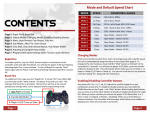
Mode and Default Speed Chart
COMPATIBLE GAMES
Jitter Fire
+
Jitter currently does not work with Ghosts
but has been left in for Future COD games.
MODE
SPEED
Mode 1:
7.35sps
COD Ghosts: MK-14, Sniper Riffles
Mode 2:
9.6sps
COD Ghosts: Pistols
Mode 3:
14sps
COD Ghosts: Semi-Auto Riffles (not MK-14)
Mode 4:
16sps
GTA , RDR, COD: Autos, Left 4 Dead
Mode 5:
20sps
Halo series
Mode 6:
6.5sps
Gears of War - Hammerburst
Drop Shot (standard Layout)
Mode 7:
8.33sps
Gears of War – Pistols
Drop Shot (Tactical Layout)
Mode 8:
12.5sps
Open Mode – Default 12.5 SPS
Mode 9:
18sps
Open Mode – Default 18 SPS
Mode 10:
25sps
Open Mode – Default 25 SPS
The MaxFire Fusion V1 supports both standard button layouts and tactical button
layouts. To activate/deactivate drop shot for standard button layouts HOLD “B” and
TAP “LEFT”. To activate drop shot for tactical button layouts HOLD in the “RIGHT
THUMBSTICK CLICK” and TAP “LEFT”. Drop shot allows you to automatically drop to
prone as soon as you start firing and stand up when you stop. Drop shot has 4 sub
modes and you must always use “B” when changing the sub mode.
Changing Modes
(4 sec)
There are 10 modes to select from. Each is pre-programed with a specific speed, but
can be independently programmed to an new speed (See page 6). To change to the
next mode you must HOLD “LEFT” for 4 seconds. You will see the WHITE LED flash,
count the number of flashes. This will indicate which mode you are currently in. (2
flashes = Mode 2, 3 flashes = Mode 3, etc…). You can also go back to the previous
mode by HOLDING “LB” along with “LEFT”.
Adjustable Fast Reload
+
To activate/deactivate HOLD “X” and TAP “UP”. The adjustable fast reload allows
you to shave precious milliseconds off your reload time. This works by cancelling the
last part of the reload animation after the ammo has been added to your weapon.
The fast reload must be set for the weapon you are using, as all weapons have
different reload times. To set the reload timing you must HOLD “X” until you see
your ammo indicator at the bottom of the screen show that you have full ammo
(this will happen before the reloading animation completes), when you see this
RELEASE “X”. This sets the timing and the next time you reload as normal
by hitting “X” the last part of the reload animation will be cancelled
Pg. 3 allowing you to begin firing again sooner than normal.
To activate/deactivate jitter fire HOLD the “Y” button and TAP “LEFT”. Jitter takes
advantage of a glitch in most COD games allowing for faster firing of just about all
weapons including shotguns and 3-Round burst weapons. Jitter has 3 sub modes.
Sub Mode 1 = XYY Jitter (fast)
Sub Mode 2 = XYY Jitter (Slow)
Sub Mode 3 = YY Jitter
+
+
Sub Mode 1 = Always Drop/Stand automatically
Sub Mode 2 = Drop/Stand, if NOT Aiming Down Sights
Sub Mode 3 = Drop Only
Sub Mode 4 = Drop Only, if NOT Aiming Down Sights
Jump Shot
+
To activate/deactivate jump shot HOLD “A” and TAP “LEFT”. With jump shot you will
jump automatically as soon as you start to fire. Jump shot has 4 sub modes.
Sub Mode 1 = Jump only once
Sub Mode 2 = Continuous Jumping (Slow Jump Speed)
Sub Mode 3 = Continuous Jumping (Medium Jump Speed)
Sub Mode 4 = Continuous Jumping (Fast Jump Speed)
Automatic Sniper Breath
+
To activate/deactivate auto sniper breath HOLD in the “LEFT THUMBSTICK CLICK” and
TAP “LEFT”. With Auto sniper breath activated the mod will press and
Pg. 4
hold the left thumstick automatically when you aim down the sights.
HOLD
Quick Scope
+
Turn Off All Features
To activate/deactivate HOLD the “LEFT TRIGGER” and TAP “UP”. With quick scope
active just hold the left trigger and you will scope and automatically fire at the exact
moment the accuracy of being scoped kicks in. Quick scope has 6 sub modes.
Sub Mode 1 = Rifles/snipers
Sub Mode 2 = Rifles/snipers + Rapid Fire
Sub Mode 3 = Rifles/snipers QuickDraw attachment
Sub Mode 4 = Rifles/snipers w/QuickDraw + Rapid Fire
Sub Mode 5 = Ultra Fast (Does not work in COD Ghosts)
Sub Mode 6 = Ultra Fast + Rapid Fire (Does not work in COD Ghosts)
Auto Run
+
Sub Mode 1 = Always runs
Sub Mode 2 = Run suspended when prone/crouch with “B”
Sub Mode 3 = Run suspended when prone/crouch with “R3”
+
The auto aim feature ONLY WORKS WITH ZOMBIES & CAMPAIGN GAMES. IT DOES
NOT WORK WITH ONLINE MATCHMAKING GAMES. To activate/deactivate auto aim
HOLD “A” and TAP “UP”. With auto aim active, when you press the left trigger, you
will automatically lock on and track the closest target.
Battlefield Auto Spotting
+
+
To activate/deactivate CLICK the “RIGHT THUMBSTICK” and TAP “UP”. With auto
spotting active the controller will automatically press the “RB” button. When you are
aiming at an opponent they will be marked with an indicator above their head for
you and your team to see, giving your team a significant advantage.
Sub Mode 1 = On only when Aiming down sights or Firing
Pg. 5 Sub Mode 2 = On all the time
or
To Quickly turn off all controller features that may be turned on you can HOLD
“BOTH THUMBSTICK CLICKS” and then TAP either “UP” or “LEFT”. The WHITE LED
will quickly flash 10 times and all features will be turned off.
There is currently no Gears of War Games for Xbox One but these
features have been left in for possible use in future GOW games or
with releases of older GOW games on Xbox One.
HOLD
To activate/deactivate auto run CLICK the “LEFT THUMBSTICK” and TAP “UP”. With
auto run active you no longer have to click the left thumbstick to start running, it is
done automatically.
Auto Aim
+
GOW Perfect Active Reloads
+
To activate/deactivate HOLD “RB” and TAP “LEFT”. Have perfectly timed active
reloads for the most popular weapons in Gears of War, automatically. When using
this mod you select the weapon you are using by following the process below. Once
selected you reload as normal by pressing “RB” and the second press of “RB” will be
timed automatically.
Sub Mode 1 = Gears of War 2
Sub Mode 2 = Gears of War 3
Set GOW Active Reload Weapon
+
TAP
To set the weapon you want to perfect active reload you must HOLD “UP” and TAP
“RB”. You will TAP “RB” 1-6 times depending on the weapon you want to select
from the list below. When you release “BACK” the WHITE LED will quickly flash 1-6
times to confirm your selection.
Gears of War 2 Weapons
Gears of War 3 Weapons
1. Lancer/Hammerburst
2. Pistols
3. Shotgun
4. Sniper/BoomShot
1. Lancer
2. Hammerburst
3. Pistols
4. Sniper/BoomShot
5. Shotgun
6. Retro Lancer
Pg. 6
Programming the Adjustable Rapid/Burst Fire Settings
Each rapid fire mode can be programmed to one of 55 different speed between 4 and 40
shots per second. You can also set the burst fire for each mode from 2 – 10 shots per burst.
+
Enter the Programming Mode:
+
HOLD
+
HOLD
(6 sec)
To enter the programming mode you must HOLD “BOTH TRIGGERS” and “BOTH
THUMBSTICK CLICKS” . Continue to hold all four for 6 seconds. You will see the WHITE LED
flash on for 2 seconds then go out.
Exit Programming Mode:
To exit the programming mode just TAP “UP” on the D-pad. The LED will again Flash.
TAP
or
Change Rapid Fire Speed:
TAP
Rapid Fire speed settings table
Rapid Fire Setting
1
2
3
4
5
6
7
8
9
10
11
12
Shots Per Second
40
30
25
20
18
16
14
12.5
11.35
10.4
9.6
9
Rapid Fire Setting
13
14
15
16
17
18
19
20
21
22
23
24
Shots Per Second
8.33
7.8
7.35
7
6.5
6
5.5
5
4.5
4
3.5
3
To change the rapid fire speed you only need to TAP the “Y” or “A” buttons. “Y” to make the
speed faster and “A” to make it slower. The WHITE LED will flash when increasing or
decreasing the speed. Once you have reached the MIN or MAX speed the LED will no longer
flash.
TAP
Change Burst Fire Quantity:
TAP
or
To change the number of shots fired with the burst fire you must TAP the “X” or “B” buttons.
“X” for fewer shots and “B” for More shots.
TAP
Check Rapid Fire Speed Setting:
To check the currently set rapid fire speed you only need to TAP the “RIGHT TRIGGER”. The
WHITE LED will give a long flash for the “tens” position short flash the single digit. (example.
1 Long flash, followed by 6 short flashes, indicates you are now at speed setting 16) Refer to
the table on the next page for all of the speed settings.
TAP
Check Burst Fire Setting:
To check the currently set burst fire setting just TAP the “LEFT TRIGGER”. The WHITE LED will
flash 2-10 times to indicate the number of shots set for the burst fire.
HOLD
Reset Current Mode to Default Settings:
(7 sec)
Important Rapid Fire Speed Information!
The Maxfire Fusion rapid fire mod allows you to set rapid fire speeds up to 40 shots
per second, but you must be aware that setting the rapid fire to the maximum will
NOT work for most games. All games have limitations on the rates at which
weapons can fire. Our default mode settings are already optimized to the fastest
possible speeds for the games/weapons listed on page 3.
The possibility to change these settings are available for you to experiment with
and find settings that best compliment your playing style and to be able to create
modes for current and future games which are not part of the default setup.
If you have questions regarding rapid fire or any feature please
contact us at [email protected]
To reset the rapid fire mode you are currently editing to the factory default you must HOLD
“RB” for 7 seconds. After 7 seconds the WHITE LED will flash very fast 10 times to indicate
the Mode has ben reset.
MASTER RESET:
+
(7 sec)
Resets ALL modes, speeds and sub modes to their default settings. HOLD “BOTH
THUMBSTICK CLICKS” for 7 seconds. You will see the WHITE LED flash in a pattern of , fast,
slow, fast. After this all settings will be set to default , the programming mode
Pg. 7 will be exited and the chip reset.
Pg. 8
Left or Mod Button Functions
Advanced Feature Management
All features of the MaxFire Fusion have an advanced management option that allows
you to disable them. This is especially useful if you find there are features you do not
use and do not want the possibility to accidentally activate the feature.
Enter (AFM)
+ +
+
(7 sec)
To enter the advanced feature management you must have the controller ON and
the rapid fire must be turned OFF. Then HOLD “A + B + Y + X” together all at the
same time for 7 seconds. After 7 seconds you will see the WHITE LED flash 10 times
very fast. After this you can release all of the buttons.
Managing features
Now that you are in the AFM you can enable or disable any of the features listed
below by just tapping the corresponding button(s). When you tap one of the buttons
you will see the WHITE LED flash either 1 or 2 times.
1 flash = Feature is ENABLED, 2 flashes = Feature is DISABLED.
• Jump Shot
• Drop Shot
Hold “UP” on the D-Pad then tap
the button for these features.
• Fast Reload
• Auto Run
• Jitter Fire
• Quick Scope
• GOW Reloads
• Battlefield Spotting
UP Button Functions
+
+
+
• Sniper Breath
+
• Auto Aim
• LED MODE
• Mimic
The LED mode has 4 settings listed below
1.
2.
3.
4.
The LED is flashing while Rapid fire is on.
The LED is on Solid while Rapid fire is on.
The LED Flashes 1 or 2 times when
turning Raid fire on or off.
The LED flashing is disabled for ALL
feature activation.
TAP
Exit Advanced Feature Management
Pg. 9
To exit AFM TAP “LEFT” on the D-pad. You will again see the WHITE LED
flash 10 times very quickly.
WWW.GENIUSMODS.COM
Pg. 10