1
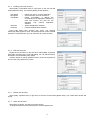
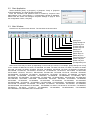
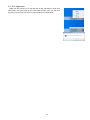
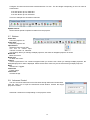
Projector List --- The list shows the projectors that you register. [Insert] : Insert new projector into the projector list. [Update] : Update selected projector setting and save changes. [Delete] : Delete selected projector from the projector list. When you manage multiple projectors at the same time, you need to pick one projector and select a checkbox in order to be a delegate for displaying CH selection and volume level. Please rarify IP settings to make sure the PJCtrl is able to communicate with the projector by ping command. (3) Configure Bottoms Click the Show Buttons TAB to configure which bottoms you want to use. Check the checkbox that you want to show as the button. The configuration window can be displayed if you make a right click on the task tray icon. Icon Size: Also you can choose icon size from 24, 36 or 48 dots. Always on top: “Always on top” option allows that the PJCtrl application always show up foreground. (4) Option Skip user check: Check “skip user check” option if you don’t need the user login process at application launch. If you need to check user account at each time, uncheck this option. Skip configuration dialog: Check “skip configuration dialog” option if you don’t need to show the configuration window at application launch. User Configuration: Launch Projector User Administration Tool. Edit CH Label: Display Edit CH Label window. 13