1
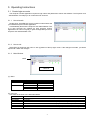
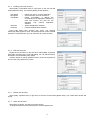
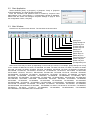
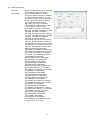
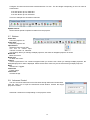
3.1.4. Creating new user account Select [Edit] [Add New User] or right clicks on the user list and select [Add New User]. The following dialog window appears. User Name Description User Rights Select All UnSel All --- Define user name, up to 20 characters --- Add comments, up to 50 characters --- Define accessibility. It defines the accessibility for the application software by each user account. The user can use allocation only marked application software. --- Select all application software. --- Unselect all application software. Press [OK] button after entering user name. The [Change Password] dialog appears. Enter new password and confirm entered password. The password is up to 20 characters and case sensitive. 3.1.5. Edit user account Double click a username on the user list or select [Edit] [Change User] after choosing user to open edit dialog. You can edit username, description and accessibility (user rights). Click the button to change password. Enter old and new password, and re-enter new password to confirm. 3.1.6. Delete user account Select [Edit] [Delete User] or right click on the user list and select [Delete User]. The confirmation window will popup. 3.1.7. Save user account Select [File] [Save]. The date is stored in the file, “C:\Program Files\Common Files\Projector Tools\config\UserList”. 8