1
Document Directory Structure
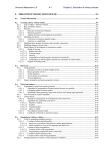
Figure 9.1: The Directory Structure for Documents
To make managing documents in a concise way easier a folder structure, similar to the directory structure of a computer, is at your disposal. As many
folders and subfolders on different levels may be created.
Because of the permission system implemented, only see folders to which
you have read access. It is not possible to view documents or folders, regardless of their permissions, that are contained within a folder to which you do
not have access. Documents you cannot view will not be listed in search results.
To see the contents of a folder, click the plus sign in front of the folder. The
folder is then opened and its contents listed. An open folder is marked with
a minus sign. Click it to close the folder again. Folders without either symbol are empty or contain only documents to which you do not have access.
Creating a Folder
Before adding a new folder, determine where it should be placed by marking
the radio button in front of the new folder’s parent folder. If no parent folder
is marked, the new folder is added to the root folder.
Click the ‘new folder’ icon
, located to the upper right of the directory
view. In the form that opens, shown in Figure 9.2 on the next page, specify
access permissions for the new folder and its name.
96
Document Directory Structure