1
2 | Using the Setup Module
Tools Component
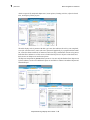
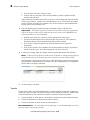
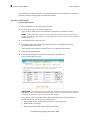
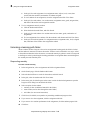
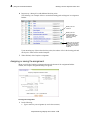
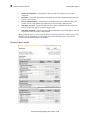
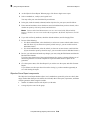
This student is not assigned
Multiple assignments
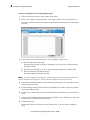
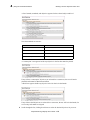
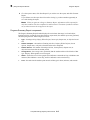
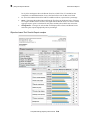
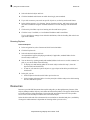
Other anomalies are denoted in the Answers column (circled in the image above):
Missing answer (will be counted as wrong)
Student answered E on a four-answer item (will be counted as wrong)
Answer cannot be determined (*). Will be counted wrong. If the teacher is able to discern
the student’s intent from the answer sheet, the answer can be supplied in the Edit tool.
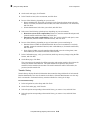
7
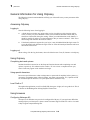
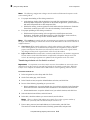
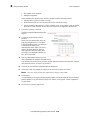
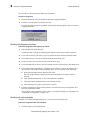
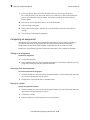
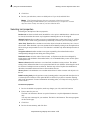
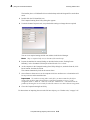
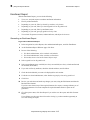
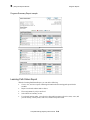
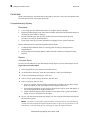
To correct a problem, click Edit.
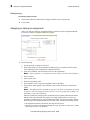
The Edit Assignment Results dialog box
appears.
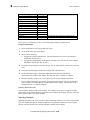
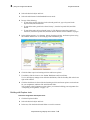
8
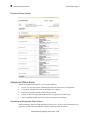
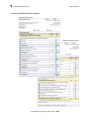
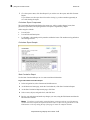
Correct any student name errors if
possible.
In the case of a student name error, the
Edit program generates a list of names.
It lists the multiple names, or it attempts
to match known names to an
indeterminate name. When you select a
name in the drop-down list, the user
name appears in the User Name field,
allowing you to determine whether you
have the correct name.
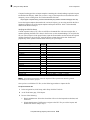
9
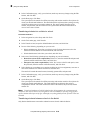
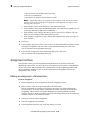
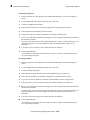
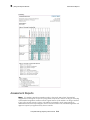
Edit any indeterminate scores if you are
able to determine the student’s intended answer.
If no answers are selected for an item, the student either did not answer the question, filled in
more than one answer, or chose E as an answer.
10
Click OK to close the Edit Assignment Results dialog box.
11
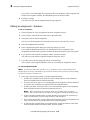
In the grid, check any students for whom you do not wish to import test results.
Note:
Once the results file has been imported, no changes can be made.
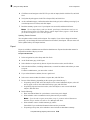
12
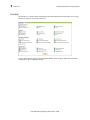
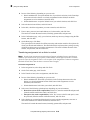
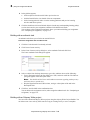
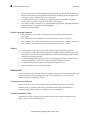
Click Import.
A confirmation screen appears, displaying the number of students imported into the database
and the number, if any, that failed to import. For failures, a list appears, with an explanation
of each failure.
13
Click Close to close the Import tool.
CompassLearning Odyssey User’s Guide
2-28