1
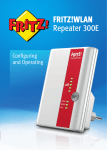
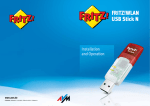
FRITZ!WLAN
Repeater 310
Installation
and Operation
www.avm.de
© AVM GmbH · Alt-Moabit 95 · 10559 Berlin · Telefon 030 39976-0 · [email protected]
Table of Contents
Symbols and Highlighting . . . . . . . . . . . . . . . . . . . . . . . . 4
1
Getting to Know FRITZ!WLAN Repeater 310. . . . . . . . . . . 5
1.1
1.2
1.3
FRITZ!WLAN Repeater 310 . . . . . . . . . . . . . . . . . . . . . . . . . . . . . . . . . . 5
Button and LEDs . . . . . . . . . . . . . . . . . . . . . . . . . . . . . . . . . . . . . . . . . 6
Package Contents . . . . . . . . . . . . . . . . . . . . . . . . . . . . . . . . . . . . . . . . 7
2
Before You Connect the FRITZ!WLAN Repeater . . . . . . . . 8
2.1
2.2
Operation Requirements . . . . . . . . . . . . . . . . . . . . . . . . . . . . . . . . . . . 8
Security and Handling . . . . . . . . . . . . . . . . . . . . . . . . . . . . . . . . . . . . . 9
3
Connecting FRITZ!WLAN Repeater with a Base Station. 10
3.1
3.2
3.3
Establishing a Connection Using WPS . . . . . . . . . . . . . . . . . . . . . . . 10
Establishing a Connection Using the Online Wizard . . . . . . . . . . . . 12
Establishing a Connection Manually . . . . . . . . . . . . . . . . . . . . . . . . 14
4
Extending the Range of the WLAN Radio Network . . . . 16
4.1
4.2
4.3
Prerequisite: Connection with a Wireless LAN Base Station . . . . . . 16
Choosing the Best Location for the FRITZ!WLAN Repeater . . . . . . . 16
Integrating WLAN Devices into the Wireless Network . . . . . . . . . . . 17
5
The User Interface of the FRITZ!WLAN Repeater . . . . . . 18
5.1
5.2
5.3
Opening the User Interface . . . . . . . . . . . . . . . . . . . . . . . . . . . . . . . . 18
Protecting the User Interface with a Password. . . . . . . . . . . . . . . . . 18
Performing a Firmware Update . . . . . . . . . . . . . . . . . . . . . . . . . . . . . 19
6
Help in Case of Errors . . . . . . . . . . . . . . . . . . . . . . . . . . . 20
6.1
6.2
6.3
6.4
6.5
6.6
LEDs Not On . . . . . . . . . . . . . . . . . . . . . . . . . . . . . . . . . . . . . . . . . . . . 20
The User Interface Is Not Displayed . . . . . . . . . . . . . . . . . . . . . . . . . 20
No Connection with the WLAN Base Station . . . . . . . . . . . . . . . . . . 21
No WLAN Connection with a Computer. . . . . . . . . . . . . . . . . . . . . . . 22
Throughput Too Slow for WLAN N . . . . . . . . . . . . . . . . . . . . . . . . . . . 24
Cannot Access Devices in the Network. . . . . . . . . . . . . . . . . . . . . . . 24
FRITZ!WLAN Repeater 310
2
7
Technical Specifications . . . . . . . . . . . . . . . . . . . . . . . . . 28
7.1
7.2
Physical Specifications . . . . . . . . . . . . . . . . . . . . . . . . . . . . . . . . . . . 28
User Interface and Display . . . . . . . . . . . . . . . . . . . . . . . . . . . . . . . . 28
8
Customer Service Guide . . . . . . . . . . . . . . . . . . . . . . . . . 29
8.1
8.2
8.3
Documentation on the FRITZ!WLAN Repeater . . . . . . . . . . . . . . . . . 29
Information in the Internet . . . . . . . . . . . . . . . . . . . . . . . . . . . . . . . . 29
Support from the Support Team . . . . . . . . . . . . . . . . . . . . . . . . . . . . 30
Manufacturer’s Warranty . . . . . . . . . . . . . . . . . . . . . . . . . . . . . . . . . . 31
Legal Notice. . . . . . . . . . . . . . . . . . . . . . . . . . . . . . . . . . . 32
Legal Notice . . . . . . . . . . . . . . . . . . . . . . . . . . . . . . . . . . . . . . . . . . . . 32
Declaration of CE Conformity. . . . . . . . . . . . . . . . . . . . . . . . . . . . . . . 33
Disposal Information . . . . . . . . . . . . . . . . . . . . . . . . . . . . . . . . . . . . . 34
Index . . . . . . . . . . . . . . . . . . . . . . . . . . . . . . . . . . . . . . . . 35
FRITZ!WLAN Repeater 310
3
Symbols and Highlighting
Symbols and emphasized text are used to designate certain information in this manual.
Symbols
This symbol designates hints and tips that are useful in operating your product.
This symbol indicates important instructions that must be
observed to avoid malfunctions.
Highlighting
Highlighting
Function
Examples
Quotation marks
Buttons
“Help”
Menus
“System / “Info” Display”
Blue and underlined text
Address to be
entered in the
web browser
fritz.repeater
Blue text
Links and refer- For instructions on connectences within this ing the FRITZ!WLAN Repeater
manual
with your WLAN base station, see page 10.
FRITZ!WLAN Repeater 310
4
Getting to Know FRITZ!WLAN Repeater 310
1
Getting to Know FRITZ!WLAN Repeater 310
This chapter presents a quick overview of the various functions of
your FRITZ!WLAN Repeater 310.
1.1
FRITZ!WLAN Repeater 310
The FRITZ!WLAN Repeater extends the range of the radio network of your FRITZ!Box or of another WLAN base station simply and securely.
A WLAN base station connects multiple WLAN devices (for instance computers, printer, TV, media receiver) with each other and with the Internet.
You connect the FRITZ!WLAN Repeater with the WLAN base
station over a wireless radio network. Then you register computers and other wireless network devices located outside
the range of the wireless base station with the
FRITZ!WLAN Repeater.
Via the FRITZ!WLAN Repeater the wireless network devices
have access to the radio network and to the wireless LAN
base station’s Internet connection.
FRITZ!WLAN Repeater 310 in a radio network
FRITZ!WLAN Repeater 310
5
Button and LEDs
1.2
Button and LEDs
The FRITZ!WLAN Repeater has a button and various LEDs on
the front panel.
WPS
Power
WPSS
WLAN
Power
WLAN
LEDs and button
Button
The following functions are operated using the button:
Function
Press for at Least
Switch wireless LAN on and off
1 second
Initiate WPS quick connection
6 seconds
Reset the repeater to factory settings
15 seconds
FRITZ!WLAN Repeater 310
6
Package Contents
LEDs
LED
Condition
Meaning
flashing
No connection with WLAN base station or
searching for WLAN base station
up to 5 LEDs
are lit up
The more LEDs are lit up, the stronger the
signal of the WLAN radio connection between the WLAN base station and the
FRITZ!WLAN Repeater
Power flashing
on
WLAN flashing
•
FRITZ!WLAN Repeater starts
•
Updating the firmware of the
FRITZ!WLAN Repeater
FRITZ!WLAN Repeater is ready for operation
•
FRITZ!WLAN Repeater adopts WLAN
settings
•
Switching WLAN radio network on or
off
•
Performing WPS
flashing rapidly WPS procedure was aborted: More than
two WLAN devices are performing WPS at
the same time. Repeat the procedure.
All
1.3
on
The WLAN module of the
FRITZ!WLAN Repeater is ready for operation
flashing
Factory settings are loaded
Package Contents
•
•
FRITZ!WLAN Repeater 310
one printed quick guide
FRITZ!WLAN Repeater 310
7
Before You Connect the FRITZ!WLAN Repeater
2
Before You Connect the FRITZ!WLAN Repeater
Read this chapter before connecting the FRITZ!WLAN Repeater to the
power supply and the WLAN base station.
2.1
Operation Requirements
In order to operate the FRITZ!WLAN Repeater 310, you must
have the following:
•
Your WLAN base station (WLAN access point) must support the IEEE 802.11n, 802.11g or 802.11b standard in
the 2.4-GHz range.
•
The WLAN base station must support automatic IP address assignment (DHCP).
•
The WLAN base station must support forwarding of IPbased protocols/Address Resolution Protocol.
•
For the first configuration of the WLAN: The SSID (radio
network name) must be set to “visible” and the MAC address filter must be disabled. For a FRITZ!Box both settings are configured upon delivery.
•
For WPS functionality: a WPS-compliant WLAN base
station with up-to-date firmware
•
For the first configuration of WLAN without WPS: WLAN
client that supports the WPA or WPA2 encryption standard
•
For the first configuration of WLAN using the Installation
Wizard: Microsoft Windows 8, Windows 7,
Windows Vista or Windows XP (Service Pack 3 or higher),
Internet access
FRITZ!WLAN Repeater 310
8
Security and Handling
2.2
Security and Handling
When working with the FRITZ!WLAN Repeater, be sure to observe the following security instructions in order to protect
yourself and the FRITZ!WLAN Repeater from harm.
•
Never let liquids get inside the FRITZ!WLAN Repeater.
Otherwise, electric shocks or short circuits may result.
•
The FRITZ!WLAN Repeater is intended for indoor use only.
•
Do not open the FRITZ!WLAN Repeater housing. The
device contains hazardous components and should only
be opened by authorized repair technicians.
•
Do not install the FRITZ!WLAN Repeater during an electrical storm.
•
Disconnect the FRITZ!WLAN Repeater from the power
supply during electrical storms.
•
Insert the FRITZ!WLAN Repeater in a socket in a dry location that is free of dust and protected from direct sunlight.
•
Make sure to keep sufficient distance from potential
sources of interference like microwave devices or electric devices with large metal housings, and from radiators.
FRITZ!WLAN Repeater 310
9
Connecting FRITZ!WLAN Repeater with a Base Station
3
Connecting FRITZ!WLAN Repeater with a Base Station
This chapter describes how to connect the FRITZ!WLAN Repeater with
your FRITZ!Box or with another wireless LAN base station via a wireless radio network.
You can also register two or more FRITZ!WLAN Repeaters with your
FRITZ!Box.
3.1
Establishing a Connection Using WPS
Using WPS (Wi-Fi Protected Setup), you can establish quickly
and easily a secure WLAN connection. You can use WPS if the
following prerequisites are met:
Prerequisites
•
The WLAN base station must support WPS.
The latest FRITZ!Box models support WPS.
•
WPS must be enabled in the WLAN base station.
WPS is enabled upon delivery in the latest FRITZ!Box
models. In older FRITZ!Box models, enable the WPS
method in the user interface under “WLAN / Security /
WPS Quick Connection”.
•
The WLAN base station must support the WPA or WPA2
encryption standard.
•
The SSID (radio network name) of the WLAN base station
must be set to “visible” (announced). The SSID of a
FRITZ!Box is visible upon delivery.
•
If a MAC address filter is active in your WLAN base station, the MAC address of the FRITZ!WLAN Repeater must
be entered there as an exception. You can also disable
the MAC address filter until the connection to the
FRITZ!WLAN Repeater is established.
Connecting FRITZ!WLAN Repeater via WPS with
FRITZ!Box
This section describes how to connect the
FRITZ!WLAN Repeater with a FRITZ!Box using WPS.
FRITZ!WLAN Repeater 310
10
Establishing a Connection Using WPS
You can also connect the FRITZ!WLAN Repeater with any other
WLAN base station that supports WPS as described below. In
this case, please also take note of the instruction in the documentation of your WLAN base station.
1.
Connect the FRITZ!WLAN Repeater to an electrical outlet
in the vicinity of the FRITZ!Box.
2.
Press the “WPS” button on the FRITZ!WLAN Repeater.
Hold the button down until the “WLAN” LED begins
flashing. This takes about 6 seconds.
Push for approx.
6 seconds
WPS
Power
WLAN
FRITZ!WLAN Repeater 310
11
Establishing a Connection Using the Online Wizard
INFO
WLAN
Festnetz
Internet
Now press the “WLAN” button on the FRITZ!Box within
the next two minutes. Hold the “WLAN” button down until the “WLAN” LED of the FRITZ!Box begins flashing. This
takes about 6 seconds.
Power/DSL
3.
6 seconds
The connection between the FRITZ!WLAN Repeater and the
FRITZ!Box has been established when the LEDs that display
the strength of the wireless radio signal stop flashing and remain lit.
The FRITZ!WLAN Repeater is preconfigured so that the radio
network name (SSID) and WLAN key of the FRITZ!Box are
adopted automatically upon connection with the FRITZ!Box.
To find out how to extend the range of your WLAN radio network with the FRITZ!WLAN Repeater, continue reading from
page 16.
For information about how to adjust the settings of the
FRITZ!WLAN Repeater using the user interface, continue reading from page 18.
3.2
Establishing a Connection Using the Online Wizard
If your WLAN base station doesn’t support WPS, you can connect the FRITZ!WLAN Repeater with your WLAN base station
using the online wizard.
Start the online wizard on your computer. You can use the online wizard if the following prerequisites are met:
FRITZ!WLAN Repeater 310
12
Establishing a Connection Using the Online Wizard
Requirements
•
Windows 7, Windows Vista or Windows XP with Service
Pack 3 or higher must be installed on your computer.
•
•
The computer must have access to the Internet.
•
If a MAC address filter is active in your WLAN base station, the MAC address of the FRITZ!WLAN Repeater must
be entered there as an exception. You can also disable
the MAC address filter until the connection to the
FRITZ!WLAN Repeater is established.
The SSID (radio network name) of the WLAN base station
must be set to “visible” (announced). The SSID of a
FRITZ!Box is visible upon delivery.
Connecting FRITZ!WLAN Repeater with FRITZ!Box
1.
Connect the FRITZ!WLAN Repeater to an electrical outlet
in the vicinity of the FRITZ!Box.
2.
Start a web browser on your computer.
3.
Enter www.avm.de/en/repeater in the address field of
the browser.
4.
Save the FRITZ!WLAN Repeater 310 online wizard on
your computer.
5.
Start the online wizard by double-clicking the executable
“.exe” file.
6.
Follow the instructions.
FRITZ!WLAN Repeater 310
13
Establishing a Connection Manually
A secure WLAN connection is being established between the
FRITZ!WLAN Repeater and the FRITZ!Box.
The FRITZ!WLAN Repeater is preconfigured so that the radio
network name (SSID) and WLAN key of the FRITZ!Box are
adopted automatically upon connection with the FRITZ!Box.
To find out how to extend the range of your WLAN radio network with the FRITZ!WLAN Repeater, continue reading from
page 16.
For information about how to adjust the settings of the
FRITZ!WLAN Repeater using the user interface, continue reading from page 18.
3.3
Establishing a Connection Manually
Using this method, you can connect the FRITZ!WLAN Repeater
with your WLAN base station even if the WLAN base station
doesn’t support WPS and you cannot use the online wizard.
Connecting FRITZ!WLAN Repeater with a Computer
1.
Connect the FRITZ!WLAN Repeater to an electrical outlet
in the vicinity of the FRITZ!Box.
2.
Use the computer’s WLAN software to establish a wireless connection between the computer and
FRITZ!WLAN Repeater. Select WPA or WPA2 as encryption
method and enter the key 00000000 (8 zeros, the value
preset in the FRITZ!WLAN Repeater).
FRITZ!WLAN Repeater 310
14
Establishing a Connection Manually
Starting the Configuration Wizard
1.
Start a web browser on the computer that is connected
with your FRITZ!WLAN Repeater.
2.
Enter fritz.repeater in the address line of the browser.
3.
The FRITZ!WLAN Repeater Configuration Wizard is started. Click “Next” and follow the instructions.
A secure WLAN connection is being established between the
FRITZ!WLAN Repeater and the FRITZ!Box.
The FRITZ!WLAN Repeater is preconfigured so that the radio
network name (SSID) and WLAN key of the FRITZ!Box are
adopted automatically upon connection with the FRITZ!Box.
To find out how to extend the range of your WLAN radio network with the FRITZ!WLAN Repeater, continue reading from
page 16.
For information about how to adjust the settings of the
FRITZ!WLAN Repeater using the user interface, continue reading from page 18.
FRITZ!WLAN Repeater 310
15
Extending the Range of the WLAN Radio Network
4
Extending the Range of the WLAN Radio Network
This chapter describes how to extend the range of your WLAN radio
network using the FRITZ!WLAN Repeater.
4.1
Prerequisite: Connection with a Wireless LAN Base Station
The FRITZ!WLAN Repeater must be connected with your WLAN
base station.
For instructions on connecting the FRITZ!WLAN Repeater with
your WLAN base station, see the chapter Connecting
FRITZ!WLAN Repeater with a Base Station from page 10.
4.2
Choosing the Best Location for the FRITZ!WLAN Repeater
Choose an appropriate location and plug the
FRITZ!WLAN Repeater into an electrical outlet there.
The WLAN connection to your WLAN base station is re-established automatically after connecting the repeater to the outlet. The settings of the FRITZ!WLAN Repeater remain intact if
you disconnect the device from the power mains.
Please note the following when choosing a location:
•
The best location is halfway between your WLAN base
station and the devices the FRITZ!WLAN Repeater should
integrate into your wireless network.
If there is no electrical outlet at this location, test different other locations.
•
The LEDs
display the quality of the radio signal
the FRITZ!WLAN Repeater receives from the WLAN base
station. The better the received radio signal, the better
the radio signal sent by the FRITZ!WLAN Repeater.
•
Make sure to keep sufficient distance from potential
sources of interference like microwave devices, electric
devices with large metal housings, radiators or walls.
FRITZ!WLAN Repeater 310
16
Integrating WLAN Devices into the Wireless Network
4.3
Integrating WLAN Devices into the Wireless Network
FRITZ!WLAN Repeater WLAN Settings
The FRITZ!WLAN Repeater is preconfigured so that the radio
network name (SSID) and WLAN key of the WLAN base station
are adopted automatically upon connection with the WLAN
base station.
This means your FRITZ!WLAN Repeater can be reached in the
WLAN radio network with the same radio network name
(SSID) as your WLAN base station (for instance, FRITZ!Box).
Establishing a WLAN Connection
1.
Open the WLAN software of your computer or of another
WLAN device.
2.
Search for WLAN devices in your vicinity.
3.
Select the SSID (radio network name) of your WLAN base
station from the list of WLAN devices found.
If the WLAN device is located within the range of the
WLAN base station and within the range of the
FRITZ!WLAN Repeater, the SSID of the WLAN base station
will appear twice in the search results of some wireless
devices. Select either of the SSIDs. Your computer will
automatically connect with the WLAN device that has the
stronger signal.
4.
Establish the WLAN connection.
As soon as the WLAN connection has been established, the
WLAN device receives access to the radio network and to the
Internet connection of the WLAN base station.
FRITZ!WLAN Repeater 310
17
The User Interface of the FRITZ!WLAN Repeater
5
The User Interface of the FRITZ!WLAN Repeater
The FRITZ!WLAN Repeater has a user interface you can open in a web
browser on your computer.
In the user interface, you can edit the FRITZ!WLAN Repeater’s settings,
enable or disable features and perform firmware updates.
Detailed descriptions of and instructions for settings and features of
the FRITZ!WLAN Repeater are presented in the user interface’s Online
Help.
5.1
Opening the User Interface
The user interface can be opened on every computer connected with the FRITZ!WLAN Repeater or the WLAN base station.
1.
Start a web browser on your computer.
2.
Enter fritz.repeater in the address field of the browser.
The user interface is displayed.
If the user interface is not displayed, please see the instructions in the section The User Interface Is Not Displayed on
page 20.
5.2
Protecting the User Interface with a Password
You can protect the user interface with a password. The password will be requested every time the user interface is
opened. This protects the settings of your
FRITZ!WLAN Repeater from unauthorized access.
We strongly recommend setting up and using password protection for the user interface.
Setting Up Password Protection
As long as no password protection has been set up, every
time you open the user interface you will be prompted to enter a password. If you disabled this message, here is how to
set password protection:
FRITZ!WLAN Repeater 310
18
Performing a Firmware Update
1.
Open the FRITZ!WLAN Repeater user interface.
2.
Switch to the “System / Password” menu.
3.
Enter a password and save the password by clicking
“Apply”.
Password protection is now enabled.
Logging Off the User Interface
When password protection is enabled, you can log off the
user interface at any time. To do so, click
.
If you do not click on the user interface for a period of longer
than ten minutes, you will be logged off automatically. The
only pages excepted from this are those which are constantly
updated, like the “Overview” page. No automatic logout will
take place on these pages.
5.3
Performing a Firmware Update
AVM provides updates of the firmware for the
FRITZ!WLAN Repeater for free downloading over the Internet.
The firmware is the software that controls all of the
FRITZ!WLAN Repeater’s functions.
1.
Open the FRITZ!WLAN Repeater user interface.
2.
Click “Wizards” and start the “Update Firmware” Wizard.
The Wizard checks whether new firmware is available for
your FRITZ!WLAN Repeater.
If a new firmware is available, the Wizard displays the
version number of the firmware. Click the link to view information about the firmware. Read this information before starting the firmware update.
3.
To transfer new firmware to the FRITZ!WLAN Repeater,
click “Start Firmware Update Now”.
The firmware update begins and the “Power” LED on the
FRITZ!WLAN Repeater starts flashing.
Do not interrupt the power supply to the
FRITZ!WLAN Repeater during the firmware update!
The firmware update is complete when the “Power” LED stops
flashing.
FRITZ!WLAN Repeater 310
19
Help in Case of Errors
6
Help in Case of Errors
6.1
LEDs Not On
The LEDs on the FRITZ!WLAN Repeater do not light up.
Cause
The FRITZ!WLAN Repeater has no electricity.
Help
•
Make sure that the FRITZ!WLAN Repeater is connected to
electrical power.
•
Make sure that the electrical outlet is active. Test this by
plugging another functioning electrical device into this
outlet.
Cause
The display on the FRITZ!WLAN Repeater was switched off
completely.
Help
Open the user interface of the FRITZ!WLAN Repeater in the
web browser (see page 18). In the “System / Display” menu,
enable the “Always show status information” option and click
“Apply” to save the setting.
6.2
The User Interface Is Not Displayed
The user interface of the FRITZ!WLAN Repeater is not
displayed in the web browser.
Cause
The user interface of the FRITZ!WLAN Repeater cannot be
reached under the address “fritz.repeater”.
Help
Open the network overview of your WLAN base station. Note
the IP address listed there for your FRITZ!WLAN Repeater. Enter this IP address in the address line of your browser.
FRITZ!WLAN Repeater 310
20
No Connection with the WLAN Base Station
6.3
No Connection with the WLAN Base Station
Cannot establish a WLAN connection between the
FRITZ!WLAN Repeater and your WLAN base station.
Cause
The FRITZ!WLAN Repeater is located outside the WLAN range
of your base station.
Help
Reduce the distance between the two devices. Connect the
FRITZ!WLAN Repeater to an outlet in another location.
Cause
The WLAN function of your WLAN base station is disabled.
Help
Enable the WLAN function.
Cause
You are attempting to register the FRITZ!WLAN Repeater at
your WLAN base station using WDS (Wireless Distribution
System).
Help
The FRITZ!WLAN Repeater does not support WDS. For instructions on connecting the FRITZ!WLAN Repeater with your WLAN
base station, see the chapter Connecting
FRITZ!WLAN Repeater with a Base Station on page 10.
Cause
Another WLAN radio network in the vicinity is causing interference.
Help
Test a different radio channel. If possible, set automatic radio
channel selection in the WLAN base station.
FRITZ!WLAN Repeater 310
21
No WLAN Connection with a Computer
6.4
No WLAN Connection with a Computer
No WLAN connection can be established between the
FRITZ!WLAN Repeater and a computer.
Cause
The computer’s WLAN adapter is not ready for operation.
Help
On some notebooks the WLAN adapter must be activated by
flipping a switch on the notebook. Make sure that the WLAN
adapter is switched on.
Cause
The computer is located beyond the WLAN range of the
FRITZ!WLAN Repeater.
Help
Reduce the distance between your computer and the
FRITZ!WLAN Repeater.
Cause
The FRITZ!WLAN Repeater is not yet connected with the WLAN
base station.
Help
Connect the FRITZ!WLAN Repeater with your WLAN base
station (see Connecting FRITZ!WLAN Repeater with a Base
Station from page 10).
FRITZ!WLAN Repeater 310
22
No WLAN Connection with a Computer
Cause
The encryption method set in the FRITZ!WLAN Repeater is different from the one in your computer’s WLAN software.
Help
Set the same encryption method in your computer’s WLAN
software as in the FRITZ!WLAN Repeater. To find out which encryption method is set in the FRITZ!WLAN Repeater, check the
user interface (page 18).
For connections to the WLAN base station the
FRITZ!WLAN Repeater applies the encryption method and
WLAN key of the base station. If the connection was established using WPS, the base station has WPA/WPA2 encryption configured.
Cause
Only for use of WLAN Services (WZC: Windows Zero Configuration) in Windows XP with Service Pack 2: The Microsoft patch
for WPA2 (IEEE 802.11i) is not installed.
Help
Install Service Pack 3.
Cause
Another WLAN radio network in the vicinity of the
FRITZ!WLAN Repeater and the WLAN base station is causing
interference.
Help
Test a different radio channel. If possible, set automatic radio
channel selection in the WLAN base station. Your
FRITZ!WLAN Repeater then will use the same channel automatically.
FRITZ!WLAN Repeater 310
23
Throughput Too Slow for WLAN N
6.5
Throughput Too Slow for WLAN N
A WLAN device (for instance, a computer) connected with the
FRITZ!WLAN Repeater should use the 802.11n (WLAN N)
standard for high data transmission speeds. The throughput
achieved by this device is too low for WLAN N.
Cause
In the FRITZ!WLAN Repeater, in the WLAN base station, or in
both devices, an encryption method other than WPA2 has
been configured.
Help
The 802.11n WLAN standard can be used only with the encryption method WPA2. Set the WLAN base station and the
FRITZ!WLAN Repeater to WPA2.
You can also use the 802.11n WLAN standard in non-encrypted (open) WLAN networks. However, an open WLAN radio
network is a security risk. Therefore we strongly recommend
encrypting all WLAN radio networks!
6.6
Cannot Access Devices in the Network
No other devices in the network can be accessed.
Cause
A firewall is running on the devices.
Help
Configure the firewall to allow access to the network.
Cause
The devices are not configured to receive their IP addresses
automatically.
Help
Set up the devices as directed in the section Obtaining an IP
Address Automatically from page 25.
FRITZ!WLAN Repeater 310
24
Cannot Access Devices in the Network
Cause
The devices are not bound to TCP/IP.
Help
Check the network connection of the network adapter in the
device in question. See the documentation of your operating
system for more information.
Obtaining an IP Address Automatically
This section describes how to set automatic IP address assignment in the computers in the network.
Obtaining an IP Address Automatically in Windows
1.
Open the network connections:
Windows 7 and Windows Vista: Click “Start”, enter
“ncpa.cpl” in the search line of the start menu, and
press “Enter”.
Windows XP: Select “Start / Run”, enter “ncpa.cpl” and
then click “OK”.
Entering “ncpa.cpl” in Windows 7
2.
Click the network connection of the computer with the
right mouse button and select “Properties”.
Windows 7 and Windows Vista: Under “This connection
uses the following items”, select “Internet Protocol Version 4 (TCP/IPv4)”.
Windows XP: Under “This connection uses the following
items”, select “Internet Protocol (TCP/IP)”.
3.
Click the “Properties” button.
FRITZ!WLAN Repeater 310
25
Cannot Access Devices in the Network
4.
On the “General” tab, enable the options “Obtain an IP
address automatically” and “Obtain DNS server address
automatically”.
5.
Click “OK” to save the settings.
6.
Only in Windows 7 and Windows Vista: Enable the options “Obtain an IPv6 address automatically” and “Obtain DNS server address automatically” for the “Internet
Protocol Version 6 (TCP/IPv6)” as well.
Now the computer receives an IP address from the WLAN base
station.
FRITZ!WLAN Repeater 310
26
Cannot Access Devices in the Network
Obtaining an IP Address Automatically in Mac OS X
1.
Select the “System Preferences...” in the Apple menu.
2.
In the “System Preferences” window, click the “Network” icon.
3.
In the “Network” window, select the “Built-in Ethernet”
entry from the list. Click the “Advanced...” button.
4.
Click the “Advanced...” button. The “TCP/IP” settings
page opens. Select the “Using DHCP” option from the
“Configure IPv4:” drop-down list.
5.
Click “OK”.
Now the computer receives an IP address from the WLAN base
station.
FRITZ!WLAN Repeater 310
27
Technical Specifications
7
Technical Specifications
7.1
Physical Specifications
7.2
•
•
•
•
•
•
•
•
•
Dimensions (W x D x H): ca. 51.5 x 66.5 x 81 mm
•
Operating temperature: 0 °C to +40 °C
Supply voltage: 230 V / 50 Hz
Total power consumption: ca. 3 W
Weight: ca. 63 g
Antennas: two dual-band antennas, integrated
WLAN: IEEE 802.11n, compatible with IEEE 802.11g/b
WLAN: WEP 64/128, WPA, WPA2 (802.11i)
WLAN: 2.4 GHz max. 100 mW
WLAN: transmission rate up to 300 Mbit/s (gross); the
user data rate that can actually be achieved is somewhat
below this value
User Interface and Display
•
Configuration and status messages in a web browser on
a connected computer
•
•
“WPS” button to control WLAN, WPS and restore settings
LED display for information on the connection, activity
and status
FRITZ!WLAN Repeater 310
28
Customer Service Guide
8
Customer Service Guide
AVM is there to help should any questions or problems arise. Here you
will find the important information you need, in the form of frequently
asked questions (FAQs), manuals, updates and support.
8.1
Documentation on the FRITZ!WLAN Repeater
Help in the User Interface
In the user interface of the FRITZ!WLAN Repeater, click the
“Help” buttons to view detailed information on the settings
and features of the FRITZ!WLAN Repeater.
Manual
The manual can be opened and downloaded from the Internet
at the following address:
avm.de/en/service/manuals
The current Adobe Reader for reading PDF documents can be
downloaded from the Internet free of charge at adobe.com.
8.2
Information in the Internet
On its web site AVM presents comprehensive information on
your AVM products as well as new product announcements
and new product versions.
AVM Knowledge Base
We would like to make our products as easy to use as possible. If you still have problems, sometimes you need just a tip
to resolve them.
In our AVM knowledge base you find immediately help and
answers to your questions in easy dialogs. In a guided navigation we provide for customized solutions. You find the AVM
knowledge base on the AVM Internet pages in the “Service”
area:
service.avm.de/support/en/skb
FRITZ!WLAN Repeater 310
29
Support from the Support Team
8.3
Support from the Support Team
Should problems with your FRITZ!WLAN Repeater arise, we
recommend taking the following steps:
1.
If you have any problems, seek first aid by consulting the
chapter Help in Case of Errors from page 20.
This chapter also presents tips on problems with establishing connections.
2.
Read our tips from the AVM Knowledge Base in the “Service” area.
service.avm.de/support/en/skb
This site contains answers to questions our customers
have frequently asked our Support team.
Please take advantage of the information sources described
above before contacting AVM support.
Support by E-mail
You can send us an English-language e-mail request at any
time using the “Service” area of our web site. The “Service”
area can be reached at:
avm.de/en/service
1.
Select the product group and your product for which you
need support from the “Support” area.
You will receive a selection of FAQs.
2.
If you need more help, click the “Contact support” button to open the e-mail support form.
3.
Fill out the form and send it to AVM by clicking the “Submit support request”.
Our Support team will respond by e-mail as quickly as possible.
FRITZ!WLAN Repeater 310
30
Manufacturer’s Warranty
We offer a manufacturer’s warranty of 5 years on the hardware of this original product. The warranty period begins with the purchase date from the first end user. Compliance with the warranty period can be proven by submission of the original invoice or comparable documents. This warranty
does not restrict your warranty rights based on the contract of sale or other statutory rights.
Within the warranty period, we will remove defects to the product which are demonstrably due to
faults in materials or manufacturing. Our warranty does not cover defects which occur due to incorrect installation, improper use, non-observance of instructions in the user manual, normal
wear and tear or defects in the environment of the system (third-party hardware or software). We
may, at our discretion, repair or replace the defective product. Claims other than the right to the
removal of defects which is mentioned in these terms of warranty are not constituted.
We guarantee that the software conforms with general specifications, not, however, that the software meets your individual requirements. Delivery costs will not be reimbursed. Products which
have been replaced revert to our ownership. Claims recognized under warranty entail neither an
extension or recommencement of the warranty period. If we reject a warranty claim, this claim
lapses no later than six months after being rejected by us.
This warranty shall be governed by German substantive law, to the exclusion of the United Nations
Convention on Contracts for the International Sale of Goods (CISG).
© AVM GmbH 2012. All rights reserved. Documentation release 12/2012
AVM Computersysteme
Vertriebs GmbH
Alt-Moabit 95
D 10559 Berlin
AVM in the Internet: avm.de/en
FRITZ!WLAN Repeater 310
31
Legal Notice
Legal Notice
This documentation and the software it describes are protected by copyright. AVM grants the nonexclusive right to use the software, which is supplied exclusively in object code format. The licensee may create only one copy of the software, which may be used exclusively for backup use.
AVM reserves all rights that are not expressly granted to the licensee. Without previous approval
in writing, and except for in cases permitted by law, it is particularly prohibited to
• copy, propagate or in any other manner make this documentation or this software publicly accessible, or
• process, disassemble, reverse engineer, translate, decompile or in any other manner open
the software and subsequently copy, propagate or make the software publicly accessible in
any other manner.
This documentation and software have been produced with all due care and checked for correctness in accordance with the best available technology. AVM GmbH disclaims all liability and warranties, whether express or implied, relating to the AVM product’s quality, performance or suitability for any given purpose which deviates from the performance specifications contained in the
product description. The licensee bears all risk in regard to hazards and impairments of quality
which may arise in connection with the use of this product.
AVM will not be liable for damages arising directly or indirectly from the use of the manual or the
software, nor for incidental or consequential damages, except in case of intent or gross negligence. AVM expressly disclaims all liability for the loss of or damage to hardware or software or
data as a result of direct or indirect errors or destruction and for any costs (including connection
charges) related to the documentation and the software and due to incorrect installations not performed by AVM itself.
The information in this documentation and the software are subject to change without notice for
the purpose of technical improvement.
We offer a manufacturer’s warranty for this original product. The warranty conditions are presented from page 31 of this manual.
© AVM GmbH 2013. All rights reserved. Documentation release 01/2013
AVM Audiovisuelles Marketing
und Computersysteme GmbH
Alt-Moabit 95
D 10559 Berlin
Germany
AVM Computersysteme
Vertriebs GmbH
Alt-Moabit 95
D 10559 Berlin
Germany
AVM in the Internet: avm.de/en
Unless otherwise indicated, all trademarks mentioned are legally protected trademarks owned by
AVM, especially product names and logos. Microsoft, Windows and the Windows logo are trademarks owned by Microsoft Corporation in the USA and/or other countries. All other products and
company names are trademarks of their respective owners.
FRITZ!WLAN Repeater 310
32
Declaration of CE Conformity
AVM declares herewith that the device is compliant with
the basic requirements and the relevant rules in directives
1999/5/EC or 2004/108/EC and 2006/95/EC,
2009/125/EC and 2011/65/EU.
The declaration of CE conformity is available at
http://en.avm.de/ce.
FRITZ!WLAN Repeater 310
33
Disposal Information
In accordance with European regulations, the
FRITZ!WLAN Repeater 310, as well as all devices and electronic components contained in the package, may not be disposed with household waste.
Please bring FRITZ!WLAN Repeater 310 to a collection point in
your local community for the disposal of electric and electronic appliances after use.
Symbol for the separate collection of electric and electronic devices
Note the symbol for the separate collection of electric and
electronic devices. FRITZ!WLAN Repeater 310 and the electronic parts included with delivery must be disposed of separately from household waste.
FRITZ!WLAN Repeater 310
34
Index
B
I
base station
connecting with . . . . . . . . . . . . . . . 10
FRITZ!Box. . . . . . . . . . . . . . . . . . . . . 10
button . . . . . . . . . . . . . . . . . . . . . . . . . . . 6
imprint . . . . . . . . . . . . . . . . . . . . . . . . . . 32
information in the Internet
knowledge base . . . . . . . . . . . . . . . 29
interference . . . . . . . . . . . . . . . . . . . . . . . 9
IP address
in Mac OS X . . . . . . . . . . . . . . . . . . . 27
in Windows . . . . . . . . . . . . . . . . . . . 25
obtaining automatically . . . . . . . . . 25
C
CE conformity declaration . . . . . . . . . . 33
choosing location . . . . . . . . . . . . . . . . . 16
configuring
with user interface . . . . . . . . . . . . . 18
connecting
to power mains . . . . . . . . . . . . . . . . 16
using WPS . . . . . . . . . . . . . . . . . . . . 10
with WLAN base station . . . . . . . . . 10
WLAN device . . . . . . . . . . . . . . . . . . 16
copyright . . . . . . . . . . . . . . . . . . . . . . . . 32
customer service guide. . . . . . . . . . . . . 29
K
knowledge base . . . . . . . . . . . . . . . . . . 29
L
light emitting diodes (LEDs). . . . . . . . . . 6
legal notice . . . . . . . . . . . . . . . . . . . . . . 32
M
D
manufacturer’s warranty. . . . . . . . . . . . 31
declaration of CE conformity . . . . . . . . 33
disposal . . . . . . . . . . . . . . . . . . . . . . . . . 34
documentation . . . . . . . . . . . . . . . . . . . 29
N
name of radio network . . . . . . . . . . . . . 17
network key . . . . . . . . . . . . . . . . . . . . . . 17
notice
legal. . . . . . . . . . . . . . . . . . . . . . . . . 32
F
factory settings . . . . . . . . . . . . . . . . . . . . 6
firmware update . . . . . . . . . . . . . . . . . , 19
FRITZ!Box, connecting with . . . . . . . . . 10
O
online wizard. . . . . . . . . . . . . . . . . . . . . 12
operation
with user interface . . . . . . . . . . . . . 18
H
handling . . . . . . . . . . . . . . . . . . . . . . . . . 9
hazards . . . . . . . . . . . . . . . . . . . . . . . . . . 9
help
customer service . . . . . . . . . . . . . . 29
in case of errors . . . . . . . . . . . . . . . 20
knowledge base . . . . . . . . . . . . . . . 29
manual . . . . . . . . . . . . . . . . . . . . . . 29
support team . . . . . . . . . . . . . . . . . 30
user interface . . . . . . . . . . . . . . . . . 29
FRITZ!WLAN Repeater 310
P
package contents . . . . . . . . . . . . . . . . . . 7
password protection. . . . . . . . . . . . . . . 18
physical specifications . . . . . . . . . . . . . 28
placing . . . . . . . . . . . . . . . . . . . . . . . . . . 16
power consumption . . . . . . . . . . . . . . . 28
35
R
recovery
electrical equipment . . . . . . . . . . . 34
electronic equipment . . . . . . . . . . . 34
recycling . . . . . . . . . . . . . . . . . . . . . . . . 34
S
security
operating instructions . . . . . . . . . . . 9
security settings . . . . . . . . . . . . . . . . . . 17
SSID . . . . . . . . . . . . . . . . . . . . . . . . . . . . 17
support . . . . . . . . . . . . . . . . . . . . . . . . . 29
by e-mail . . . . . . . . . . . . . . . . . . . . . 30
information in the Internet. . . . . . . 29
symbols in the manual . . . . . . . . . . . . . . 4
T
technical specifications . . . . . . . . . . . . 28
troubleshooting. . . . . . . . . . . . . . . . . . . 20
U
user interface
opening . . . . . . . . . . . . . . . . . . . . . . 18
password protection. . . . . . . . . . . . 18
W
warranty. . . . . . . . . . . . . . . . . . . . . . . . . 31
WLAN
button . . . . . . . . . . . . . . . . . . . . . . . . 6
establishing connections. . . . . . . . 17
extending range . . . . . . . . . . . . . . . 16
network key. . . . . . . . . . . . . . . . . . . 17
security settings . . . . . . . . . . . . . . . 17
switching on/off . . . . . . . . . . . . . . . . 6
WPS . . . . . . . . . . . . . . . . . . . . . . . . . 10
WLAN base station, connecting with . . 10
WPS (Wi-Fi Protected Setup). . . . . . . . . 10
WPS connection
button . . . . . . . . . . . . . . . . . . . . . . . . 6
prerequisites. . . . . . . . . . . . . . . . . . 10
with FRITZ!Box. . . . . . . . . . . . . . . . . 10
FRITZ!WLAN Repeater 310
36