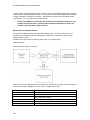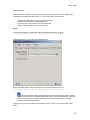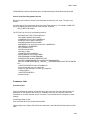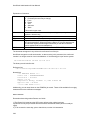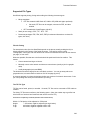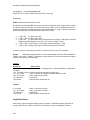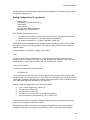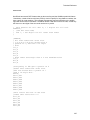
1
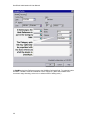
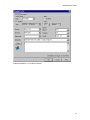
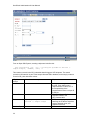
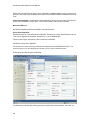
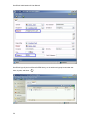
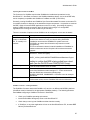
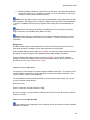
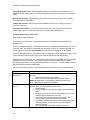
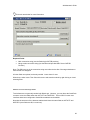
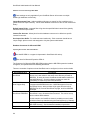
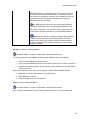
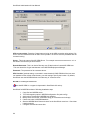
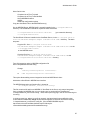
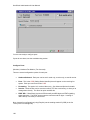
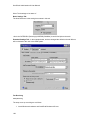
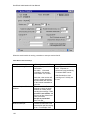
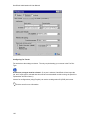
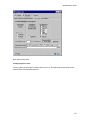
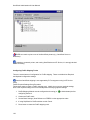
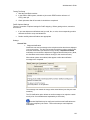
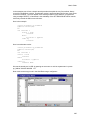
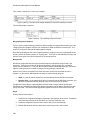
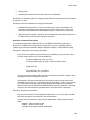
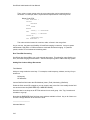
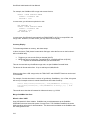
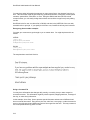
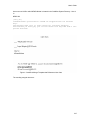
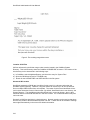
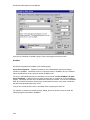
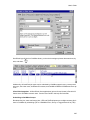
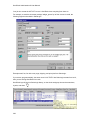
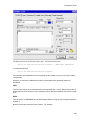
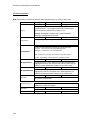
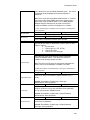
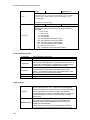
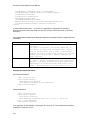
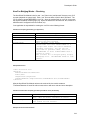
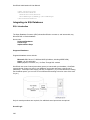
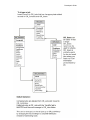
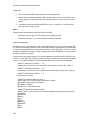
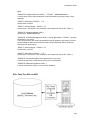
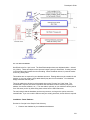
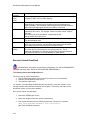
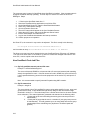
Administrator's Guide %CurrentTime% %TrackingURL% (This is the complete URL to track the package with a single click.) %Notes% (This passes Job notes, if any, into the email) New shipping tracks get a default message similar to this: Dear %FirstName%, %Notes% Please use the following url to track your shipment %TrackingURL% <Put your signature here> Edit this to taste. Address/Time Tab The Ship From address is only used if the DHL module is running in legacy direct mode. Settlement Time: Does not apply to DHL shipping. Use contact/account "shipping" address instead of "primary" address. This applies to SalesLogix only. By default, OmniRush uses the address marked as Primary as the shipping address. When this option is set, OmniRush will use the SalesLogix address marked as the Shipping address for the shipment. Label/Manifest Tab Set the label printer Left & Top Margin: Set the offset from the edge of the page. Enter fractions of an inch as a decimal (e.g. half an inch is entered as 0.5) Advanced Tab: Options to set: Add email notation to history record: This adds extra text to the history record noting that an email notification was sent out. Email creates its own history record: This results in two history records. One for the shipment and a second one for the email. Configuring E-Mail Tracks: Message Properties In most cases, the default settings are correct and no manipulation of the Track settings are necessary. For initial use, use the defaults. Message Properties: This allows for track defaults to be used for the e-mail message. Job information such as From Name, From E-Mail address, Subject, Attachment, Message Signature can all be set in the Track. This allows jobs submitted to a track (such as CSEMAIL) to be 'from' Customer Service, no matter who originates the job. Note that the behavior of the From Name and From Email are non-standard. Generally, job settings override track settings. However these two settings override the job. Anything set for the From Name and From Email will apply to all jobs sent via the track. Popular Configurations: Set the Default Subject to effect: "Information from Acme Roofing" so that any email sent without a subject will have a subject automatically set by the OmniRush server. 139