1
OmniRush Administration & User Manual
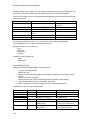
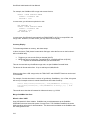
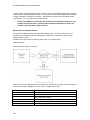
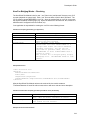
Updating OmniRush (maintenance update within the same major version)
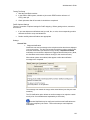
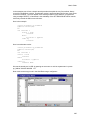
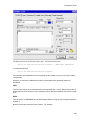
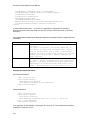
Running the Client Update Silently
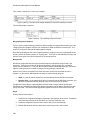
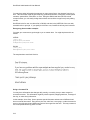
Upgrade FAQs
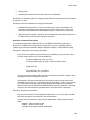
Version 8 Readme
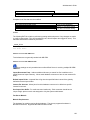
Upgrading OmniRush (version upgrade)
OmniRush v8 requires a v8 OmniRush license. Installing the OmniRush v8 upgrade onto a
system that is not appropriately licensed will disable the OmniRush Server.
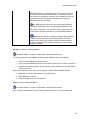
It is crucial that v6.x and v7.x client software not run against the version 8 server. In some
cases this can cause data corruption.
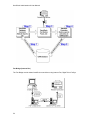
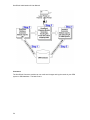
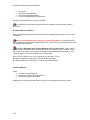
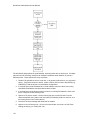
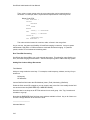
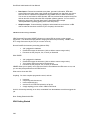
The steps to upgrade OmniRush are:
a) All production systems should make an off-line backup of the OmniRush server hard
drive using Ghost, Acronis or similar technology.
b) Shut down all OmniRush modules, including launcher and the Z-Firm DBEngine Service
and make a copy of the entire OmniRush \data\ directory to a backup location.
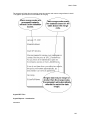
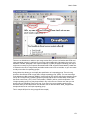
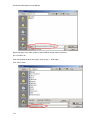
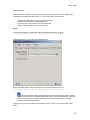
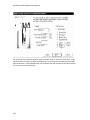
Download the Update installer for OmniRush
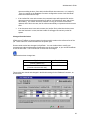
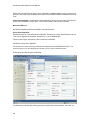
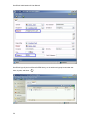
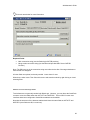
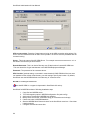
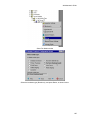
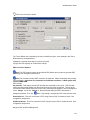
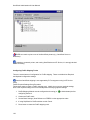
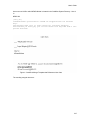
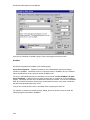
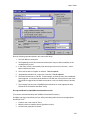
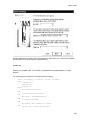
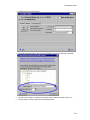
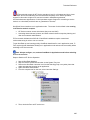
c) Start the Z-Firm DBEngine service, open Administrator, install your version 8 license (in
Administrator, go to File | Licensing | Load License File).
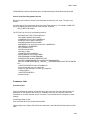
d) Exit Administrator, run the v8 upgrade installer on the server
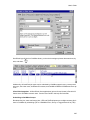
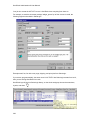
e) After upgrading, run the Administrator on the OmniRush Server PC, check that modules
will start properly. Confirm that existing configuration moved smoothly into v8.
f) For safety, stop all OmniRush server modules including launcher, and stop the Z-Firm
DBEngine service. This is done so that a v6/v7 client is not allowed to run against the v8
database.
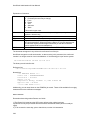
g) Run the upgrade installer on any (and ALL) PC's that have the OmniRush client
installed.
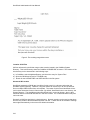
It is critical that the same build of OmniRush run on the Server and Client stations.
Always update all of them together.
h) On the OmniRush server PC, start the Z-Firm DBEngine service, launcher and server
modules.
i) Verify proper operation. Run some test jobs.
Done!
72