1
V808600A
SAT PROGRAMMER
INSTALLER’S MANUAL
Rel.2.02
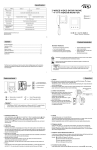
FUNCTION OF KEYS
DISPLAY MESSAGES
4
GHI
7
PQRS
C
CANCEL
- DELETE KEY
- EXIT WITHOUT
MODIFYING DATA
C
CANCEL
2
ABC
5
JKL
8
TUV
0
SPACE
3
DEF
6
MNO
-
MULTIFUNCTION
KEYS
+
+
-
1*
KEYS TO ADD DATA WITH
LETTERS OR NUMBERS
SCROLL UP
KEY TO GO THROUGH
MENU (FORWARDS)
9
WXYZ
SCROLL DOWN
KEY TO GO THROUGH
MENU (BACKWARDS)
OK
ENTER
- KEY TO ENTER MENU
- CONFIRM FUNCTIONS
- STORE DATA
CONNECTIONS
6
CABLE Y SUPPLIED WITH THE SAT
PROGRAMMER; REMOVE AFTER
COMPLETING INSTALLATION AND
PROGRAMMING
TECHNICAL SPECIFICATIONS OF THE SAT PROGRAMMER
Power supply voltage.................................................12 VDC
Temperature..................................................... -30°C +85°C
Consumption..........................................................<100 mA
MILEOMETER
SIGNAL
OK
ENTER
STEP 1
Fill out the “CONFIGURATION AND TEST REQUEST FORM” which you will find in the peripheral unit box and send it by
fax to the Customer service centre.
Set up the vehicle in such a way as to ensure access to all of the modules connected to the peripheral so that all alarm
functions may be tested in conjunction with the service centre.
STEP 2
PRELIMINARY PROCEDURES FOR CONTROLLING THE SYSTEM
In the initial stages of installation, it is essential to check two of the principal components to ensure that the satellite
system works correctly.
The components to be checked are the GSM module and the GPS receiver. In particular, it must be checked that the
position of their relative antennas guarantees that the parts in question will always be able to work. Follow the
instructions in the CHECK GSM STATUS and CHECK GPS STATUS menus to select the best positions of the antennas on
the vehicle. These procedures must always be done outside, at a distance from any buildings that could result in areas
of shade or prevent the above-mentioned parts from working.
PROCEDURE
After the GSM antenna and the GPS antenna have been placed in the best position to guarantee optimum performance,
complete connections for the test:
- connect the Sat Programmer to output n°6 on the peripheral unit using the “y” cable supplied in the box(diagram page 1)
- after the GPS antenna connector has been connected to its outlet on the GPS receiver, connect the connector on the
GPS receiver to output n° 5 on the peripheral unit
- connect the GSM antenna to the peripheral unit’s external connector.
- after completing the connections illustrated in the installation manual, connect the connector on the main cable (16
pin) to the peripheral unit;
- reconnect the vehicle’s battery
The following initial message appears on the SAT Programmer’s display:
SAT
OK
in maintenance
The menus can be displayed by pressing the
peripheral unit in maintenance status):
arrows on the Sat Programmer (menus can be displayed with
I/O Display ?
Activate Funct.
password ?
Activate Factory
password?
GPS Position?
SN (read only):
0000000000000
Temporary disab.
Battery alarm?
check
GSM status ?
Battery Check?
NUMBER PRIVACY
mode Enable ?
check
GPS status ?
Listen to
voice messages?
NUMBER PRIVACY
mode Disable ?
check
GSM credit?
software relesae
2.02.1
ID (read only)
00000
Call forwarding
disable ?
Checking the GPS antenna’s position
check
GPS status ?
Use the
arrows to locate the
menu and press the
display appears with the situation of the visible satellites:
OK
ENTER
key to confirm selection. A second
■ . . . . . . . . . . 1sv
fix not avail. N°
The data shown on the display indicate:
■ . . . . . . . . . .
the number of satellites visible and their intensity
For example:
............
0 satellites visible
■ . . . . . . . . . . .
1 satellite visible
■ ■ . . . . . . . . .
2 satellites visible (the first one is the strongest)
1sv =
indicates the number of visible satellites (number can vary from 0 to 12)
fix not avail = indicates that the geographical coordinates of the position have not been calculated. This indication
normally corresponds to the first time the peripheral unit is switched on when the satellites are not yet
visible,
current fix = indicates that the visible satellites are able to calculate the position of the vehicle and the position data
is constantly updated,
2
previous fix = indication given after current fix. In this case, the system has already acquired the coordinates that are
not updated as the vehicle is in an area of shade and no longer receives signals from the satellites,
No GPS
= indicates that the GPS receiver has probably been disconnected or that there is a fault,
N° =
indication given in seconds of the time passed since the selection of the Check GPS status? function
The time required to acquire the minimum satellites for the first calculation of position, in conditions of
visible sky (meaning there are no obstacles near the vehicle, e.g. very high buildings), is around 300
seconds.
The timer goes back to zero every time you press the OK key, and thus exit check mode, and starts again when you
access the function again. The timer stops when it reaches 999 and is not updated. The timer is not a critical factor
for acquiring satellites but is just an indication of how much time has passed.
Possible problems when acquiring satellites
Vehicle
Position
Open sky
Garage
Open sky
N° Satellites
From 0 to 1
From 0 to 1
0
Open sky
0
Indication on
the display
■...........
■. . . . . . . . . . .
=========
…………….
............
Time passed
Type of fix
600 sec.
600 sec.
always
No fix available
No fix available
No GPS
always
No fix available
or previous Fix
Notes
Move GPS antenna
Move vehicle outside
Check connection of GPS
receiver and control unit
Check connection of GPS
antenna to the receiver
CHECKING THE GSM ANTENNA’S POSITION
Before checking the GSM signal, a SIM phone card must be inserted into the dedicated slot. This must not have an
access PIN number, message box service or incoming call transfer service.
The SAT Programmer indicates if no SIMCARD is present with the following message:
ERROR: SIM CARD The telephone continues its attempts to locate the SIM Card, which is automatically recognised as
NOT FOUND !!
soon as it is inserted in the appropriate slot.
The SAT Programmer can be used to eliminate the PIN if it has not already been deleted from the SIM Card. The
peripheral unit recognises that the PIN is present and allows it to be neutralised:
ERROR: SIM CARD
PIN REQUEST !! , this display alternates with
[+] PIN insert
[-] Restart
Select the + key on the Sat Programmer, the display changes to:
INSERT PIN
****
Key in the correct PIN and press OK to confirm. If you make a mistake, press C to repeat.
If the PIN is correct, the SAT Programmer first displays:
Then:
CODE OK
PIN DISABLED
Function active
Please wait
, and then the telephone is automatically started.
If the PIN is not correct, the Sat Programmer displays
PASSWORD
NOT ACCEPTED
Please remember that the SIM will be blocked if three attempts are made to key in a false PIN and also that the PUK
must be keyed in after the third attempt as per the following display:
ERROR SIM CARD
REQUIRES PUK , this display alternates with
[+] insert PUK
[-] restart
Select the + key on the Sat Programmer, the display changes to:
INSERT PUK
********
If the PUK is correct, the following display appears:
CODE OK
PIN DISABLED
When the correct PUK is keyed in, the PIN code is automatically changed to ‘1111’ and consequently neutralised. After
the correct PUK is keyed in, the display automatically changes over to show the status of the GSM signal. If this is not
OK
GSM status
visible, use the
arrows to locate the
menu and press the ENTER key to confirm selection. A
verify?
second display appears which shows the status of the GSM signal:
GSM SiGNAL n%
====
■■■■■■■
3
The data provided indicates:
n%
= the percentage of GSM signal that is available. This is the effective signal that is available and should
not be compared to the signal shown on the display of a mobile phone as this only gives an approximate
reading.
■■■■■ = =
= chart giving a visual indication of the available GSM signal.
If the percentage amount and the chart indicate a very low signal, it is important to locate the causes preventing good
reception. These may be:
• antenna is in critical position
• antenna is not connected to the outlet on the control unit
• antenna cable is damage or partially broken
• the vehicle is located in a garage made of reinforced concrete
• low signal caused by poor coverage of the phone company (sometimes the signal from one phone company is poor
whilst that of another is good).
If the check is being made after the initial switch on, the Sat Programmer display could say “GSM module in low
consumption mode”.
Press the + key to activate the module and display the intensity of the signal.
RESET GSM MODULE: press the
key on the SAT Programmer to reset the telephone’s GSM module.
-
Indications after the satellite peripheral unit is switched on for the first time:
As the peripheral unit is switched on for the first time, the Sat Programmer automatically displays the acquisition of the
GSM signal. The displays appear in the following sequence:
SAT OK
Maintenance mode
GSM signal
off
GSM module
on
GSM serial link
activating…
GSM SIGNAL 0%
=============
GSM network
registering...
GSM SIGNAL n%
===
■■■■■■■
4
STEP 3
SYSTEM CHECK AND PROCEDURES FOR PROGRAMMING.
It is possible to check that the system was installed correctly after the initial checks prior to actually completing the
installation of the system. Further to these checks, which can be carried out with the peripheral unit in maintenance
mode, follow the Installer Level Entry Procedure to program the system.
SYSTEM CHECK.
Make sure that the system is powered and that all the connectors of the external appliances are connected up correctly.
Also make sure that the SIM phone card is inserted in the correct slot.
Check the status of the GPS and GSM signal again, as previously described.
DISPLAY OF INPUTS
Use the
arrows to locate the I/O Display ?
display appears with the status of the inputs.
The first display that appears is as follows:
OK
menu and press the
ENTER
key to confirm selection. A second
-----R----------
R indicates that the peripheral unit is under the installer’s control.
The display is updated every time the peripheral unit receives a stimulus, for example:
- Switch the dashboard on (+15) the display is updated:
-----R-------K-dashboard on
K indicates that the ignition key is inserted and operational
- Switch the dashboard off the display is updated
-----R---------dashboard off
The same tests can also be made with the other available input lines:
SMHVARYXDT12BKGC
dashboard off
where the letters, in combination with the descriptions, indicate:
Letter
If the letter is shown on the Display
If the letter is not shown on the Display
S
M
H
V
A
R
Y
Signals active
Peripheral unit is immobilised
Peripheral unit is active
Hands-free active
Peripheral unit enabled
Installer control
Transport mode active
Signals off
Peripheral unit is not immobilised
Peripheral unit is neutralised
Hands-free at rest
Peripheral unit in maintenance mode
Service Centre control
Transport mode neutralised
Letter
X
D
T
1
2
B
K
G
C
If the letter is shown on the Display If the letter is not shown on the Display
Crash sensor triggered
Doors open
Boot open
VOL1 active
VOL2 active
Bonnet open
Dashboard on
Window open
Sunroof open
Crash sensor at rest
Doors closed
Boot closed
VOL1 at rest
VOL2 at rest
Bonnet closed
Dashboard off
Window closed
Sunroof closed
NB: the information displayed is updated after the status of an
input changes. No information is displayed for the first input after the check function.
The consecutive sequence with the variation of several inputs makes it possible to display the last variation alone. The
previous ones are not displayed unless the variation in question is repeated.
OK
Variation in the crash sensor is not immediate as it is delayed for a few seconds. Press the ENTER key to exit the
function.
GPS POSITION
If the peripheral unit can see the sky correctly and more than 3 satellites are visible, which guarantee the establishment
of the Current Fix, it is possible to interrogate the GPS Position function to display the geographical coordinates of the
vehicle’s position.
OK
GPS Position
ENTER key to confirm selection.
Use the
arrows to locate the
menu and press the
A second display appears with the geographical coordinates of the vehicle’s position:
ok 45’46’05” N
The geographical coordinates are set by the manufacturer in degrees, minutes and seconds and
008’48’52” E [OK]
are distinguished by Latitude and Longitude. (Warning: check what type of coordinates are
accepted if they are to be inserted in map software. Function 384 can be used to set the display
format of the coordinates to DECIMAL or NMEA). It is normal that the display of the minutes
varies during the display of the position data unless this variation is +/- 2 units.
=
indicates
that updated geographical coordinates are currently being received.
OK
If this symbol is absent, it indicates that the coordinates are not updated and are previous to the
reading. If this symbol is absent it does not mean there are problems with reception. Any doubt must
be cleared up by checking with the: “Check GPS Status ” menu.
45’46’05” N
= indicates the Latitude of the geographical position which is N = North, if you are above the equator,
and S = South, if you are below the equator.
5
008’48’52” E
Press the
=indicates the Longitude of the geographical position which is E = east, if you are to the right of the
Greenwich meridian, and W = west, if you are to the left of the Greenwich meridian.
OK
ENTER
key to exit the function.
BATTERIES CHECK
The peripheral unit provides information on the status of the vehicle’s battery and its own internal battery.
OK
Battery Check ?
Use the
arrows to locate the
menu and press the
key to confirm selection.
ENTER
A second display appears with the status of the batteries:
Int: 7.2V
+23°C
Ext:14.5V ok [OK]
The data should be read as follows:
Int : voltage in V
= the internal battery’s voltage,
+ temperature in °C = the internal temperature of the peripheral unit,
Ext : voltage in V = the external battery’s voltage,
ok
= indicates that the external battery voltage is correct
off together with 0.0V indicates that the vehicle battery is disconnected
nok together with a voltage reading below 10.0V indicates that the voltage of the vehicle’s
battery is too low to safeguard the correct running of the system.
[OK]
= indicates which key to press to exit the display.
Flashing symbols
appear next to the Int: voltage in V which indicate if the internal battery charging system is
operating and if it is charging the internal battery.
The internal battery is only charged if:
✦ external battery voltage is above 10V
✦ external temperature, shown on the display is above 0°C and below +80°C
✦ +15 is ON.
The flashing symbols, with +15 on, should be read as follows:
= internal battery charged and system at rest
= internal battery is flat and system in rapid recharge mode
= internal battery sufficiently charged and internal recharge system in slow recharge mode.
If +15 is not on, only the
symbol flashes regardless of the level of internal battery voltage displayed. Press the
OK key to exit the function.
ENTER
LISTENING TO VOICEBOX MESSAGES
The system is provided with an internal synthesizer that reproduces voice messages to inform the end-user of the causes
of an alarm, request or emergency situation which are listened to via the system’s hands-free speaker.
Listen to Voice
OK key to confirm selection.
Use the
arrows to locate the
menu and press the
messages ?
ENTER
A second display appears with the following message:
Test Message On
OK to end
Listen to the messages via the hands-free speaker. Press the
OK
ENTER
key to interrupt the sequence.
SERIAL NUMBER
The peripheral unit’s Serial Number can be consulted via the Sat Programmer. This makes it possible to check the serial
number at any time for communications with the Service Centre or the Manufacturer as regards assistance or updates.
The display shows:
SN (read only):
000.0.00000.0000
6
STEP 4
ACCESSING PROGRAMMING
To start the programming of the satellite peripheral unit, you must enter the system at “Installer Level” as per the
following procedure.
The procedure is described starting at “Maintenance Level” as this is the factory setting.
The programming steps are very important to ensure the system operates correctly and great care and attention must
be paid when they are being carried out.
To access “Installer Level”, you must reach user level by means of the following procedure:
After the peripheral unit has been switched on for the first time, the display appears as follows.
Press the
OK
ENTER
Use the
key to confirm selection and then
SAT OK
In maintenance
GSM SIGNAL n%
====
■■■■■■■
is displayed.
keys to select the
Activate Funct.
password ?
display and press the
OK
ENTER
key to confirm selection.
There next appears the display with:
PASSWORD ACTIVE! press key 3 five times and confirm with the next display
Insert password
PASSWORD OK
and then
Functions active
Select function:
Key in the number 6 0 0 and confirm by pressing the
OK
ENTER
key
The display appears with:
OK
Activate Instal.
confirm by pressing the ENTER key and continue
password
?
OK
PASSWORD ACTIVE!
press key 4 five times and confirm with the ENTER key.
Insert password
The next display confirms that you have reached installer level as follows:
Installer OK
Select function:
It is now possible to decide how to proceed with the programming of the peripheral unit, but in both cases, it is essential
to take great care with programming. . The methods for programming are as follows:
OK
- use the
keys to select the function (or functions) of interest and then press the
ENTER key to access the
selected function,
OK key to access the
- call up the function of interest by keying in its corresponding number and then press the
ENTER
selected function.
The table below lists the functions, which are available for the installer:
The table shows the function’s number, the symbols that appear on the display, the factory setting (if any) and a short
comment by way of explanation.
Function N°
200
201
202
205
206
207
211
Symbols on the
display
Unlock
Code >>
********
Anticarjack
Code >> ********
Functions Enable
Code >>
********
Phonebook Edit
Index?
SN (read only)
0000000000000
Software release
x.xx.xx
Temporary disab.
Battery alarm?
Factory setting
11111
22222
33333
Must be programmed in
-
212
NUMBER PRIVACY
mode Enable ?
-
213
NUMBER PRIVACY
mode Disable ?
-
214
ID (read only)
00000
-
Description
The code used by the
end-user for disarming
The code used by the end-user
in case of car jacking
The code used to access
programming functions
The menu for adding
phone numbers
The product’s serial
number
Release of factory
set software
If selected, temporarily disenables
the alarm for disconnection of
battery (for one arming cycle)
If selected, does not let your
number be displayed in case of
calls
If selected, lets your number
be displayed in case
of calls
Recognises the identification number
of the peripheral unit memorised
by the Service Centre
7
215
365
Call forwarding
disable
Installer Code
>>
44444
Indicators Com.
DRIVE LAMPS
Vehc. Plate
(8 chs.)
Siren sound on
alarm ALTERNATE
GSM Call activ.
delay 10
Call List editor
SPEED WARNING
Call List editor
LOW BATTERY
Call List editor
LOW CREDIT
Call List editor
CAR ALARM
Call List editor
PERIODIC
Listen to
voice messages?
VOL 1 input pol.
POSITIVE
Hands-free set
Present? YES
Check GSM Status
366
Check GPS Status
-
367
Check GSM Credit
-
368
Speedometer
Calibrationr?
GPS Speed
Verify ?
Battery Check ?
Must be calibrated
50 units
374
Credit warning
at 50 units
SC SMS Number
375
Command Test #1 ?
378
Electronic keys
in memory:
300
302
307
323
341
350
351
352
353
357
358
362
364
369
370
371
381
382
383
384
401
429
8
Update data
format ?
Code request at
doors open ? NO
Ignition block
mode: DOUBLE
Co-ordinate mode
DEGREE.MIN.SEC
Outgoing Calls
Extern alarm
immunity 5 min
44444
DRIVE LAMPS
Must be programmed in
Alternate
10 seconds
Must be programmed in
Must be programmed in
Must be programmed in
Only with prepaid SIM
Must be programmed in
Programmed in by
Service Centre
Positive
YES
-
Must be checked
-
Already stored or
to be stored by SIM
0
NO
DOUBLE
DEGREE.MIN.SEC
ENABLED
5 minutes
Allows call.transfer services to
be disabled
The code for access
at your level
Indicates if indicators are
controlled directly or not
Stores number of
vehicle’s numberplate
How an external horn
is controlled, if any
Time between cause and call
(can be set between 0 and 254 secs)
Calls to activate if speed
limit is exceeded
Calls to activate if car
battery is flat
Calls to activate if prepaid SIM
card credit is insufficient
Calls to activate if the
car alarm sounds
Calls to activate periodically
with programmed period
Repeats a synthesized test
message via hands-free
Programmes in the polarity
of the VOL1 input
Programmes in the presence
of the hands-free kit
Checks the status of the
GSM module
Checks the status of the
GPS module
Checks the remaining credit
of prepaid SIM phone cards
Memorises the frequency of
the speedometer signal
Displays the tachometer
speed and GPS speed
Displays the status of the
internal and vehicle batteries
Minimum limit for remaining
value of prepaid SIM phone cards
Indicates the number of the
phone company for SMS messages
For checking horn output and
blinker connections and immobiliser
0Displays how many electronic keys
are stored in the memory of the
peripheral unit
Only for use by technical service
Activates request for unblock code
when door is opened
Activates aux relay even if not blocked
by remote. Set ‘single’ if fault with
check panel
Sets format of coordinates via SMS to
user
If disabled, only calls to numbers
in phonebook can be made after
activation
Delay after placing CAR ALARM
calls if VOL1 is active
430
431
439
446
maintenance mode
Enable ?
maintenance mode
Disable ?
Speed limit
31=
310Kmh.
GPS Position?
447
460
604
605
606
-
Puts the peripheral unit
into maintenance mode
Takes the peripheral unit out
of maintenance mode
310 Kmh
Sets the maximum speed: the
peripheral unit calls if this is exceeded
-
Display I/O
Displays the geographical
coordinates of the vehicle’s position
Displays the status of
the inputs and outputs
Displays Greenwich time as reference
for reception of GPS signal
Only for use by technical service
-
Fix UTC DateTime
20may02 10:00:00
Activate Factory
password?
Memorise
Electronic Keys ?
Add
Electronic Keys ?
-
Function for storing
electronic keys
Adds extra keys in addition
to those already stored
-
Some of the most important programming functions are illustrated below and the simpler and less significant steps
are described in the written comments.
The keypad is used to carry out all the programming together with the use of the
arrow keys and the
function modification keys.
Refer to the pertinent section at the end of the manual on how to exit programming mode.
PROGRAMMING PHONE NUMBERS IN THE SIM CARD’S PHONEBOOK - FUNCTION 205
Installer OK
Select function
Select function:
205
Key in 205
OK
ENTER
Phonebook Edit
Index ?
Key in the index number to be
changed. For example: 1
To select another
number in the phonebook
1
Index>> 1
OK
ENTER
For example: add the phone number
+393481234567 at position 1
Index: 1
+393483456789
Index: 1
>>available<<
+
3
9
4
For example: delete the phone number already
stored at position 1, e.g. +393483456789
8
-
1
Index: 1
+393481234567
To delete the selected
position in the memory
OK
ENTER
Press ‘C’
twice
9
PROGRAMMING THE CALLS LIST - FUNCTIONS FROM 342 TO 357:
For example: List of Car Alarm calls (calls to the end user due to external alarm)
Installer OK
Select function
Select function:
353
OK
ENTER
Call List editor
CAR ALARM
OK
ENTER
<1>= index of numbers to call (max 5)
CAR ALARM = cause of call
CAR ALARM <1>
Pos.— VOICE ONLY
Pos.-- = position in the phonebook
of the memorised number (max 90)
VOICE ONLY = type of call
(VOICE, SMS, SMS+VOICE, VOICE[SMS])
For example: call number stored in
phonebook at position 1
0
1
CAR ALARM <1>
Pos.01 VOICE ONLY
Does the phone receive SMS?
YES
NO
Leave:
VOICE
VOICE
SMS
SMS+VOICE
VOICE [SMS]
Call another number in the phonebook?
For example: n° 03 in the phonebook 5 in index
YES
NO
-
OK
+
ENTER
CAR ALARM <5>
Pos. -- VOICE
0
3
CAR ALARM <5>
Pos.03 VOICE
10
NO
END OF
PROGRAMMING
PROGRAMMING IN OR MODIFYING VEHICLE’S NUMBERPLATE (MAXIMUM OF 8 DIGITS) – FUNCTION 307
Installer OK
Select function
Select function:
307
OK
ENTER
Vehc. Plate
(8 chs.)
For example: key in numberplate
ZZ 987 AC
9
To delete the previous number or
letter
-
+
9
Press key repeatedly until letter Z
To continue to the next number or letter
Press key repeatedly until letter Z
Continue in the same way for all the
remaining numbers
OK
ENTER
CANCEL CALL TRANSFER – FUNCTION 215
All call transfers can be disenabled via this function (deviations, answering machines, etc.) without removing the SIM
card from its slot. Select the function (215) and press OK. Wait for the message confirming cancellation. From now on,
all services available with the SIM card are disenabled.
PROGRAMMING IN THE HORN SOUND – FUNCTION 323
Select function n°323 using the keypad, press OK, select the type of sound (ALTERNATED –CONTINUOUS –NONE) using
keys + and -, confirm selection with the OK key, or press the C key to keep the previous setting.
PROGRAMMING IN THE TYPE OF CONTROL FOR THE DIRECTION INDICATORS – FUNCTION 302
Select function n°302 using the keypad, press OK, select the type of control (DRIVE LAMPS, DRIVE BLINKER) using keys
+ and -, confirm selection with the OK key, or press the C key to keep the previous setting.
SETTING THE ACCESS CODES – FUNCTIONS 200- 201-202-300
The access codes can be set, up to your own level (installer level).
The codes that refer to the:
- Disarm or unblocking code (function n° 200)
- Anti car-jack code (function n° 201)
- Unblock functions code (function n° 202)
can be changed but it is not possible to see the stored code.
Your own installer code is however visible.
For vehicles with a system that you did not install yourself, the Service Centre can set the default password so that the
functions can be accessed.
Setting the Disarm - Anti car-jack - Unblock functions codes
Select the function required (n°200 – n°201 – n°202) , press OK, key in the new code directly on the keypad (it
must have from 5 to 8 digits, numbers only), confirm selection with the OK key, or press the C key to keep the
previous setting.
11
Setting the new installer code
Select the function required (n°300), press OK, key in the new code directly on the keypad (it must have from 5
to 8 digits, numbers only), confirm selection with the OK key, or press the C key to keep the previous setting.
Setting the polarity of the VOL1 input – function 362
The polarity of the VOL1 input can be altered.
The polarity of the VOL1 input must be set according to the type of signal (positive or negative) from the auxiliary output of an
external alarm.
Select the function required (n°362), press OK, select the type of polarity (POSITIVE – NEGATIVE) with the + and - keys, confirm
selection with the OK key, or press the C key to keep the previous setting.
SETTING THE HANDS-FREE KIT - FUNCTION 364
It is possible to configure if a hands-free kit is connected or not.
Select the function required (n°364), press OK, use the + and - keys to confirm if there is a hands-free option or not (YES –
NO), confirm selection with the OK key, or press the C key to keep the previous setting.
CALIBRATION OF TACHOMETER – FUNCTION 368
With version 2.02, the tachometer calibration is done automatically. However, calibration as described below is recommended
to check that the mileometer signal gives the correct reading.
Calibration must be checked when the system has been completely connected up, powered and the vehicle is ready to go
back on the road.
After connecting the mileometer wire, the correct operating frequency for the vehicle’s mileometer must be stored in the
peripheral unit’s memory.
Select the function required (n°368), press OK, start up the vehicle and reach the speed of 50 km/h, keep this speed steady
and press OK to confirm.
If the tachometer is not connected up, the SAT Programmer’s display will inform you:
Tachometer not connected!!
CHECKING GPS SPEED– FUNCTION 369
It is possible to check the calibration of the tachometer speed, whether automatic or manual, by selecting the function required
( n°369 ) and pressing OK. The following display appears
T=0 d=0 f=0
G=0 d=0 Q=8
The measurements which are needed to check the setting are:
T = displays the speed in km/h of the tachometer wire.
G = displays the speed in km/h of the GPS.
f = the frequency of the tachometer signal.
If T or G shows three ??? instead of a number, it means that there is no connection with the tachometer or GPS
SC SMS NUMBER – FUNCTION 374 (MUST ALWAYS BE CHECKED)
The number of the telephone company, that manages the SMS messages, can be set or changed. Usually, new SIM cards
already have the Service Centre number for SMS messages stored in their memory and therefore this number need not be
altered.
If this number has not already been stored, select the function required (n°374), press OK, use the keypad to key in the number
taking care to add the international code, press OK to confirm.
TESTING CONTROLS – FUNCTION 375
It is possible to check if the outputs have been correctly connected, before returning the vehicle to its owner.
Select the function required (n°375), press OK,
[ - ] HORNS/INDIC.
[ + ] BL. RELAY [OK]
The symbols mean:
if the minus [ - ] key is pressed, the horns and direction indicators will be activated
if the plus [ + ] key is pressed, the ignition immobilisation relay and the relay for signalling immobilised status will be activated
(the +15 must be given to get activation)
Press OK to exit this function.
FUNCTION 378
Displays the number of electronic keys stored in the memory. Select the function required (n°378) and press OK.
FUNCTION 380
Function 380 enables all the services present in the telephone SIM card to be deleted without having to remove it from its slot.
These services (call transfer, answering machines etc.) must be disenabled so that the peripheral unit can always respond
directly to calls from the Service Centre.
Select the function required (n°380) and press OK. The function starts automatically and all the services activated in the SIM
are disenabled.
12
FUNCTION 381
Reserved for use by technical service.
REQUEST CODE WHEN DOOR OPENED – FUNCTION 382
This function makes it possible to extend the peripheral protection if an external alarm is not connected to the Vol.1
input. If the function is enabled (‘yes’), the peripheral unit requires the unblock code to be keyed in either as soon as
the car door has been opened, or otherwise when the +15 is turned on. In this case, switching on the instrument panel
(+15) has no effect. Select the function required (n°382), press OK and use the +/- keys to select the YES/NO setting.
Press OK to confirm selection or C to keep the previous setting.
IGNITION IMMOBILISATION – FUNCTION 383
This function makes it possible to set how the ‘signal immobilised status’ relay will work when the peripheral unit is
operational, after +15 has been turned on and the subsequent request for the ‘unblock code’. If the ‘DOUBLE’ option
has been selected, the peripheral unit will activate the ‘blocked status’ relay immediately after +15 has been turned on.
If the ‘SINGLE option has been selected, the peripheral unit will not activate the ‘blocked status’ relay after +15 has
been turned on but only if it receives the pertinent command from the Service Centre and provided the tachometer
and/or GPS speed is less than 1 km/h. Select the function required (n°383), press OK and use the +/- keys to select
the SINGLE/DOUBLE setting. Press OK to confirm selection or C to keep the previous setting.
FORMAT OF COORDINATES - FUNCTION 384
The type of format for the GPS coordinates can be set so that it is possible to display the geographical coordinates
(function 446) according to three different parameters:
- DEGREES – MINUTES – SECONDS: 44’ 42’ 47” N – 010’ 36’ 57” E
- DECIMAL: 44,7131 N – 010,6161 E
- NMEA: 44’42,79N – 010’36,96’E
The type of format is important if the user intends to use map-location software. The position will be sent with each SMS
sent to the user and the numerical format keyed in can be used to trace the position of the vehicle using a digital map.
Select the function required (n°384), press OK and use the +/- keys to select the DEGREES – MINS–
SECS/DECIMAL/NMEA parameter. Press OK to confirm selection or C to keep the previous setting.
PRIVATE USE OF TELEPHONE - FUNCTION 401
The function enables the telephone function to be used via the on-board keypad. If set as ‘DISENABLED’, the telephone
will not work if full telephone numbers are keyed in. However all the numbers stored in the phone’s memory can still be
called (e.g. 01#) and 99# to call the Service Centre. Incoming calls are always possible. Select the function required
(n°401), press OK and use the +/- keys to select the ENABLED/DISENABLED parameter. Press OK to confirm selection
or C to keep the previous setting.
EXTERNAL ALARM IMMUNITY - FUNCTION 429
The amount of time that the peripheral unit will disregard further triggers of an external alarm on the VOL1 input can be
changed (from 1 to 15 minutes), if set. Zero indicates that no immunity time has been set.
We do not recommend you alter the factory setting.
Select the function required ( n°429 ), press OK, use the + and - keys to modify the setting, confirm selection with the
OK key, or press the C key to keep the previous setting.
HOW TO ENTER MAINTENANCE MODE - FUNCTION 430
When the vehicle is being serviced, or should the end-user specifically request it, the peripheral unit can be put into
maintenance mode.
In this mode, the normal functions of the peripheral unit are temporarily neutralised and an alarm will not be triggered if
the vehicle’s battery is disconnected.
Select the function required (n°430), press OK. Maintenance mode is now operational.
HOW TO EXIT MAINTENANCE MODE - FUNCTION 431
When the peripheral unit is in maintenance mode and servicing has been completed, or if the end-user requests it,
normal operating mode can be restored.
Select the function required (n°431), press OK.
Maintenance mode is now neutralised.
SPEED LIMIT - FUNCTION 439
If the end-user requests it, it is possible to set the speed limit for the vehicle: the peripheral unit will call the number
specified by the end-user (the call is made if the limit is exceeded for at least consecutive 10 seconds).
The limit can be set from 10 to 310 Km/h.
Select the function required (n°439), press OK, use the + and - keys to select the speed, confirm selection with the OK
key, or press the C key to keep the previous setting.
13
*WARNING: Remember to inform the vehicle’s owner that the peripheral unit will place a call and/or send a SMS to the
numbers set in the phone book if the speed limit is exceeded. This will result in an increase in the usage costs for the
SIM CARD.
To alter the set value, access the ‘Unblock Functions’ Level by keying in the password 33333 or the password set by the
user if it has been altered. Call up the function (439) and alter the reading. The vehicle owner can set the speed limit
using the keypad, if required, by following the procedure illustrated in the ‘User Manual’ or by asking the Operations
Centre to do it for him.
STORING EMERGENCY KEYS (MAX NUMBER OF KEYS THAT CAN BE STORED = 3) – FUNCTION 605
Connect an electronic key reading unit (receptacle) to peripheral n° 3 and store the keys.
Select the function required (n° 605), press OK, insert the keys to be stored in the reader’s memory one at a time, the
number of keys stored (at bottom right) increases by the number of good keys inserted, press OK again to exit this
function.
Any keys previously stored will be deleted by this process.
The peripheral unit’s maximum waiting time for the insertion of a key is 20 seconds.
FUNCTION 604
Reserved for use by technical service.
ADDING EMERGENCY KEYS - FUNCTION 606
This function makes it possible to store new keys in addition to those already stored, and does not delete those stored
previously.
Select the function required (n° 606), press OK, insert the keys to be stored in the reader’s memory one at a time, the
number of keys stored (at bottom right) increases by the number of extra keys compared to the number at the beginning,
press OK again to exit this function. The peripheral unit automatically exits the function 5 seconds after the last key has
been stored.
HOW TO EXIT PROGRAMMING
To exit programming, starting from the:
returns to its initial status and displays
SAT deactivated
(in maintenance)
Restore the peripheral unit to its
the key.
Installer OK
Select function
SAT OK
in maintenance
OK
display, press the zero key and
ENTER
. The peripheral unit
status by pressing key 1 five times and then pressing
OK
ENTER
ACTIVATING THE PERIPHERAL UNIT
The Service Centre activates the peripheral unit directly during the testing and programming stage. Should the Customer
require the vehicle to be delivered without it being activated by the Service Centre, the peripheral unit can be activated
locally, by following the steps below:
- Access Installer Level as described on page 8.
- Select function 431,
Maintenance mode
Disable ?
and press OK.
- To exit Installer Level when the display shows
S.P. will display
Access denied
Insert code
Installer OK
Select function
: press the zero key twice and then
OK
ENTER
. The
. The peripheral unit is disarmed by switching on the dashboard and keying
in the password. The S.P. will now display
SAT OK
From this moment on, the peripheral unit is armed and disarmed according to the procedure described in the User’s
Handbook. Should it be necessary to change any of the settings of the programming parameters, it is possible to
access Installer Level by repeating the procedure to access programming, even from this level by locating the
Activate password
Unblock Functions?
menu
PROBLEM SOLVING
You may find that it is not possible to programme the unit or display information for some reason.
Some of the possible problems you may come across are listed below.
IT IS NOT POSSIBLE TO REPROGRAMME THE PERIPHERAL UNIT
When the system requires maintenance work, the Service Centre must transfer control to the installer for the time needed for
the work to be done. This mode of operation is called ‘MANAGEMENT MODE’ and the installer must always make sure that the
Service Centre has activated “Control from SC to Installer”
14
THE MILEOMETER SPEED IS NOT SHOWN ON THE DISPLAY
Check that the wire is connected up correctly and that the signal is taken from the correct wire. Usually, the mileometer signal
is alternating with voltage up to 12 volt for vehicles and the frequency varies with the variation of the speed. The signal is
normally given when the instrument panel is switched on.
THE GPS SPEED IS NOT SHOWN ON THE DISPLAY
Check that the GPS receiver/antenna is connected up correctly.
IT IS NOT POSSIBLE TO ACCESS ‘INSTALLER LEVEL’ AFTER THE SYSTEM HAS BEEN TAKEN UP BY THE SERVICE
CENTRE.
If the SAT Programmer displays
SAT OK
maintenance+SC
the SC symbol means that the peripheral unit is in ‘maintenance’ mode but is still controlled by the Service Centre. Call
the Service Centre to inform them of the problem and get installer control. If control is transferred correctly, the next
display will be
SAT OK
in maintenance
If you attempt to access Installer Level by following the procedure for ‘Access Programming’ (STEP 4) from user level
SAT OK
Service Centre
and the display indicates
Management
access from the Service Centre, as described above.
for a moment, you must request authorisation for
From version 2.02 of the SW onwards, which can be checked using function 207, the end-user can alter the unblock,
anti-carjack and unblock functions passwords directly.
Therefore, the ‘33333’ factory-set default password may be no longer valid.
In this case, if the vehicle or the satellite system is to be serviced or repaired, remember to ask the vehicle’s owner
the new functions unblock password.
NB: Any functions displayed on the SAT PROGRAMMER which are not described in this manual refer to extension
modules which provide additional features. Refer to the relative instruction manuals for more details on how they work
and are used.
15