1
SETTING UP VIRTUAL MACHINES
compressed archive file, i.e., “VM Base Debian 8.x en.7z”. Then extract the image to folder
of your choice, e.g., “%UserProfile%\VirtualBox VMs” using 7-zip. Upon the completion of
the extraction, we shall be able to locate the image under the selected folder, e.g., “%UserProfile%\VirtualBox VMs\VM Base Debian 8.x en”.
2. Open the virtual machine image using VirtualBox, for which, do the following. On VirtualBox, click on “Machines” on the menu bar and then select “Add. . . ” from the menu, or
simply press the “CTRL-A” key. A dialog window will appear. In the dialog window, open
the folder that contains the image, and select and open the Virtual Machine Definition file,
“VM Base Debian 8.x en.vbox”. The virtual machine is now added to VirtualBox. We refer
this virtual machine as Base VM in the discussion that follows. We recommend that you keep
this VM intact because we want to use it as the base to create clones.
3. Next is to clone a virtual machine from the Base VM. VirtualBox and other virtualization
software can create virtual machines quickly by making clones of existing virtual machines.
They can create two types of clones, linked clone and full clone. We recommend linked clones.
Linked clones are created using an approach similar to “snapshot”, which, loosely speaking,
implies that a linked clone only needs to store the delta, the difference of disk data between
the linked clone and its parent [13]. Therefore, if clones and their parent virtual machines
share the same software installation, linked clones conserves disk space.
A linked clone depends on the parent virtual machine from which the clone is copied and
requires that the parent virtual machine is present in the host with the linked clone, i.e., if
we want to move or copy a linked clone to another host, we must move or copy the parent
virtual machine along with the linked clone.
Note that both the linked clone and the parent clone will function independently as ongoing
changes to the virtual disk of the parent do not affect the linked clone, and changes to the
disk of the linked clone do not affect the parent. For more discussion on the two types of
clones, see [3, 12].
To create a linked clone in VirtualBox, select the virtual machine added in step 2, and then
click on “Machines” on the menu bar and then select “Clone. . . ” from the menu, or simply
press the “CTRL-O” key.
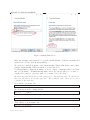
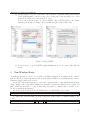
A dialogue window to enter the virtual machine name will appear. See Figure 2(a). Set the
name to an identifiable name, e.g., “VM 1 Debian 8.x en” indicating this is the first virtual
machine cloned from the Base VM. Do not forget to check the “Reinitialize the MAC address
of all network cards” checkbox; otherwise, the MAC addresses of the ethernet adapters on
the cloned virtual machines will be identical to those in the parent virtual machines, which
we want to avoid.
Now click on the “Next” button. We can now choose the type of clones to create. In the
dialogue window that follows, choose the ”Linked Clone” radio button. See Figure 2(b).
The linked clone will be created and appear in VirtualBox, when we click on the ”Next”
button. We will call this virtual machine VM2 in the discussion that follows.
4. We now need to change the hostname of the virtual machine VM1. In VirtualBox, select
VM1 and click on the “Start” button from the toolbar.
Revision:134:7b0b97d898ad
4