1
INSTALLATION & OPERATION GUIDE
(VERSION 2 FIRMWARE)
QBox
Installation & Operation
Guide
Autocue and QTV have been serving the broadcast industry since the mid-1950s when
QTV in New York and Autocue in London supplied the very first prompters via their rental
divisions.
Creating broadcast history.
The two companies merged in 1984 under
Autocue Group and, with the introduction of the QSeries family of software, became the
only company to offer the television industry a single solution for all transmission,
newsroom, scripting and prompting requirements. QTV forms the Americas division of
Autocue Group’s prompting sales and rental services.
Prompter of choice around the globe.
Autocue Group is known
worldwide for its service and dependability, serving such prestigious clients as the BBC,
Bloomberg, NBC and CNN. The Group’s prompting solutions are compatible with all
newsroom systems on the market and are in use worldwide by broadcasters, production
professionals, government facilities and corporate producers requiring excellence in
prompting and newsroom automation solutions.
For further information, please visit either web site shown at the bottom of this page.
Issue #: 081212
©2003-2008 Autocue Group Ltd
www.qtv.com
ii
www.autocue.com
QBox Installation & Operation Guide
Preface
About this guide
QBox is part of Autocue’s suite of software and
hardware prompting products.
This guide provides:
• an overview of QBox
•
guidance on installing QBox
•
guidance for configuring and QBox
•
an overview of the scroll controls that are
hardware
used with QBox
Audience
This guide is suitable for novices as well as expert
users of a product from an Autocue Group
company.
This guide is for personnel in the media
production industry wanting to set up and operate
a QBox.
How to use this guide
It is recommended that you follow the step-bystep procedures for setting up and operating
QBox from beginning to end.
Other non-procedural information in this guide
can be used for reference purposes.
Associated documentation
This document describes the installation, configuration and operation of the QBox hardware.
installation and operating manuals for that
equipment.
If you are using this software with an on-camera
unit or executive speech prompter from an
Autocue Group company, please also read the
If you are integrating QBox with a newsroom
automation system from Autocue, or a third-party
vendor, you will need the appropriate API configuration documentation.
Issue #: 081212
©2003-2008 Autocue Group Ltd
Copyright information
All third-party software or hardware, including
logos, referenced within this guide is copyright of
the respective owners.
©2007 Autocue Group Ltd. All rights reserved.
All information about Autocue software, hardware
and accessories—including company and brand
logos—contained in this guide is protected under
international copyright conventions.
No part of this publication may be reproduced,
stored in a retrieval system, or transmitted in any
recording or otherwise, without prior permission
of Autocue Group Ltd.
www.qtv.com
iii
www.autocue.com
QBox
Installation & Operation
Guide
Preface
Disclaimer
Autocue Group Ltd reserves the right to revise
this publication and to make changes in its
content without obligation of Autocue Group Ltd
to notify any person or persons of such revision.
Issue #: 081212
©2003-2008 Autocue Group Ltd
www.qtv.com
iv
www.autocue.com
QBox
Installation & Operation
Guide
QBox (v2 API) Quick Reference Card
Components
1:
A standard QBox unit is supplied with:
• A 12-volt power supply unit with a 4-pin XLR
connector
• Any scroll control devices that you have
ordered
• An Ethernet cable and a crossover adaptor
plug.
Select F 8 to open the Configuration interface.
Select N e t w o r k C o n f i g u r a t i o n
Select l a n 0 and then set the necessary
parameters.
Press E n t e r to restart the network interface.
Click the required buttons to return to prompt
mode.
Connections
Plug all required connections before switching
your QBox on.
Attach BNC cables to the required number of
video outputs.
Attach the appropriate network cable
Insert the 4-pin XLR power connection into the
XLTR socket on the back of the unit.
Plug an IEC power cable into the 12-volt power
supply.
The QBox will automatically start.
2:
Wireless connection (Optional)
Select F 8 to open the Configuration interface.
Select N e t w o r k C o n f i g u r a t i o n
Select w l a n 0 and then set the necessary
parameters.
Press E n t e r to restart the network interface.
Click the required buttons to return to prompt
mode.
Operation
1:
Network connection
Starting QBox
Press the main power button on the front of the
unit. (If the unit does not automatically start
when power is supplied.)
2:
Stopping QBox
Press F 8 to access the configuration interface
and select S h u t d o w n Q B o x a n d p o w e r o f f
(In an emergency, press and hold the main
power button for four or more seconds.)
Configuration of your QBox requires a standard
keyboard be attached to the unit.
Issue #: 081212
©2003-2008 Autocue Group Ltd
Configuration
www.qtv.com
v
www.autocue.com
QBox
Installation & Operation
Guide
3:
Set margins
Export a script or runorder as a series of plain
text files and save them to the appropriate
device.
Text files must be saved using UTF-8 format
encoding.
Press F 2 on the QBox and select Load
Runorder.
Select the appropriate loading method.
Select F 8 to open the Configuration interface.
Select D i s p l a y S e t t i n g s
Select the M a r g i n s tab and then set the
necessary parameters.
Further information
Refer to the QMaster user guide that came with
your Autocue/QTV equipment for detailed
information about configuring and operating
your QBox.
1:
Hardware & Software Support from the UK
team:
Email: [email protected]
Email: [email protected]
Tel: +44 (0)20 8665 2992
Hardware & Software Support from the US
team:
Email: [email protected]
Email: [email protected]
Tel: + 1 212 929 7755
Press E n t e r to save changes.
You must restart the QBox for the changes to
take effect.
4:
Technical Support
Scroll controls
USB controllers such as ShuttlePRO, Shuttle
Xpress and wireless presenter mouse are “plug
and play” devices and use their default settings
when connected to a QBox.
For other types of controllers, select F 8 to open
the Configuration interface.
Select S e r i a l C o n t r o l l e r s .
Select the required controller for each serial
port on the QBox.
Click the required buttons to return to prompt
mode.
Prompting scripts
1:
QMaster operation
©2003-2008 Autocue Group Ltd
2:
Issue #: 081212
Scripts can be sent to a QBox in several ways.
The primary method is via a connection
between the prompting computer and QBox
either using an Ethernet or FireWire cable.
Click the B e g i n P r o m p t i n g button in the
QMaster software to transfer a script or
runorder to a QBox.
Stand-alone operation
Alternatively, a script may be loaded directly via
FTP, USB or (optional) Bluetooth transfer.
www.qtv.com
vi
www.autocue.com
QBox
Installation & Operation
Guide
Preface................................ iii
4.6:Using a scroll control device to
configure QBox .................................... 23
4.6.1:Altering QBox configuration
using a ShuttlePRO controller ..... 24
4.7:Configure the QMaster to QBox
interface ............................................... 24
4.7.1:Loss of network connections .. 26
4.8:Configure QBox scroll controls ...... 27
4.8.1:Enable a serial port................. 27
4.8.2:Configure a controller
attached to a serial port............... 28
4.9:Configure QBox display output ...... 29
1 Prompting Software Overview .. 1
1.1:The prompting software suite ...........1
1.1.1:QStart........................................1
1.1.2:QPro..........................................1
1.1.3:QMaster ....................................1
1.1.4:Feature summary ......................2
1.2:Prompting hardware - QBox.............2
2 QMaster Application
Architecture ................................ 5
2.1:QMaster and QBox operational
scenarios ................................................5
2.1.1:Studio deployments...................6
2.1.2:Large-scale field deployments ..6
2.1.3:Small-scale field deployments...7
5 Upgrading QBox Components 31
3 QBox Hardware .......................... 9
A Multihead Prompting................ 33
3.1:QBox components............................9
3.1.1:Supplied equipment ..................9
3.1.2:Other required equipment .........9
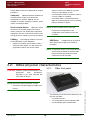
3.2:QBox physical characteristics ........10
3.2.1:QBox front panel .....................10
3.2.2:QBox rear panel ......................11
3.2.3:QBox internal configuration.....11
3.3:Set up QBox ...................................11
3.3.1:Connect QBox to a prompter
or monitor.....................................11
3.3.2:Connect any peripherals to
the QBox ......................................12
A.1:Configuring QMaster for multi-head
prompting............................................ 33
5.1:QBox upgrades.............................. 31
5.1.1:Firmware upgrade .................. 31
5.1.2:Licence upgrade ..................... 32
B Time Synchronisation .............. 35
B.1:Time signals .................................. 35
B.1.1:Operational scenarios
requiring synchronisation ............ 35
B.2:Time Synchronisation Daemon ..... 36
B.2.1:Synchronisation options ......... 37
B.2.2:Computer firewall settings...... 37
B.3:NTP Server Settings...................... 38
B.3.1:Adding servers to an existing
NTP server list............................. 38
B.3.2:Disabling the iBurst function... 39
B.3.3:Using an undisciplined local
clock ............................................ 39
Issue #: 081212
©2003-2008 Autocue Group Ltd
4 QBox Configuration and
Operation .................................. 13
4.1:QBox operating system ..................13
4.1.1:QBox onscreen menus............13
4.1.2:Configure and test the QBox...13
4.2:Basic operational checks................15
4.2.1:Reboot and shutdown .............15
4.3:Direct and network connections
to a QBox .............................................17
4.3.1:Ethernet network .....................17
4.3.2:Ethernet crossover cable ........17
4.4:Configuring network connections ...18
4.4.1:Configuring a direct QBoxcomputer connection ...................18
4.4.2:Connecting QBox to an
existing network ...........................20
4.5:Time settings on a QBox ................22
www.qtv.com
vii
www.autocue.com
QBox
Installation & Operation
Guide
Issue #: 081212
©2003-2008 Autocue Group Ltd
www.qtv.com
viii
www.autocue.com
QBox Installation & Operation Guide
SECTION 1:
Prompting Software
Overview
Autocue's revolutionary prompting and scripting application suite offers a range
of prompting solutions to match your needs and your budget. From the entry-level
QStart through the QPro to the fully-featured QMaster for the more demanding,
live broadcast environment.
These prompting applications were developed in
response to customer needs for a modular
product set that can be upgraded to more featurerich variants at any time.
N OTE : Autocue products are designed to interface
with prompter display units from most
manufacturers.
1.1: The prompting software suite
1.1.1:
QStart
solution but do not need the advanced features of
QMaster.
QStart is Autocue's entry-level prompting
solution.
QPro is controlled either via the computer mouse
or a number of dedicated scroll control devices.
Install the software on a computer and connect it
to a prompt display unit and you are ready to
begin work. Being a software-scroll application
QStart needs no additional hardware.
1.1.3:
Autocue’s IP-based networked prompting
system, involving a software application on the
control computer that communicates with the
QBox to scroll the script.
©2003-2008 Autocue Group Ltd
Ideal for simple prompting environments, QStart
supports prompting and editing of single scripts.
The application has limited editing capabilities
and prompting is controlled via a standard PS2 or
USB mouse.
Issue #: 081212
QMaster
QMaster is targeted at professionals who want a
robust, resilient and fully-featured prompting
solution for use in:
• Demanding live broadcast productions and
If you need to manage multiple scripts in a
runorder or prompt in more challenging environments you should consider either QPro or
QMaster. To upgrade to either product, you will
need to purchase and install a new licence key.
conference events
•
News broadcasting - both studio and field
•
Dynamic and creative shoots, which require
wireless connectivity or specialised
1.1.2:
QPro
prompting set-ups
•
QPro is Autocue's professional software-scroll
prompting application. QPro’s extensive array of
features, including a full script edit suite,
conference system integration, PowerPoint
integration, on-screen preview of the prompt
output, is targeted at prompting professionals
who want a robust and fully-featured prompting
www.qtv.com
Multi-location prompting systems that are
operated over a LAN/WAN or the Internet
1
www.autocue.com
QBox
Installation & Operation
Guide
Section 1: Prompting Software Overview
Prompting hardware - QBox
Feature summary
QMaster is supplied with Autocue’s QBox
hardware scroll unit which interfaces with the
prompter. The QBox advantages include:
• substantially increased system reliability
mented with a number of value-adding extension
modules:
• Wireless connectivity (to the central control
•
the best script image quality, and
•
•
the ability to use a prompter in situations
computer and to control devices)
newsroom computer systems)
where previously it was considered
•
Multi-controller interface (to control a
•
Multi-head feature (allows each presenter to
impossible.
prompter with multiple controllers)
QMaster combines the advantages of the QBox
with all of QPro's capabilities and features. It is
supplied with a multi-button control unit, ideal for
studio applications. Importantly it can be comple-
independently control their prompter while
off air)
1.1.4:
QPro
QMaster
Edit single script
3
3
3
3
3
3
3
3
3
3
3
3
3
3
3
3
3
3
3
3
3
3
3
3
Open and edit multiple scripts
3
Limited editing tools
Comprehensive suite of tools
Rundown management
Interfaces
Feature summary
QStart
Feature
Scripting
Newsroom interface (to all mainstream
PowerPoint
Conference systems
Closed captioning
Automated newsroom systems
Scroll controls
3
3
Software
Computer mouse
Serial 2-button
3
3
3
Serial multi-button
Wireless
Multiple
Multi-head prompting
Issue #: 081212
Wireless operation
prompting capability. Its main innovation is that it
connects to the control computer via Ethernet and
several other connection options including
QBox is a hardware scroll device with a
difference. It supersedes the Autocue IMT card
and delivers a step change improvement in
www.qtv.com
2
www.autocue.com
©2003-2008 Autocue Group Ltd
1.2: Prompting hardware - QBox
QBox
Installation & Operation
Guide
Section 1: Prompting Software Overview
Prompting hardware - QBox
Feature summary
Issue #: 081212
©2003-2008 Autocue Group Ltd
Firewire, providing a range of hitherto unachievable user benefits. The script and rundown
information is stored on the QBox and can be
scrolled either remotely from the central control
computer or locally by a presenter using a scroll
control. The link between the QBox and the
control units can either be wired or wireless, thus
untethering the prompter and the camera,
opening up exciting new scenarios in which a
prompter can be employed. In addition to opening
up new usage models the QBox provides an
unprecedented level of resilience to produce the
most reliable prompting system ever.
www.qtv.com
3
www.autocue.com
QBox
Installation & Operation
Guide
Section 1: Prompting Software Overview
Prompting hardware - QBox
Feature summary
Issue #: 081212
©2003-2008 Autocue Group Ltd
www.qtv.com
4
www.autocue.com
QBox Installation & Operation Guide
SECTION 2:
QMaster Application
Architecture
Autocue’s QMaster software has been designed to operate on a standard
computer and interface seamlessly with QBox prompting hardware using TCP/IP
via a direct or networked connection.
The QBox hardware may also be operated as a standalone unit without a
connection to a computer. After configuration, script information can be sent to
the QBox through a variety of interfaces.
For detailed information about QBox configuration and operation, refer to Section 4: QBox
Configuration and Operation.
N OTE : If required, QMaster can also control existing
Autocue IMT prompting hardware if it is
already installed.
2.1: QMaster and QBox operational scenarios
QMaster and QBox can be deployed with a
direct physical connection or via a cabled or
wireless network connection.
to temporarily connect one to make configuration
changes or upload script data.
Where required, QBox may also be deployed
as a standalone unit either with or without
operator support.
When
QBox is used as a standalone device, a
connection exists with the prompt display unit and
external devices for loading and controlling
scripts. No permanent connection exists between
the QBox and a computer although it is possible
QBox is particularly suitable for use in the field
because:
• the crew does not have to carry a heavy
computer. All data can be placed on
Issue #: 081212
©2003-2008 Autocue Group Ltd
QBox as a standalone device.
www.qtv.com
5
www.autocue.com
QBox
Installation & Operation
Guide
Section 2: QMaster Application Architecture
QMaster and QBox operational scenarios
Studio deployments
Using an Internet connection allows QMaster, a
QBox and prompt display unit to be physically
located almost anywhere in the world.
portable devices such as a mobile phone,
PDA or USB memory device.
•
less equipment allows shooting to take
place in relatively inaccessible locations,
such as a war torn city or a jungle.
•
wireless connectivity allows input and
control devices to be moved around to
different physical locations.
•
fewer crew are required. It is possible to
have a crew limited to just a cameraman
and a presenter thus reducing operational
costs.
2.1.1:
Multi-head prompting.
Multi-head
prompting provides the ability for one presenter to
independently review parts of a script while
another presenter is live on air reading from the
same script. For example, in a distributed news
broadcast the presenters in the main studio, a
business journalist situated in a small studio at
the stock exchange and a weather presenter at a
remote exterior location could each have a
separate QBox with the same rundown stored on
it. While the newsreader is reading the news
items, the sports presenter or weatherperson
could scroll ahead to their part of the bulletin to
check what is to be read. Either the presenter or
the QMaster operator would be able to switch
back so that the script or rundown is at the correct
point when each of the presenters delivers their
part of the bulletin.
Studio deployments
Common studio architecture provides a more
static setup where components are often fixed
permanently to one camera and are less likely to
be moved around or swapped to alternative
positions. An existing LAN network infrastructure
is often already established.
QMaster and QBox co-located.
In a
simple studio deployment, the computer running
the QMaster software is physically positioned
with a QBox, scroll control device and a prompt
display unit. An operator has direct control of the
script editing and prompt output.
QMaster and QBox in the same
building. The ability to network computers
and QBoxes provides resilience ensuring that
broadcasts are not interrupted. QBoxes can be
connected to primary and secondary computers
so that if one computer fails, control of scrolling is
automatically transferred to a backup computer.
Multiple scroll controllers. More than
one scroll control can be connected either to the
QMaster computer or to a QBox.
When multiple scroll controls are connected to
the QMaster computer, operators can switch
between different controls in order to find out the
optimal scrolling capabilities of a controller.
The QMaster computer can be located away from
the studio and the QBox.
When multiple scroll controls are connected to a
single QBox, two presenters handling two
different scroll controls, are able to present from
the same script.
Large-scale field
deployments
A field scenario does not usually include a
network infrastructure with pre-installed
computers and cables. A crew would normally
deploy QMaster on a wireless network, or set up
www.qtv.com
6
www.autocue.com
©2003-2008 Autocue Group Ltd
2.1.2:
Issue #: 081212
Scrolling can be controlled either directly by the
QMaster operator or remotely by the presenter in
the studio.
QBox
Installation & Operation
Guide
Section 2: QMaster Application Architecture
QMaster and QBox operational scenarios
Small-scale field deployments
Standalone QBox without an
operator. When you have to prompt in
direct QMaster to QBox connections to alleviate
the need for cumbersome and costly wiring.
inhospitable locations you need to have as few
people as practical and equipment that is lightweight and easy to set up. This scenario allows
you to have a crew consisting of a single
presenter and a cameraman. Scripts can be
uploaded from a mobile phone or a USB memory
device in order to upload scripts. The prompter
would be attached to the camera and the QBox
carried on the cameraman’s belt. As there is no
operator, the presenter would use a wireless
controller to scroll pre-configured scripts stored
on the QBox.
Location shoot.
A wireless network can
be set up that allows QBox and a laptop computer
with QMaster software already installed to be
transported from one location to another. It is also
possible to create a scalable wireless network
with QMaster, which allows multiple QBoxes to
be connected to multiple wireless devices and
prompters, making QMaster suitable for use in
larger open-air situations with shots from different
locations such as a sports broadcast or an
awards presentation ceremony.
2.1.3:
Small-scale field
deployments
In a small-scale field deployment, a QBox,
computer and camera can be used by a news
crew in more restrictive locations such as when
embedded with a military force or reporting fastchanging emergency situations.
The wireless capability supports the use of
remote scroll controls and downloading of scripts.
QBox on location.
A QBox is usually
deployed with a prompt display unit and a
connection to a computer running the QMaster
software. An operator would control the
prompting and make necessary changes to the
script or configuration while the presenter and
cameraman do their work.
QBox has been designed to be independent of a
computer when required. In a field scenario
without a computer it is possible to use alternative
devices to control prompting.
Issue #: 081212
©2003-2008 Autocue Group Ltd
Standalone QBox with an operator.
An operator and a presenter can use a laptop
computer to control scripting or if deployed
without a computer connect a USB memory
device direct to a QBox in order to upload scripts.
As few or no physical connections are required,
the operator can follow a mobile camera and
operate scripts remotely, while carrying the QBox
and prompt display unit. The presenter can
present without handling equipment in situations
such as a walkabout documentary, or a shoot that
requires varying angles and human movement.
www.qtv.com
7
www.autocue.com
QBox
Installation & Operation
Guide
Section 2: QMaster Application Architecture
QMaster and QBox operational scenarios
Small-scale field deployments
Issue #: 081212
©2003-2008 Autocue Group Ltd
www.qtv.com
8
www.autocue.com
QBox Installation & Operation Guide
SECTION 3:
QBox Hardware
QBox is the latest generation of prompting hardware from Autocue.
The design of QBox allows the inbuilt prompting intelligence to be distributed
away from any control computer allowing more scalable prompting solutions.
Benefits of QBox.
•
Reliability
Rarely revert to hard copy again. QBox stores
a copy of the current rundown or script. This
copy remains even if the QBox is disconnected or powered down. If the control
computer crashes, or a connection is lost, the
QBox continues to scroll the script at the same
speed.
With a local hand control a presenter (or
operator, with a preview screen) can control
the script until the control computer reboots at
which point the control of the scrolling script is
automatically returned to the computer.
In the event of a total power failure, QBox
takes less than 30 seconds to reboot and
return to the same point in the script at which
•
the power failed.
Versatility
•
QBox can be co-located with a prompter
display unit and a local control device. Alternatively, Ethernet connections allow images
from one QBox to be sent to many prompting
monitors over greater distances than a
composite video connection. An Internet
connection allows a QBox to be controlled
from almost anywhere in the world.
QBox can also act as a back-up in case the
control computer is disabled.
Affordability
•
No need for back-up computer and fewer
delays to production.
Fewer resources needed enabling crew sizes
to be reduced.
Quality
Professional output maintained throughout.
3.1: QBox components
A QBox installation or deployment comprises a
range of equipment and connections depending
on the situation in which it is to be used.
N OTE : If the QBox is to be connected to an existing
installation you will not receive a USB
dongle.
Supplied equipment
When you purchase a QBox from Autocue, the
following items will be supplied:
• A standard QBox unit
•
3.1.2:
Other required equipment
A QBox installation also usually requires the
following pieces of equipment.
A 12-volt power supply unit with a 4-pin XLR
connector
•
Prompt monitor.
A prompt monitor
displays output from QBox allowing presenters to
read their prepared scripts. A QBox is usually
connected directly to a prompt monitor. Alternatively, a distribution amplifier (DA) can be
installed between the prompt monitor and QBox
Any scroll control devices that you have
ordered
•
An Ethernet cable and a crossover adaptor
plug.
Issue #: 081212
©2003-2008 Autocue Group Ltd
3.1.1:
www.qtv.com
9
www.autocue.com
QBox
Installation & Operation
Guide
Section 3: QBox Hardware
QBox physical characteristics
QBox front panel
signal to connect your QBox to a prompt
to allow QBox output to be displayed on multiple
prompters.
monitor or other display screen
•
Computer.
QMaster software installed on a
computer allows scripts to be edited and
managed by an operator. QMaster can be
installed on a laptop or desktop computer, which
is then connected to QBox.
A RJ45 network cable is required in order to
connect a QBox to a network
•
A FireWire cable is recommended when
QBox is connected directly to the controlling
laptop or desktop computer
Scroll control device.
N OTE : Crossover cables can be used, but
QBox can control
the script on a prompter display unit using a
variety of devices. For details about supported
equipment, refer the scroll controls section of the
user guide for the software you have purchased.
performance is dependent on the
configuration of the network card in the
computer.
Cabling.
The following cables are used for
connecting QBox to other hardware.
• Output from a QBox can be either a VGA or
USB Drive.
A USB drive can be used to
store and transfer scripts to be loaded for
prompting.
composite video signal. You will require the
appropriate cable for the chosen output
N OTE : If requested, Autocue can provide all of the
above items but details of required cable
lengths and the specifications of other
equipment must be provided.
3.2: QBox physical characteristics
3.2.1:
QBox front panel
C AUTION : A QBox is a static sensitive device. Use
appropriate
ESD
precautions,
especially if you have removed the
cover from the device.
N OTE : The precise physical position of some
connectors may differ slightly to a QBox your
receive.
10
one hard disk drive activity indicator LED
•
one illuminated power On/Off button
www.autocue.com
©2003-2008 Autocue Group Ltd
www.qtv.com
•
Issue #: 081212
The following connections and indicators are on
the front of a QBox:
• one USB connector
QBox
Installation & Operation
Guide
3.2.2:
Section 3: QBox Hardware
Set up QBox
QBox rear panel
QBox rear panel
Ethernet port.
QBox has a socket for a
RJ45 Ethernet cable used when connecting to a
network.
There are a variety of connectors on a QBox
which allow you to connect the unit to many
different input and output devices.
USB ports.
USB ports are used to connect
USB devices such as a USB drive, USB scroll
control and USB dongle.
Purple PS/2 port. Connect a PS/2
keyboard to the purple port.
Wireless antenna connection.
Remotely connect to and control your QBox using
standard wireless protocols.
Power.
QBox operates on a 12 V power
supply.
Descriptions of the connectors are given in the
following sections.
3.2.3:
BNC connectors. The BNC output is
used to connect your QBox to video display units
such as a prompter or composite monitor for
previewing. The BNC output is also used to
connect QBox to a distribution amplifier that
allows digital signals going to multiple prompters
to be converted to analogue.
QBox internal configuration
The QBox mainboard contains the processor,
chipset and control chips.
QBox includes a BNC extension for the board. All
other hardware operations are preconfigured,
and there is no need for the user to make
changes to jumpers or dipswitch settings on the
mainboard, or install extra software drivers to
facilitate operation with the QMaster software on
the PC.
VGA port. A VGA port is used for
connecting to a VGA monitor. A VGA monitor is
used to preview scripts that will appear on the
prompter.
A QBox also supports wireless connections and
controls. The mainboard has a PCI expansion
slot into which a wireless card can be fitted.
QBox includes solid-state memory with enough
capacity for approximately 50 hours of script and
rundown information.
Serial port.
Serial ports are used to
connect serial devices to QBox. These include
serial mouse devices and dedicated hand
controls.
Issue #: 081212
©2003-2008 Autocue Group Ltd
3.3: Set up QBox
3.3.1:
Connect QBox to a prompter
or monitor
N OTE : Refer to Autocue's prompter documentation
for information on the prompter port
A composite monitor or prompter should be
connected using a composite cable with BNC
connectors. Attach the cable to one of the three
Video Out BNC ports on the QBox and the other
end to the Video In BNC port on the prompter/
monitor.
www.qtv.com
configuration.
A VGA monitor should be connected using an
appropriate VGA cable between the VGA ports
on the QBox and the monitor.
11
www.autocue.com
QBox
Installation & Operation
Guide
Section 3: QBox Hardware
Set up QBox
Connect any peripherals to the QBox
3.3.2:
Connect any peripherals to
the QBox
The peripherals you need to connect are a
keyboard and a scroll control.
Keyboard.
A keyboard is used to configure
a QBox. After initial setup, you should only need
to connect a keyboard if you need to make fundamental configuration changes.
Autocue recommends using a USB keyboard as
this type can be plugged in and used without
having to reboot the QBox unit. A PS/2 keyboard
is not plug-and-play, so if you remove the
keyboard and wish to reconnect it you will need to
reboot. In addition, with certain hardware configurations, a PS2 keyboard must be connected in
order for the QBox to be recognised.
Scroll Control.
Connect a scroll control to
the QBox. Refer to your software user manual for
detailed information about types of controllers,
Autocue supported scroll controllers, their
respective features and how to configure them for
use with the QBox.
Issue #: 081212
©2003-2008 Autocue Group Ltd
www.qtv.com
12
www.autocue.com
QBox Installation & Operation Guide
SECTION 4:
QBox Configuration and
Operation
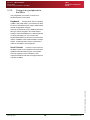
QBox is the innovative output engine that is the world’s only IP-based prompting
solution providing a number of unrivalled benefits for those seeking the next
generation of prompting software.
QBox is the new prompting standard, challenging previously accepted
boundaries allowing you to control the prompt output from the QBox itself, or
using a computer in another room, building or country.
4.1: QBox operating system
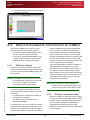
The diagram below outlines the steps to follow
depending on the type of monitor you use.
QBox includes its own customised operating
system based on Linux.
4.1.1:
QBox onscreen menus
QBox includes onscreen menus for checking and
updating configurations. The onscreen menus
are also used for key functions including loading
scripts and rundowns from a source.
Accessing menus. Onscreen menus are
displayed in prompt mode by pressing the F 1 to
F 5 function keys on the keyboard connected to
the QBox. When the unit is not in prompt mode,
press the F 8 function key.
4.1.2:
•
video signal then follow the “Composite
Only” path.
•
Configure and test the QBox
If your monitor is a VGA monitor you can
configure the QBox to generate either a
VGA signal or a primary VGA signal with a
Supply power.
Connect the supplied
QBox power cable, or a 12 V studio mains feed,
to the XLR socket on the QBox back panel. If the
QBox does not start automatically when
connected to a power source, press the P o w e r
button.
secondary, lower quality, composite signal.
You might choose to have both a VGA and
Composite signal generated simultaneously is
that you would use the VGA signal for the
prompter output and the Composite signal for
a preview monitor for the operator. This is
especially useful when using the QBox as a
back-up to a primary QMaster computer.
Configure the monitor settings.
To
achieve the best performance from your prompter
monitor you should ensure that you have selected
the appropriate video setting on the QBox.
Issue #: 081212
©2003-2008 Autocue Group Ltd
If your monitor accepts only a composite
www.qtv.com
13
www.autocue.com
QBox
Installation & Operation
Guide
Section 4: QBox Configuration and Operation
QBox operating system
Configure and test the QBox
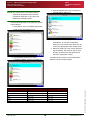
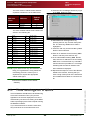
3. Press the R i g h t arrow key or Tab key to
N OTE : The quality of the scroll output may be
select D i s p l a y S e t t i n g s .
significantly degraded if both VGA and
Composite output are in use, due to the
differences in display format.
Use the following steps to configure the monitor
output settings:
1. Press the F 8 key on the QBox keyboard to
bring up the configuration menu.
Press E n t e r to view the configuration
options for your monitor from which you can
choose the appropriate video output signal.
4. Select the setting for your monitor type and
signal standard. Use the T a b key to move
through the list and use the Space bar to
select the appropriate setting.
2. Use the D o w n arrow key to select
The table below lists the recommended QBox
display mode and output settings.
C o n f i g u r e Q B o x and then press E n t e r .
Monitor Resolution
QBox Setting
NTSC
N/A
640 x 480 (NTSC Native)
PAL
N/A
720 x 576 (PAL Native)
VGA
640 x 480
800 x 600
1024 x 768
1024 x 768
SXGA
1280 x 1024
1024 x 768
UXGA
1600 x 1200
1024 x 768
www.qtv.com
14
©2003-2008 Autocue Group Ltd
XGA
Issue #: 081212
Signal Standard
www.autocue.com
QBox
Installation & Operation
Guide
•
Section 4: QBox Configuration and Operation
Basic operational checks
Reboot and shutdown
If you have a composite monitor you must
prompter and select the appropriate VGA
select either the NTSC or PAL standard for
setting.
the display mode.
N OTE : If you try to deselect both Video and VGA
you will get an error message since at least
one of these outputs needs to be selected.
Your QBox is now configured so that you can
operate it in stand-alone mode with a prompter.
You can upload a script or rundown from a USB
memory device and start prompting straight
away.
•
If you wish to operate your QBox remotely using
a computer running the QMaster software from
Autocue the following sections outline the procedures to configure the connection to the QBox.
If you are connecting a VGA monitor check
the screen resolutions of your monitor or
4.2: Basic operational checks
It is recommended that you conduct a number of
operational checks to ensure that your QBox is
functioning correctly.
4.2.1:
Reboot and shutdown
Ensure that you are able to reboot and shutdown
QBox.
C AUTION : If your QBox needs to be rebooted for
any reason, ensure there are no USB
Issue #: 081212
©2003-2008 Autocue Group Ltd
memory devices attached to the unit.
www.qtv.com
15
www.autocue.com
QBox
Installation & Operation
Guide
Section 4: QBox Configuration and Operation
Basic operational checks
Reboot and shutdown
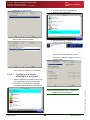
Rebooting QBox from the
Configuration interface. 1.
N OTE : The time taken for a QBox to reboot will vary
1. Press F 8 to access the configuration task
depending on the number of active network
interfaces that are configured on the device.
selection interface
Even if there is no physical connection, the
operating system may take up to 15 seconds
to check each active interface if the IPv4
setting is set to DHCP.
C AUTION : If your QBox needs to be rebooted for
any reason, ensure there are no USB
memory devices attached to the unit.
Shutting down QBox from the
Configuration interface. 1.
2. Press either the D o w n or the R i g h t arrow
1. Press F 8 to access the configuration task
key to select the R e b o o t Q B o x option.
selection interface
3. Press E n t e r .
2. Press either the D o w n or the R i g h t arrow
4. You will be asked to confirm that you wish to
key to select the R e b o o t Q B o x option.
reboot your QBox.
Issue #: 081212
©2003-2008 Autocue Group Ltd
3. Press E n t e r .
www.qtv.com
16
www.autocue.com
QBox
Installation & Operation
Guide
Section 4: QBox Configuration and Operation
Direct and network connections to a QBox
Ethernet network
4. You will be asked to confirm that you wish to
shut down your QBox.
4.3: Direct and network connections to a QBox
number of QBoxes then a hub should be sufficient. If however you intend to handle other
network traffic in addition to the QMaster data
then you should use a switch. If you are implementing your QMaster system on an existing LAN
then you may be able to use the existing LAN
switches, in which case you will need one live port
for the computer and one per QBox.
The number of QBoxes you plan to use will
determine the type of connection required.
• If you plan to deploy a single QBox system
then you can use a direct connection.
•
If you plan to operate multiple QBoxes from
a central control computer you will need to
establish a small or large-scale network.
4.3.1:
If you are implementing a system consisting of
several QBoxes and computers it is recommended you use a LAN with a DHCP server on
the network. If you are implementing a standalone network you can use a switch that incorporates its own DHCP server, use the Zeroconf setup described later in this section or manually
configure the IP addresses.
Ethernet network
An Ethernet connection should be used when
using an existing network such as a LAN or when
you wish to connect multiple QBoxes within the
same system.
N OTE : It is possible to use an Ethernet connection
for a single QBox system, but you will need
to use a hub or switch to act as the
N OTE : If you are going to use this system on
connecting element in the network.
location or for an outside broadcast you will
Issue #: 081212
©2003-2008 Autocue Group Ltd
need to provide power to the router as well.
In order to use an Ethernet network you will
require at least two Ethernet cables with RJ45
connectors:
• one cable each to connect the computer to
4.3.2:
Similar to FireWire, an Ethernet crossover cable
can only be used for single QBox systems. Unlike
FireWire, which is a purpose-designed peer-topeer connection standard, the performance
yielded from an Ethernet crossover cable
depends on the configuration of the network card
in your computer.
the network or hub/switch.
•
one cable to connect the QBox to the
network or hub/switch.
Your decision to use a hub or switch should be
based upon the purpose and complexity of the
network. If you simply wish to make a straight
connection between the computer and a limited
www.qtv.com
Ethernet crossover cable
17
www.autocue.com
QBox
Installation & Operation
Guide
Section 4: QBox Configuration and Operation
Configuring network connections
Configuring a direct QBox-computer connection
Crossover cable design.
A crossover
cable is an Ethernet cable where the wires literally
crossover so that it does not have to go via a hub
or router but can instead be used as a direct
connection between the computer and another
network device such as a QBox.
N OTE : Autocue cannot guarantee that a crossover
connection will work for your particular setup.
4.4: Configuring network connections
With the connection method chosen, you can
connect QBox to QMaster and assign IP address
settings. The procedure varies depending on the
type of deployment:
• in a field deployment with a single QBox-
N OTE : If you have a crossover cable and wish to
attempt connection, connect the cable
between the Ethernet port on your computer
and the Ethernet port on QBox.
computer connection, refer to section 4.4.1.
•
In a studio installation connecting QBox to a
1. Press the F 8 key on the QBox keyboard to
network with existing infrastructure in place,
display the Configuration menu.
refer to section 4.4.2.
C AUTION : If you are unsure about how to
configure the networking on either the
QBox or controlling computer, consult
your network administrator.
4.4.1:
Configuring a direct QBoxcomputer connection
After the physical connection is made you must
allocate an IP address to your QBox so that it can
be automatically identified and located by your
PC. We suggest the Zeroconf (Zero Configuration
Networking) mechanism to allocate the IP
address to your QBox.
2. Use the D o w n arrow key to select
C o n f i g u r e QBox and press E n t e r .
Zero Configuration Networking.
Issue #: 081212
Before configuring QBox for Zeroconf, ensure
that your QBox and computer are connected with
an appropriate cable and that both devices are
switched on and operating correctly.
©2003-2008 Autocue Group Ltd
www.qtv.com
18
www.autocue.com
QBox
Installation & Operation
Guide
Section 4: QBox Configuration and Operation
Configuring network connections
Configuring a direct QBox-computer connection
3. Use the R i g h t arrow key to select the
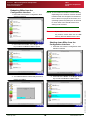
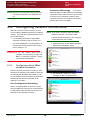
N OTE : The image above is for illustrative purposes
N e t w o r k S e t t i n g s option in the displayed
list and press E n t e r .
only. You would highlight the appropriate
connection depending on which type of
network port you have chosen to use.
6. Press the C t r l and P a g e D o w n key to
bring up the I P v 4 S e t t i n g s page.
4. Use the arrow keys to select the N e t w o r k
D e v i c e s interface type and press E n t e r .
7. Press the T a b key until the A u t o m a t i c
v i a Z e r o C o n f setting is selected. Then
press the S p a c e bar.
8. Press the T a b key to select the O K button
and then press E n t e r . A message
indicating that the network interface has
been restarted is displayed on the original
menu.
9. Add the name to the QBox Status Panel
when configuring the QMaster to QBox
5. Use the arrow keys to select the L a n 0
interface. For detailed information about
interface type and press E n t e r .
this, refer to section 4.7.
Managing network devices.
©2003-2008 Autocue Group Ltd
To assist
in management of devices on a network, Autocue
recommends the freely available Bonjour
software which allows you to identify and locate
devices on your network by name rather than IP
address.
Bonjour software works in the background to
automatically convert a name, for example
“Reception Printer”, into an IP address. When
another device which has Bonjour installed
searches the network for devices, the IP address
is provided, but displayed as the name.
Issue #: 081212
Bonjour is compatible with Windows 2000/2003
and XP.
www.qtv.com
19
www.autocue.com
QBox
Installation & Operation
Guide
Section 4: QBox Configuration and Operation
Configuring network connections
Connecting QBox to an existing network
If you wish to install Bonjour, go to the following
web address and download the application:
http://www.apple.com/support/downloads/
bonjourforwindows.html
N OTE : In order for the DHCP server to obtain these
settings, it must be properly set up. Make
sure that a network administrator is available
The web site will give you the option to Run or
Save the application. We recommend you select
Run. The Bonjour application will automatically
be installed on your computer.
to set up DHCP.
N OTE : A disadvantage of using DHCP is that the IP
address of the QBox may be changed by the
N OTE : The Bonjour file size is approximately 14 MB
network after a period of inactivity, which
so you will need a good broadband
would mean that the configuration of the
connection to download the file within a
controlling computers would also have to be
reasonable timeframe.
updated to reflect the change.
Once installed, Bonjour runs as an automatic
service, and is available when you turn on your
computer. There is no requirement to configure
the software so there is no GUI associated with
the application.
DHCP IP address assignment.
Using
DHCP, the IP address is automatically assigned
by the DHCP server to a computer (the DHCP
client) without user intervention.
situation, make sure that the Bonjour
A DHCP server must be running on a network, the
steps outlined below should be followed.
1. Connect one RJ45 cable from the hub/
software has been installed on your
switch to the PC. Then hook up another
computer beforehand, as you may not have
RJ45 cable from a vacant port on the hub/
access to a Broadband Internet connection.
switch to a QBox.
N OTE : If you are connecting QBox in a field
2. Make sure that the QBox and the computer
are switched on.
4.4.2:
3. Make sure that the hub/switch is powered
Connecting QBox to an
existing network
on and already configured to operate.
4. In QBox, access the configuration menu by
Single and multiple QBoxes can be connected to
a computer on an existing network using Ethernet
cables. Depending on the existing network setup,
the physical connection would normally be established via a hub or switch.
pressing F 8
Once the physical connection has been set up,
you can specify IP addressing using DHCP, or
assign a static IP address to the QBox.
Issue #: 081212
If the organisation you work for has multiple
networks, the infrastructure may include DNS
servers and gateway servers Static IP address
settings can be specified for these networking
components, or the DHCP server can be set to
obtain these settings for the client computer.
C o n f i g u r e Q B o x and then press E n t e r .
6. Press the D o w n arrow to highlight
N e t w o r k S e t t i n g s and press E n t e r .
www.qtv.com
20
www.autocue.com
©2003-2008 Autocue Group Ltd
5. Press the D o w n arrow key to highlight
QBox
Installation & Operation
Guide
Section 4: QBox Configuration and Operation
Configuring network connections
Connecting QBox to an existing network
7. Press the D o w n arrow key until l a n 0 is
4. Make sure that the hub/switch is powered
highlighted and press E n t e r .
on and already configured to operate.
8. Press the C t r l and P a g e D o w n keys to
5. In QBox, access the configuration menu by
pressing F 8
select the I P v 4 S e t t i n g s page.
6. Press the D o w n arrow key to highlight
9. If a DHCP server is running on your
C o n f i g u r e Q B o x and then press E n t e r .
computer or on the network, ensure that
7. Press the D o w n arrow to highlight
A u t o m a t i c v i a D H C P is selected in the
N e t w o r k C o n f i g u r a t i o n and press
IPv4 Settings page.
Enter.
8. Press the D o w n arrow key until l a n 0 is
highlighted and press E n t e r .
9. Press the C t r l and P a g e D o w n keys to
select the I P v 4 S e t t i n g s page.
10.To manually set a static IP address press
the T a b key and then the S p a c e bar to
select M a n u a l C o n f i g u r a t i o n . The IP
Address fields become active.
11.Press the T a b key until the I P A d d r e s s
field is highlighted.
10.Press the T a b key and E n t e r to return to
the original menu. This procedure is
complete and you can move to the
procedures in section 5.4.2.
Assigning a static IP address. A
static IP address can be set up if no DHCP server
is running on the network.
A static IP address requires the user to manually
enter a valid IP address as well as a Subnet
Mask.
12.Enter an IP address for the QBox on the
network then press the T a b key.
N OTE : Duplicate IP addresses will cause problems
13.Enter the 24-Bit S u b n e t M a s k for QBox on
on the network. If static IP addresses are to
the network and then press the T a b key.
be used, it is very important to ensure that
The Subnet Mask is a two digit figure relating
to the number of binary 1s in the address of
the mask.
they are different from other addresses
Issue #: 081212
©2003-2008 Autocue Group Ltd
already in use.
In addition, the precise settings for QBox and the
servers should be manually entered if the DNS
server cannot be correctly set up to provide the
Gateway and DNS sever settings.
1. Connect a RJ45 cable from the Ethernet
hub/switch to the computer.
2. Connect another RJ45 cable from a vacant
port on the hub/switch to a QBox.
3. Make sure that the QBox and the computer
are switched on.
www.qtv.com
21
www.autocue.com
QBox
Installation & Operation
Guide
Section 4: QBox Configuration and Operation
Time settings on a QBox
Connecting QBox to an existing network
15.Press the C t r l and P a g e D o w n key to get
The most common subnet masks and their
equivalent numbers are in the table below.
Network
Address
Address
Class
to the D N S S e t t i n g s page
Subnet
Mask
C
255.255.255.0
24
B
255.255.0.0
16
A
255.0.0.0
8
The other available subnet mask numbers are
shown in the following list.
0
0.0.0.0
17
255.255.128.0
1
128.0.0.0
18
255.255.192.0
2
192.0.0.0
19
255.255.224.0
3
224.0.0.0
20
255.255.240.0
4
240.0.0.0
21
255.255.248.0
5
248.0.0.0
22
255.255.252.0
6
252.0.0.0
23
255.255.254.0
7
254.0.0.0
25
255.255.255.128
9
255.128.0.0
26
255.255.255.192
10
255.192.0.0
27
255.255.255.224
11
255.224.0.0
28
255.255.255.240
12
255.240.0.0
29
255.255.255.248
13
255.248.0.0
30
255.255.255.252
14
255.252.0.0
31
255.255.255.254
field, enter the IP address for the secondary
15
255.254.0.0
32
255.255.255.255
DNS server. Press the T a b key until O K is
16.Select M a n u a l C o n f i g u r a t i o n by
pressing the T a b key and then the S p a c e
bar. The P r i m a r y D N S S e r v e r field is
highlighted.
17.Press the T a b key until the P r i m a r y D N S
S e r v e r field is selected.
18.Enter an IP address for the P r i m a r y D N S
S e r v e r and then press the T a b key.
19.In the selected S e c o n d a r y D N S S e r v e r
selected and then press E n t e r . A message
indicating that the network interface has
N OTE : If your network uses any other address, it is
been restarted is displayed.
20.Repeat these steps for each of the QBoxes
likely your organisation is using advanced
networking protocols. Contact your IT
added to the network, ensuring that you
department to request the appropriate
have enough vacant ports on the hub/switch
subnet mask figure.
and available RJ45 cables to connect them
all.
14.Enter the IP address for the default
Gateway.
Issue #: 081212
4.5: Time settings on a QBox
©2003-2008 Autocue Group Ltd
Time for QMaster and QBoxes is calculated using
Universal Coordinated Time (UTC) but the
appearance of the time displayed on screen is
determined by the time zone setting of the QBox
and the operating system of the computer running
the QMaster software.
If you want all devices to show the same time,
they must all be set to the same time zone.
www.qtv.com
22
www.autocue.com
QBox
Installation & Operation
Guide
Section 4: QBox Configuration and Operation
Using a scroll control device to configure QBox
Connecting QBox to an existing network
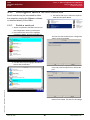
Selecting a time zone for your
QBox.
Selecting a time zone for the QMaster
computer. Time zone information for a
1. From the T i m e a n d D a t e configuration
computer can be set using the D a t e a n d T i m e
control accessed using the Control Panel
command of the Windows operating system:
Start >> Control Panel >> Date and
Date
options window use the arrow keys on the
keyboard to select T i m e Z o n e s .
For detailed information about network time
configuration, refer to Appendix C: Time Synchronisation.
2. Use the arrow keys to select the required
time zone.
If you are using your QBox in a stand-alone
situation, a scroll control device—with at least
five-buttons and a scroll wheel—may be used to
access and modify some of the configuration
settings of the QBox.
N OTE : It is recommended that you use a USB
controller as it must be able to be connected
and disconnected without having to restart
QBox.
This section refers to using the Contour Design
ShuttlePRO and ShuttleXpress controllers
utilising both the buttons as well as the jog wheel.
Issue #: 081212
©2003-2008 Autocue Group Ltd
4.6: Using a scroll control device to configure
QBox
www.qtv.com
23
www.autocue.com
QBox
Installation & Operation
Guide
Section 4: QBox Configuration and Operation
Configure the QMaster to QBox interface
Altering QBox configuration using a ShuttlePRO controller
4.6.1:
Altering QBox configuration
using a ShuttlePRO
controller
3. Press the button for bringing up the display
menu.
4. To select the next menu item, either
•
The ShuttlePRO control uses a set of buttons and
a jog wheel for opening and closing the display
menu and selecting menu options. The actions of
the buttons are illustrated below. Many of the
buttons have multiple functions.
Increase
value / level
Display
previous
menu
Decrease
value / level
press the button for selecting menu options,
or
•
turn the jog wheel to the right.
5. To select the previous menu item press the
button for selecting the previous menu item.
6. Press the button to bring up the submenu
Select menu
option
OR
Set level/
value to zero
for the selected item.
7. If in the submenu for adjusting display
settings, press the button for changing the
setting level. A dialogue is displayed that
lets you change the setting level, for
Open submenu or
setting level
example the brightness level.
•
Move to
next menu
item
To increase the setting level, click the button
to increase the setting level.
Display
Configuratio
n menu
•
To decrease the setting level, press the
button to decrease the setting level.
8. To select another setting, press the button
that returns to the previous menus and
1. Ensure that QBox is turned on.
repeat steps 6 and 7.
2. Connect the ShuttlePRO control to a USB
9. To exit the menu, press the button for
port in QBox.
selecting the previous menu multiple times
until the menu clears.
4.7: Configure the QMaster to QBox interface
in which mode you wish to commence
This section describes how you configure the
connection between the QMaster software and a
QBox. You must have a scroll control ready when
configuring this interface.
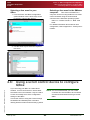
1. Plug the license dongle into a USB port on
operation.
the computer running QMaster.
2. Double-click the QMaster icon. At this stage
QMaster checks for the presence of the
license dongle and launches the application
Issue #: 081212
in QBox operation mode.
3. If you are testing or transitioning from an
Autocue IMT card system to a QBox system
you may have both an IMT card and the
4. Select QBox to continue with this
QMaster will identify the presence of both
configuration and open the QMaster
items and will give you the option to choose
software.
www.qtv.com
24
www.autocue.com
©2003-2008 Autocue Group Ltd
QMaster dongle inserted in the computer.
QBox
Installation & Operation
Guide
Section 4: QBox Configuration and Operation
Configure the QMaster to QBox interface
Altering QBox configuration using a ShuttlePRO controller
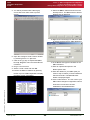
5. You will be presented with a blank grey
11.Select the Q B o x S t a t u s P a n e l from the
screen with menu bars at the top of the
P r o m p t menu. The Q B o x S t a t u s P a n e l
screen.
dialogue box is displayed.
12.Right-click in the dialog box and select A d d
to display the C o n f i g u r e QBox dialog box.
6. Open the Configure Scroll Controls window
by selecting T o o l s > > O p t i o n s .
7. Click on the [ + ] sign to expand the Q B o x
P r o m p t E n g i n e s menu and select S c r o l l
13.In the N a m e field type an identifier for the
Controls.
QBox if desired.
8. Plug in a scroll control.
14.Enter an optional description in the
9. Select a scroll control and click O K .
D e s c r i p t i o n field.
10.Confirm the QBox IP address by pressing
15.Enter the details for your QBox (that you
the F 5 key on the QBox keyboard to display
noted in step 10 above) in the I P A d d r e s s
field and click O K . The Q B o x S t a t u s
the QBox System Information.
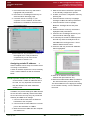
P a n e l is displayed again.
16.Click on R e c o n n e c t . The icon next to your
QBox name changes to a light blue colour to
show that a connection has been
Issue #: 081212
©2003-2008 Autocue Group Ltd
established, as illustrated below.
www.qtv.com
25
www.autocue.com
QBox
Installation & Operation
Guide
Section 4: QBox Configuration and Operation
Configure the QMaster to QBox interface
Loss of network connections
The QBox becomes a standalone prompt engine
which may be operated using any scroll control
device connected to it.
Configuration of your QBox is complete and you
can now use it to control prompting.
4.7.1:
Loss of network connections
N OTE : Depending on the nature of your network
The network connection between a QBox and the
QMaster software will be broken by either the
network plug being removed or the software on
either device being shut down.
infrastructure, including and the number of
hubs, switches or routers between the
computer and the QBox and natural latency
in the network, it may take up to 30 seconds
Physical disconnection.
If the network
plug is disconnected from a QBox or the
computer running the QMaster software, a
warning message will be displayed that this loss
has occurred and ask if you want to reconnect.
before the QBox ascertains that there is no
QMaster software controlling it.
When QMaster restarts, the software checks if a
QBox is currently prompting a script and will ask
if you want to re-link to that rundown.
QBox operating software failure.
If
the QBox operating software fails or is rebooted,
the computer running the QMaster software will
display a warning message that the connection to
the QBox has failed and ask if you want to
reconnect.
If you click Y e s the relevant rundown will be
displayed in the Script Editor window at the
current position in the script but with scrolling
stopped.
N OTE : Before clicking Y e s on the message dialog,
you must make sure that the QBox has
completed the full restart procedure. This is
indicated by either the last script being
displayed or the disappearance of
initialisation progress information.
If you click Y e s the current rundown will be
displayed in the Script Editor window and on the
prompter display unit.
Issue #: 081212
N OTE : The display will default to the start of the
rundown.
©2003-2008 Autocue Group Ltd
QMaster software failure.
If the
QMaster software fails or is shut-down while you
are prompting a script, the QBox will continue
scrolling the script using whatever settings were
controlling the display at the time of the failure.
www.qtv.com
26
www.autocue.com
QBox
Installation & Operation
Guide
Section 4: QBox Configuration and Operation
Configure QBox scroll controls
Enable a serial port
4.8: Configure QBox scroll controls
4. Use the A r r o w keys to select the required
Scroll controls may be connected to either
the computer running the QMaster software
or attached directly to the QBox.
4.8.1:
serial port and press E n t e r .
Enable a serial port
1. Attach a keyboard to the QBox and access
the configuration menu by pressing F 8 .
2. Press the D o w n arrow key to highlight
C o n f i g u r e Q B o x and then press E n t e r .
The first time that a serial port is configured it
will be shown as disabled.
3. Use the arrow keys to highlight H a r d w a r e
P o r t s and press E n t e r .
©2003-2008 Autocue Group Ltd
Use the T a b key to highlight the Input Device
entry and press the space bar to enable the
port.
Issue #: 081212
When a port is enabled, the I n p u t D e v i c e
tab becomes visible. Use the C t r l and P a g e
www.qtv.com
27
www.autocue.com
QBox
Installation & Operation
Guide
Section 4: QBox Configuration and Operation
Configure QBox scroll controls
Configure a controller attached to a serial port
3. Use the arrow keys to highlight I n u t
D o w n keys to select the tab...
D e v i c e s and press E n t e r .
Press the down A r r o w key to highlight and
select a type of scroll controller.
4. Use the arrow keys to highlight the required
device type and press E n t e r .
5. Use the T a b key to highlight each
parameter to be set and either use the
space bar to enable a setting or enter the
required value.
5. Repeat the steps outlined in this section for
each serial port available on your QBox.
4.8.2:
Configure a controller
attached to a serial port
1. Attach a keyboard to the QBox and access
the configuration menu by pressing F 8 .
2. Press the D o w n arrow key to highlight
C o n f i g u r e Q B o x and then press E n t e r .
information already displayed.
Issue #: 081212
N OTE : Use the B a c k s p a c e key to delete any
©2003-2008 Autocue Group Ltd
www.qtv.com
28
www.autocue.com
QBox
Installation & Operation
Guide
Section 4: QBox Configuration and Operation
Configure QBox display output
Configure a controller attached to a serial port
6. Use the C t r l and P a g e D o w n keys to
7. Press Enter to display a list of actions that
select the B u t t o n s tab.
can be assigned to a button.
8. Use the Arrow keys to highlight an action
and press Enter to assign it.
9. Repeat the steps outlined above for each
button on the particular type of controller.
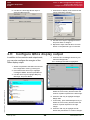
4.9: Configure QBox display output
4. Press the C t r l and P a g e D o w n keys to
In addition to the resolution and output mode,
you can also configure the margins of the
QBox display output.
select the Margins tab.
The Left Margin field will be highlighted.
1. Attach a keyboard to the QBox and access
the configuration menu by pressing F 8 .
2. Press the D o w n arrow key to highlight
C o n f i g u r e Q B o x and then press E n t e r .
3. Use the arrow keys to highlight D i s p l a y
S e t t i n g s and press E n t e r .
©2003-2008 Autocue Group Ltd
5. If necessary, press the B a c k s p a c e key to
delete the current entry and then enter the
number of pixels required for the left margin.
6. Press the T a b key to highlight the Right
Margin field.
7. If necessary, press the B a c k s p a c e key to
delete the current entry and then enter the
Issue #: 081212
number of pixels required for the right
margin.
8. Press the T a b key to highlight the OK
button and press E n t e r to confirm changes.
www.qtv.com
29
www.autocue.com
QBox
Installation & Operation
Guide
Section 4: QBox Configuration and Operation
Configure QBox display output
Configure a controller attached to a serial port
N OTE : You must reboot your QBox in order for the
changes to take effect.
Issue #: 081212
©2003-2008 Autocue Group Ltd
www.qtv.com
30
www.autocue.com
QBox Installation & Operation Guide
SECTION 5:
Upgrading QBox
Components
Follow the procedures outlined in this chapter and
any additional steps that are contained in the
notification email or letter.
You will need to upgrade your Autocue products
when new features and enhancements are
released for QBox firmware
When features are made available, Autocue
customers are informed and requested to
upgrade the products they have purchased.
C AUTION : After upgrading, ensure that the version
numbers of your software and firmware
are compatible. If you have any doubts,
contact Autocue Technical Support for
information.
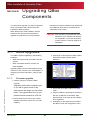
5.1: QBox upgrades
3. Press [ F 5 ] on the keyboard. QBox system
Your QBox requires upgrading in the following
situations:
• When the trial period for your QBox use has
information similar to below will be
displayed.
expired
•
When new QBox firmware versions are
made available
Upgrading QBox involves either adding configurations for a new version to your existing QBox, or
changing the license information, using a USB
drive.
5.1.1:
Firmware upgrade
1. Contact Autocue to request a QBox
upgrade.
Upgrades will be either emailed to you
4. Ensure that your QBox is NOT in prompt
Autocue web site where you can down-
mode.
load it. The upgrade files are in a com-
5. Plug the USB key containing the extracted
pressed format contained in a ZIP file.
files into a USB port on the QBox. Wait
approximately 10 seconds for the USB key
2. Extract the files from the zip into a folder
to be registered.
labelled r e p o s i t o r y at the root of a clean
6. Press [ F 8 ] on the keyboard connected to
USB key.
the QBox to open the configuration menu.
Issue #: 081212
©2003-2008 Autocue Group Ltd
or you will be given access to the
www.qtv.com
31
www.autocue.com
QBox
Installation & Operation
Guide
Section 5: Upgrading QBox Components
QBox upgrades
Licence upgrade
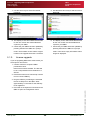
5. Use the D o w n arrow key to select L i c e n c e
7. Use the arrow keys to select F i r m w a r e
Upgrade
Upgrade.
8. The display screen will indicate that the files
6. The display screen will indicate that the files
for the new version are downloaded and
for the new version are downloaded and
copied to your QBox.
copied to your QBox.
9. Check that your QBox has been updated by
7. Check that your QBox has been updated by
pressing F 5 when the QBox is in prompt
pressing F 5 when the QBox is in prompt
mode. The firmware version will be a higher
mode. The licence expiry information will no
number if the upgrade has been successful.
longer be displayed.
5.1.2:
Licence upgrade
If you are upgrading QBox from a trial version you
will require a new licence.
1. Contact Autocue to request a QBox
permanent licence.
New licences will be emailed. The files will
be in a compressed format contained in a
ZIP file.
2. Extract the new licence from the zip onto the
root of a clean USB key.
3. Plug the USB key containing the extracted
file into a USB port on the QBox. Wait
approximately 10 seconds for the USB key
to be registered.
4. Press F 8 on the keyboard connected to the
Issue #: 081212
QBox to open the configuration menu.
©2003-2008 Autocue Group Ltd
www.qtv.com
32
www.autocue.com
QBox Installation & Operation Guide
APPENDIX A:
Multihead Prompting
Using more than one QBox on the same network in a studio allows each
presenter to independently scroll a script while a show is on air.
ahead to her part of the bulletin to check what she
is to read. Either the sports presenter or the
prompting operator would be able to switch back
so that the script or rundown is at the correct point
when the sports presenter delivers her part of the
bulletin.
N OTE : Multihead prompting functionality can be
implemented where you have purchased the
appropriate licence or upgrade.
During a broadcast, there is often more than one
presenter reading from a script. A simple example
would be a news bulletin where there is a
newsreader and sports presenter. Deploying two
QBoxes in the studio, each connected to same
computer running the QMaster software, allows
each presenter to have local control of their copy
of the script or rundown while the other presenter
is on air.
The network and wireless capabilities of QBox
supports a widely distributed news broadcast
such as presenters in the main studio, a business
journalist situated in a small studio at the stock
exchange and a weather presenter at a remote
exterior location. Each would have their own
QBox linked to the same network and would be
able to review their part of the bulletin independently. One QBox would be designated as the
master device and all others would be linked to it.
For example, while the newsreader is reading the
news items, the sports presenter could scroll
A.1: Configuring QMaster for multi-head
prompting
8. Select the connection type in the Type list
C AUTION : It is essentially that all elements of your
box.
prompting system are accurately time
9. Enter the IP address and port number for
synchronised. For information about
the new QBox.
this topic, refer to Appendix F: Time
10.Repeat for each of the QBoxes.
Synchronisation.
1. Make sure that QMaster is running on your
Issue #: 081212
©2003-2008 Autocue Group Ltd
computer.
2. Connect more than one QBox to the
computer running QMaster or attach an
additional unit to an existing network.
3. Open the QBox Status Panel in QMaster.
4. Right -click on the QBox Status Panel and
select A d d .
5. Add the name of the new QBox where multihead functionality is to be set up.
6. Specify the master QBox. Any QBox not
specified as the master is a slave unit.
7. If required, enter a description for the QBox.
www.qtv.com
33
www.autocue.com
QBox
Installation & Operation
Guide
Appendix A: Multihead Prompting
Configuring QMaster for multi-head prompting
Issue #: 081212
©2003-2008 Autocue Group Ltd
www.qtv.com
34
www.autocue.com
QBox
Installation & Operation
Guide
APPENDIX B:
Appendix B: Time Synchronisation
Time signals
Operational scenarios requiring synchronisation
Time Synchronisation
When operating more than one computing devices that are linked it is advisable
to have them all refer to the same time. This is important where, for example, a
news show takes place in different studios across the globe.
B.1: Time signals
B.1.1:
QBox and QMaster can obtain a time signal from
either a network time protocol (NTP) server or
from the Time Synchronisation application from
Autocue.
Operational scenarios
requiring synchronisation
There are different synchronisation options
depending on how and where you are installing
your QBox.
It is essential that you use a time signal to ensure
that your devices are correctly and accurately
synchronised.
In addition to the scenarios outlined below there
are more complex arrangements of computing
hardware that can be set up. If you feel that how
you are networking your devices is not covered by
the ones listed, contact the Support at Autocue.
One machine must be designated as the time
signal source and all other machines set to refer
to that time signal.
When you configure your QBox you should
choose either the NTP or Time Synchronisation
Daemon buttons.
Adding a QBox to an existing network
with NTP. If your organisation has a well
established and configured IT network it is likely
that you will have a NTP time source available.
For detailed information about configuring NTP
settings, refer to section B.3. Contact your own IT
department to obtain details of the required IP
addresses and related settings for the time
source.
It is recommended that you use the NTP option
only if you are connecting to an existing IT
network which already has a nominated NTP
source defined for it.
N OTE : If you are moving an existing QBox to a
different network, it is recommended that
you remove all time sources from the list
associated with Time Synchronisation
When
shipped, Autocue QBoxes are configured to have
no NTP time sources and the Time Synchronisation Daemon is set to Automatic Network
Discovery. This enables you to simply connect a
QBox to a network or computer and it will find the
best time source available and synchronise to it.
Time source computers should have Bonjour
software, or a similar application, installed.
Daemon.
Standalone network with one or more
QBoxes. If you are establishing a selfcontained network, it is recommended that you
either:
• Install the Bonjour software on the computer
and configure the QBoxes to use the Time
Issue #: 081212
©2003-2008 Autocue Group Ltd
Default settings for QBox.
Synchronisation Daemon with the time
source set to Automatic Network Discovery
www.qtv.com
35
www.autocue.com
QBox
Installation & Operation
Guide
Appendix B: Time Synchronisation
Time Synchronisation Daemon
Operational scenarios requiring synchronisation
You should then set all other hardware on the
network to obtain a time signal from the machine
with the master time source. You can does this by
configuring the QBoxes to use either Automatic
Network Discovery or select Network Host source
and specify the host name or IP address of the
computer with the master time source.
on the QBox and the computer configured
with Local Clock as the time source.
or
• Use the local clock of the computer and
specify Network Host as the time source on
the QBox and manually enter the IP address
or host name of the computer.
N OTE : When using this method you should remove
N OTE : When you use either of these methods you
all time sources that may have been
should remove all time sources that may
configured for use with NTP.
have been configured for use with NTP.
N OTE : If you have a spare QBox used for backup
Adding a QBox to an existing network
with no synchronisation. Install the
purposes you should pre-configure it to
Time Synchronisation Daemon on a machine on
the network, for example the computer running
the QMaster software. Configure this machine so
that Local Clock is set as the time source for it.
automatically search for a time source on a
network so that it will synchronise with an
existing time source.
B.2: Time Synchronisation Daemon
3. Use the arrow keys on the keyboard to
To select time settings on a QBox follow the steps
outlined below.
1. With an operating QBox, press F 8 on the
select T i m e a n d D a t e .
keyboard attached the unit.
2. Select the C o n f i g u r e QBox option and
press E n t e r .
The QBox recognises three types of time signal
source:
www.qtv.com
36
www.autocue.com
©2003-2008 Autocue Group Ltd
Auto Network Discovery. This method
uses the pre-installed Bonjour software on the
QBox to locate all Time Synchronisation
Daemons on the local network and synchronise
with the best time source.
Issue #: 081212
4. Press E n t e r on the keyboard.
QBox
Installation & Operation
Guide
Appendix B: Time Synchronisation
Time Synchronisation Daemon
Synchronisation options
3. Select the type of source required from the
If you want to use a particular computer as a time
source, install the Bonjour software on it so that it
can be located by your QBox.
list of those available and press E n t e r .
Local Clock. Selecting the Local Clock
option on the QBox sets the device as the master
time source.
Network Host. When the Network Host
option is selected you will have to manually enter
the IP address and host name of the machine that
is to be used as the time signal source.
B.2.1:
Synchronisation options
1. From the T i m e a n d D a t e configuration
options window select T i m e
4. The selection will be added to the list of
S y n c h r o n i s a t i o n D a e m o n and press
Configured Time Sources. Click O K or
E n t e r on the keyboard.
press E n t e r .
5. The Time Synchronisation Daemon will
automatically stop and then restart.
B.2.2:
Computer firewall settings
Your computer or network firewall settings may
prevent the effective operation of the Time
Synchronisation Daemon. You must configure
your firewall hardware or software to either:
• allow UDP packets on port 3104
2. The S o u r c e s dialog is displayed. Press the
Tab key to move the cursor to the A d d
button on the screen or press the I n s e r t
key on the keyboard.
or
• allow the Time Synchronisation Daemon full
access
©2003-2008 Autocue Group Ltd
N OTE : Different manufacturers of firewalls
implement controls in various ways. Contact
your own IT department for assistance or to
Issue #: 081212
obtain details of the relevant settings.
www.qtv.com
37
www.autocue.com
QBox
Installation & Operation
Guide
Appendix B: Time Synchronisation
NTP Server Settings
Adding servers to an existing NTP server list
B.3: NTP Server Settings
4. Select N T P S e r v e r S e t t i n g s and press
The following NTP server functions can be set in
the onscreen menus:
• Adding NTP servers to an existing NTP
E n t e r to display a list of time servers.
server list.
•
Disabling the iBurst function
•
Specifying an undisciplined local clock.
N OTE : When you make changes to any NTP
setting, messages are displayed stating that
the NTP daemon has been stopped and then
restarted.
B.3.1:
Adding servers to an existing
NTP server list
5. To add a time server, press the T a b key to
highlight the A d d [ i n s ] button and press
Enter or press the I n s e r t key on the
N OTE : The list of available NTP servers is empty for
keyboard.
a new QBox.
A dialogue box is displayed requesting the
DNS name. Press the T a b key. The FQDN
(Fully Qualified Domain Name) DNS name is
displayed.
1. Open the onscreen menu by pressing the
F 8 key on the keyboard attached to the
QBox.
2. Select the C o n f i g u r e QBox option and
press E n t e r .
3. Use the R i g h t arrow key to select T i m e
a n d D a t e and press E n t e r .
6. Enter the F Q D N ( F u l l y Q u a l i f i e d
allows the name of the server to be
resolved.
7. Press the T a b and then E n t e r key to
entered into the list.
N OTE : After your QBoxes and computers have
been configured to use an NTP time source,
it takes approximately one hour for the
www.qtv.com
38
www.autocue.com
©2003-2008 Autocue Group Ltd
confirm the action. The DNS server is
Issue #: 081212
D o m a i n N a m e ) DNS name. The FQDN
QBox
Installation & Operation
Guide
Appendix B: Time Synchronisation
NTP Server Settings
Disabling the iBurst function
5. Hold down the C t r l key and press the P a g e
software to calibrate itself and calculate drift
information.
D o w n key twice to go to the
During this time, do not switch off, log off
M i s c e l l a n e o u s tab.
your computer nor allow it to go into
hibernation mode.
B.3.2:
Disabling the iBurst function
The iBurst function can be disabled to manage
network traffic according to the specific configurations of the network deployment.
1. Bring up the onscreen menu by pressing the
F 8 key.
2. Select C o n f i g u r e QBox and press E n t e r .
3. Use the R i g h t arrow key to select T i m e
a n d D a t e , and press E n t e r .
6. Press the S p a c e key to select the
4. Select N T P S e r v e r S e t t i n g s and press
U n d i s c i p l i n e d L o c a l C l o c k option.
E n t e r to display a list of time servers.
7. Press the T a b key and then the E n t e r key
5. To turn off the iBurst option, press the T a b
to confirm the action.
key and press the S p a c e bar.
6. Press E n t e r . A message is displayed in the
C o n f i g u r e QBox menu that the NTP
daemon has been restarted.
B.3.3:
Using an undisciplined local
clock
An undisciplined local clock allows a QBox to be
a self-referencing time source.
1. Bring up the onscreen menu by pressing the
F 8 key.
2. Select C o n f i g u r e QBox and press E n t e r .
3. Use the R i g h t arrow key to select T i m e
a n d D a t e , and press E n t e r .
4. Select N T P S e r v e r S e t t i n g s and press
Issue #: 081212
©2003-2008 Autocue Group Ltd
E n t e r to display a list of time servers.
www.qtv.com
39
www.autocue.com