1
Windows & Tabs
29
selected in the toolbar. The bar chart shows the size, allocated and wasted space together in
one chart because: branch size + wasted space = allocated space. If a bar chart doesn't fit in
the window, a scrollbar is displayed on the right side, which allows scrolling in the chart.
In the pie chart, small folders may be summarized in a slice named "Other". If a root of a drive
is displayed in a pie chart and you have switched to the "Allocated Space" mode, the free space
of this drive will also be displayed as one slice of the pie. There is an option in the right click
menu of the pie chart to turn this behaviour on or off. The pie chart just shows the free space as
one slice among the others and calculates the percent appropriately (relatively to the others), so
the percent value might differ from the "% Free" value of the drive if TreeSize didn't see all files.
An FAQ entry deals with the possible reasons.
Clicking on a slice or bar shows detailed information about the corresponding folder, double
clicking will change into the selected folder. Under View / Toolbars or in the context menu of the
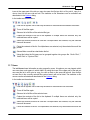
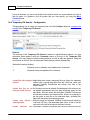
chart the chart toolbar can be turned on or off. It allows you to manipulate the charts in several
ways, for example zooming, turning on or off the grid lines, switching between 2D and 3D mode,
changing colors, etc. Using this toolbar, you can also copy the current chart to the clipboard or
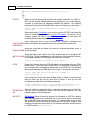
save it as a file. The color of a chart element can be changed by selecting the appropriate color
in the color pull-down menu and then clicking on the chart that you would like to change.
Choose Print Chart from the File menu to print a chart. A chart will be printed exactly as you
see it on the screen.
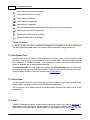
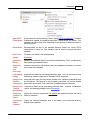
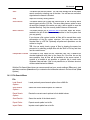
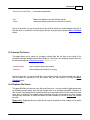
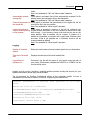
Displays the selected directory as pie chart.
Displays the selected directory as bar chart.
Displays the selected directory as tree map chart.
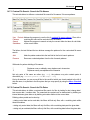
Copies the displayed graph to clipboard.
Prints the displayed graph.
Saves the displayed graph.
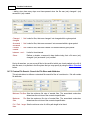
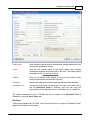
Toggles 3D view on / off.
Toggles the graph's legend on / off.
Toggles vertical grid lines on / off (available for bar charts only).
Toggles horizontal grid lines on / off (available for bar charts only).
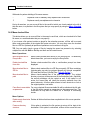
Toggles background gradient display on / off (available for bar charts or pie
charts only).
Zooms in (available for tree map charts only)
Zooms out (available for tree map charts only)
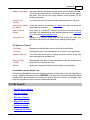
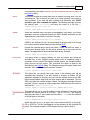
Changes the graph filling from full color to shades. (available for bar charts and
TreeSize Professional - Windows & Tabs