1
-
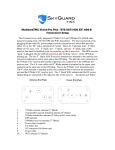
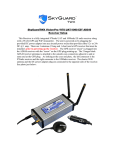
After all antennas, GPS, and power adapter are connected to the main unit, power
up the transceiver. Be sure that all receiver/transmitter antennas are as vertical as
possible to maximize radio reception/transmission.
-
The N-number and ICAO code as well as a default squawk code must be set prior
to your first flight. You can find your aircraft ICAO code by doing an N-number
search on www.faa.gov. This search will bring up a table with the details for
your specific aircraft. The 6 character ICAO code is defined in this table as:
“Mode S Code (base 16/hex)”.
-
If using an iPad or iPhone as your primary flight display, there is an app. available
on the Apple App. store under “SkyGuardTWX” that will allow initial preflight
setup and in-flight control of the transceiver. This app. allows setting/changing
of the specific aircraft parameters for which the transceiver is contained. Be sure
to download/install this app. to your Apple device and configure the transceiver
parameters prior to your first flight. The SkyGuardTWX app. also provides a
visual and audio traffic alert display screen. For details on how this works, read
the app. description on the Apple App. Store.
o On your Apple device, go into “Settings” and turn ON Airplane mode.
o While in “Settings”, turn on WiFi and after a brief search, a WiFi hot spot
will appear showing “SkyGuardTWXxx” where “xx” is a numeric value
specific to your ADS-B transceiver.
o Select this hot spot by tapping on it’s name.
o Wait for approximately 10 seconds for the Apple device to establish a
connection to the ADS-B transceiver over WiFi. If a connection is not