1
Getting Started: Using the Motif Interface of the POLYCENTER Software Installation Utility
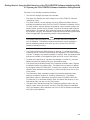
2.8 Starting the Task
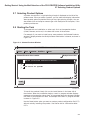
Figure 2–5 The Work In Progress Window
Work In Progress Dialog
Work In Progress
74% done
Show Details
Clear
Terminate Operation
Start new Operation
ZK−6649A−GE
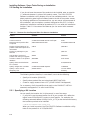
You can increase or decrease the amount of information displayed in the work in
progress window by clicking on the Show Details button.
2.9 Getting Help: Help Menu
More information is available in online help. To get help on the POLYCENTER
Software Installation utility main window, select the On Window menu item
from the Help menu. Help provides additional information on how to install and
manage software products.
To learn more about using the online help system, select the On Help menu item
from the Help menu.
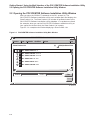
2.10 Exiting from the POLYCENTER Software Installation Utility
When you are done with your installation and management tasks, you can close
the POLYCENTER Software Installation utility window by choosing End Session
from the Session menu.
2.11 Customizing the DECwindows Motif Interface
The POLYCENTER Software Installation utility lets you tailor the DECwindows
Motif interface to suit your own environment. For example, you might want to
reduce the number of fields or options available to an installer to make it easier
for less experienced personnel to perform an installation. Alternatively, you
might want to make certain features more readily available.
This section describes how to customize the following areas of the POLYCENTER
Software Installation utility main window:
2–8
•
Session menu
•
Mode menu