1
ControlMASTER
Solution:
In order to run applications from WM1’s D: drive, this drive would have to be
shared out and the application’s Program Path would have to be set as specified in
the solution to Problem A.
A WallManager configuration of an application’s Program Path as Z:\
Problem:
Since WM1’s drive Z: is mapped differently than FRC5K’s drive Z:, WallServer
on FRC5K would be searching for the application on a different server
(\\ServerY\C).
Solution:
In order to run applications from \\ServerX\C Drive, either the UNC path name
would have to be specified in the application’s Program Path field, or both WM1
and FRC5K would have to map a common drive letter to this path (e.g. both
machines could map W: to \\ServerX\C Drive.
A WallServer launch of an application on the wall from the C: drive.
Problem:
WallManager running on WM1 monitors applications that are launched on the
wall. If an application is launched from the FRC5K C: drive, WallManager will
try to manage this application from the C: drive it recognizes on WM1. If this
application does not exist in the same path on WM1, the user will not have access
to the application in the display wall mimic. If the application does exist in the
same location on WM1, the application may be accessible, but unexpected
behavior may be experienced. This is similar to Problem A.
Solution:
For WallManager management, the correct ways to launch an application residing
on the C: drive of FRC5K would be to run this application from X:, or to browse
through Network Neighborhood to the shared C: drive on FRC5K.
7.4
Using
WallServer
This section describes the server component of ControlMASTER software.
WallServer must be running and configured as described in 7.3 Getting Started in
order to monitor and carry out WallManager requests. Note that WallServer stores all
user, task, projector and schedule information in a database on your FRC-5000
controller. Make sure there is adequate space on the controller to accommodate this
database growth.
Starting WallServer ' Start WallServer by double-clicking the WallServer icon on the desktop (or use
Start⇒FRC-5000 MASTERSuite⇒WallServer in Windows.
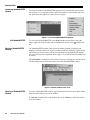
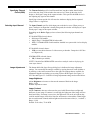
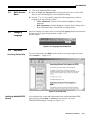
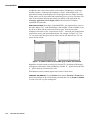
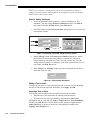
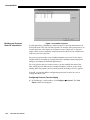
The WallServer Log ' When WallServer is running, a log of server processes appears (sample shown
below).
FRC-5000 User’s Manual
7-9