1
The marks will appear in the default size and default color. All
subsequent marks are numbered in sequential manner. To
undo a mark made accidentally, you will need to use the
(Undo) button. The marks will stay on your screen until you
wish the reset your overlays.
Change Default Marker Color
When marking shots, the application uses orange as the default
marker color. You can change your default marker color in the
application settings.
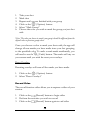
1.
2.
3.
4.
Click on the
(Menu) button
Select “Settings”
Selected “Default Marker Color”
Select the color
Change Marker Size
When marking shots, the application uses a medium default
marker size. You can change your default marker size in the
application settings.
1.
2.
3.
4.
Click on the
(Menu) button
Select “Settings”
Selected “Default Marker Size”
Select the color
Grouping Marked Shots
The mark shots feature also gives you the ability to mark your
groups with up to 7 different colors.
14