1
Windows installation (VST & RTAS)
Step 1
Step 2
Install Pluggo Runtime by launching the "Pluggo 3.6.x Runtime
Installer.msi" executable file that came with your Pluggo
Runtime download.
Follow the on-screen instructions.
The installer will ask for the location of your VST plugins
folder. Most often, this path is:
C:\Program Files\Steinberg\VstPlugins
Please select this path, unless you ONLY run ProTools; with
NO VST hosts present on your system.
If you ONLY run ProTools and DO NOT USE ANY VST
HOSTS, then select your ProTools plugins folder, most often
found here:
C:\Program Files\Common Files\Digidesign\DAE\Plug-Ins
Step 3
Confirm the appropriate path and finish the Pluggo installation.
After a proper install of Pluggo Runtime, your folder structure
will look something like this:
C:\Program Files\Steinberg\VstPlugins\Pluggo Runtime
Or like this (if you only use ProTools):
C:\Program Files\Common Files\Digidesign\DAE\PlugIns\Pluggo Runtime
Pluggo Runtime plugins (like ours) go in this newly created
“Pluggo Runtime” folder!
Tip! ProTools will look for plugins placed in this
"Pluggo Runtime" folder regardless of its
location. So, if you plan to use both VST and
RTAS versions of our plugins, you need to
select your VST folder during step 2.
Step 4
Launch the TriTone Digital plugin installer.
Step 5
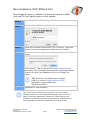
Follow the on-screen instructions (click “Continue”), locate the
“Pluggo Runtime” folder created in Step 2, read and agree to
the License Agreement, and click “Install”.
TTD_HydraTone_Manual
Version 1.4
Last Modified: February 5, 2008
Page 6
Copyright 2005-2008 TriTone Digital
All Rights Reserved
www.tritonedigital.com