1
IP Camera User’s Manual
browser.
Ø Broadband and ro uter s ha ring Internet access mode (dyna mic
obtainment of extranet IP address mode) like ADSL and so on;
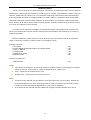
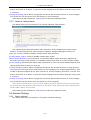
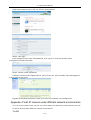
For dial-up access with router, see below picture for the network topology:
Users can set up DDNS domain name service at the same time. Fills the username and
password which were applied in the DDNS server into the DDNS setting item, implement port
mapping from the router. The router determines and points to the IP camera that need to be
visited according to different ports, long-distance Internet user can visit the IP camera on the
network via domain name directly.
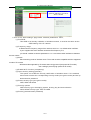
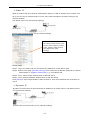
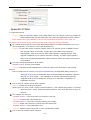
Please refer to below picture for the network settings:
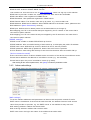
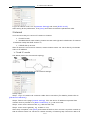
DDNS setup steps:
Step 1: Log in DNNS server (e.g.http://www.mvddns.net), register user account and password.(For
details, please refer to Appendix 3)
Step 2: Click to open DDNS;
Step 3: Select DDNS service provider, e.g. mvddns.net;
Step 4: Fill in the registration name to log into DDNS server;
Step 5: Fill in the registration password to log into DDNS server;
Step 6: fill in the domain name applied on DDNS server, e.g. test.mvddns.net;
Step 7: Fill in DDNS server address, e.g.www.mvddns.net;
Step 8: fill in the port of DDNS server, default value is 30000 (users are recommended not to
change it);
Step 9: fill in the port number of public network data after mapping, the default port is 5000.If
several IP cameras are connected to one router, different web ports need to be specified for
each device, and port mapping needs to be done for every specified port.
Step 10: fill in the port number of public network web after mapping, the default port is 80.If
several IP cameras are connected to one router, different web ports need to be specified for
each device, and port mapping needs to be done for every specified port.
After setting all the parameters, click [save] and restart to make the parameters valid.
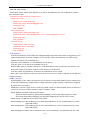
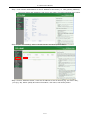
Port mapping setup steps:
26/31