1
Section 3: Operation
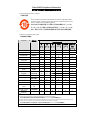
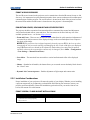
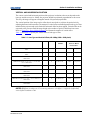
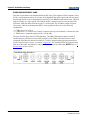
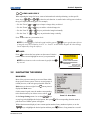
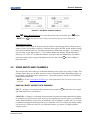
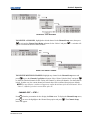
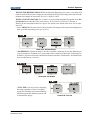
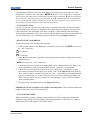
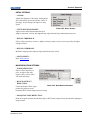
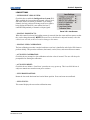
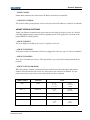
FIGURE 3-13 - COPY A CHANNEL
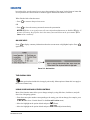
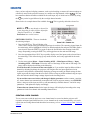
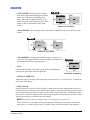
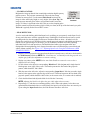
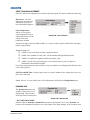
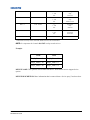
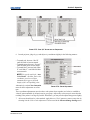
TO DELETE A CHANNEL, highlight the desired channel in the Channel Setup menu, then press
to activate the Channel Copy/Delete submenu. Select “Delete” and press
appear to confirm the deletion of this channel.
—a window will
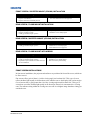
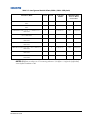
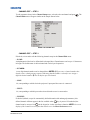
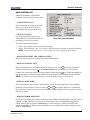
FIGURE 3-14 - DELETE A CHANNEL
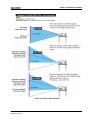
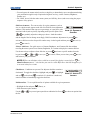
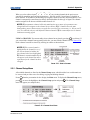
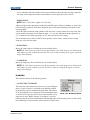
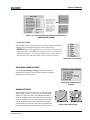
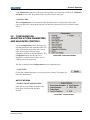
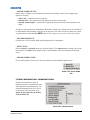
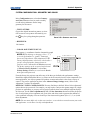
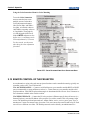
TO DELETE MULTIPLE CHANNELS highlight any channel in the Channel Setup menu and
press
to go to the Channel Copy/Delete submenu. Select “Delete Unlocked Only” and press
to delete all unlocked channels. Select “Delete All Channels” to delete all channels, even those that are
locked. In either case, the current channel will remain but will be redefined from projector defaults.
NOTE: For any deletion, a window will appear to confirm the deletion of the desired channel. Select
“Cancel” (default) if you don’t want to delete after all.
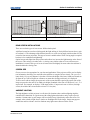
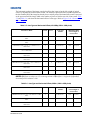
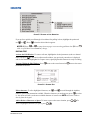
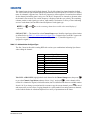
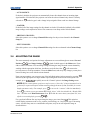
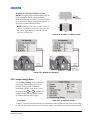
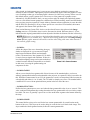
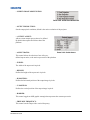
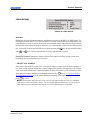
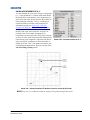
CHANNEL EDIT — STEP 1
Press
Menu
from the presentation level to display the Main menu. To display the Channel Setup menu,
press 3 , or move the highlight to the Channel Setup option and press
menu will appear.
M-Series User Manual
020-100009-01 Rev.1 (07/08)
. The Channel Setup
3-18