1
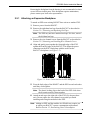
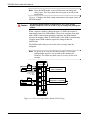
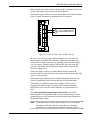
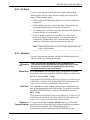
ROC800-Series Instruction Manual 6.2 Checklists If the LEDs do not display: By default, LEDs on the communication modules and I/O modules enter Sleep mode after five minutes. To turn the LEDs on, press the LED button located on the CPU for one second. Note: Using the ROCKLINK 800 software, you can disable this feature so that the LEDs always remain on. 6.2.1 Serial Communications If you are experiencing troubles with a serial communications connection (LOI, EIA-232, EIA-422, or EIA-485): Check to make sure power is applied to the ROC800 unit. Check the position of the J3 jumper on the CPU board (see Figure 2-8 in Chapter 2), the wiring connections at CHG+ and CHG– (for the PM-12 module), and the wiring at the power source. Note: On a Series 1 CPU, check the position of the J4 jumper. Check the wiring to the termination block or connector. Refer to Chapter 5, Communications. Check the communication port settings using ROCLINK 800 Configuration software. Refer to ROCLINK 800 Configuration Software User Manual (for ROC800-Series) (Form A6218) or the ROCLINK 800 Configuration Software User Manual (for ROC800L) (Form A6214). Restore to To restore the COM ports to factory defaults (as they were delivered Factory Defaults to you from the factory) use this procedure: Caution This procedure, valid on the ROC800 (at firmware version 3.1 or higher) and the ROC800L (at firmware version 1.00 or higher) also stops any FSTs, User C programs, and DS800 programs. 1. Press and hold the RESET button on the powered CPU for 5 to 10 seconds. The Status LED flashes when the process completes. Note: Use a small screwdriver or a straightened paper clip to press the RESET button. 2. Release the RESET button. 3. Reconfigure your COM ports. 6-2 Troubleshooting Revised Nov-10