1
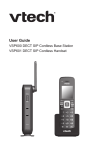
ErisTerminal® SIP DECT Base Station
and Cordless Handset
VSP600
VSP601
User Guide
VSP600
2
Congratulations
on your purchase of this VTech product. Before using this product, please read
Important Safety Information on page 4 of this manual. Please thoroughly
read this user’s manual for all the feature operations and troubleshooting
information necessary to install and operate your product. You can also visit our
website at businessphones.vtech.com or call 1 (888) 370-2006.
Please note the serial number of your product, which can be found on the bottom
of the base station. Save your sales receipt and original packaging in case it is
necessary to return your telephone for warranty service.
3
Important Safety Information
This symbol is to alert you to important operating or servicing
instructions that may appear on the product or in this user’s manual.
Always follow basic safety precautions when using this product to
reduce the risk of injury, fire, or electric shock.
Important safety instructions
When using your telephone equipment, basic safety precautions should always
be followed to reduce the risk of fire, electric shock and injury, including the
following:
1. This product should be installed by a qualified technician.
2. This product should only be connected to the host equipment and never
directly to the network such as Public Switch Telephone Network (PSTN) or
Plain Old Telephone Services (POTS).
3. Read and understand all instructions.
4. Follow all warnings and instructions marked on the product.
5. Unplug this product from the wall outlet before cleaning. Do not use liquid or
aerosol cleaners. Use a damp cloth for cleaning.
6. Do not use this product near water such as near a bath tub, wash bowl,
kitchen sink, laundry tub or swimming pool, or in a wet basement or shower.
7. Do not place this product on an unstable table, shelf, stand or other unstable
surfaces.
8. Slots and openings in the back or bottom of the base station and handset are
provided for ventilation. To protect them from overheating, these openings
must not be blocked by placing the product on a soft surface such as a bed,
sofa or rug. This product should never be placed near or over a radiator or
heat register. This product should not be placed in any area where proper
ventilation is not provided.
9. This product should be operated only from the type of power source indicated
on the marking label. If you are not sure of the type of power supplied at the
premises, consult your dealer or local power company.
10. Do not allow anything to rest on the power cord. Do not install this product
where the cord may be walked on.
11. Never push objects of any kind into this product through the slots in the base
station or handset because they may touch dangerous voltage points or
create a short circuit. Never spill liquid of any kind on the product.
4
12. To reduce the risk of electric shock, do not disassemble this product, but take
it to an authorized service facility. Opening or removing parts of the base
station or handset other than specified access doors may expose you to
dangerous voltages or other risks. Incorrect reassembling can cause electric
shock when the product is subsequently used.
13. Do not overload wall outlets and extension cords.
14. Unplug this product from the wall outlet and refer servicing to an authorized
service facility under the following conditions:
A. When the power supply cord or plug is damaged or frayed.
B. If liquid has been spilled onto the product.
C. If the product has been exposed to rain or water.
D.
If the product does not operate normally by following the operating
instructions. Adjust only those controls that are covered by the
operation instructions. Improper adjustment of other controls may
result in damage and often requires extensive work by an authorized
technician to restore the product to normal operation.
E. If the product has been dropped and the telephone base and/or
handset has been damaged.
F. If the product exhibits a distinct change in performance.
15. Avoid using a telephone (other than cordless) during an electrical storm.
There is a remote risk of electric shock from lightning.
16. Do not use the telephone to report a gas leak in the vicinity of the leak. Under
certain circumstances, a spark may be created when the adapter is plugged
into the power outlet, or when the handset is replaced in its cradle. This is a
common event associated with the closing of any electrical circuit. The user
should not plug the phone into a power outlet, and should not put a charged
handset into the cradle, if the phone is located in an environment containing
concentrations of flammable or flame-supporting gases, unless there is
adequate ventilation. A spark in such an environment could create a fire or
explosion. Such environments might include: medical use of oxygen without
adequate ventilation; industrial gases (cleaning solvents; gasoline vapors;
etc.); a leak of natural gas; etc.
17. Only put the handset of your telephone next to your ear when it is in normal
talk mode.
18. The power adapters are intended to be correctly oriented in a vertical or floor
mount position. The prongs are not designed to hold the plug in place if it is
plugged into a ceiling, under-the-table or cabinet outlet.
5
19. Use only the power cord indicated in this manual.
20. For pluggable equipment, the socket-outlet shall be installed near the
equipment and shall be easily accessible.
21. In wall mounting position, make sure to mount the telephone base on the wall
by aligning the eyelets with the mounting studs of the wall plate. Then slide
the telephone base down on both mounting studs until it locks into place.
Refer to the full installation instructions in “Handset Installation” on page
16 in this User Guide.
22. CAUTION: Keep small metallic objects such as pins and staples away from
the handset receiver.
SAVE THESE INSTRUCTIONS
6
Compliance
FCC part 15
This device complies with Part 15 of the FCC rules. Operation is subject to the
following two conditions: (1) This device may not cause harmful interference, and
(2) this device must accept any interference received, including interference that
may cause undesired operation.
This equipment has been tested and found to comply with the limits for a
Class A digital device, pursuant to Part 15 of the FCC Rules. These limits are
designed to provide reasonable protection against harmful interference when the
equipment is operated in a commercial environment. This equipment generates,
uses, and can radiate radio frequency energy and, if not installed and used in
accordance with the instruction manual, may cause harmful interference to radio
communications. Operation of this equipment in a residential area is likely to
cause harmful interference in which case the user will be required to correct the
interference at the user’s expense.
Privacy of communications may not be ensured when using this phone.
Warning: Changes or modifications to this equipment not expressly approved by
the party responsible for compliance could void the user’s authority to operate
the equipment.
Caution: To maintain the compliance with the FCC’s RF exposure guideline,
place the base unit at least 20 cm from nearby persons.
For body-worn operation, this handset has been tested and meets the FCC RF
exposure guidelines when used with the accessories supplied or designated for
this product. Use of other accessories may not ensure compliance with FCC RF
exposure guidelines.
This Class A digital apparatus complies with Canadian requirements:
CAN ICES-3 (A)/NMB-3(A).
Cet appareil numérique de la classe A est conforme à la norme CAN ICES-3 (A)/
NMB-3(A) du Canada.
This device complies with Industry Canada license-exempt RSS standard(s).
Industry Canada
Operation is subject to the following two conditions: (1) this device may not cause
harmful interference, and (2) this device must accept any interference received,
including interference that may cause undesired operation of the device.
Privacy of communications may not be ensured when using this telephone.
The term ‘’IC:‘’ before the certification/registration number only signifies that the
Industry Canada technical specifications were met.
This product meets the applicable Industry Canada technical specifications.
7
User Guide
ErisTerminal SIP DECT Base Station
and Cordless Handset
VSP600
VSP601
Table of Contents
Important Safety Information
Setting up a conference call������������� 28
Listening to messages���������������������� 29
4
Using the Directory��������������������������� 30
Important safety instructions�������������� 4
Introduction
Using the Call History����������������������� 32
10
Using Speed Dial������������������������������ 33
About this guide�������������������������������� 10
Configuring the Handset
Product overview������������������������������ 10
Quick Reference Guide
Setting do not disturb����������������������� 34
11
Setting call forwarding���������������������� 34
Base station external features���������� 11
Blocking anonymous calls���������������� 35
Cordless handset external features�� 12
Dialing anonymously������������������������ 35
Dial pad and audio controls�������������� 12
Base Station Installation
13
Handset Installation
16
Answering calls automatically���������� 35
Setting missed-call alerts����������������� 36
Setting call waiting���������������������������� 36
Installing the charger������������������������ 16
Viewing handset status��������������������� 36
Battery installation and charging������ 17
Setting the language������������������������ 37
Wall mounting the charger���������������� 19
Setting the date and time����������������� 37
Adding a corded headset����������������� 20
Setting the handset name���������������� 37
Registering the handset to the base� 21
Setting the screen brightness����������� 37
Deregistering the handset���������������� 22
Locating the Handset
23
Screen icons
23
Using the Handset
24
34
Setting the ringer tone and volume�� 38
Turning low battery tone on or off����� 38
Turning link lost tone on or off���������� 38
Turning key tones on or off��������������� 38
Idle screen���������������������������������������� 24
Making calls�������������������������������������� 24
Registering or deregistering your
handset��������������������������������������������� 39
Answering calls�������������������������������� 25
WebUI
Putting a call on hold������������������������ 26
Using the WebUI������������������������������ 40
Switching between two calls������������� 26
System Status���������������������������������� 42
Transferring a call����������������������������� 27
Handset Status��������������������������������� 43
8
40
Call Settings������������������������������������� 43
Special characters
User Preferences����������������������������� 45
Entering special characters�������������� 51
Base Directory���������������������������������� 46
Maintenance
Blacklist�������������������������������������������� 48
Taking care of your telephone���������� 52
Security�������������������������������������������� 49
GPL License Information
Troubleshooting
GPL code requests��������������������������� 53
50
General issues��������������������������������� 50
Technical Specifications
51
9
51
52
53
Introduction
About this guide
This user guide provides information about the external features of the base
station and handset, installation and handset configuration instructions, and
detailed instructions for using the handset. Please read this user’s manual before
using your handset.
Please refer to the VSP600/VSP601 Administrator and Provisioning Manual for
complete configuration instructions. You can download the guide from
businessphones.vtech.com.
For customer service or product information, visit our website at
businessphones.vtech.com or call 1 (888) 370-2006.
Product overview
The VTech VSP600 base station and VSP601 cordless handset is a full-featured
SIP endpoint business phone system designed to work with popular hosted IP
PBX services and on-premise SIP PBXs. Once you have ordered and configured
your PBX service, the handset enables you to make and receive calls as you
would with any other business phone. Up to six cordless handsets can be
registered to the base station. Each handset provides calling features such as
hold, transfer, conferencing, and speakerphone.
The VSP601 cordless handset features include:
•
Orbitlink Wireless Technology™
•
Backlit Liquid Crystal Display
•
Speakerphone, Hold and Mute
•
Up to 6 SIP lines/accounts
•
Up to 4 concurrent calls across all handsets
•
3-way conferencing
•
Corded headset support
•
200-entry local directory
10
Quick Reference Guide
Base station external features
Antenna
Wall mount slot
(on top)
Handset Locator
(Page) button
Press to ring the handsets.
Press and hold to register
a handset.
Power LED
Flashes when joining
the network or when
registering/deregistering
a handset.
Steady when power is
connected and an IP
address is acquired.
VoIP LED
Flashes when registering/
deregistering a handset.
Steady when all SIP accounts
are registered.
Off when a SIP account is not
registered.
Use only
Supplied
Adapter
DC adapter input
Reset button
Depress for 15
seconds to restore
factory defaults.
If the reset is
successful, the
VoIP LED will flash
slowly.
VSP600
RESET
Ethernet port
Front
Rear
11
Quick Reference Guide
Cordless handset external features
Message light
Flashes when a line
has a new voice
message.
HEADSET JACK
2.5 mm jack for connecting
a corded headset.
SOFT KEYS
Perform the actions
indicated by the onscreen labels.
VOL p DIR
While in menus, press p
to scroll up the menu.
Press to display the
Directory.
TRANSFER
Press to start
transferring a call.
CONF
Press to start a
conference call.
TALK
Press to start
making a call.
VOL q CID
While in menus, press q
to scroll down the menu.
Press to display the Call
history.
On back:
HOLD
Press to put a call on hold.
SPEAKER
BELT CLIP
Dial pad and audio controls
MENU/SELECT
Press to display the main
menu.
Press to select a menu item.
OFF/CANCEL
Press to end a call.
Press to cancel an operation
and leave a menu.
INT
Press to start making
an intercom call.
HANDSET LOCK
Press and hold to lock
handset keys and
prevent accidental key
presses.
DIAL PAD
SPEAKER
Press to use
the handset
speakerphone.
MUTE/DELETE
During a call, press to
prevent your voice from
being heard.
While entering numbers
or letters, press to delete
previous character.
REDIAL/PAUSE
Press to redial a number
or enter a pause when
programming a phone number.
12
Base Station Installation
This section assumes that your network infrastructure is established and that
your IP PBX phone service has been ordered and configured for your location.
For more information about IP PBX configuration, see the VSP600/VSP601
Administrator and Provisioning Manual, available at
businessphones.vtech.com.
You can power the base station using a compatible VTech power adapter or using
Power over Ethernet (PoE) from your network. (The base station requires PoE
Class 2.) If you are not using PoE, install the base station near a power outlet not
controlled by a wall switch. The base station can be placed on a flat surface or
mounted on a wall in a vertical or horizontal orientation.
Avoid placing the base station too close to:
•
Communication devices such as television sets, DVD players, or other
cordless telephones
•
Excessive heat sources
•
Noise sources such as a window with traffic outside, motors, microwave
ovens, refrigerators, or fluorescent lighting
•
Excessive dust sources such as a workshop or garage
•
Excessive moisture
•
Extremely low temperature
•
Mechanical vibration or shock such as on top of a washing machine or work
bench
13
To install the base station:
1. Plug one end of the Ethernet cable into the Ethernet port on the rear of the
base station (marked by
), and plug the other end of the cable into your
network router or switch.
2. If the base station is not using power from a PoE-capable network router or
switch:
a. Connect a compatible VTech power adapter to the power jack.
a. Plug the power adapter into an electrical outlet that is not controlled by a
wall switch.
Use only
Supplied
Adapter
RESET
IMPORTANT INFORMATION
1. Use only a compatible VTech power adapter with this product. To order a
power adapter, visit our website at
businessphones.vtech.com or call 1 (888) 370-2006.
2. The power adapter is intended to be correctly oriented in a vertical or floor
mount position. The prongs are not designed to hold the plug in place if it is
plugged into a ceiling, under-the-table or cabinet outlet.
To mount the base station on a wall:
1. Install two mounting screws on the wall. Choose
screws with heads larger than 5 mm (3/16 inch)
in diameter (1 cm / 7/16 inch diameter maximum).
The screw centers should be 5 cm (1 15/16 inches)
apart vertically or horizontally.
2. Tighten screws until only 3 mm (1/8 inch) of the
screws are exposed.
14
3. Attach the mounting plate to the top of the base station. Insert the tab into
the slot and then push the plate in at the bottom of the base station until the
mounting plate clicks into place.
Insert tab into slot.
4. Check to make sure the plate is secure at top and bottom. It should be flush
with the base station body.
5. Place the base station over the mounting screws.
6. Connect power and the Ethernet cable as described in “To install the base
station.”
15
Handset Installation
This section assumes that your network infrastructure is established and that
your IP PBX phone service has been ordered and configured for your location.
For more information about IP PBX configuration, see the VSP600/VSP601
Administrator and Provisioning Manual, available at
businessphones.vtech.com.
Handset installation involves both the handset and the handset charger. The
charger is powered using the supplied power adapter. The charger can be placed
on a flat surface or mounted on a wall.
Avoid placing the handset and charger too close to:
•
Communication devices such as television sets, DVD players, or other
cordless telephones
•
Excessive heat sources
•
Noise sources such as a window with traffic outside, motors, microwave
ovens, refrigerators, or fluorescent lighting
•
Excessive dust sources such as a workshop or garage
•
Excessive moisture
•
Extremely low temperature
•
Mechanical vibration or shock such as on top of a washing machine or work
bench
Installing the charger
Install the charger as shown below.
Plug the power adapter into an electrical outlet not controlled by a wall switch.
16
IMPORTANT INFORMATION
1. Use only the power adapter supplied with this product. To order a
replacement power adapter, visit our website at
businessphones.vtech.com or call 1 (888) 370-2006.
2. The power adapter is intended to be correctly oriented in a vertical or floor
mount position. The prongs are not designed to hold the plug in place if it is
plugged into a ceiling, under-the-table or cabinet outlet.
Battery installation and charging
Install the battery as shown on the following page. Once you have installed
the battery, the screen indicates the battery status (see the table below). If
necessary, place the handset in the charger to charge the battery. For best
performance, keep the handset in the charger when not in use. The battery is
fully charged after 11 hours of continuous charging.
If the screen is blank, you need to charge the handset without interruption for
at least 30 minutes to give the handset enough charge to use the telephone for
a short time. When the battery is low, the handset shows Low battery and a
flashing .
Battery indicators
Battery Status
The screen is blank or
shows Place in charger
and flashes.
The battery has no
or little charge. The
handset cannot be used.
Charge without
interruption (at least 30
minutes).
The screen shows Low
battery and flashes.
Battery has enough
charge to be used for a
short time.
Charge without
interruption (at least 30
minutes).
Full battery icon ( )
appears. The screen
shows HANDSETx (x
represents the handset
ID number 1 to 6).
Battery is charged.
To keep the battery
charged, place it in the
charger when not in use.
17
Action
To install the handset battery:
1. Plug the battery connector securely into the socket inside the handset battery
compartment. Insert the supplied battery with the label THIS SIDE UP facing
up as indicated.
2. Align the cover flat against the battery compartment, then slide it upwards
until it clicks into place.
3. Charge the handset by placing it face forward in the charger. The battery icon
indicates the charge status as the battery charges.
Very low battery charging
less than 30 minutes.
Charging 30 to 80 minutes.
Charging 80 minutes
to 7 hours.
Charging more than 7 hours.
Fully charged at 11 hours.
IMPORTANT INFORMATION
•
Use only the supplied rechargeable battery or replacement battery
(model BT164392). To order a replacement battery, visit our website at
businessphones.vtech.com or call 1 (888) 370-2006.
•
If you do not use the handset for a long time, disconnect and remove the
battery to prevent possible leakage.
18
Wall mounting the charger
The charger is ready for tabletop use. If you want to mount the charger on a
wall, use two 10 mm (7/16 inch) screws and wall anchors (not provided) to hold
the charger in place. The screws and wall anchors are available for purchase in
many hardware or consumer electronics retailers. You might need a professional
to install the charger.
To mount the charger on the wall:
1. Use a pencil to mark the desired positions of the two holes on the wall. Make
sure the space between the two holes is 30 mm. Drill two holes in the wall
according to the marks.
Screw spacing 30 mm
(1 3/16 inches)
2. If you drill the holes into a stud, go to step 3.
-ORIf you drill the holes into an object other than
a stud, insert the wall anchors (not provided)
into the holes and tap gently on the ends with a
hammer until the wall anchors are flush with the
wall.
3. Insert the screws (not provided) into the holes
and tighten them until only 1/4 inch of the screws
are exposed.
4. Align the holes at the back of the charger with
the screws on the wall and slide the charger
down until it locks into place.
19
Adding a corded headset
You can use this handset hands-free when you install any industry-standard
2.5 mm corded telephone headset (purchased separately).
Plug a 2.5 mm headset into
the HEADSET jack on the
side of the handset.
20
Registering the handset to the base
The handset must be registered to the base station in order to make and receive
calls.
To register the handset:
1. Make sure the handset has a charged battery before
proceeding. Make sure the base station is connected to power.
2. Press MENU on the handset. The Main Menu appears.
3. Press q to scroll to User settings and press SELECT.
4. Press q to scroll to Registration and press SELECT.
5. With Handset highlighted, press SELECT. The handset
screen displays instructions. Press NEXT to continue
reading the instructions.
6. On the base station, press the HANDSET LOCATOR button
for at least four seconds, then release the button. Both LEDs
on the base station begin to flash.
7. Press the # key on the handset to begin registration. The
process takes up to 10 seconds to complete.
When the first handset registers, it beeps and the screen
displays HANDSET 1.
If the handset fails to register, place it in the charger again for a
few seconds, remove it and repeat the registration procedure.
HANDSET
1
11:26PM 01/01
LINE
MENU
21
0DLQ0HQX
6SHHGGLDO
)HDWXUHV
6WDWXV
8VHUVHWWLQJV
%$&. (17(5
8VHUVHWWLQJV
/RZEDWWWRQH
/LQNORVWWRQH
.H\7RQH
5HJLVWUDWLRQ
%$&. (17(5
3UHVVDQG
KROG+$1'6(7
/2&$725NH\
DWEDVHIRU
VHFRQGV
1(;7
Deregistering the handset
Before using the handset with a different base station, you must deregister the
handset from the base station to which it is currently registered.
To deregister the handset:
1. Press MENU on the handset. The Main Menu appears.
2. Press q to scroll to User settings and press SELECT.
3. Press q to scroll to Registration and press SELECT.
4. Press q to highlight Deregistration and press SELECT.
The handset screen displays a list of registered handsets.
5. Highlight the name of the handset you want to deregister, and
then press SELECT .
6. On the base station, press the HANDSET LOCATOR button
for at least four seconds, then release the button. Both LEDs
on the base station begin to flash.
7. On the handset, enter the System PIN and then press
SELECT to begin deregistration.
Registration
Handset
Deregistration
BACK
SELECT
Deregistration
HANDSET
HANDSET
HANDSET
HANDSET
BACK
SELECT
The deregistration process takes up to 10 seconds to complete. When the
handset deregisters, it beeps and the screen displays Unregistered.
Note: The handset enters an energy-saving charging mode after being
deregistered. All cordless telephone functions except handset-battery charging
are disabled. Energy-saving charging mode is deactivated after the handset
registers to the base station.
22
1
2
3
4
Locating the Handset
You can find handsets by paging them from the base. Press the HANDSET
LOCATOR (page) button on the base station to ring all handsets:
â
3DJLQJ
6,/(1&(
6723
•
All handsets within range of the base will ring for one minute, even if the
volume is off.
•
To end the locator page, press STOP or place the handset in its charger.
•
To silence the locator page on one handset only, press SILENCE .
Screen icons
The following screen icons indicate your phone’s current status:
Icon
Status
Indicates signal strength, from one bar (weak) to four bars (strong). Flashes
when out of range.
Indicates battery strength from 1/3 to 3/3. Flashes when empty.
The ringer is off.
VSP600
Headset—audio is coming through a headset after the HEADSET key was
pressed.
Speakerphone—the speakerphone is active.
Microphone is muted.
Call Forward All is on.
Do Not Disturb is on.
23
Using the Handset
This section describes how to use the handset to make calls and answer calls.
This section also describes how to put calls on hold, transfer calls, and create
conference calls.
Idle screen
The Idle screen appears after the phone is connected and
configured for your SIP PBX service. The Idle screen indicates
that you have no active or held calls.
HANDSET
1
From the Idle screen, you can press:
•
•
LINE to select another line (SIP Account). When you
make a call, the phone will use this line. See “Making calls”
on page 24. Note: LINE appears only if more than one
SIP account is registered to your phone.
11:26PM 01/01
LINE
MENU
MENU to view the main menu. See “Configuring the Handset” on page 34.
Making calls
You can make calls to any phone number (an outside call), or you can call
another handset (an internal call).
To make an outside call:
1. Use the dial pad to enter the desired number.
•
Press BACKSP if you enter an incorrect digit.
2. If you wish to choose an outgoing line for the call:
a. Press
LINE
.
a. Press q or p to select the dialing line.
a. Press SELECT .
3. Dial the number by pressing TALK or SPEAKER.
When the call is answered, the active call screen appears.
/LQH
TALK
%$&.63
â
(1'
/,1(
4. To hang up the call, press OFF or
/LQH
2QDFDOO
END
.
Note that you can also live dial a number by pressing TALK or SPEAKER to go
off hook before entering a phone number. The call will dial automatically when a
valid number is entered.
24
To make an internal call:
1. Press INT.
2. Press p or q to select the handset you wish to call, then press SELECT .
When the call is answered, the active call screen appears.
,QWHUFRP
+$1'6(7
+$1'6(7
+$1'6(7
$OOKDQGVHWV
%$&.
,QWHUFRP
SELECT
â
+$1'6(7 (1'
6(/(&7
3. To hang up the call, press OFF or
.
END
Answering calls
You can answer a call by pressing TALK, SPEAKER, or ANSWER :
/LQH
,QFRPLQJ&DOO
ANSWER
$QJHOD0DUWLQ
$16:(5
â
5(-(&7
/LQH
2QDFDOO
$QJHOD0DUWLQ
(1'
•
For incoming calls from an outside number, you can also press REJECT to
terminate the call.
•
If you have multiple incoming calls, (as indicated by
select the call you want to answer.
•
Internal calls from another handset cannot be rejected, but they can be
silenced by pressing SILENCE :
), press q or p to
,QWHUFRPIURP
+$1'6(7
$16:(5 6,/(1&(
If you don’t respond to an incoming outside call, the phone displays a
missed-call alert on the idle screen:
+$1'6(7 0LVVHG&DOOV
30 /,1(
0(18
25
Putting a call on hold
You can put an outside call on hold by pressing HOLD. The handset also puts
calls on hold automatically when you answer another call, transfer a call, or
create a conference. Note that you cannot put an internal call on hold.
/LQH
2QDFDOO
HOLD
â
/LQH
2QKROG
(1'
5(680(
From the On Hold screen, you can press RESUME to take the call off hold.
If another party puts you on hold, you may see the message Held by far end.
This message depends on compatibility between phones and PBX types, and
may not always appear. You can press END to end the call.
/LQH
+HOGE\IDUHQG
(1'
To make a new call while on hold:
1. When you have a call on hold, press the MENU key.
2. With New call highlighted, press ENTER .
0HQX
1HZFDOO
'LUHFWRU\
&DOOKLVWRU\
%$&.
/LQH
ENTER
â
(1'
(17(5
3. Enter the number you wish to dial.
Switching between two calls
If you are managing two calls, switch between them by pressing NEXT :
/LQH
2QDFDOO
NEXT
1(;7
(1'
â
/LQH
2QKROG
0DUN/HH
1(;7
26
5(680(
Transferring a call
You can transfer a call to another party.
If you talk to the transfer recipient before completing the transfer, you are making
a “supervised” transfer.
However, the transfer recipient does not have to talk to you before receiving the
transferred call. If you do not talk to the transfer recipient before transferring the
call, you are making a “blind” transfer.
You can also transfer a call to a held call. Note that you cannot transfer internal
calls.
To transfer a call (supervised):
1. During a call, press TRANSFER. The call is automatically put on hold and
the transfer setup screen appears.
/LQH
2QDFDOO
TRANSFER
â
(1'
7UDQVIHUWR
$QHZSDUW\
$KDQGVHWSDUW\
&$1&(/ 6(/(&7
2. If you wish to transfer to an outside number, select A new party. Or if you
wish to transfer to another handset in your system, select A handset party.
3. Press SELECT.
4. Dial the number to which you want to transfer the call, or select the handset
to transfer to. You can also use a number from a list, such as the Directory or
Call History.
5. When the second caller answers, you can talk to the caller to notify them of
the transfer, then press TRANS. to transfer the call.
/LQH
2QDFDOO
TRANS.
â
75$16 (1'
/LQH
2QDFDOO
&DOO
WUDQVIHUUHG
75$16 (1'
To transfer a call (blind):
1. During a call, press TRANSFER. The call is automatically put on hold and
the transfer setup screen appears.
2. Select A new party, then press SELECT.
27
7UDQVIHUWR
$QHZSDUW\
$KDQGVHWSDUW\
SELECT
â
&$1&(/ 6(/(&7
/LQH
7UDQVIHUWR
%/,1'
3. Press BLIND .
4. Dial the number to which you want to transfer the call. You can also use a
number from a list, such as the Directory or Call History.
5. Wait for the phone to automatically dial, once it recognizes a valid number.
6. When the far end picks up, the call will be immediately transferred.
/LQH
%OLQG;IHUWR
(1'
/LQH
%OLQG;IHUWR
&DOO
WUDQVIHUUHG
â
(1'
',$/
To transfer a call to a held call:
1. If you are on an active call and also have a call on hold, press TRANSFER. A
list of held calls will appear.
/LQH
2QDFDOO
7UDQVIHUWR
TRANSFER
â
1(;7
(1'
&$1&(/ 6(/(&7
2. With the call you want to transfer to highlighted, press SELECT . The call will
be immediately transferred.
Setting up a conference call
You can hold a conference call between yourself and two other parties.
To set up a conference call:
1. During a call, press CONF. The call is automatically put on hold and the
conference setup screen appears.
/LQH
2QDFDOO
(1'
CONF.
â
&RQIHUHQFHZLWK
$QHZSDUW\
$KDQGVHWSDUW\
&$1&(/ 6(/(&7
2. If you wish to conference with an outside number, select A new party. Or
28
if you wish to conference with another handset in your system, select A
handset party.
3. Press SELECT.
4. Dial the second number for the other party you want to join your conference,
or select the handset to conference with. You can also use a number from a
list, such as the Directory or Call History.
5. When the second call is established, press CONF. . The conference begins
and the conference screen appears.
/LQH
2QDFDOO
CONF.
â
&21)
(1'
Press
END
/LQH
&RQIHUHQFH
(1'
to terminate both calls and end the conference.
To create a conference with a held call:
1. If you are on an Active call and also have a call on hold, press CONF. A list of
held calls will appear.
/LQH
2QDFDOO
&RQIHUHQFHZLWK
CONF.
â
1(;7
(1'
&$1&(/ 6(/(&7
2. With the call you want to conference with highlighted, press SELECT . The
conference will begin immediately.
Setting up a Network Conference:
A Network Conference is hosted by your service provider and allows multiple
parties to join a conference. A Network Conference works in a similar way to the
regular conference described above, except you can add as many parties as
your service provider supports. Pressing the CONF. key or the Add soft key
during a conference will allow you to add more parties to the ongoing conference.
Listening to messages
When you have new messages, the phone displays a new-messages notification
on the idle screen:
+$1'6(7 1HZ0HVVDJHV
30 /,1(
0(18
29
To listen to your messages:
1. From the handset Main Menu, with Message highlighted, press SELECT.
The Message screen appears. A message icon ( ) appears at the top of the
screen for any line that has a message.
0DLQ0HQX
0HVVDJH
'LUHFWRU\
&DOOKLVWRU\
,QWHUFRP
%$&. (17(5
SELECT
â
0HVVDJH
/LQH
/LQH
/LQH
/LQH
%$&. 6(/(&7
2. Press q to highlight the desired line and press SELECT.
The handset dials the voicemail access number.
3. Follow the voice prompts to listen to your messages.
Using the Directory
The handset has three lists of contacts. The Local directory is
only available on your handset. The Base directory is usually
maintained by your system administrator, and is available on all
handsets. The Blacklist contains blocked numbers.
To view a directory:
1. From the handset Main Menu, press q to scroll to Directory
and press SELECT, or press p when the phone is idle.
'LUHFWRU\
/RFDOGLUHFWRU\
%DVHGLUHFWRU\
%ODFNOLVW
237,21 5(9,(:
The Directory menu appears.
2. Press p or q to select the directory you wish to view, then press REVIEW .
3. Press q or p to browse through contacts.
To call a contact:
When viewing a directory entry, you can call a contact in the following ways.
1. Dial the phone number in the entry:
a. Press TYPE to cycle through home, mobile, and work
numbers.
b. Press
DIAL
to call the contact.
2. Revise the phone number to dial before calling:
:RUN
$P\
/HH
7<3(
a. Press MENU.
',$/
b. Press q to scroll to Edit dial and press SELECT.
c. Edit the number as required, then press
DIAL
.
To search a directory:
1. From the handset Main Menu, press q to scroll to Directory
and press SELECT.
The Directory menu appears.
30
/RFDOGLUHFWRU\
6HDUFK
$GGQHZ
'HOHWHDOO
%$&.
6(/(&7
2. Press p or q to select the directory to search, then press OPTION .
3. With Search highlighted, press SELECT.
4. Enter a name or number, then press SEARCH .
To add a new entry:
1. From the handset Main Menu, press q to scroll to Directory and press
SELECT.
The Directory menu appears.
$EF
2. Press p or q to select the directory to add a new entry to,
then press OPTION .
$GGQHZ
)LUVW1DPH
3. Press q to scroll to Add new and press SELECT.
/DVW1DPH
4. You can add a first name and last name, as well as home,
mobile, and work phone numbers. You can also set the
ringer tone and dial line for the entry.
%$&.
6$9(
5. When you are done, press SAVE .
To edit an entry:
1. When viewing the directory entry you wish to edit, press
MENU.
2. With Edit highlighted, press SELECT.
3. When you are done editing, press SAVE .
To delete an entry:
1. When viewing the directory entry you wish to delete, press
MENU.
(GLW
(GLWGLDO
'HOHWH
%$&.
6(/(&7
2. Press q to scroll to Delete and press SELECT.
3. Press
YES
on the delete confirmation screen.
To delete all entries:
1. From the handset Main Menu, press q to scroll to Directory
and press SELECT.
The Directory menu appears.
2. Press p or q to select the directory to delete, then press
OPTION .
3. Press q to scroll to Delete all and press SELECT.
4. Press
YES
on the delete all confirmation screen.
31
/RFDOGLUHFWRU\
6HDUFK
$GGQHZ
'HOHWHDOO
%$&.
6(/(&7
Using the Call History
The Call History contains lists of your missed, received, and dialed calls (you
can also view dialed calls by pressing REDIAL). You can view, call and store list
entries.
To view the Call History:
1. From the handset Main Menu, press q to scroll to Call
History and press SELECT, or press q when the phone is
idle.
The Call History menu appears.
2. Press q to highlight the desired list and press SELECT.
3. Press q or p to view entries.
&DOOKLVWRU\
0LVVHG&DOOV
5HFHLYHG&DOOV
'LDOHG&DOOV
'(/$// 5(9,(:
The Call History entry screen shows the time, date, name and number of the call,
the number of entries in the folder, along with an icon indicating the type of call.
Received call
Dialed call
Missed call
To call an entry:
When viewing a Call History entry, you can call the entry in the following ways.
1. Press
DIAL
to call the phone number in the entry.
2. Revise the phone number to dial before calling:
a. Press MENU.
b. With Edit dial highlighted, press SELECT.
c. Edit the number as required, then press
DIAL
.
30
'(/(7(
',$/
To save an entry to a directory:
1. Press MENU when viewing a Call History entry.
2. Press q to scroll to Save and press SELECT.
3. Press p or q to select the directory to save to, then press
ENTER .
4. Edit the new directory entry as required, then press SAVE
to return to Call History.
(GLWGLDO
6DYH
%$&.
6(/(&7
To delete entries:
1. To delete the entry you are viewing, press DELETE .
a. In the main Call History menu, press p or q to scroll to
the list you wish to delete.
&DOOKLVWRU\
0LVVHG&DOOV
5HFHLYHG&DOOV
'LDOHG&DOOV
b. Press DEL ALL .
'(/$// 5(9,(:
2. To delete all entries:
c. Press
YES
on the delete all confirmation screen.
32
Using Speed Dial
The speed dial feature allows you to program up to 10 numbers that you dial
frequently. To dial a speed dial number, press and hold the dial pad key that
matches the speed dial entry number (for entry 10, press and hold 0).
To program a Speed Dial number:
1. Press MENU.
2. Press q to scroll to Speed dial and press SELECT.
3. Press q or p to select an empty slot, then press
ADD
.
$EF
6SHHGGLDO
(PSW\
(PSW\
(PSW\
(PSW\
$''
ADD
â
(GLW(QWU\
1DPH
1XPEHU
%$&.
6$9(
4. Use the dial pad to enter a name and number, then press SAVE .
To delete or edit existing Speed Dial entries, select the entry in the Speed Dial list
then press DELETE or EDIT .
33
Configuring the Handset
You can configure the phone using one of two methods:
1. The Features and User settings menus on the phone.
2. The WebUI, which you access using your Internet browser.
This section describes settings you can change using your
handset. For information about settings you can change on the
WebUI, see “WebUI” on page 40.
The system administrator can configure additional settings,
including Network settings, Provisioning, and the PIN code
by using the Admin settings menu. For more information
about this menu, see the VSP600/VSP601 Administrator and
Provisioning Manual, available at
businessphones.vtech.com.
Setting do not disturb
)HDWXUHV
'1'
&DOOIRUZDUG
%ORFNDQRQ\PRXV
'LDODVDQRQ\PV
%$&. (17(5
8VHUVHWWLQJV
/DQJXDJH
6HW'DWH7LPH
3KRQHUHQDPH
&RQWUDVW
%$&. (17(5
When Do Not Disturb (DND) is on for a line, calls to that line will be rejected.
To turn DND on or off:
1. Press MENU.
2. Press q to scroll to Features and press SELECT.
3. With DND highlighted, press SELECT.
4. Press p or q to select which line DND should apply to*,
then press SELECT to turn it on or off.
5. Press
SET
'1'
/LQH
2II
/LQH
2Q
%$&.
6(7
to save.
* Note that DND will apply to all handsets assigned the line.
Setting call forwarding
Calls can be forwarded to another phone number always, only when busy, or
after a set number of rings.
To set call forward:
1. Press MENU.
2. Press q to scroll to Features and press SELECT.
3. Press q to scroll to Call forward and press SELECT.
4. Press p or q to select which line Call forward should apply to*, then press
SELECT.
5. Press q to highlight the desired option:
•
Always
•
Busy
•
No answer
6. Press SELECT.
/LQH
$OZD\V
%XV\
1RDQVZHU
34
%$&.
(17(5
7. On the next screen, press SELECT to turn call forwarding
On or Off.
8. Press q.
9. Enter the number to which you would like to forward calls.
10. (If you selected No answer earlier) Press q.
11. (If you selected No answer earlier) Press SELECT to set
the No answer delay between 1 to 10 rings.
12. Press
SET
$OZD\V
$OZD\V
2Q
3KRQHQXPEHU
%$&.
6(7
.
When Call forward is on, FWD appears on the idle screen.
* Note that Call forward will apply to all handsets assigned the line.
Blocking anonymous calls
Calls without Caller ID information will be rejected and the handset will not ring.
To block anonymous callers:
1. Press MENU.
2. Press q to scroll to Features and press SELECT.
3. Press q to scroll to Block anonymous and press SELECT.
4. Press p or q to select which line Block anonymous should
apply to*, then press SELECT to turn it on or off.
5. Press
SET
%ORFNDQRQ\PRXV
/LQH
2II
/LQH
2Q
%$&.
6(7
to save.
* Note that Block anonymous will apply to all handsets assigned the line.
Dialing anonymously
When this feature is enabled, your phone will make anonymous outgoing calls.
To dial as an anonymous caller:
1. Press MENU.
2. Press q to scroll to Features and press SELECT.
3. Press q to scroll to Dial as anonyms and press SELECT.
4. Press p or q to select which line Dial as anonymous
should apply to*, then press SELECT to turn it on or off.
5. Press
SET
'LDODVDQRQ\PV
/LQH
2Q
/LQH
2II
%$&.
6(7
to save.
* Note that Dial as anonymous will apply to all handsets assigned the line.
Answering calls automatically
When this feature is enabled, lifting the handset out of the
charger will automatically answer an incoming call.
To answer calls when lifting the handset:
1. Press MENU.
2. Press q to scroll to Features and press SELECT.
35
/LIW+6DQVZHU
/LIW+6DQVZHU
2II
%$&.
6(7
3. Press q to scroll to Lift HS answer and press SELECT.
4. Press SELECT to select either On or Off.
5. Press
SET
to save.
Setting missed-call alerts
When missed-call alerts are enabled, an alert will display on the idle screen
whenever you do not answer an incoming call.
To turn missed-call alerts on or off:
1. Press MENU.
2. Press q to scroll to Features and press SELECT.
3. Press q to scroll to Miss call alert and press SELECT.
4. Press p or q to highlight Show alert or Hide alert.
5. Press
SET
0LVVFDOODOHUW
6KRZDOHUW
+LGHDOHUW
%$&.
6(7
.
Setting call waiting
When call-waiting alerts are enabled, an alert will display on-screen whenever
you receive an incoming call during an active call.
To turn call-waiting alerts on or off:
1. Press MENU.
2. Press q to scroll to Features and press SELECT.
&DOOZDLWLQJ
6KRZDOHUW
+LGHDOHUW
3. Press q to scroll to Call waiting and press SELECT.
4. Press p or q to highlight Show alert or Hide alert.
5. Press
SET
%$&.
6(7
.
Viewing handset status
In the Status menu, you can view information on the LAN network your phone
system is connected to, the registration status of your SIP accounts, or view
the software version of your handset. You may need this information for
troubleshooting purposes.
To view the Status menu:
1. Press MENU.
2. Press q to scroll to Status and press SELECT.
3. Press q to scroll to either Network, Line, or Product Info,
and press SELECT.
To view the software version of your phone:
6WDWXV
1HWZRUN
/LQH
3URGXFW,QIR
%$&.
1. From the Status menu, select Product Info and press SELECT.
2. With Handset highlighted, press SELECT.
3. Scroll down to view the software version.
36
(17(5
Setting the language
1. Press MENU.
2. Press q to scroll to User settings and press SELECT.
3. With Language highlighted, press SELECT.
4. Press p or q to highlight the desired language.
5. Press
SET
to save.
/DQJXDJH
(QJOLVK
)UDQoDLV
(VSDxRO
%$&.
6(7
Setting the date and time
1. Press MENU.
2. Press q to scroll to User settings and press SELECT.
3. Press q to scroll to Set Date/Time and press SELECT.
4. To set the date, highlight Set date, then use the dial pad to
enter the date.
5. To set the time, highlight Set time, then use the dial pad to
enter the time.
6. Press
SET
6HW'DWH7LPH
)RUPDW
00''<<<<
6HWGDWH
%$&.
6(7
.
Setting the handset name
You can change the handset name from the default HANDSET.
To change the handset name:
$EF
1. Press MENU.
2. Press q to scroll to User settings and press SELECT.
3. Press q to scroll to Phone rename and press SELECT.
4. Press BACKSP to move the cursor back and delete the
previous name.
3KRQHUHQDPH
(GLW1DPH
+$1'6(7
%$&.63
6(7
5. Enter the new name using the dial pad.
6. Press
SET
when complete.
Setting the screen brightness
You can change the brightness of text and graphics on the handset LCD.
To change the LCD brightness:
1. Press MENU.
2. Press q to scroll to User settings and press SELECT.
3. Press q to scroll to Contrast and press SELECT.
4. Press q or p to select a brightness level between 1 and 8.
5. Press
SET
.
37
&RQWUDVW
/HYHO
/HYHO
/HYHO
/HYHO
%$&.
6(7
Setting the ringer tone and volume
1. Press MENU.
2. Press q to scroll to User settings and press SELECT.
3. Press q to scroll to Ringers and press SELECT.
4. To change the ringer volume:
a. Highlight Ringer Volume and press SELECT.
b. Press q or p to change the volume level as desired.
c. Press
SET
5LQJHUV
5LQJHU9ROXPH
5LQJHU7RQH
%$&.
(17(5
to save.
5. To change the ringer tone:
5LQJHU9ROXPH
a. Highlight Ringer Tone and press SELECT.
b. Press q or p to select a line, then press ENTER .
c. Press q or p to select a ringer tone.
d. Press
SET
%$&.
6(7
to save.
Turning low battery tone on or off
1. Press MENU.
2. Press q to scroll to User settings and press SELECT.
3. Press q to scroll to Low batt tone and press SELECT.
4. Press SELECT to turn the low battery tone on or off.
5. Press
SET
to save.
/RZEDWWWRQH
/RZEDWWWRQH
2II
%$&.
Turning link lost tone on or off
6(7
1. Press MENU.
2. Press q to scroll to User settings and press SELECT.
3. Press q to scroll to Link lost tone and press SELECT.
4. Press SELECT to turn the link lost tone on or off.
5. Press
SET
to save.
/LQNORVWWRQH
/LQNORVWWRQH
2II
%$&.
Turning key tones on or off
6(7
1. Press MENU.
2. Press q to scroll to User settings and press SELECT.
3. Press q to scroll to Key Tone and press SELECT.
4. Press SELECT to turn key tones on or off.
5. Press
SET
.H\7RQH
.H\7RQH
2II
to save.
%$&.
38
6(7
Registering or deregistering your handset
You can register or deregister your handset using the handset menu. Follow
the instructions in “Registering the handset to the base” on page 21 and
“Deregistering the handset” on page 22.
39
WebUI
Using the WebUI
Use an Internet browser to access the Web User Interface (WebUI) that resides
on your base station. After you log on to the WebUI, you can configure the
following features:
•
Call Settings
•
User Preferences
•
Base Directory
•
Blacklist
•
User Password
The WebUI also has a System Status and Handset Status page, where you can
view network status and registration information about your handset.
To access the WebUI:
1. Ensure that your computer is connected to the same network as your base
station.
2. Find the IP address of your base station:
a. When the phone is idle, press MENU.
b. Press q to highlight Status, and then press SELECT. The Status menu
appears:
6WDWXV
1HWZRUN
/LQH
3URGXFW,QIR
%$&.
(17(5
c. On the Status menu, ensure that Network is highlighted, and then press
SELECT. The Network screen appears:
1HWZRUN
,3$GGUHVV
'+&3
(QDEOHG
%$&.
2.
d. On the Network screen, note the IP Address.
3. On your computer, open an Internet browser. Depending on your browser, some
of the pages presented here may look different and have different controls.
40
4. Type the phone IP address in the browser address bar and press ENTER on
your computer keyboard:
A Login window appears.
5.Under User Name, enter user.
6.Under Password, enter user, or your own password, if you have created
one. You can create or change a password after you log on.
7.Click Log In / OK. The WebUI appears.
Click topics from the navigation bar at the top of the page, and then click the
desired setting on the left side of the WebUI to see the page for that setting. You
view and change settings in two different types of fields: drop-down lists and
entry fields into which you type information. For your security, the WebUI times
out after 10 minutes, so if it is idle for that time, you must log on again.
The remaining procedures in this section assume that you have already logged
on to the WebUI.
41
System Status
The System Status page shows:
•
General information about your phone, including model, MAC address, and
firmware version.
•
Account Status information about your SIP account registration.
•
Network information regarding your phone’s network address and network
connection.
The System Status page has no settings that you can change. You may need
some of the status information for troubleshooting purposes.
42
Handset Status
The Handset Status page shows registration information for your handsets.
The Handset Status page has no settings that you can change. You may need
some of the status information for troubleshooting purposes.
Call Settings
To view the call settings, click SYSTEM in the WebUI header, and then click Call
Settings in the sidebar. You can configure call settings for each account that is
available to your phone. Click Account 1, Account 2, and so on to select the call
settings page for the desired account.
Call Settings include Do Not Disturb and Call Forward settings. You can also
set Do Not Disturb and Call Forward using the handset. See “Configuring the
Handset” on page 34.
When you have finished changing settings on this page, click Save to save them.
43
General Call Settings
Setting
Description
Anonymous Call Reject
Select to block incoming calls that have no caller ID.
Enable Anonymous Call
Select to make outgoing calls that remove your own caller
ID information.
Do Not Disturb Settings
Setting
Description
Enable DND
Turns Do Not Disturb on or off.
Incoming Calls
Selects whether the phone displays incoming call
information while Do Not Disturb is on.
Call Forward Settings
Setting
Description
Enable Call Forward
Always
Select to enable call forwarding for all calls on that account.
Target Number
Enter a number to which all calls will be forwarded.
Enable Call Forward
Busy
Select to enable call forwarding for calls when you are on
another call on that account.
Target Number
Enter a number to which calls will be forwarded when the
line is busy.
Enable Call Forward No
Answer
Select to enable call forwarding for unanswered calls on that
account.
Target Number
Enter a number to which unanswered calls will be forwarded.
Delay
Select the number of rings before
unanswered calls are forwarded.
44
Range: 1 to 10 rings
Default: 6 rings
User Preferences
On the User Preferences page, you can configure the WebUI language.
After changing the setting on this page, click Save to save.
General User Settings
Setting
Description
Range
Default
WebUI
Language
Sets the language that
appears on the WebUI.
Any language supported
by your phone. For
example, English,
French, Spanish, etc.
English
45
Base Directory
To view the base directory, click CONTACTS in the WebUI header, and then click
Base directory in the sidebar.
On the Base directory page, you can manage your base directory entries. You
can sort, edit, delete, and add contact information for up to 200 entries. The page
also allows you to export your phone’s base directory or import a base directory
file. The export function lets you back up your contacts to your computer.
The Base directory lists entries on up to 10 pages, with 20 entries per page. Click
Next, First, Last, or a page number to view the desired page of entries.
Note: You can also use the phone menu to manage your base directory entries.
For more information, see “Using the Directory” on page 30.
46
Base directory
Click
To...
Sort the list by last name.
Edit information for an entry.
View the last page of entries.
View the next page of entries.
Delete selected entries from the directory. Click Select All to select
every entry on the page you are viewing.
Add a new directory entry.
Delete all Directory entries
To add a new directory entry:
1. Click Add New Entry.
The Create Base directory Entry page appears.
2. Enter the required information. At minimum, a first and last name are
required.
Setting
Description
Range
Default
First Name
Enter the appropriate names in these
fields.
n/a
n/a
Ringer Tone
Sets a unique ringer tone for calls from
this directory entry.
Auto,
Tone 1–10
Auto
Account
Sets the account used when you dial this Default
directory entry.
Account,
Account 1–
Account 6
Default
Account
Home Number
Enter the appropriate numbers in these
fields.
n/a
Last Name
Work Number
Mobile Number
3. Click Save.
47
n/a
To edit a directory entry:
1. Click Edit for the entry you want to edit.
The Edit Base directory Entry page appears.
2. Edit or add the desired information.
3. Click Save.
Import Base directory
You can import an existing base directory file. Importing a directory file replaces
all your previous base directory entries. After importing a directory file, you can
add, edit, or delete entries as desired.
Note: Directory files are .xml files containing contacts and contact information.
For more information about creating or editing a directory file, consult your
system administrator.
To import a base directory file:
1. Click Choose File.
2. In the Choose File to Upload window, navigate to the directory file.
3. Click the file, and then click Open.
4. On the WebUI, click Import.
Export Base directory
You can export the directory and save it as an .xml file on your computer.
To export the base directory:
1. Click Export.
2. At your browser’s prompt, save the file to the desired location on your
computer.
Blacklist
To view the Blacklist, click CONTACTS in the WebUI header, and then click
Blacklist in the sidebar.
The Blacklist directory is identical to the Base directory, except that you cannot
configure an incoming ringer tone.
48
Security
On the Security page, you can change your User Password.
After changing your password, click Save.
49
Troubleshooting
If you have difficulty with your handset, please try the suggestions below. For
customer service, visit our website at businessphones.vtech.com or call
1 (888) 370-2006.
General issues
Handset does not work at all (LCD is black)
•
Confirm the battery is installed and charged correctly.
•
Place the handset into it’s charger. Ensure the charger is securely plugged
into an outlet not controlled by a wall switch.
•
If the battery is completely depleted, it can take up to 10 minutes to charge
the battery before the low battery icon displays on screen.
My caller ID isn’t working.
•
Caller ID is a subscription service. Your telephone service provider may
require subscription to this service for this feature to work.
•
The caller must be calling from an area that supports caller ID.
•
Both your telephone service provider and your caller’s service provider must
use caller ID compatible equipment.
Handset registration is not working
•
Place the handset in the charger for a few seconds, remove it and repeat the
registration procedure.
•
Ensure the handset is within range of the base station.
Cannot make external calls
•
Check if your SIP account is registered (Press MENU g Status g Line and
select a line. Check that the status reads Registered).
•
You might be out of range of the base station. Try moving closer. If you
see an idle screen with no alerts, then your handset is successfully
communicating with the base station.
Handset does not receive incoming calls
•
Ensure that Do Not Disturb and Call Forward All are turned off.
•
Check if your SIP account is registered (Press MENU g Status g Line and
select a line. Check that the status reads Registered).
•
You might be out of range of the base station. Try moving closer.
Cannot locate handset using base station
•
The handset may not be registered.
•
If the handset battery is dead or the handset is out of range, the locator tone
will not sound.
50
Poor audio quality. Speech is cutting out.
•
You may be close to being out of range of the base station. Try moving
closer.
•
Other electronic products can cause interference with your handset. Try
installing the base station far away from devices such as TVs, microwaves,
or other cordless devices, including other handsets.
•
If the problem persists, contact your system administrator.
Technical Specifications
RF frequency band
1921.536–1928.448 MHz
Channels
5
Operating temperature
32–122 °F (0–50 °C)
Power requirements
Base: 5.0 Vdc @ 800 mA
Handset charger: 6.0 Vdc @ 300 mA
Handset: 2.4 V 550/750 mAh, Ni-MH battery pack
Power over Ethernet
IEEE 802.3at supported, class 2
Ethernet network port
10/100 Mbps RJ-45 port
Special characters
Entering special characters
When entering text using the dial pad, the following special characters are
available. Press the 1, 0, or pound sign (#) keys to enter special characters.
Key
Characters
1
~^`%!&-_+=|
0
0:;,?.@*
#
()[]{}<>/\#
Press star ( ) to switch between uppercase and lowercase/European characters.
51
Maintenance
Taking care of your telephone
•
Your base station and cordless handset contain sophisticated electronic
parts, so you must treat them with care.
•
Avoid rough treatment.
•
Place the handset down gently.
•
Save the original packing materials to protect your products if you ever need
to ship them.
Avoid water
•
You can damage your cordless telephone if it gets wet. Do not use the
handset in the rain, or handle it with wet hands. Do not install the base
station and handset near a sink, bathtub or shower.
Electrical storms
•
Electrical storms can sometimes cause power surges harmful to electronic
equipment. For your own safety, take caution when using electric appliances
during storms.
Cleaning your telephone
•
Your products have a durable plastic casing that should retain its luster for
many years. Clean it only with a soft cloth slightly dampened with water or a
mild soap.
•
Do not use excess water or cleaning solvents of any kind.
Remember that electrical appliances can cause serious injury if used when you
are wet or standing in water. If the telephone base should fall into water, DO NOT
RETRIEVE IT UNTIL YOU UNPLUG THE POWER CORD FROM THE WALL,
then pull the unit out by the unplugged cord.
Deregistering the handset
Before using the handset with a different base station, you must deregister the
handset from the base station to which it is currently registered.
52
GPL License Information
GPL code requests
Portions of the software associated with this product are open source, and fall
within the scope of the GNU General Public License (GPL). Accordingly, those
portions of code are available to the public, consistent with the requirements
of the GPL, in either source code format or object code format, depending
upon the nature of the code at issue. If you would like to exercise your right to
receive the available code, please send a cashier’s check, payable to VTech
Communications, Inc., in the amount of $15.00 (U.S.$) to:
VTech Communications, Inc.,
9590 SW Gemini Drive, Suite 120
Beaverton OR 97008
ATTN: Information Technology Group—VSP600 GPL code request
along with a written request for the available code. If your request does not
fully comply with the foregoing requirements, VTech reserves the right to reject
your request. Further, by requesting and receiving the available code, you
release VTech, its affiliates, and its and their officers, directors, employees,
and representatives (“VTech Parties”) from any liability or responsibility
relating to such code, and you acknowledge that the VTech Parties make no
representations with respect to the origin, accuracy, usability, or usefulness of
such code, and the VTech Parties have no responsibility to you whatsoever
concerning the code, including without limitation any responsibility to provide
explanation, support, upgrade, or any communication whatsoever. Your review or
use of the available code is at your sole risk and responsibility.
VTECH COMMUNICATIONS LTD.
A member of THE VTECH GROUP OF COMPANIES.
Distributed in the U.S.A. by VTech Communications Inc., Beaverton, Oregon 97008.
VTech is a registered trademark of VTech Holdings Limited.
ErisTerminal® is a registered trademark of VTech Communications Inc.
Specifications are subject to change without notice.
Copyright © 2015 for VTECH COMMUNICATIONS LTD. All rights reserved.
Version 5, 07/15
53
ErisTerminal® SIP DECT Base Station
and Cordless Handset
VSP600
VSP601
Administrator and Provisioning Manual
VSP600
Rev. 6 07/15
VSP600 Administrator and Provisioning Manual
CONTENTS
Preface ...................................................................................................... 6
Text Conventions ................................................................................................................ 7
Audience............................................................................................................................. 7
Related Documents ............................................................................................................ 7
Introducing the VSP600 ........................................................................... 8
About the VSP600 base station.......................................................................................... 9
Quick Reference Guide .................................................................................................... 10
Network Requirements ..................................................................................................... 12
VSP600 Configuration Methods ....................................................................................... 13
Configuration Using the Phone Menus ................................................ 14
Viewing the Main Menu .................................................................................................... 15
Using the Status menu......................................................................................... 15
Viewing Line status ..............................................................................................17
Using the Admin Settings Menu ....................................................................................... 18
Using the Network Setting menu ......................................................................... 19
Using the Provisioning menu ............................................................................... 22
Editing the handset PIN code .............................................................................. 23
Using the WebUI..................................................................................... 24
Using the Web User Interface (WebUI) ............................................................................ 25
Saving your settings ............................................................................................ 27
Status Page ...................................................................................................................... 28
System Status...................................................................................................... 28
Handset Status .................................................................................................... 29
System Pages .................................................................................................................. 30
SIP Account Management ................................................................................... 30
General Account Settings ............................................................................. 30
Dial Plan........................................................................................................ 32
SIP Server Settings ....................................................................................... 33
Registration Settings ..................................................................................... 33
Outbound Proxy Settings .............................................................................. 33
Backup Outbound Proxy Settings .................................................................33
2
Back to Contents
VSP600 Administrator and Provisioning Manual
Audio Settings ............................................................................................... 34
Quality of Service .......................................................................................... 34
Signaling Settings ......................................................................................... 35
Feature Access Codes Settings .................................................................... 35
Voicemail Settings......................................................................................... 36
NAT Traversal ............................................................................................... 37
Music on Hold Settings ................................................................................. 38
Network Conference Settings ....................................................................... 38
Session Timer ............................................................................................... 38
Call Settings......................................................................................................... 39
General Call Settings .................................................................................... 39
Do Not Disturb............................................................................................... 39
Call Forward .................................................................................................. 40
User Preferences................................................................................................. 41
General User Settings ................................................................................... 41
Signaling Settings ................................................................................................ 42
Voice ............................................................................................................. 42
NAT Traversal ............................................................................................... 42
Handset Settings ................................................................................................. 43
Account Assignments.................................................................................... 43
Handset Name ..............................................................................................44
Network Pages ................................................................................................................. 45
Basic Network Settings........................................................................................ 45
Basic Network Settings ................................................................................. 45
Advanced Network Settings................................................................................. 46
VLAN............................................................................................................. 46
LLDP-MED .................................................................................................... 47
802.1x ...........................................................................................................47
Contacts Pages ................................................................................................................ 48
Base Directory ..................................................................................................... 48
Create Base Directory Entry ......................................................................... 50
Directory Import/Export ................................................................................. 50
Blacklist ......................................................................................................... 51
Create Blacklist Entry .................................................................................... 52
Blacklist Import/Export .................................................................................. 53
Servicing Pages................................................................................................................54
Reboot ................................................................................................................. 54
Time and Date ..................................................................................................... 54
Time and Date Format .................................................................................. 55
Network Time Settings .................................................................................. 55
Time Zone and Daylight Savings Settings ....................................................55
Manual Time Settings.................................................................................... 56
Firmware Upgrade ............................................................................................... 57
Firmware Server Settings.............................................................................. 57
Manual Firmware Update and Upload .......................................................... 58
Updating the Handset ................................................................................... 58
Provisioning ......................................................................................................... 60
Provisioning Settings..................................................................................... 61
Plug-and-Play Settings.................................................................................. 61
3
Back to Contents
VSP600 Administrator and Provisioning Manual
DHCP Settings ..............................................................................................62
Resynchronization......................................................................................... 63
Import Configuration...................................................................................... 63
Export Configuration ..................................................................................... 64
Reset Configuration ...................................................................................... 64
Security................................................................................................................ 65
Administrator Password ................................................................................ 65
User Password ..............................................................................................65
Web Server ................................................................................................... 66
Certificates...........................................................................................................66
System Logs ........................................................................................................ 67
Syslog Settings ............................................................................................. 67
Network Trace ............................................................................................... 68
Download Log ............................................................................................... 68
Provisioning Using Configuration Files............................................... 69
The Provisioning Process ................................................................................................. 70
Resynchronization: configuration file checking....................................................71
VSP600 restart .................................................................................................... 71
Configuration File Types ................................................................................................... 72
Data Files.......................................................................................................................... 73
Configuration File Tips and Security ................................................................................. 74
Guidelines for the MAC-Specific configuration file............................................... 74
Securing configuration files with AES encryption ................................................ 75
Configuration File Parameter Guide..................................................... 77
"sip_account" Module: SIP Account Settings ................................................................... 78
General configuration file settings ....................................................................... 78
MAC-specific configuration file settings ............................................................... 86
"hs_settings" Module: Handset Settings........................................................................... 88
"network" Module: Network Settings................................................................................. 89
General configuration file settings ....................................................................... 89
MAC-specific configuration file settings ............................................................... 90
"provisioning" Module: Provisioning Settings.................................................................... 93
"time_date" Module: Time and Date Settings ................................................................... 96
"log" Module: Log Settings..............................................................................................100
"remoteDir" Module: Remote Directory Settings.............................................................101
"web" Module: Web Settings ..........................................................................................105
"user_pref" Module: User Preference Settings ...............................................................106
"call_settings" Module: Call Settings ..............................................................................107
"file" Module: Imported File Settings...............................................................................109
General configuration file settings .....................................................................109
MAC-specific configuration file settings ............................................................. 110
"tone" Module: Tone Definition Settings.......................................................................... 111
"profile" Module: Password Settings............................................................................... 114
General configuration file settings ..................................................................... 114
MAC-specific configuration file settings ............................................................. 114
Troubleshooting ................................................................................... 115
4
Back to Contents
VSP600 Administrator and Provisioning Manual
Common Troubleshooting Procedures ........................................................................... 115
Appendixes ........................................................................................... 117
Appendix A: Specifications ............................................................................................. 117
Appendix B: Maintenance............................................................................................... 118
Appendix C: GPL License Information ........................................................................... 119
5
Back to Contents
VSP600 Administrator and Provisioning Manual
PREFACE
Congratulations on your purchase of this VTech product. Please thoroughly read this
manual for all the feature operations and troubleshooting information necessary to install
and operate your new VTech product. You can also visit our website at
businessphones.vtech.com or call 1 (888) 370-2006.
This administrator and provisioning manual contains detailed instructions for installing and
configuring your VSP600 SIP DECT base station with software version 1.0.5 or newer. See
“Using the Status menu” on page 15 for instructions on checking the software version on
the VSP600. Please read this manual before installing the product.
Please print this page and record the following information regarding your product:
Model number: VSP600
Type: Small to medium business SIP-endpoint base station
Serial number: _______________________________
Purchase date: _______________________________
Place of purchase: ____________________________
Both the model and serial numbers of your VTech product can be found on the bottom of
the console.
Save your sales receipt and original packaging in case it is necessary to return your
telephone for warranty service.
Preface
6
Back to Contents
VSP600 Administrator and Provisioning Manual
Text Conventions
Table 1 lists text formats and describes how they are used in this guide.
Table 1. Description of Text Conventions
Text Format
Description
Screen
Identifies text that appears on a device screen or a
WebUI page in a title, menu, or prompt.
HARD KEY or DIAL-PAD KEY
Identifies a hard key, including the dial-pad keys.
CallFwd
Identifies a soft key.
Notes provide important information
about a feature or procedure.
A caution means that loss of data or
unintended circumstances may result.
Example of a Note.
Example of a Caution.
Audience
This guide is written for installers and system administrators. It assumes that you are
familiar with networks and VoIP, both in theory and in practice. This guide also assumes
that you have ordered your IP PBX equipment or service and selected which PBX features
you want to implement. This guide references specific IP PBX equipment or services only
for features or settings that have been designed for a specific service. Please consult your
equipment supplier or service provider for recommended switches, routers, and firewall
and NAT traversal settings, and so on.
As the VSP600 SIP DECT base station becomes certified for IP PBX equipment or
services, VTech may publish interop guides for those specific services. The interop guides
will recommend second-party devices and settings, along with VSP600-specific
configurations for optimal performance with those services. For the latest updates, visit our
website at businessphones.vtech.com.
Related Documents
The VSP600 Quick Start Guide contains a quick reference guide to the VSP600 external
features and brief instructions on connecting the VSP600 to a working IP PBX system.
The VSP600 User Guide contains a quick reference guide, full installation instructions,
instructions for making and receiving calls, and a guide to all user-configurable settings.
The documents are available from our website at businessphones.vtech.com.
Preface
7
Back to Contents
VSP600 Administrator and Provisioning Manual
CHAPTER 1
INTRODUCING THE VSP600
This administrator and provisioning guide contains detailed instructions for configuring the
VSP600 SIP DECT base station. Please read this guide before attempting to configure the
VSP600.
Some of the configuration tasks described in this chapter are duplicated in the Web User
Interface (WebUI) described in the next chapter, but if you need to assign static IP
addresses, they must be set at each device.
This chapter covers:
“About the VSP600 base station” on page 9
“Quick Reference Guide” on page 10
“Network Requirements” on page 12
“VSP600 Configuration Methods” on page 13
Introducing the VSP600
8
Back to Contents
VSP600 Administrator and Provisioning Manual
About the VSP600 base station
The VTech VSP600 SIP DECT base station with VSP601cordless handset is a cordless
business phone system designed to work with popular SIP telephone (IP PBX) equipment
and services. Once you have ordered and configured your SIP equipment or service, the
VSP600 and cordless handsets enable you to make and receive calls as you would with
any other business phone.
The VSP600 base station features include:
Up to 6 SIP account registrations
Up to 4 active SIP sessions (per account)
Registration of up to 6 DECT cordless handsets
Power over Ethernet
Handset locator
The VSP601 cordless handset features include:
Orbitlink Wireless Technology™
Backlit Liquid Crystal Display
Speakerphone, hold, intercom and mute capability
Corded headset jack
3-way conferencing
200-entry call history
You can configure the VSP600 using the menus on the VSP601 handset, a browser-based
interface called the WebUI, or an automatic provisioning process (see “Provisioning Using
Configuration Files” on page 69). The WebUI enables you to configure the VSP600 using
a computer that is connected to the same Local Area Network. The WebUI resides on the
VSP600, and may get updated with firmware updates.
Introducing the VSP600
9
Back to Contents
VSP600 Administrator and Provisioning Manual
Quick Reference Guide
The external features of the VSP600 base station and handset are described below.
Antenna
Wall mount slot
(on top)
Handset Locator
and registration
button
Use only
Supplied
Adapter
AC Adapter input
Power LED
Reset button
RESET
VoIP LED
Ethernet port
VSP600
Back
Front
Introducing the VSP600
10
Back to Contents
VSP600 Administrator and Provisioning Manual
Message LED
Soft keys
Headset jack
On back of handset:
· Belt clip
· Speaker
For information about the
handset call management
keys, see the User Guide.
Introducing the VSP600
11
Back to Contents
VSP600 Administrator and Provisioning Manual
Network Requirements
A switched network topology is recommended for your LAN (using standard 10/100
Ethernet switches that carry traffic at a nominal rate of 100 Mbit/s).
The office LAN infrastructure should use Cat.-5/Cat.-5e cable.
The VSP600 requires a wired connection to the LAN. However, wireless connections from
your LAN to other devices (such as laptops) in your office will not impede performance.
A Dynamic Host Configuration Protocol (DHCP) server is recommended and must be on
the same subnet as the VSP600 base stations so that IP addresses can be auto-assigned.
In most cases, your network router will have a DHCP server. By default, the VSP600 has
DHCP enabled for automatic IP address assignment.
Some DHCP servers have default settings that limit the number of network IP
addresses assigned to devices on the network. You should log in to your server
to confirm that the IP range is sufficient.
If no DHCP server is present, you can assign a static IP to the VSP600. You can assign a
static IP address using the VSP600 menu. Go to Admin settings > Network setting > Set
static IP. If you do not have a DHCP server or do not manually assign static IPs, you will
not be able to access the WebUI and/or enable automatic time updates from an NTP
server.
A DNS server is recommended to resolve the path to the Internet and to a server for
firmware and configuration updates. If necessary, the system administrator can also
download upgrade files and use the WebUI to update the VSP600 firmware and/or
configuration settings manually.
Figure 1. VSP600 Installation Example
Introducing the VSP600
12
Back to Contents
VSP600 Administrator and Provisioning Manual
VSP600 Configuration Methods
You can configure the VSP600 using one of the following methods:
From the VSP601 handset, using the handset menus. The VSP601 menus are
best suited to configuring a few settings, perhaps after the initial setup has been
done. For administrators, the settings available on the VSP601 menus include
network settings, account settings, and provisioning settings. See “Using the
Admin Settings Menu” on page 18. Most of the settings accessible on the
VSP601are most useful for end users. Through the menu, they can customize the
screen appearance, sounds, and manage calls. For more information, see the
VSP600/VSP601 User Guide.
The Web User Interface, or WebUI, which you access using your Internet browser.
See “Using the WebUI” on page 24. The browser-based interface is easy to
navigate and best-suited to configuring a large number of VSP600 settings at once.
The WebUI gives you access to every setting required for configuring a single
device. You can enter service provider account settings on the WebUI, assign
accounts to handsets, and set up provisioning, which will allow you to automatically
and remotely update the VSP600 after initial configuration.
Provisioning using configuration files. Working with configuration files allows you to
configure the device at regular intervals. There are several methods available to
enable the VSP600 to locate and upload the configuration file. For example, you
can enable the VSP600, when it starts up or reboots, to check for the presence of
a configuration file on a provisioning server. If the configuration file is new or has
been modified in any way, the VSP600 automatically downloads the file and
applies the new settings. For more information, see “Provisioning Using
Configuration Files” on page 69.
Introducing the VSP600
13
Back to Contents
VSP600 Administrator and Provisioning Manual
CHAPTER 2
CONFIGURATION USING THE PHONE
MENUS
The VSP600 Main Menu has the following sub-menus:
Message—access the voice messages on each account.
Directory—view and dial directory and blacklist entries.
Call history—view missed calls, received calls and dialed calls.
Intercom—call other handsets.
Speed dial—view and edit speed dial entries.
Features—set DND, call forward settings and other calling features.
Status—view the handset and base station network status, account registration
status, and product information.
User settings—allows the user to set the language for the display, configure the
appearance of the display, set date and time, and customize the audio settings.
Admin Settings—configure network settings (enter static IP addresses, for
example), account settings and provisioning settings.
This chapter contains instructions for using the Admin Settings menu and for accessing the
Status menu. See the VSP600/VSP601 User Guide for more information about the other
menus.
Configuration Using the Phone Menus
14
Back to Contents
VSP600 Administrator and Provisioning Manual
Viewing the Main Menu
To use the VSP601 menu:
1. When the VSP601 is idle, press MENU/SELECT.
The Main Menu appears.
Main Menu
Message
Directory
Call history
Intercom
BACK ENTER
2. Press or to highlight the desired sub-menu, and then press MENU/SELECT.
Press SELECT or an appropriate soft key to save changes.
Press OFF/CANCEL to cancel an operation, exit the menu display or return to the
idle screen.
Using the Status menu
Use the Status menu to verify network settings and begin troubleshooting if network
problems or account registration issues affect operation.
You can also find the software version of the VSP600 on the Product Info screen,
available from the Status menu.
To view the Status menu:
1. When the VSP601 is idle, press MENU/SELECT.
2. On the Main Menu, press or to highlight Status, and then press
MENU/SELECT.
The Status menu appears.
Status
Network
Line
Product info
BACK
ENTER
3. On the Status menu, press or to highlight the desired menu, and then press
MENU/SELECT.
The available status menus are listed in Table 2.
Configuration Using the Phone Menus
15
Back to Contents
VSP600 Administrator and Provisioning Manual
Table 2. Status menu summary
Menu
Information listed
1. Network
IP address
DHCP status (Enabled/Disabled)
Subnet Mask
Gateway IP address
DNS server 1 IP address
DNS server 2 IP address
2. Line
3. Product Info
Configuration Using the Phone Menus
Lines and registration status. On the Line menu, highlight
and select the desired line to view detailed line status
information:
Line status (Registered/Not registered)
Account display name
Account User ID
Server IP address
Shows the product info for the handset or base station.
Select Handset or Base to view the:
Model number (Handset only)
Serial number (Handset only)
Software version
V-Series
Hardware version
16
Back to Contents
VSP600 Administrator and Provisioning Manual
Viewing Line status
To view line status, from the Status menu, select Line. The Line menu lists the available
lines, along with icons indicating each line's current registration status.
Line
John 201
Dawn 202
Larry 203
Ellie 204
BACK ENTER
Table 3. Line status icons
Icon
Description
Line registered
Line unregistered
Line disabled
To view complete status information for a line:
On the Line menu, press or to highlight the desired line, and then press
MENU/SELECT. The full line status screen appears.
Line 1
Status:
Registered
Display Name:
John 201
BACK
OK
Configuration Using the Phone Menus
17
Back to Contents
VSP600 Administrator and Provisioning Manual
Using the Admin Settings Menu
To access the Admin Settings menu:
1. When the VSP601 is idle, press MENU/SELECT.
The Main Menu appears.
Main Menu
Message
Directory
Call history
Intercom
BACK ENTER
2. Press or to highlight Admin settings, and then press MENU/SELECT.
3. Use the dial pad to enter the admin password, and then press
password is 1592.
OK
. The default
Admin settings
Password:
BACK
OK
The Admin settings are listed in Table 4.
Table 4. Admin setting summary
Setting
Options
Network setting
DHCP (Enable, Disable)
Set static IP
VLAN ID
Secure Browsing
Others
Provisioning
Server string
Login ID
Login password
Edit PIN code
Edit PIN
Firmware update
Select Firmware update to have the handset check
whether a firmware update is available at the base station.
Configuration Using the Phone Menus
18
Back to Contents
VSP600 Administrator and Provisioning Manual
Using the Network Setting menu
Use the Network setting menu to configure network-related settings for the VSP600. For
more information about these settings, see “Basic Network Settings” on page 45 and
“Advanced Network Settings” on page 46.
To use the Network setting menu:
1. From the Admin Settings menu, press or to highlight Network setting, and
then press MENU/SELECT.
The Network setting menu appears.
Network setting
DHCP
Set static IP
VLAN ID
Secure browsing
BACK ENTER
2. Press or to highlight the desired option, and then press MENU/SELECT:
DHCP
Set static IP
VLAN ID
Secure browsing
Others (DNS and NTP servers).
To enable or disable DHCP:
1. From the Network setting menu, press or to highlight DHCP, and then press
MENU/SELECT.
The DHCP screen appears.
DHCP
DHCP:
Enabled
BACK
OK
2. Press MENU/SELECT to select Enabled or Disabled, and then press
OK
.
DHCP is enabled by default, which means the VSP600 will get its IP address from the
network. When DHCP is disabled, you must enter a static IP address for the VSP600.
Configuration Using the Phone Menus
19
Back to Contents
VSP600 Administrator and Provisioning Manual
You must be familiar with TCP/IP principles and protocols to configure static IP
settings.
To set static IP for the VSP600:
1. From the Network setting menu, press or to highlight Set static IP, and then
press MENU/SELECT.
If DHCP is disabled, the Set static IP menu appears. If DHCP is enabled, an error
message appears briefly before returning you to the Network setting menu.
2. On the Set static IP menu, enter the static IP address. Use the dial pad to enter
characters. To add a period, press the * key.
Set static IP
IP Address:
0.0.0.0
Subnet Mask:
0.0.0.0
BACK
OK
3. Press and enter the Subnet Mask. Use the dial pad to enter characters.
4. Press and enter the Gateway. Use the dial pad to enter characters.
5. Press
OK
.
To set the VLAN ID for the VSP600:
1. From the Network setting menu, press or to highlight VLAN ID, and then
press MENU/SELECT.
2. On the VLAN ID menu, press MENU/SELECT to enable or disable the WAN VLan.
VLAN ID
VLAN:
Disabled
Port:
0
BACK ENTER
3. Press and enter the WAN port number. Use the dial pad and the BACKSP soft key
to enter characters. The valid range is 0 to 4095.
4. Press
SAVE .
Configuration Using the Phone Menus
20
Back to Contents
VSP600 Administrator and Provisioning Manual
To turn on secure browsing:
1. From the Network setting menu, press or to highlight Secure browsing, and
then press MENU/SELECT.
2. On the Secure browsing menu, press MENU/SELECT to enable or disable HTTPS.
Secure browsing
HTTPs:
Disabled
BACK
ENTER
3. Press ENTER to save the setting.
To set other settings (DNS and NTP):
1. From the Network setting menu, press or to highlight Others, and then press
SELECT.
If DHCP is disabled, the Others menu appears. If DHCP is enabled, an error message
appears briefly before returning you to the Network setting menu.
Others
DNS1:
10.88.162.31
DNS2:
10.88.162.10
ENTER
2. Enter the IP address for the primary DNS server. Use the dial pad to enter characters.
To add a period, press the * key.
3. Press and enter the IP address for the secondary DNS server. The VSP600 uses
this server if the primary server does not respond.
4. Press and enter the IP address for the NTP server. If the VSP600 does not use an
NTP server, you must manually enter the time and date settings.
5. Press ENTER .
Configuration Using the Phone Menus
21
Back to Contents
VSP600 Administrator and Provisioning Manual
Using the Provisioning menu
Use the Provisioning menu to manually configure auto-provisioning settings. For more
information about auto-provisioning, see “Provisioning” on page 60 and “Provisioning
Using Configuration Files” on page 69.
On the Provisioning menu you can configure:
Server string—the URL of the provisioning server. The URL can include a complete
path to the configuration file.
Login ID—the username the VSP600 will use to access the provisioning server.
Login PW—the password the VSP600 will use to access the provisioning server.
To use the Provisioning menu:
1. From the Admin Settings menu, press to highlight Provisioning, and then press
SELECT.
The Provisioning menu appears.
Abc
Provisioning
Server string:
Login ID:
BACK
ENTER
2. Enter the server URL using the dial pad keys:
BACKSP —deletes a character
Press 1, 0 and # to enter symbols. The period and “@” symbols are available under
the 0 key.
The format of the URL must be RFC 1738 compliant, as follows:
"<schema>://<user>:<password>@<host>:<port>/<url-path>"
"<user>:<password>@" may be empty.
"<port>" can be omitted if you do not need to specify the port number.
3. Press to move to the next line and enter the Login ID for access to the provisioning
server if it is not part of the server string.
4. Press to move to the next line and enter the Login password.
5. Press
OK
.
Configuration Using the Phone Menus
22
Back to Contents
VSP600 Administrator and Provisioning Manual
Editing the handset PIN code
The PIN code is a four-digit code that you use to access the Admin settings menu and to
deregister the handset from the base. The default PIN is 1592. Changing the PIN on the
handset will change the PIN for all registered handsets.
To edit the PIN code:
1. From the Admin Settings menu, press to highlight Edit PIN code, and then press
SELECT.
The Edit PIN code screen appears.
Edit PIN code
Edit PIN:
BACK
ENTER
2. Enter the new PIN using the dial pad keys.
3. Press
OK
.
Configuration Using the Phone Menus
23
Back to Contents
VSP600 Administrator and Provisioning Manual
CHAPTER 3
USING THE WEBUI
The WebUI allows you to configure all aspects of VSP600 base station operation, including
account settings, programmable keys, network settings, contact lists, and provisioning
settings. The WebUI is embedded in the VSP600 operating system. When you access the
WebUI, you are accessing it on the device, not on the Internet.
This chapter describes how to access the WebUI and configure VSP600 settings. This
chapter covers:
Using the WebUI
“Using the Web User Interface (WebUI)” on page 25
“Status Page” on page 28
“System Pages” on page 30
“Network Pages” on page 45
“Contacts Pages” on page 48
“Servicing Pages” on page 54.
24
Back to Contents
VSP600 Administrator and Provisioning Manual
Using the Web User Interface (WebUI)
The Web User Interface (WebUI) resides on the VSP600 base station. You can access it
using an Internet browser. After you log in to the WebUI, you can configure the VSP600 on
the following pages:
System
SIP Account Management
Call settings
User Preferences
Signaling Settings
Handset Settings
Network
Basic Network Settings
Advanced Network Settings
Contacts
Base Directory
Blacklist
Servicing
Reboot
Time and Date
Firmware Upgrade
Provisioning
Security
Certificates
System Logs
The WebUI also has a System Status page, where you can view network status and
general information about the VSP600 and handsets. The information on this page
matches the Status menu available on the VSP601 handset.
Using the WebUI
25
Back to Contents
VSP600 Administrator and Provisioning Manual
To access the WebUI:
1. Ensure that your computer is connected to the same network as the VSP600.
2. Find the IP address of the VSP600:
a. On a handset, press MENU .
b. Press to highlight Status, and then press ENTER .
c.
With Network highlighted, press ENTER .
The Network status screen appears.
d. On the Network status screen, note the IP Address.
Network
IP Address:
10.88.51.133
DHCP:
Enabled
BACK
OK
3. On your computer, open an Internet browser. (Depending on your browser, some of the
pages presented here may look different and have different controls. Ensure that you
are running the latest update of your preferred browser.)
4. Type the VSP600 IP address in the browser address bar and press ENTER on your
computer keyboard.
The browser displays a window asking for your user name and password.
5. For the user name, enter admin. For the password, enter the default password,
admin. You can change the password later on the WebUI Security page, available
under Servicing.
6. Click OK.
The WebUI appears.
Click topics from the navigation bar along the top of the WebUI, and then click the links
along the left to view individual pages. For your security, the WebUI times out after 10
minutes, so if it is idle for that time, you must log in again.
The remaining procedures in this section assume that you are already logged into the
WebUI.
The settings tables in this section contain settings that appear in the WebUI and
their equivalent settings in the configuration file template. You can use the
configuration file template to create custom configuration files. Configuration files
can be hosted on a provisioning server and used for automatically configuring
phones. For more information, see “Provisioning Using Configuration Files” on
page 69.
Using the WebUI
26
Back to Contents
VSP600 Administrator and Provisioning Manual
Saving your settings
Most WebUI configuration pages have a
button. Click
you have made on the page. During a configuration session, click
move on to the next WebUI page.
Using the WebUI
27
to save changes
before you
Back to Contents
VSP600 Administrator and Provisioning Manual
Status Page
On the Status pages, you can view network status and general information about the base
station and handsets. Some of the information on the Status pages is also available on the
Status menu available on the handset.
System Status
The System Status page shows:
Using the WebUI
General information about your device, including model, MAC address, and
software version
Account Status information about your SIP account registration
Network information regarding your device’s network address and network
connection
28
Back to Contents
VSP600 Administrator and Provisioning Manual
Handset Status
The handset status page shows the name and registration status of cordless handsets. The
page lists the maximum of six handsets, even if fewer handsets are registered. If you have
not given the handsets unique names, the default name of “HANDSET” appears.
Using the WebUI
29
Back to Contents
VSP600 Administrator and Provisioning Manual
System Pages
SIP Account Management
On the SIP Account Management pages, you can configure each account you have
ordered from your service provider.
The SIP Account settings are also available as parameters in the configuration file. See
“"sip_account" Module: SIP Account Settings” on page 78.
General Account Settings
Click the link for each setting to see the matching configuration file parameter in
“Configuration File Parameter Guide” on page 77. Default values and ranges are listed
there.
Using the WebUI
Setting
Description
Enable Account
Enable or disable the SIP account. Select to enable.
Account Label
Enter the name that will appear on the VSP601 display
when account x is selected. The Account Label identifies
the SIP account throughout the WebUI and on the handset
Dialing Line menu.
Display Name
Enter the Display Name. The Display Name is the text
portion of the caller ID that is displayed for outgoing calls
using account x.
User identifier
Enter the User identifier supplied by your service provider.
The User ID, also known as the Account ID, is a SIP URI
field used for SIP registration.
Note: Do not enter the host name (e.g. "@sipservice.com").
The WebUI automatically adds the default host name.
30
Back to Contents
VSP600 Administrator and Provisioning Manual
Using the WebUI
Setting
Description
Authentication name
If authentication is enabled on the server, enter the
authentication name (or authentication ID) for
authentication with the server.
Authentication password
If authentication is enabled on the server, enter the
authentication password for authentication with the server.
Dial Plan
Enter the dial plan, with dialing strings separated by a |
symbol. See “Dial Plan” on page 32.
Inter Digit Timeout (secs)
Sets how long the VSP601 waits after any "P" (pause) in
the dial string or in the dial plan.
Maximum Number of
Calls
Select the maximum number of concurrent active calls
allowed for that account.
Feature Synchronization
Enables the VSP600 to synchronize with Broadworks
Application Server. Changes to features such as DND, Call
Forward All, Call Forward No Answer, and Call Forward
Busy on the server side will also update the settings on the
VSP601 menu and WebUI. Similarly, changes made using
the VSP601 or WebUI will update the settings on the
server.
DTMF method
Select the default DTMF transmission method. You may
need to adjust this if call quality problems are triggering
unwanted DTMF tones or you have problems sending
DTMF tones in general.
Unregister after reboot
Enables the phone to unregister the account(s) after
rebooting-before the account(s) register again as the
phone starts up. If other phones that share the same
account(s) unregister unexpectedly in tandem with the
rebooting VSP600, disable this setting.
31
Back to Contents
VSP600 Administrator and Provisioning Manual
Dial Plan
The dial plan consists of a series of dialing rules, or strings, that determine whether what
the user has dialed is valid and when the VSP601 should dial the number.
Dialing rules must consist of the elements defined in the table below.
Element
Description
x
Any dial pad key from 0 to 9, including # and *.
[0-9]
Any two numbers separated by a hyphen, where the second number is
greater than the first. All numbers within the range or valid, excluding # and *.
x+
An unlimited series of digits.
,
This represents the playing of a secondary dial tone after the user enters the
digit(s) specified or dials an external call prefix before the comma. For
instance, "9,xxxxxxx" means the secondary dial tone is played after the user
dials 9 until any new digit is entered. "9,3xxxxxx" means only when the digit
3 is hit would the secondary dial tone stop playing.
PX
This represents a pause of a defined time; X is the pause duration in
seconds. For instance, "P3" would represent pause duration of 3 seconds.
When "P" only is used, the pause time is the same as the Inter Digit Timeout
(see “SIP Account Management” on page 30).
(0:9)
This is a substitution rule where the first number is replaced by the second.
For example, "(4:723)xxxx" would replace "46789" with "723-6789". If the
substituted number (the first number) is empty, the second number is added
to the number dialed. For example, in "(:1)xxxxxxxxxx", the digit 1 is
appended to any 10-digit number dialed.
|
This separator is used to indicate the start of a new pattern. Can be used to
add multiple dialing rules to one pattern edit box.
A sample dial plan appears below.
Using the WebUI
32
Back to Contents
VSP600 Administrator and Provisioning Manual
SIP Server Settings
Setting
Description
Server address
Enter the IP address or domain name for the SIP server.
Server port
Enter the port number that the SIP server will use.
Registration Settings
Setting
Description
Server address
Enter the IP address or domain name for the registrar
server.
Server port
Enter the port number that the registrar server will use.
Expiration
Enter the desired registration expiry time in seconds.
Registration Freq (secs)
Enter the desired registration retry frequency in seconds. If
registration using the Primary Outbound Proxy fails, the
Registration Freq setting determines the number of
seconds before a registration attempt is made using the
Backup Outbound Proxy.
Outbound Proxy Settings
Setting
Description
Server address
Enter the IP address or domain name for the proxy server.
Server port
Enter the port number that the proxy server will use.
Backup Outbound Proxy Settings
Using the WebUI
Setting
Description
Server address
Enter the IP address or domain name for the backup proxy server.
33
Back to Contents
VSP600 Administrator and Provisioning Manual
Setting
Description
Server port
Enter the port number that the backup proxy server will use.
Audio Settings
Setting
Description
Codec priority 1
Select the codec to be used first during a call.
Codec priority 2
Select the codec to be used second during a call if the
previous codec fails.
Codec priority 3
Select the codec to be used third during a call if the
previous codec fails.
Codec priority 4
Select the codec to be used fourth during a call if the
previous codec fails.
Codec priority 5
Select the codec to be used fifth during a call if the previous
codec fails.
Enable voice encryption
(SRTP)
Select to enable secure RTP for voice packets.
Enable G.729 Annex B
When G.729a/b is enabled, select to enable G.729
Annex B, with voice activity detection (VAD) and
bandwidth-conserving silence suppression.
Quality of Service
Using the WebUI
Setting
Description
DSCP (voice)
Enter the Differentiated Services Code Point (DSCP) value
from the Quality of Service setting on your router or switch.
DSCP (signalling)
Enter the Differentiated Services Code Point (DSCP) value
from the Quality of Service setting on your router or switch.
34
Back to Contents
VSP600 Administrator and Provisioning Manual
Signaling Settings
Setting
Description
Local SIP port
Enter the local SIP port.
Transport
Select the SIP transport protocol:
TCP (Transmission Control Protocol) is the most
reliable protocol and includes error checking and
delivery validation.
UDP (User Datagram Protocol) is generally less prone
to latency, but SIP data may be subject to network
congestion.
TLS (Transport Layer Security)—the VSP600 supports
secured SIP signalling via TLS. Optional server
authentication is supported via user-uploaded
certificates. TLS certificates are uploaded using the
configuration file. See “"file" Module: Imported File
Settings” on page 109 and consult your service
provider.
Feature Access Codes Settings
If your IP PBX service provider uses feature access codes, then enter the applicable codes
here.
Using the WebUI
Setting
Description
Voicemail
Enter the voicemail access code. The code is dialed when
the user selects a line from the Message menu.
DND ON
Enter the Do Not Disturb ON access code.
DND OFF
Enter the Do Not Disturb OFF access code.
Call Forward All ON
Enter the Call Forward All ON access code.
35
Back to Contents
VSP600 Administrator and Provisioning Manual
Setting
Description
Call Forward All OFF
Enter the Call Forward All OFF access code.
Call Forward No Answer
ON
Enter the Call Forward No Answer ON access code.
Call Forward No Answer
OFF
Enter the Call Forward No Answer OFF access code.
Call Forward Busy ON
Enter the Call Forward Busy ON access code.
Call Forward Busy OFF
Enter the Call Forward Busy OFF access code.
Anonymous Call Reject
ON
Enter the Anonymous Call Reject ON access code.
Anonymous Call Reject
OFF
Enter the Anonymous Call Reject OFF access code.
Anonymous Call ON
Enter the Anonymous Call ON access code.
Anonymous Call OFF
Enter the Anonymous Call OFF access code.
Voicemail Settings
Using the WebUI
Setting
Description
Enable MWI
Subscription
When enabled, the account subscribes to the "message
summary" event package. The account may use the User
ID or the service provider's "Mailbox ID".
Mailbox ID
Enter the URI for the mailbox ID. The phone uses this URI
for the MWI subscription. If left blank, the User ID is used
for the MWI subscription.
MWI subscription
expiration
Enter the MWI subscription expiry time (in seconds) for
account x.
36
Back to Contents
VSP600 Administrator and Provisioning Manual
Setting
Description
Ignore unsolicited MWI
When selected, unsolicited MWI notifications—notifications
in addition to, or instead of SUBSCRIBE and NOTIFY
methods—are ignored for account x. If the VSP600
receives unsolicited MWI notifications, the Message
Waiting LED will not light to indicate new messages.
Disable this setting if:
MWI service does not involve a subscription to a
voicemail server. That is, the server supports
unsolicited MWI notifications.
you want the Message Waiting LED to indicate new
messages when the VSP600 receives unsolicited MWI
notifications.
NAT Traversal
Using the WebUI
Setting
Description
Enable STUN
Enables or disables STUN (Simple Traversal of UDP through
NATs) for account x. The Enable STUN setting allows the
VSP600 to identify its publicly addressable information
behind a NAT via communicating with a STUN server.
Server address
Enter the STUN server IP address or domain name.
Server port
Enter the STUN server port.
Enable UDP Keep-Alive
Enables or disables UDP keep-alives. Keep-alive packets
are used to maintain connections established through NAT.
Keep-alive interval (secs)
Enter the interval (in seconds) for sending UDP keep-alives.
37
Back to Contents
VSP600 Administrator and Provisioning Manual
Music on Hold Settings
Setting
Description
Enable Local MoH
Enables or disables a hold-reminder tone that the user
hears when a far-end caller puts the call on hold.
Network Conference Settings
Setting
Description
Enable Network
Conference
Enables or disables network conferencing for account x.
Conference URI
Enter the URI for the network bridge for conference
handling on account x.
Session Timer
Using the WebUI
Setting
Description
Enable Session Timer
Enables or disables the SIP session timer. The session
timer allows a periodic refreshing of a SIP session using
the RE-INVITE message.
Minimum value (secs)
Sets the session timer minimum value (in seconds) for
account x.
Maximum value (secs)
Sets the session timer maximum value (in seconds) for
account x.
38
Back to Contents
VSP600 Administrator and Provisioning Manual
Call Settings
You can configure call settings for each account. Call Settings include Do Not Disturb and
Call Forward settings.
The call settings are also available as parameters in the configuration file. See
“"call_settings" Module: Call Settings” on page 107.
General Call Settings
Setting
Description
Anonymous Call Reject
Enables or disables rejecting calls indicated as
"Anonymous."
Enable Anonymous Call
Enables or disables outgoing anonymous calls. When
enabled, the caller name and number are indicated as
"Anonymous."
Do Not Disturb
Using the WebUI
Setting
Description
Enable DND
Turns Do Not Disturb on or off.
Incoming calls
When set to Show, the phone displays incoming call
information while Do Not Disturb is on. When set to Reject,
the phone rejects incoming calls without alerting the user.
39
Back to Contents
VSP600 Administrator and Provisioning Manual
Call Forward
Using the WebUI
Setting
Description
Enable Call Forward
Always
Enables or disables call forwarding for all calls on that line.
Select to enable.
Target Number
Enter a number to which all calls will be forwarded.
Enable Call Forward
Busy
Enables or disables forwarding incoming calls to the target
number if the number of active calls has reached the
maximum number of calls configured for account x.
Target Number
Enter a number to which calls will be forwarded when Call
Forward Busy is enabled.
Enable Call Forward No
Answer
Enables or disables call forwarding for unanswered calls
on that line.
Target Number
Enter a number to which unanswered calls will be
forwarded.
Delay
Select the number of rings before unanswered calls are
forwarded.
40
Back to Contents
VSP600 Administrator and Provisioning Manual
User Preferences
On the User Preferences page, you can set the language that appears on the WebUI. The
User Preferences page is also available to phone users when they log on to the WebUI.
The user preference settings are also available as parameters in the configuration file. See
“"user_pref" Module: User Preference Settings” on page 106.
General User Settings
Click the link for each setting to see the matching configuration file parameter in
“Configuration File Parameter Guide” on page 77. Default values and ranges are listed
there.
Using the WebUI
Setting
Description
WebUI Language
Sets the language that appears on the WebUI. Other
languages will be added in a future release.
41
Back to Contents
VSP600 Administrator and Provisioning Manual
Signaling Settings
The signalling settings are also available as parameters in the configuration file. See
“"network" Module: Network Settings” on page 89.
After entering information on this page, click
to save it.
Voice
Click the link for each setting to see the matching configuration file parameter in “"network"
Module: Network Settings” on page 89. Default values and ranges are listed there.
Setting
Description
Min Local RTP port
Enter the lower limit of the Real-time Transport Protocol (RTP)
port range. RTP ports specify the minimum and maximum port
values that the phone will use for RTP packets.
Max Local RTP port
Enter the upper limit of the RTP port range.
NAT Traversal
The NAT Traversal settings are communicated to the VoIP server so that the VSP600 is
reachable when connected to the Internet behind NAT.
Using the WebUI
Setting
Description
Enable IP Masquerading
Select to enable NAT traversal and IP masquerading.
Public IP address
Enter the external IP address of your router. This setting
identifies the router's public address to the VoIP server.
Public SIP port
Enter the router port number being used for SIP. This
setting identifies the router's port to the VoIP server.
Min Public RTP port
Enter the lower limit of the public RTP port range.
42
Back to Contents
VSP600 Administrator and Provisioning Manual
Setting
Description
Max Public RTP port
Enter the upper limit of the RTP port range.
Handset Settings
The Handset Settings allow you to configure account assignments and names for the
cordless handsets that are registered to the base station. For more information on
registering cordless handsets, see the VSP600/VSP601 User Guide.
The network settings are also available as parameters in the configuration file. See
“"hs_settings" Module: Handset Settings” on page 88.
Account Assignments
The Account Assignments table lists the maximum of six handsets, even if there a fewer
handsets registered. The registration status of currently registered handsets does not affect
what is listed on this table.
The table always displays the maximum six accounts, even if there are fewer SIP accounts
enabled.
If you have not entered any unique handset names yet, then the default name of
"HANDSET" appears.
On the Account Assignments table, you can select which accounts will be available for both
incoming and outgoing calls on each handset.
The handset will first attempt to use the account you select under Default when going
off-hook.
Using the WebUI
43
Back to Contents
VSP600 Administrator and Provisioning Manual
Handset Name
On the Handset Name page, you can enter a name for each Handset. The Handset Name
will be used throughout the WebUI and will appear on the handset Idle screen.
The Handset Name is limited to a maximum of 11 characters.
The default name is "HANDSET". Blank name fields are not allowed. If you click
when any fields are empty, an error message appears.
Using the WebUI
44
Back to Contents
VSP600 Administrator and Provisioning Manual
Network Pages
You can set up the VSP600 for your network configuration on the Network pages. Your
service provider may require you to configure your network to be compatible with its
service, and the VSP600 settings must match the network settings.
The network settings are also available as parameters in the configuration file. See
“"network" Module: Network Settings” on page 89.
After entering information on this page, click
to save it.
Basic Network Settings
If you disable DHCP on this page, you must configure static IP settings for the
VSP600. You must be familiar with TCP/IP principles and protocols to configure
static IP settings.
Basic Network Settings
Click the link for each setting to see the matching configuration file parameter in “"network"
Module: Network Settings” on page 89. Default values and ranges are listed there.
Setting
Description
Enable DHCP
DHCP is selected (enabled) by default, which means the
VSP600 will get its IP address, Subnet Mask, Gateway, and
DNS Server(s) from the network. When DHCP is disabled,
you must enter a static IP address for the VSP600, as well
as addresses for the Subnet Mask, Gateway, and DNS
Server(s).
IP Address
If DHCP is disabled, enter a static IP address for the VSP600.
Subnet Mask
Enter the subnet mask.
Gateway
Enter the address of the default gateway (in this case, your
router).
Primary DNS
If DHCP is disabled or you don't wish to use the
DHCP-assigned DNS server (or one specified by your
service provider), enter addresses for the primary and
secondary DNS servers.
Secondary DNS
Using the WebUI
45
Back to Contents
VSP600 Administrator and Provisioning Manual
Advanced Network Settings
VLAN
You can organize your network and optimize VoIP performance by creating a virtual LAN
for phones and related devices.
Click the link for each setting to see the matching configuration file parameter in “"network"
Module: Network Settings” on page 89. Default values and ranges are listed there.
Using the WebUI
Setting
Description
Enable LAN Port VLAN
Enable if the phone is part of a VLAN on your network.
Select to enable.
VID
Enter the VLAN ID (vlan 5, for example).
Priority
Select the VLAN priority that matches the Quality of
Service (QOS) settings that you have set for that VLAN ID.
Outbound SIP packets will be marked and sent according
to their priority. 7 is the highest priority.
Note: Configuring QOS settings for your router or switch is
a subject outside the scope of this document.
VID
Enter the PC Port VLAN ID (vlan 5, for example).
Priority
Select the VLAN priority that matches the Quality of
Service (QOS) settings that you have set for that VLAN ID.
Outbound SIP packets will be marked and sent according
to their priority. 7 is the highest priority.
Note: Configuring QOS settings for your router or switch is
a subject outside the scope of this document.
46
Back to Contents
VSP600 Administrator and Provisioning Manual
LLDP-MED
Setting
Description
Enable LLDP-MED
Enables or disables Link Layer Discovery Protocol for
Media Endpoint Devices (LLDP-MED). LLDP-MED is a
standards-based discovery protocol supported on some
network switches. It is required for auto-configuration with
VLAN settings.
Packet Interval (secs)
Sets the LLDP-MED packet interval (in seconds).
802.1x
Using the WebUI
Setting
Description
Enable 802.1x
Enables or disables the 802.1x authentication protocol.
This protocol allows the phone to attach itself to network
equipment that requires device authentication via 802.1x.
Identity
Enter the 802.1x EAPOL identity.
MD5 Password
Enter the 802.1x EAPOL MD5 password.
47
Back to Contents
VSP600 Administrator and Provisioning Manual
Contacts Pages
Base Directory
On the Base Directory page, you can manage directory entries that will be available on all
handsets. You can sort, edit, delete, and add contact information for up to 200 entries. In
order to back up your contacts or import another local directory file, the page also enables
you to export and import the base directory.
The Base Directory lists entries on up to 10 pages, with 20 entries per page. Click
,
, or a page number to view the desired page of entries.
,
Each handset also has its own directory. You can add entries to the handset
directory using the handset. For more information, see the VSP600/VSP601 User
Guide.
Table 5 describes the buttons available on the Base Directory page.
Using the WebUI
48
Back to Contents
VSP600 Administrator and Provisioning Manual
Table 5. Base Directory commands
Click
To...
Sort the list by last name.
Edit information for an entry
View the next page of entries.
View the last page of entries.
View the first page of entries.
Delete selected entries from the directory. Click Select All to
select every entry on the page you are viewing.
Add a new directory entry.
Delete all Directory entries.
Import a directory file.
Export the directory.
To add a new directory entry:
1. Click
.
The Create Base Directory Entry page appears.
2. Enter the required information as described in the following table.
Using the WebUI
49
Back to Contents
VSP600 Administrator and Provisioning Manual
Create Base Directory Entry
Setting
Description
Range
Default
First Name
Enter the appropriate names in
these fields. The maximum length
of the first name and last name
fields is 15 characters.
n/a
Blank
Last Name
Ringer Tone
Sets a unique ringer tone for calls
from this directory entry.
Auto, Tone 1-10
Tone 1
Account
Sets the account used when you
dial this directory entry.
Default Account,
Account 1-6
Default
Account
Enter the appropriate names and
numbers in these fields.
n/a
Blank
Work Number
Mobile Number
Home Number
Directory Import/Export
The best way to create a directory file for import is to first export the directory from the
phone. After exporting the file, open it in an .xml editor and add or modify entries.
Importing a directory file adds the imported directory entries to existing entries. Therefore,
it is possible to have duplicate entries after importing a directory file. If you are importing a
"complete" directory file with the aim of replacing the entire current directory, use Select All
and
to clear the directory before importing the file.
Using the configuration file, you can set whether an imported directory file adds to
existing entries or replaces existing entries. See “"file" Module: Imported File
Settings” on page 109.
Directory files are .xml files that have the following tags:
Using the WebUI
Local Directory WebUI field
Directory file XML tag
First Name
<DIR_ENTRY_NAME_FIRST>
Last Name
<DIR_ENTRY_NAME_LAST>
Work Number
<DIR_ENTRY_NUMBER_WORK>
Mobile Number
<DIR_ENTRY_NUMBER_MOBILE>
Home Number
<DIR_ENTRY_NUMBER_HOME>
Account
<DIR_ENTRY_LINE_NUMBER>
Call Block (not on WebUI)
<DIR_ENTRY_BLOCK>
Ringer Tone
<DIR_ENTRY_RINGER>
50
Back to Contents
VSP600 Administrator and Provisioning Manual
Blacklist
On the Blacklist page, you can manage local blacklist entries. The VSP600 rejects calls
from numbers that match blacklist entries. You can sort, edit, delete, and add up to 200
blacklist entries. In order to back up your blacklist entries or import another local blacklist
file, the page also enables you to export and import the blacklist.
The blacklist lists entries on up to 10 pages, with 20 entries per page. Click
,
, or a page number to view the desired page of entries.
,
You can also use the VSP601 menu to manage blacklist entries. For more
information, see the VSP600 User Guide.
Table 6 describes the buttons available on the Blacklist page.
Table 6. Blacklist commands
Click
To...
Sort the list by last name.
Edit information for an entry
View the next page of entries.
View the last page of entries.
View the first page of entries.
Delete selected entries. Click Select All to select every entry on
the page you are viewing.
Using the WebUI
51
Back to Contents
VSP600 Administrator and Provisioning Manual
Table 6. Blacklist commands
Click
To...
Add a new entry.
Delete all entries.
Import a blacklist file.
Export the blacklist.
To add a new blacklist entry:
1. Click
.
The Create Blacklist Entry page appears.
2. Enter the required information as described in the following table.
Create Blacklist Entry
Setting
Description
Range
Default
First Name
Enter the appropriate names in
these fields. The maximum length
of the first name and last name
fields is 15 characters.
n/a
Blank
Sets the account used when you
dial this directory entry.
Default Account,
Account 1-6
Account 1
Enter the appropriate names and
numbers in these fields.
n/a
Blank
Last Name
Account
Work Number
Mobile Number
Home Number
Using the WebUI
52
Back to Contents
VSP600 Administrator and Provisioning Manual
Blacklist Import/Export
The best way to create a blacklist file for import is to first export the blacklist from the
VSP600. After exporting the file, open it in an .xml editor and add or modify entries.
Importing a blacklist file adds the imported blacklist entries to existing entries. Therefore, it
is possible to have duplicate entries after importing a blacklist file. If you are importing a
"complete" blacklist file with the aim of replacing the entire current blacklist, use Select All
and
to clear the blacklist before importing the file.
Using the configuration file, you can set whether an imported blacklist file adds to
or replaces existing entries. See “"file" Module: Imported File Settings” on
page 109.
Blacklist files are .xml files that have the following tags:
Using the WebUI
Blacklist WebUI field
Blacklist file XML tag
First Name
<BLACKLIST_ENTRY_NAME_FIRST>
Last Name
<BLACKLIST_ENTRY_NAME_LAST>
Work Number
<BLACKLIST_ENTRY_NUMBER_WORK>
Mobile Number
<BLACKLIST_ENTRY_NUMBER_MOBILE>
Home Number
<BLACKLIST_ENTRY_NUMBER_HOME>
Account
<BLACKLIST_ENTRY_LINE_NUMBER>
53
Back to Contents
VSP600 Administrator and Provisioning Manual
Servicing Pages
Reboot
To manually reboot the VSP600 and apply settings that you have updated, click
.
Time and Date
On the Time and Date page, you can manually set the time and date, and the time and date
formats. You can also set the system time to follow a Network Time Protocol (NTP) Server
(recommended) or you can set the time and date manually.
The time and date settings are also available as parameters in the configuration file. See
“"time_date" Module: Time and Date Settings” on page 96.
Using the WebUI
54
Back to Contents
VSP600 Administrator and Provisioning Manual
Time and Date Format
Click the link for each setting to see the matching configuration file parameter in
“"time_date" Module: Time and Date Settings” on page 96. Default values and ranges are
listed there.
Setting
Description
Date Format
Sets the date format.
Time Format
Sets the clock to a 24-hour or 12-hour format.
Network Time Settings
Setting
Description
Enable Network Time
Enables or disables getting time and date information for
your phone from the Internet.
NTP Server
If Enable Network Time is selected, enter the URL of your
preferred time server.
Use DHCP (Option 42)
If Enable Network Time is selected, select to use DHCP to
locate the time server. Option 42 specifies the NTP server
available to the phone. When enabled, the phone obtains
the time in the following priority:
1. Option 42
2. NTP Server
3. Manual time.
Time Zone and Daylight Savings Settings
Using the WebUI
Setting
Description
Time Zone
Select your time zone from the list.
Automatically adjust
clock for Daylight
Savings
Select to adjust the clock for daylight savings time
according to the NTP server and time zone setting. To
disable daylight savings adjustment, disable both this
setting and User-defined Daylight Savings Time.
User-defined DST
Select to set your own start and end dates and offset for
Daylight Savings Time. To disable daylight savings
adjustment, disable both this setting and Automatically
adjust clock for Daylight Savings.
DST Start: Month
DST Start: Week
DST Start: Day
DST Start: Hour
If User-defined DST is enabled, set the start date and time
for daylight savings: Month, week, day, and hour.
55
Back to Contents
VSP600 Administrator and Provisioning Manual
Setting
Description
DST End: Month
DST End: Week
DST End: Day
DST End: Hour
If User-defined DST is enabled, set the end date and time
for daylight savings: Month, week, day, and hour.
Daylight Savings Offset
If User-defined DST is enabled, this specifies the daylight
savings adjustment (in minutes) to be applied when the
current time is between Daylight Savings Start and
Daylight Savings End.
Use DHCP (Option
2/100/101)
If Enable Network Time is selected, select to use DHCP to
determine the time zone offset. Options 2, 100 and 101
determine time zone information.
Manual Time Settings
If Enable Network Time is disabled or if the time server is not available, use Manual Time
Settings to set the current time.
Setting
Description
Date
Select the current year, month, and day. Click the Date
field and select the date from the calendar that appears.
Time
Sets the current hour, minute, and second. Click the Time
field, and enter the current time. You can also refresh the
page to update the manual time settings.
Click
Using the WebUI
to start the VSP600 using the manual time settings.
56
Back to Contents
VSP600 Administrator and Provisioning Manual
Firmware Upgrade
You can update the VSP600 with new firmware using the following methods:
Retrieving a firmware update file from a remote host computer and accessed via a
URL. This central location may be arranged by you, an authorized ErisTerminal
dealer, or your SIP service provider. Enter the URL under Firmware Server
Settings.
Using a file located on your computer or local network. No connection to the
Internet is required. Consult your dealer for access to firmware update files. Click
Manual Upgrade to view the page where you can manually upgrade the VSP600
firmware.
The firmware upgrade settings are also available as parameters in the configuration file.
See “"provisioning" Module: Provisioning Settings” on page 93.
Firmware Server Settings
Click the link for each setting to see the matching configuration file parameter in
“"provisioning" Module: Provisioning Settings” on page 93. Default values and ranges are
listed there.
Setting
Description
Base Firmware URL
The URL where the VSP600 Base Station firmware update
file resides. This should be a full path, including the
filename of the firmware file.
Handset Firmware URL
The URL where the VSP601 Handset firmware update file
resides. This should be a full path, including the filename of
the firmware file.
Server authentication
name
Authentication username for the firmware server
Server authentication
password
Authentication password for the firmware server
To update the firmware immediately:
Using the WebUI
Click
or
.
57
Back to Contents
VSP600 Administrator and Provisioning Manual
You can also configure the VSP600 to check for firmware updates at regular
intervals. See “Provisioning” on page 60.
Manual Firmware Update and Upload
On the Manual Firmware Update Settings page, you can upgrade the VSP600 and handset
firmware using a file located on your computer or local network.
To update the firmware using a file on your computer or local network:
1. On the Manual Firmware Update page, click
firmware update file.
2. Click
or
to locate and open the
.
After clicking
the VSP600 will update its firmware and restart. If you are
updating handset firmware, you must perform one more step after clicking
Updating the Handset
After clicking the “Install Handset Firmware” button for either the Firmware Server update
or the Manual Firmware update, the confirmation dialog box shown below appears.
To install the handset firmware, click
. The message Installing handset
firmware. Please wait... appears. To cancel the download, click
.
After clicking
, the message System update in progress. Please wait...
appears on the handset.
After a successful update, the message Firmware installation successful appears on
the WebUI.
Using the WebUI
58
Back to Contents
.
VSP600 Administrator and Provisioning Manual
An error message appears if:
Using the WebUI
the handset firmware is aleady up to date.
the handset firmware URL is incorrect, or the file cannot be retrieved for any other
reason.
the handset firmware file is corrupted.
the handset doesn‘t recognize the firmware file. For example, the firmware file may
belong to a different ErisTerminal product.
59
Back to Contents
VSP600 Administrator and Provisioning Manual
Provisioning
Provisioning refers to the process of acquiring and applying new settings for the VSP600
using configuration files retrieved from a remote computer. After a VSP600 is deployed,
subsequent provisioning can update the VSP600 with new settings; for example, if your
service provider releases new features. See also “Provisioning Using Configuration Files”
on page 69.
With automatic provisioning, you enable the VSP600 to get its settings automatically—the
process occurs in the background as part of routine system operation. Automatic
provisioning can apply to multiple ErisTerminal products simultaneously.
With manual provisioning on the WebUI, you update the VSP600 settings (configuration
and/or firmware) yourself via Provisioning > Import Configuration and/or Firmware
Upgrade > Manual Upgrade. Manual provisioning can only be performed on one
VSP600 at a time.
On the Provisioning page, you can enter settings that will enable the VSP600 to receive
automatic configuration and firmware updates. The Provisioning page also allows you to
manually update VSP600 configuration from a locally stored configuration file using an
Import function. You can also export the VSP600 configuration—either to back it up or
apply the configuration to another VSP600 in the future—to a file on your computer.
The provisioning process functions according to the Resynchronization settings and
Provisioning Server Settings. The VSP600 checks for the provisioning URL from the
following sources in the order listed below:
1. PnP—Plug and Play Subscribe and Notify protocol
2. DHCP Options
3. Preconfigured URL—Any ErisTerminal device updated to the latest firmware release will
have the Redirection Server URL available as the default Provisioning Server URL (see
“provisioning.server_address” on page 93).
Using the Redirection Service requires contacting the ErisTerminal support team
for an account.
If one of these sources is disabled, not available, or has not been configured, the VSP600
proceeds to the next source until reaching the end of the list.
The provisioning settings are also available as parameters in the configuration file. See
“"provisioning" Module: Provisioning Settings” on page 93.
Using the WebUI
60
Back to Contents
VSP600 Administrator and Provisioning Manual
Provisioning Settings
Setting
Description
Server URL
URL of the provisioning file(s). The format of the URL must
be RFC 1738 compliant, as follows:
"<schema>://<user>:<password>@
<host>:<port>/<url-path>"
"<user>:<password>@" may be empty.
"<port>" can be omitted if you do not need to specify the
port number.
Server authentication
name
User name for access to the provisioning server
Server authentication
password
Password for access to the provisioning server
Plug-and-Play Settings
Using the WebUI
Setting
Description
Enable PnP Subscribe
Select to enable the VSP600 to search for the provisioning
URL via a SUBSCRIBE message to a multicast address
(224.0.1.75). The VSP600 expects the server to reply with
a NOTIFY that includes the provisioning URL. The process
times out after five attempts.
61
Back to Contents
VSP600 Administrator and Provisioning Manual
DHCP Settings
Using the WebUI
Setting
Description
Use DHCP Options
Enables the VSP600 to use DHCP options to locate and
retrieve the configuration file. When selected, the VSP600
automatically attempts to get a provisioning server
address, and then the configuration file. If DHCP options
do not locate a configuration file, then the server
provisioning string is checked.
Note: Ensure that DHCP is also enabled on the Network >
Basic settings page.
DHCP Option Priority 1
If DHCP is enabled, sets the DHCP Option priority. Select
the highest priority option.
DHCP Option Priority 2
If DHCP is enabled, sets the DHCP Option priority. Select
the second highest priority option.
DHCP Option Priority 3
If DHCP is enabled, sets the DHCP Option priority. Select
the third highest priority option.
Vendor Class ID (DHCP
60)
DHCP Option 60 is available to send vendor-specific
information to the DHCP Server.
User Class Info (DHCP
77)
DHCP Option 77 is available to send vendor-specific
information to the DHCP Server.
62
Back to Contents
VSP600 Administrator and Provisioning Manual
Resynchronization
Setting
Description
Mode
Sets which files the VSP600 checks for at regular intervals.
It can check for configuration files, firmware update files
(from the URL entered on the Firmware Server Settings
page), or both.
Note: When checking for both configuration and firmware
files, the firmware URL can be within the config file. This
firmware URL takes take precedence over the URL on the
Firmware Server Settings page. It will also update the URL
on the Firmware Server Settings page. This allows you to
change the firmware URL automatically.
Bootup Check
Sets the VSP600 to check the provisioning URL for new
configuration and/or firmware files upon bootup. The
update is applied as part of the reboot process.
Interval
Sets an interval, in minutes, for checking for updates.
Use encryption
Enables an AES-encrypted configuration file to be
decrypted before being applied to the VSP600. Select if the
configuration file has been secured using AES encryption.
See “Securing configuration files with AES encryption” on
page 75.
Passphrase
If the configuration file has been secured using AES
encryption, enter the 16-bit key. See “Securing
configuration files with AES encryption” on page 75.
Import Configuration
You can configure the VSP600 by importing a configuration file from your computer or your
local network. For more information about configuration file types and configuration file
formatting, see “Provisioning Using Configuration Files” on page 69.
To import a configuration file:
1. Click
2. Click
to locate and open the configuration file.
.
The VSP600 will update its configuration.
Manually importing a configuration file differs from the auto-provisioning process in that:
Using the WebUI
The VSP600 does not check whether the file has been loaded before. The
configuration file is processed whether or not it is different from the current version.
The VSP600 will restart immediately after importing the configuration file, without
waiting for one minute of inactivity.
63
Back to Contents
VSP600 Administrator and Provisioning Manual
Export Configuration
You can export all the settings you have configured on the WebUI and save them as a
configuration file on your computer. You can then use this configuration file as a backup, or
use it to update other phones.
Under Export Configuration, you can also reset the phone to its default configuration.
The exported configuration file will contain the following passwords in plain text:
SIP account authentication password
EAPOL password
Firmware server password
Provisioning server password
Encryption passphrase
Please ensure that you save the exported configuration file in a secure location.
To export the configuration file:
Click
.
The format of the exported file is <model name>_<mac address>.cfg. For example,
VSP600_0011A0OCF489.cfg.
Exporting a configuration file generates two header lines in the configuration file. These
header lines provide the model number and software version in the following format:
#Model Number = xxxxxxx
#SW Version = xxxxxxx
You can use the exported file as a general configuration file, and duplicate the settings
across multiple units. However, ensure that you edit the file to remove any MAC-specific
SIP account settings before applying the general configuration file to other units.
Reset Configuration
You can reset the phone to its default settings.
To reset the VSP600 to its default configuration:
1. Under Reset Configuration, click
.
2. When the confirmation box appears, click OK.
Using the WebUI
64
Back to Contents
VSP600 Administrator and Provisioning Manual
Security
On the Security page you can reset the admin password, reset the user password, and
enter web server settings.
The security settings are also available as parameters in the configuration file. See “"web"
Module: Web Settings” on page 105.
Administrator Password
You can set the administrator password on the WebUI or by using provisioning. For more
information on using provisioning to set the administrator password, see “"profile" Module:
Password Settings” on page 114.
To change the admin password:
1. Enter the old password (for a new VSP600, the default password is admin).
2. Enter and re-enter a new password. The password is case sensitive and can consist of
both numbers and letters (to a maximum of 15 characters).
3. Click
.
User Password
You can set the user password on the WebUI or by using provisioning. For more information
on using provisioning to set the user password, see “"profile" Module: Password Settings”
on page 114.
To change the User password:
1. Enter the old password (for a new VSP600, the default password is user).
2. Enter and re-enter a new password. The password is case sensitive and can consist of
both numbers and letters (to a maximum of 15 characters).
3. Click
Using the WebUI
.
65
Back to Contents
VSP600 Administrator and Provisioning Manual
Web Server
Setting
Description
HTTP Server port
Port used by the HTTP server.
Enable Secure Browsing
Sets the server to use the HTTPS protocol.
HTTPS Server port
Port used by the HTTPS server.
To configure Web Server Settings:
1. Enter the HTTP Server port number. The default setting is 80.
2. Enable or Disable Secure Browsing. When enabled, the HTTPS protocol is used, and
you must select the HTTPS server port in the next step.
3. Enter the HTTPS server port number. The default setting is 443.
Changing the Web Server settings will reboot the VSP600.
Certificates
You can upload an optional web server certificate to the VSP600 to establish a secure
connection between phone and server. If a certificate is not available, the VSP600's
self-signed certificate will be used during the connection transaction.
A web server certificate can also be uploaded using provisioning. For more information, see
“"file" Module: Imported File Settings” on page 109.
To upload a web server certificate:
1. On the Server Certificate page, click
.
2. Locate the certificate file and click Open.
3. On the Server Certificate page, click
Using the WebUI
66
.
Back to Contents
VSP600 Administrator and Provisioning Manual
System Logs
On the Syslog Settings page, you can enter settings related to system logging activities.
It supports the following logging modes:
Syslog server
Volatile file
Under Network Trace, you can capture network traffic related to the phone's activity and
save the capture as a .pcap file. The file can be used for diagnostic and troubleshooting
purposes.
Under Download Log, you can save the system log to a file.
The Syslog settings are also available as parameters in the configuration file. See “"log"
Module: Log Settings” on page 100.
Syslog Settings
Using the WebUI
Setting
Description
Enable Syslog
Enable log output to syslog server.
Server address
Syslog server IP address.
Server port
Syslog server port.
Log Level
Sets the log level. The higher the level, the larger the
debug output.
5—ALL
4—DEBUG
3—INFO
2—WARNING
1—ERROR
0—CRITICAL
67
Back to Contents
VSP600 Administrator and Provisioning Manual
The logging levels are:
CRITICAL: Operating conditions to be reported or corrected immediately (for
example, an internal component failure or file system error).
ERROR: Non-urgent failures—unexpected conditions that won't cause the device
to malfunction.
WARNING: An indication that an error or critical condition can occur if action is not
taken.
INFO: Normal operational messages.
DEBUG: Developer messages for troubleshooting/debugging purposes.
Network Trace
To perform a network trace:
1. Start a network trace by clicking
. The button changes to
2. Stop the network trace by clicking
3. Save the trace by clicking
capture.pcap file.
.
.
. Your browser should prompt you to save the
Download Log
To download the system log:
1. Click
.
2. After your browser prompts you to save the system.log file, save the file in the desired
location.
Using the WebUI
68
Back to Contents
VSP600 Administrator and Provisioning Manual
CHAPTER 4
PROVISIONING USING CONFIGURATION
FILES
Provisioning using configuration files is the quickest way to configure multiple VSP600
base stations and other ErisTerminal products. You can place configuration files on a
provisioning server, where the VSP600 base stations retrieve the files and update their
configuration automatically.
Configuration files have the extension .cfg and contain settings that will apply to VSP600
base stations. To edit a configuration file, open it with a text editor such as Notepad.
The settings within a configuration file are grouped into modules. Most of the modules
group their settings in the same way that settings are grouped on the VSP600 WebUI. For
example, the "time_date" module in the configuration file contains the same settings that
are on the Time and Date WebUI page. For a complete list of VSP600 configuration file
modules and their associated parameters, see “Configuration File Parameter Guide” on
page 77.
Using the WebUI, you can also import a configuration file and apply the configuration file
settings to the VSP600. For more information, see “Import Configuration” on page 63.
This chapter covers:
“The Provisioning Process” on page 70
“Configuration File Types” on page 72
“Data Files” on page 73
“Configuration File Tips and Security” on page 74.
Provisioning Using Configuration Files
69
Back to Contents
VSP600 Administrator and Provisioning Manual
The Provisioning Process
The automatic provisioning process is as follows:
1. Check for new or updated configuration files. For file-checking options, see
“Provisioning” on page 60 and “Resynchronization: configuration file checking” on
page 71. The VSP600 maintains a list of the last loaded provisioning files. The VSP600
compares its current configuration against the files it finds on the provisioning server.
If provisioning has been triggered by the resync timer expiring or by remote
check-sync, the VSP600 checks for updated files after one minute of inactivity.
2. Download the configuration files.
If any file on the provisioning server has changed, the VSP600 treats it as a new file
and downloads it.
If the provisioning URL specifies a path only with no filename, then by default the
VSP600 looks for and retrieves the following two files:
General file: <model>.cfg.
MAC-specific file: <model>_<MAC Address>.cfg.
The <model> variable is the VTech product model: VSP600, for example.
If the provisioning URL specifies both a path and filename, then the VSP600 retrieves
only the configuration file specified.
3. The VSP600 restarts after one minute of inactivity.
During provisioning, the VSP600 reads the configuration file and validates each module
and setting. The VSP600 considers a setting valid if it is:
a valid data type
formatted as a valid setting
within a valid data range
part of a module that passes an integrity check. That is, the module's settings are
consistent and logical. For example, in the "network" module, if DHCP is disabled,
but no static IP address is specified, the module will fail the integrity check and
none of the settings will apply.
Invalid modules or invalid settings are skipped and logged as ERROR messages in the
system log, but will not interrupt the provisioning process. The system log will include the
module parameters that have not been applied. A recognized module with unrecognized
settings will cause all other settings in that module to be skipped.
A successful configuration or firmware update is reported as an INFO message in the
system log.
See “Configuration File Parameter Guide” on page 77 for the options and value ranges
available for each configuration file setting.
Provisioning Using Configuration Files
70
Back to Contents
VSP600 Administrator and Provisioning Manual
Resynchronization: configuration file checking
You can select a number of options that determine when the VSP600 checks for new
configuration files. This process of checking for configuration files is called
Resynchronization. Resynchronization options are available on the WebUI Provisioning
page, but you can also include them in a configuration file.
The resynchronization options are:
Mode—sets the VSP600 to check for a configuration file only, a firmware update
file only, or both types of file.
Never—configuration file checking is disabled
Bootup—the VSP600 checks for new configuration files when it boots up. Any
updates are applied during the boot-up process.
Remote check-sync—enables you to start a resynchronization remotely using your
hosted server's web portal. The Remote check-sync settings are available only in
the configuration file, not the WebUI.
Repeatedly, at a defined interval from 60 to 65535 minutes (45 days).
VSP600 restart
If the VSP600 needs to restart after an auto-update, the restart happens only after the
device has been idle for one minute.
To prevent users from delaying the update process (auto-updates cannot begin until the
VSP600 has been idle for one minute), or to avoid device restarts that might interfere with
incoming calls:
set the resynchronization interval to a suitable period
upload any new configuration file(s) to your provisioning server after work hours so
that the VSP600 will download the file(s) when there is no call activity.
When you update the VSP600 by importing a configuration file using the WebUI, the device
restarts immediately after applying the new settings, regardless of whether the VSP600 is
idle.
Provisioning Using Configuration Files
71
Back to Contents
VSP600 Administrator and Provisioning Manual
Configuration File Types
The VSP600 is able to retrieve and download two types of configuration file. Depending on
your requirements, you may want to make both types of configuration file available on your
provisioning server.
The two configuration file types are a general configuration file and a MAC-specific
configuration file. The types differ in name only. The formatting of the files' content is
identical.
The general configuration file contains settings that are required by every VSP600 in the
system.
The MAC-specific configuration file is a file that only a single VSP600 can retrieve. The
MAC-specific configuration file name contains a VSP600 MAC address and can only be
retrieved by the device with a matching MAC address.
The filename formats for both files are:
General file: <model>.cfg
MAC-specific file: <model>_<MAC Address>.cfg
The <model> variable is the VTech product model; for example, VSP725. For more
information about the MAC-specific configuration file, see “Guidelines for the MAC-Specific
configuration file” on page 74.
If the provisioning URL specifies a path only with no filename, then by default the VSP600
will fetch both files.
However, if the provisioning URL specifies both a path and filename, then the VSP600 will
only fetch the single configuration file specified.
Both the general and MAC-specific files can contain any of the available configuration
settings. A setting can appear in the general configuration file or the MAC-specific
configuration file, or both files, or neither file. If a setting appears in both files, the setting
that is read last is the one that applies.
When the VSP600 fetches both a general and a MAC-specific configuration file, the general
file is processed first. You can configure a setting for most of your VSP600 base stations in
the general file, and then overwrite that setting for just a few VSP600 base stations using
the MAC-specific file.
Provisioning Using Configuration Files
72
Back to Contents
VSP600 Administrator and Provisioning Manual
Data Files
The configuration file can also include links to data files for product customization. Allowed
data types include the following:
Directory (contacts, blacklist) in .xml format
Certificates (server, provisioning) in pem format
Links to data files are in the configuration file's "file" module. This is where you enter any
URLs to the data files that the VSP600 base station may require.
None of the data files are exported when you export a configuration file from the VSP600.
However, you can export a Directory or Blacklist .xml file using the WebUI. After modifying
the .xml file, you can use the configuration file "file" module to have the VSP600 import the
new file. For a complete list of data file parameters, see “"file" Module: Imported File
Settings” on page 109.
Provisioning Using Configuration Files
73
Back to Contents
VSP600 Administrator and Provisioning Manual
Configuration File Tips and Security
All configuration settings are initially stored in a configuration template file. Copy, rename,
and edit the template file to create a general configuration file and the MAC-specific
configuration files you will need. You can store the general configuration file and the
MAC-specific files on your provisioning server.
Do not modify the configuration file header line that includes the model and firmware
version.
To save yourself time and effort, consider which settings will be common to all (or the
majority of) VSP600 base stations. Such settings might include call settings, language, and
NAT settings. You can then edit those settings in the configuration template and save it as
the general configuration file. The remaining settings will make up the MAC-specific
configuration file, which you will have to copy and edit for each VSP600.
Guidelines for the MAC-Specific configuration file
The VSP600 downloads the MAC-specific configuration file after the general configuration
file. You must create a MAC-specific configuration file for each VSP600 in your system. The
file name must contain the VSP600 MAC address, which is printed on a label on the bottom
of the device. For example, a VTech VSP600 base station with the MAC address of
00:11:A0:10:6F:2D would download the VSP600_0011A0106F2D.cfg file.
When renaming a MAC-specific configuration file, ensure the filename is all upper
case.
The MAC-specific configuration file contains settings intended exclusively for that VSP600
base station. Such settings will include SIP account settings such as display name, user ID,
and authentication ID.
Provisioning Using Configuration Files
74
Back to Contents
VSP600 Administrator and Provisioning Manual
Securing configuration files with AES encryption
You can encrypt your configuration files to prevent unauthorized users modifying the
configuration files. The VSP600 firmware decrypts files using the AES 256 algorithm. After
encrypting a file and placing it on your provisioning server, you can enable the VSP600 to
decrypt the file after fetching it from the server.
The procedures in this section use OpenSSL for Windows for file encryption, as shown in
Figure 2.
To decrypt a configuration file, you will need a 16-character AES key that you specified
when you encrypted the file. The key (or passphrase) is limited to 16 characters in length
and supports special characters ~ ^ ` % ! & - _ + = | . @ * : ; , ? ( ) [ ] { } < > / \ # as well as
spaces.
The encryption of configuration files is supported only for the auto provisioning
process. Encrypt files only if you intend to store them on a provisioning server. Do
not encrypt files that you intend to manually import to the VSP600. You cannot
enable decryption for manually imported configuration files.
To encrypt a configuration file:
1. (Optional) Place your configuration file in the same folder as the openssl executable
file. If the configuration file is not in the same folder as the openssl executable file, you
can enter a relative pathname for the [infile] in the next step.
2. Double-click the openssl.exe file.
3. On the openssl command line, type:
enc -aes-256-cbc -pass pass:[passphrase123456] -in [infile] -out [outfile]
-nosalt -p
Elements in brackets are examples—do not enter the brackets. Enter a 16-character
passphrase and the unencrypted configuration file filename (the "infile") and a name for the
encrypted file ("outfile") that will result.
Figure 2. OpenSSL command line
Provisioning Using Configuration Files
75
Back to Contents
VSP600 Administrator and Provisioning Manual
To enable configuration file decryption:
1. On the WebUI, click Servicing > Provisioning.
2. On the Provisioning page under Resynchronization, select Use Encryption for
configuration file.
3. Enter the 16-character passphrase that you created when you encrypted the
configuration file.
4. Click
.
You must ensure that configuration files are encrypted when enabling AES
Encryption. Decrypting an unencrypted file will result in a garbage file that is not
processed. This will also be logged as an error in the system log.
Provisioning Using Configuration Files
76
Back to Contents
VSP600 Administrator and Provisioning Manual
CHAPTER 5
CONFIGURATION FILE PARAMETER GUIDE
This chapter lists the available options for all the settings within the VSP600 configuration
file. Most settings in the configuration file have an equivalent in the WebUI (see the settings
tables in “Using the WebUI” on page 24). However, the options you must enter when editing
the configuration file have a different syntax and format.
The settings are divided into modules. Most modules correspond to a page on the VSP600
WebUI. You may wish to reorganize the modules within the configuration file itself. The
configuration file settings can be listed in any order, and the configuration file will still be
valid.
The modules included in the configuration file are:
“"sip_account" Module: SIP Account Settings” on page 78
“"network" Module: Network Settings” on page 89
“"provisioning" Module: Provisioning Settings” on page 93
“"time_date" Module: Time and Date Settings” on page 96
“"log" Module: Log Settings” on page 100
“"web" Module: Web Settings” on page 105
“"user_pref" Module: User Preference Settings” on page 106
“"call_settings" Module: Call Settings” on page 107
“"file" Module: Imported File Settings” on page 109
“"tone" Module: Tone Definition Settings” on page 111
“"profile" Module: Password Settings” on page 114
Configuration File Parameter Guide
77
Back to Contents
VSP600 Administrator and Provisioning Manual
"sip_account" Module: SIP Account Settings
The SIP Account settings enable you to set up individual accounts for each user. You can
add up to three accounts for each VSP600. Each account requires you to configure the
same group of SIP account settings. The SIP account settings for each account are
identified by the account number, from 1 to 6 for the VSP600.
For example, for account 1 you would set:
sip_account.1.sip_account_enable = 1
sip_account.1.label = Line 1
sip_account.1.display_name = 1001
sip_account.1.user_id = 2325551001
and so on.
For account 2, you would set:
sip_account.2.sip_account_enable = 1
sip_account.2.label = Line 2
sip_account.2.display_name = 1002
sip_account.2.user_id = 2325551002
and so on, if you have additional accounts to configure.
The SIP account settings follow the format: sip_account.x.[element], where x is an account
number ranging from 1 to 6 for the VSP600.
All these settings are exported when you manually export the configuration from the
VSP600.
General configuration file settings
Setting:
sip_account.x.dial_plan
Description:
Sets the dial plan for account x. See “Dial Plan” on page 32.
Values:
Text string
Setting:
sip_account.x.inter_digit_timeout
Description:
Sets the inter-digit timeout (in seconds) for account x. The inter-digit
timeout sets how long the VSP600 waits after the last digit is entered
before dialing the number.
Values:
1–10
Configuration File Parameter Guide
Default:
Default:
78
x+P
3
Back to Contents
VSP600 Administrator and Provisioning Manual
Setting:
sip_account.x.maximum_call_number
Description:
Sets the maximum number of concurrent active calls allowed for that
account.
Values:
1–4
Setting:
sip_account.x.dtmf_transport_method
Description:
Sets the transport method for DTMF signalling for account x.
Values:
auto, rfc2833, inband, info Default:
Setting:
sip_account.x.unregister_after_reboot_enable
Description:
Enables or disables the VSP600 to unregister account x after rebooting.
Values:
0 (disabled), 1 (enabled)
Setting:
sip_account.x.primary_sip_server_address
Description:
Sets the SIP server IP address for account x.
Values:
Text string
Setting:
sip_account.x.primary_sip_server_port
Description:
Sets the SIP server port for account x.
Values:
1–65535
Setting:
sip_account.x.primary_registration_server_address
Description:
Sets the registration server IP address for account x.
Values:
Text string
Setting:
sip_account.x.primary_registration_server_port
Description:
Sets the registration server port for account x.
Values:
1–65535
Configuration File Parameter Guide
Default:
Default:
Default:
Default:
Default:
Default:
79
4
auto
0
Blank
5060
Blank
5060
Back to Contents
VSP600 Administrator and Provisioning Manual
Setting:
sip_account.x.primary_registration_expires
Description:
Sets the expiration time (in seconds) of the current registration for
account x.
Values:
30–7200
Setting:
sip_account.x.registration_retry_time
Description:
Sets the retry frequency of the current registration for account x.
Values:
1–1800
Setting:
sip_account.x.primary_outbound_proxy_server_address
Description:
Sets the outbound proxy server IP address for account x.
Values:
Text string
Setting:
sip_account.x.primary_outbound_proxy_server_port
Description:
Sets the outbound proxy server port for account x.
Values:
1–65535
Setting:
sip_account.x.backup_outbound_proxy_server_address
Description:
Sets the backup outbound proxy server IP address for account x.
Values:
Text string
Setting:
sip_account.x.backup_outbound_proxy_server_port
Description:
Sets the backup outbound proxy server port for account x.
Values:
1–65535
Setting:
sip_account.x.codec_priority.1
Description:
Sets the highest-priority codec for account x.
Values:
g711u, g711a, g729a/b,
g726, g722
Configuration File Parameter Guide
Default:
Default:
Default:
Default:
Default:
Default:
80
Default:
3600
10
Blank
5060
Blank
5060
g711u
Back to Contents
VSP600 Administrator and Provisioning Manual
Setting:
sip_account.x.codec_priority.2
Description:
Sets the second highest-priority codec for account x.
Values:
none, g711u, g711a,
g729a/b, g726, g722
Setting:
sip_account.x.codec_priority.3
Description:
Sets the third highest-priority codec for account x.
Values:
none, g711u, g711a,
g729a/b, g726, g722
Setting:
sip_account.x.codec_priority.4
Description:
Sets the fourth highest-priority codec for account x.
Values:
none, g711u, g711a,
g729a/b, g726, g722
Setting:
sip_account.x.codec_priority.5
Description:
Sets the fifth highest-priority codec for account x.
Values:
none, g711u, g711a,
g729a/b, g726, g722
Setting:
sip_account.x.voice_encryption_enable
Description:
Enables or disables SRTP voice encryption for account x.
Values:
0 (disabled), 1 (enabled)
Setting:
sip_account.x.g729_annexb_enable
Description:
Enables G.729 Annex B, with voice activity detection (VAD) and
bandwidth-conserving silence suppression. This setting applies only
when G.729a/b is selected in a sip_account.x.codec_priority
parameter.
Values:
0 (disabled), 1 (enabled)
Setting:
sip_account.x.dscp
Description:
Sets the Voice Quality of Service Layer 3 - DSCP for account x.
Values:
0–63
Configuration File Parameter Guide
Default:
Default:
Default:
Default:
Default:
Default:
Default:
81
g711a
g729a/b
g726
g722
0
0
46
Back to Contents
VSP600 Administrator and Provisioning Manual
Setting:
sip_account.x.sip_dscp
Description:
Sets the Signalling Quality of Service Layer 3 - DSCP for account x.
Values:
0–63
Setting:
sip_account.x.normal_jitter
Description:
Sets the oRTP jitter buffer in milliseconds.
Values:
30–500
Setting:
sip_account.x.local_sip_port
Description:
Sets the Local SIP port for account x.
Values:
1–65535
Setting:
sip_account.x.transport_mode
Description:
Sets the Signalling Transport Mode for account x.
Values:
udp, tcp, tls
Setting:
sip_account.x.access_code_retrieve_voicemail
Description:
Sets the voicemail retrieval feature access code for account x.
Values:
Text string
Setting:
sip_account.x.access_code_dnd_on
Description:
Sets the do not disturb (DND) ON feature access code for account x.
Values:
Text string
Setting:
sip_account.x.access_code_dnd_off
Description:
Sets the do not disturb (DND) OFF feature access code for account x.
Values:
Text string
Configuration File Parameter Guide
Default:
Default:
Default:
Default:
Default:
Default:
Default:
82
26
80
Account 1: 5060
Account 2: 5070
Account 3: 5080
Account 4: 5090
Account 5: 5100
Account 6: 5200
udp
Blank
Blank
Blank
Back to Contents
VSP600 Administrator and Provisioning Manual
Setting:
sip_account.x.access_code_cfa_on
Description:
Sets the Call Forward All ON feature access code for account x.
Values:
Text string
Setting:
sip_account.x.access_code_cfa_off
Description:
Sets the Call Forward All OFF feature access code for account x.
Values:
Text string
Setting:
sip_account.x.access_code_cfna_on
Description:
Sets the Call Forward No Answer ON feature access code for account x.
Values:
Text string
Setting:
sip_account.x.access_code_cfna_off
Description:
Sets the Call Forward No Answer OFF feature access code for account x.
Values:
Text string
Setting:
sip_account.x.access_code_cfb_on
Description:
Sets the Call Forward Busy ON feature access code for account x.
Values:
Text string
Setting:
sip_account.x.access_code_cfb_off
Description:
Sets the Call Forward Busy OFF feature access code for account x.
Values:
Text string
Setting:
sip_account.x.access_code_anonymous_call_block_on
Description:
Sets the Anonymous Call Block ON feature access code for account x.
Values:
Text string
Setting:
sip_account.x.access_code_anonymous_call_block_off
Description:
Sets the Anonymous Call Block OFF feature access code for account x.
Values:
Text string
Configuration File Parameter Guide
Default:
Default:
Default:
Default:
Default:
Default:
Default:
Default:
83
Blank
Blank
Blank
Blank
Blank
Blank
Blank
Blank
Back to Contents
VSP600 Administrator and Provisioning Manual
Setting:
sip_account.x.access_code_outgoing_call_anonymous_on
Description:
Sets the Anonymous Outgoing Call ON feature access code for account x.
Values:
Text string
Setting:
sip_account.x.access_code_outgoing_call_anonymous_off
Description:
Sets the Anonymous Outgoing Call OFF feature access code for account x.
Values:
Text string
Setting:
sip_account.x.mwi_enable
Description:
Enables or disables message waiting indicator subscription for account x.
Enable if SUBSCRIBE and NOTIFY methods are used for MWI.
Values:
0 (disabled), 1 (enabled)
Setting:
sip_account.x.mwi_subscription_expires
Description:
Sets the MWI subscription expiry time (in seconds) for account x.
Values:
0–65535
Setting:
sip_account.x.mwi_ignore_unsolicited
Description:
Enables or disables ignoring of unsolicited MWI notifications—
notifications in addition to, or instead of, SUBSCRIBE and NOTIFY
methods—for account x. Disable if MWI service is configured on the
voicemail server and does not involve a subscription to a voicemail
server.
Values:
0 (disabled), 1 (enabled)
Setting:
sip_account.x.nat_traversal_stun_enable
Description:
Enables or disables STUN (Simple Traversal of UDP through NATs) for
account x. STUN enables clients, each behind a firewall, to establish
calls via a service provider hosted outside of either local network.
Values:
0 (disabled), 1 (enabled)
Setting:
sip_account.x.nat_traversal_stun_server_address
Description:
Sets the STUN server IP address.
Values:
Text string
Configuration File Parameter Guide
Default:
Default:
Default:
Default:
Default:
Default:
Default:
84
Blank
Blank
0
3600
0
0
Blank
Back to Contents
VSP600 Administrator and Provisioning Manual
Setting:
sip_account.x.nat_traversal_stun_server_port
Description:
Sets the STUN server port.
Values:
1–65535
Setting:
sip_account.x.nat_traversal_udp_keep_alive_enable
Description:
Enables or disables UDP keep-alives. Keep-alive packets are used to
maintain connections established through NAT.
Values:
0 (disabled), 1 (enabled)
Setting:
sip_account.x.nat_traversal_udp_keep_alive_interval
Description:
Sets the interval (in seconds) for sending UDP keep-alives.
Values:
0–65535
Setting:
sip_account.x.music_on_hold_enable
Description:
Enables or disables a hold-reminder tone that a far-end caller hears
when put on hold during a call on account x.
Values:
0 (disabled), 1 (enabled)
Setting:
sip_account.x.network_conference_enable
Description:
Enables or disables network conferencing for account x.
Values:
0 (disabled), 1 (enabled)
Setting:
sip_account.x.network_bridge_uri
Description:
Sets the URI for the network conferencing bridge on account x.
Values:
Text string (SIP URI)
Setting:
sip_account.x.sip_session_timer_enable
Description:
Enables or disables the SIP session timer.
Values:
0 (disabled), 1 (enabled)
Configuration File Parameter Guide
Default:
Default:
Default:
85
Default:
Default:
Default:
Default:
3478
1
30
1
0
Blank
0
Back to Contents
VSP600 Administrator and Provisioning Manual
Setting:
sip_account.x.sip_session_timer_min
Description:
Sets the session timer minimum value (in seconds) for account x.
Values:
90–65535
Setting:
sip_account.x.sip_session_timer_max
Description:
Sets the session timer maximum value (in seconds) for account x.
Values:
0–65535
Setting:
sip_account.x.check_trusted_certificate
Description:
Enables or disables accepting only a trusted TLS certificate for account x.
Values:
0 (disabled), 1 (enabled)
Setting:
sip_account.use_first_trusted_certificate_for_all
Description:
Enables or disables accepting the first TLS certificate for all accounts.
Values:
0 (disabled), 1 (enabled)
Default:
Default:
Default:
Default:
90
1800
0
0
MAC-specific configuration file settings
Setting:
sip_account.x.sip_account_enable
Description:
Enables account x to be used by the device.
Values:
0 (disabled), 1 (enabled)
Setting:
sip_account.x.label
Description:
Sets the text that identifies the account on the device LCD. The account
label appears on the Dialing Line list, dialing screen, and other call
appearance screens.
Values:
Text string
Setting:
sip_account.x.display_name
Description:
Sets the text portion of the caller ID that is displayed for outgoing calls
using account x.
Values:
Text string
Configuration File Parameter Guide
Default:
Default:
Default:
86
0
Blank
Blank
Back to Contents
VSP600 Administrator and Provisioning Manual
Setting:
sip_account.x.user_id
Description:
Sets the account ID for account x. Depending on your service provider's
specifications, this could be an extension number.
Note: Do not enter the host name (e.g. "@sipservice.com"). The
configuration file automatically adds the default host name.
Values:
Text string
Setting:
sip_account.x.authentication_name
Description:
Sets the authentication name for account x. Depending on your service
provider's specifications, this could be identical to the user ID.
Values:
Text string
Setting:
sip_account.x.authentication_password
Description:
Sets the authentication password for account x.
Values:
Text string
Setting:
sip_account.x.feature_sync_enable
Description:
Enables or disables feature synchronization for account x. When
enabled, features configured on the service provider's web portal will
automatically be updated on the device's WebUI.
Values:
0 (disabled), 1 (enabled)
Setting:
sip_account.x.mwi_uri
Description:
Sets the MWI URI that will be used for MWI subscription. If this setting is
left blank, the VSP600 uses the account x user ID for MWI subscription.
Values:
SIP URI text string
Configuration File Parameter Guide
Default:
Default:
Default:
Default:
Default:
87
Blank
Blank
Blank
0
Blank
Back to Contents
VSP600 Administrator and Provisioning Manual
"hs_settings" Module: Handset Settings
The Handset Settings allow you to configure account assignments and names for the
cordless handsets that are registered to the base station. For more information on
registering cordless handsets, see the VSP600/VSP601 User Guide.
All the cordless handset settings are included in the MAC-specific configuration file.
Setting:
hs_settings.x.handset_name
Description:
Sets the handset name for handset x. You can use up to 11 letters and/or
numbers. Use alphanumeric characters only—no symbol characters are
allowed.
Values:
Text string
Setting:
hs_settings.x.default_account
Description:
Sets the default account for handset x. The handset attempts to use this
account first when going off hook.
Values:
1–6
Setting:
hs_settings.x.assigned_account
Description:
Sets the accounts for handset x that will be available for incoming and
outgoing calls. List account numbers separated by commas (for example,
1,2,3,4,5,6).
Values:
1–6
Configuration File Parameter Guide
Default:
Default:
Default:
88
HANDSET
1
1,2,3,4,5,6
Back to Contents
VSP600 Administrator and Provisioning Manual
"network" Module: Network Settings
The network settings follow the format: network.[element].
General configuration file settings
Setting:
network.rtp.port_start
Description:
Sets the Local RTP port range start.
Values:
1–65535
Setting:
network.rtp.port_end
Description:
Sets the Local RTP port range end.
Values:
1–65535
Setting:
network.vlan.wan.enable
Description:
Enables or disables the WAN VLAN.
Values:
0 (disabled), 1 (enabled)
Setting:
network.vlan.wan.id
Description:
Sets the WAN VLAN ID.
Values:
0–4095
Setting:
network.vlan.wan.priority
Description:
Sets the WAN port priority.
Values:
0–7
Setting:
network.lldp_med.enable
Description:
Enables or disables LLDP-MED.
Values:
0 (disabled), 1 (enabled)
Setting:
network.lldp_med.interval
Description:
Sets the LLDP-MED packet interval (in seconds).
Values:
1–30
Configuration File Parameter Guide
Default:
Default:
19000
Default:
0
Default:
0
Default:
Default:
Default:
89
18000
0
0
30
Back to Contents
VSP600 Administrator and Provisioning Manual
Setting:
network.eapol.enable
Description:
Enables or disables 802.1x EAPOL.
Values:
0 (disabled), 1 (enabled)
Setting:
network.eapol.identity
Description:
Sets the 802.1x EAPOL identity.
Values:
Text string
Setting:
network.eapol.password
Description:
Sets the 802.1x EAPOL MD5 password.
Values:
Text string
Setting:
network.vendor_class_id
Description:
Sets the vendor ID for DHCP option 60.
Values:
Text string
Setting:
network.user_class
Description:
Sets the user class for DHCP option 77.
Values:
Text string
Setting:
network.ip_dns_cache_clear_timeout
Description:
Sets the interval (in minutes) between removing all caching and
performing a new DNS lookup. Set to 0 to remove all caching and
perform a DNS lookup for every outgoing request and response (TTL=0
emulation).
Values:
0–1440
Default:
Default:
Default:
Default:
Default:
Default:
0
Blank
Blank
Vtech Vesa VSP600
Vtech Vesa VSP600
60
MAC-specific configuration file settings
Setting:
network.nat.masquerading_enable
Description:
Enables or disables IP masquerading.
Values:
0 (disabled), 1 (enabled)
Configuration File Parameter Guide
90
Default:
0
Back to Contents
VSP600 Administrator and Provisioning Manual
Setting:
network.nat.public_ip_addr
Description:
Sets the public IP address.
Values:
Text string (IPv4)
Setting:
network.nat.public_sip_port
Description:
Sets the public SIP port.
Values:
1–65535
Setting:
network.nat.public_rtp_port_start
Description:
Sets the public RTP port range start.
Values:
1–65535
Setting:
network.nat.public_rtp_port_end
Description:
Sets the public RTP port range end.
Values:
1–65535
Setting:
network.ip.dhcp_enable
Description:
Indicates whether DHCP is enabled.
Values:
0 (disabled), 1 (enabled)
Setting:
network.ip.static_ip_addr
Description:
Sets a static IP address for the network.
Values:
Text string (IPv4)
Setting:
network.ip.subnet_mask
Description:
Sets the subnet mask for the network.
Values:
Text string (IPv4)
Setting:
network.ip.gateway_addr
Description:
Sets the Gateway IP address.
Values:
Text string (IPv4)
Configuration File Parameter Guide
Default:
Default:
Default:
Default:
Default:
Default:
Default:
Default:
91
0
5060
18000
19000
1
Blank
Blank
Blank
Back to Contents
VSP600 Administrator and Provisioning Manual
Setting:
network.ip.dns1
Description:
Sets the primary DNS server IP address.
Values:
Text string (IPv4)
Setting:
network.ip.dns2
Description:
Sets the secondary DNS server IP address.
Values:
Text string (IPv4)
Configuration File Parameter Guide
Default:
Default:
92
Blank
Blank
Back to Contents
VSP600 Administrator and Provisioning Manual
"provisioning" Module: Provisioning Settings
The provisioning settings follow the format: provisioning.[element].
All these settings are exported when you manually export the configuration from the
VSP600.
All the provisioning settings are included in the general configuration file.
Setting:
provisioning.firmware_url
Description:
Sets the URL for the server hosting the firmware file.
Values:
Text string
Setting:
provisioning.handset_firmware_url
Description:
Sets the URL for the server hosting the handset firmware file.
Values:
Text string
Setting:
provisioning.fw_server_username
Description:
Sets the authentication name for the server hosting the firmware file.
Values:
Text string
Setting:
provisioning.fw_server_password
Description:
Sets the authentication password for the server hosting the firmware file.
Values:
Text string
Setting:
provisioning.server_address
Description:
Sets the provisioning server IP address.
Values:
Text string
Setting:
provisioning.server_username
Description:
Sets the authentication name for the provisioning server.
Values:
Text string
Configuration File Parameter Guide
Default:
Default:
Default:
Default:
Default:
Default:
93
Blank
Blank
Blank
Blank
http://et.vtechphones.com/
redirectserver
Blank
Back to Contents
VSP600 Administrator and Provisioning Manual
Setting:
provisioning.server_password
Description:
Sets the authentication password for the provisioning server.
Values:
Text string
Setting:
provisioning.dhcp_option_enable
Description:
Enables or disables using DHCP options for locating the configuration
and firmware files.
Values:
0 (disabled), 1 (enabled)
Setting:
provisioning.dhcp_option_priority_1
Description:
Sets the first priority DHCP option for the provisioning/firmware file
check.
Values:
66, 159, 160
Setting:
provisioning.dhcp_option_priority_2
Description:
Sets the second priority DHCP option for the provisioning/firmware file
check.
Values:
66, 159, 160
Setting:
provisioning.dhcp_option_priority_3
Description:
Sets the third priority DHCP option for the provisioning/firmware file
check.
Values:
66, 159, 160
Setting:
provisioning.resync_mode
Description:
Sets the mode of the device's provisioning/firmware file check. This
determines which files the device retrieves when the resync process
begins.
Values:
config_only, firmware_only, Default:
config_and_firmware
Setting:
provisioning.bootup_check_enable
Description:
Enables or disables bootup check for configuration and firmware files.
Values:
0 (disabled), 1 (enabled)
Configuration File Parameter Guide
Default:
Default:
Default:
Default:
Default:
94
Default:
Blank
1
66
159
160
config_and_firmware
1
Back to Contents
VSP600 Administrator and Provisioning Manual
Setting:
provisioning.resync_time
Description:
Sets the interval (in minutes) between checks for new firmware and/or
configuration files.
Values:
0–65535
Setting:
provisioning.remote_check_sync_enable
Description:
Enables or disables remotely triggering the device to check for new firmware
and/or configuration files. The file checking is triggered remotely via a SIP
Notify message from the server containing the check-sync event.
Values:
0 (disabled), 1 (enabled)
Setting:
provisioning.crypto_enable
Description:
Enables or disables encryption check for the configuration file(s). Enable
if you have encrypted the configuration file(s) using AES encryption.
Values:
0 (disabled), 1 (enabled)
Setting:
provisioning.crypto_passphrase
Description:
Sets the AES encryption passphrase for decrypting the configuration
file(s). Enter the key that was generated when you encrypted the file.
Values:
Text string
Setting:
provisioning.check_trusted_certificate
Description:
Enables or disables accepting only a trusted TLS certificate for access to
the provisioning server.
Values:
0 (disabled), 1 (enabled)
Setting:
provisioning.pnp_enable
Description:
Enables or disables the VSP600 checking for the provisioning URL using
the Plug-and-Play Subscribe and Notify protocol.
Values:
0 (disabled), 1 (enabled)
Setting:
provisioning.pnp_response_timeout
Description:
Sets how long the VSP600 repeats the SUBSCRIBE request if there is
no reply from the PnP server.
Values:
1–60
Configuration File Parameter Guide
Default:
Default:
Default:
Default:
Default:
Default:
Default:
95
0 (OFF)
1
0
Blank
0
1
10
Back to Contents
VSP600 Administrator and Provisioning Manual
"time_date" Module: Time and Date Settings
The time and date settings follow the format: time_date.[element].
All these settings are exported when you manually export the configuration from the
VSP600.
All the time and date settings are included in the general configuration file.
Setting:
time_date.ntp_server
Description:
Enables or disables NTP server to set time and date.
Values:
0 (disabled), 1 (enabled)
Setting:
time_date.ntp_server_addr
Description:
Sets the URL for the NTP server.
Values:
Text string
Setting:
time_date.ntp_dhcp_option
Description:
Enables or disables DHCP option 42 to find the NTP server.
Values:
0 (disabled), 1 (enabled)
Setting:
Default:
Default:
Default:
1
us.pool.ntp.org
0
time_date.selected_timezone
Description: Sets the local timezone.
Configuration File Parameter Guide
96
Back to Contents
VSP600 Administrator and Provisioning Manual
Values:
Pacific/Pago_Pago, Pacific/Honolulu,
Default:
America/Adak, America/Anchorage,
America/Vancouver, America/Tijuana,
America/Los_Angeles, America/Edmonton,
America/Chihuahua, America/Denver,
America/Phoenix, America/Winnipeg,
Pacific/Easter, America/Mexico_City,
America/Chicago, America/Nassau,
America/Montreal, America/Grand_Turk,
America/Havana, America/New_York,
America/Caracas, America/Halifax,
America/Santiago, America/Asuncion,
Atlantic/Bermuda, Atlantic/Stanley,
America/Port_of_Spain, America/St_Johns,
America/Godthab,
America/Argentina/Buenos_Aires,
America/Fortaleza, America/Sao_Paulo,
America/Noronha, Atlantic/Azores, GMT,
America/Danmarkshavn, Atlantic/Faroe,
Europe/Dublin, Europe/Lisbon,
Atlantic/Canary, Europe/London,
Africa/Casablanca, Europe/Tirane,
Europe/Vienna, Europe/Brussels,
Europe/Zagreb, Europe/Prague,
Europe/Copenhagen, Europe/Paris,
Europe/Berlin, Europe/Budapest,
Europe/Rome, Europe/Luxembourg,
Europe/Skopje, Europe/Amsterdam,
Africa/Windhoek, Europe/Tallinn,
Europe/Helsinki, Asia/Gaza, Europe/Athens,
Asia/Jerusalem, Asia/Amman, Europe/Riga,
Asia/Beirut, Europe/Chisinau,
Europe/Kaliningrad, Europe/Bucharest,
Asia/Damascus, Europe/Istanbul,
Europe/Kiev, Africa/Djibouti, Asia/Baghdad,
Europe/Moscow, Asia/Tehran, Asia/Yerevan,
Asia/Baku, Asia/Tbilisi, Asia/Aqtau,
Europe/Samara, Asia/Aqtobe, Asia/Bishkek,
Asia/Karachi, Asia/Yekaterinburg,
Asia/Kolkata, Asia/Almaty, Asia/Novosibirsk,
Asia/Krasnoyarsk, Asia/Bangkok,
Asia/Shanghai, Asia/Singapore,
Australia/Perth, Asia/Seoul, Asia/Tokyo,
Australia/Adelaide, Australia/Darwin,
Australia/Sydney, Australia/Brisbane,
Australia/Hobart, Asia/Vladivostok,
Australia/Lord_Howe, Pacific/Noumea,
Pacific/Auckland, Pacific/Chatham,
Pacific/Tongatapu
Configuration File Parameter Guide
97
America/New_York
Back to Contents
VSP600 Administrator and Provisioning Manual
Setting:
time_date.daylight_saving_auto_adjust
Description:
Sets the device to automatically adjust clock for daylight savings.
Values:
0 (disabled), 1 (enabled)
Setting:
time_date.daylight_saving_user_defined
Description:
Enables or disables manual daylight savings configuration.
Values:
0 (disabled), 1 (enabled)
Setting:
time_date.daylight_saving_start_month
Description:
Sets the month that daylight savings time starts.
Values:
January–December
Setting:
time_date.daylight_saving_start_week
Description:
Sets the week that daylight savings time starts.
Values:
1–5
Setting:
time_date.daylight_saving_start_day
Description:
Sets the day that daylight savings time starts.
Values:
Sunday, Monday, Tuesday, Default:
Wednesday, Thursday,
Friday, Saturday
Setting:
time_date.daylight_saving_start_hour
Description:
Sets the hour that daylight savings time starts.
Values:
00:00–23:00
Setting:
time_date.daylight_saving_end_month
Description:
Sets the month that daylight savings time ends.
Values:
January–December
Configuration File Parameter Guide
Default:
Default:
Default:
Default:
Default:
Default:
98
1
0
March
2
Sunday
02:00
November
Back to Contents
VSP600 Administrator and Provisioning Manual
Setting:
time_date.daylight_saving_end_week
Description:
Sets the week that daylight savings time ends.
Values:
1–5
Setting:
time_date.daylight_saving_end_day
Description:
Sets the day that daylight savings time ends.
Values:
Sunday, Monday, Tuesday, Default:
Wednesday, Thursday,
Friday, Saturday
Setting:
time_date.daylight_saving_end_hour
Description:
Sets the hour that daylight savings time ends.
Values:
00:00–23:00
Setting:
time_date.daylight_saving_amount
Description:
Sets the daylight savings time offset in minutes.
Values:
0–255
Setting:
time_date.timezone_dhcp_option
Description:
Enables or disables DHCP option 2/100/101 for determining time zone
information.
Values:
0 (disabled), 1 (enabled)
Setting:
time_date.ntp_server_update_interval
Description:
Sets the delay between NTP server updates, in seconds.
Values:
0–4294967295
Configuration File Parameter Guide
Default:
Default:
Default:
Default:
Default:
99
1
Sunday
02:00
60
0
1000
Back to Contents
VSP600 Administrator and Provisioning Manual
"log" Module: Log Settings
The log settings control system logging activities. System logging may be required for
troubleshooting purposes. The following logging modes are supported:
Serial/Console—system log output to an external console using a serial/RS-232
cable
Syslog server—output to a log file on a separate server
Volatile file
The log settings follow the format: log.[element].
All the log settings are included in the general configuration file.
Setting:
log.syslog_enable
Description:
Enables or disables log output to syslog server.
Values:
0 (disabled), 1 (enabled)
Setting:
log.syslog_server_address
Description:
Sets the syslog server IP address.
Values:
Text string (IPv4)
Setting:
log.syslog_server_port
Description:
Sets the syslog server port.
Values:
1–65535
Setting:
log.syslog_level
Description:
Sets the log level. The higher the level, the larger the debug output.
5—all
4—debug
3—info
2—warning
1—error
0—critical
Values:
0–5
Configuration File Parameter Guide
Default:
Default:
Blank
Default:
514
Default:
100
0
2
Back to Contents
VSP600 Administrator and Provisioning Manual
"remoteDir" Module: Remote Directory Settings
The remote directory settings follow the format: remoteDir.[element].
All these settings are exported when you manually export the configuration from the
VSP600.
All the remote directory settings are included in the general configuration file.
Setting:
remoteDir.ldap_enable
Description:
Enables or disables the VSP600 base station's access to the LDAP
directory.
Values:
0 (disabled), 1 (enabled)
Setting:
remoteDir.ldap_directory_name
Description:
Sets the LDAP directory name.
Values:
Text string
Setting:
remoteDir.ldap_server_address
Description:
Sets the LDAP server IP address.
Values:
Text string
Setting:
remoteDir.ldap_port
Description:
Sets the LDAP server port.
Values:
1–65535
Setting:
remoteDir.ldap_protocol_version
Description:
Sets the LDAP protocol version.
Values:
version_2, version_3
Setting:
remoteDir.ldap_authentication_type
Description:
Sets the LDAP authentication type.
Values:
simple, ssl
Configuration File Parameter Guide
Default:
Default:
Blank
Default:
Blank
Default:
389
Default:
Default:
101
0
version_3
simple
Back to Contents
VSP600 Administrator and Provisioning Manual
Setting:
remoteDir.ldap_user_name
Description:
Sets the LDAP authentication user name.
Values:
Text string
Setting:
remoteDir.ldap_password
Description:
Sets the LDAP authentication password.
Values:
Text string
Setting:
remoteDir.ldap_base
Description:
Sets the LDAP search base. This sets where the search begins in the
directory tree structure. Enter one or more attribute definitions, separated
by commas (no spaces). Your directory may include attributes like "cn"
(common name) or "ou" (organizational unit) or "dc" (domain
component). For example, ou=accounting,dc=vtech,dc=com
Values:
Text string
Setting:
remoteDir.ldap_max_hits
Description:
Sets the maximum number of entries returned for an LDAP search.
Limiting the number of hits can conserve network bandwidth.
Values:
0–32000
Setting:
remoteDir.ldap_search_delay
Description:
Sets the LDAP maximum search delay in seconds.
Values:
0–500
Setting:
remoteDir.ldap_firstname_filter
Description:
Sets the LDAP first name attribute filter.
Values:
Text string
Setting:
remoteDir.ldap_lastname_filter
Description:
Sets the LDAP last name attribute filter.
Values:
Text string
Configuration File Parameter Guide
Default:
Default:
Default:
Default:
Default:
Default:
Default:
102
Blank
Blank
Blank
200
0
Firstname
Lastname
Back to Contents
VSP600 Administrator and Provisioning Manual
Setting:
remoteDir.ldap_number_filter
Description:
Sets the LDAP number filter.
Values:
Text string
Setting:
remoteDir.ldap_firstname_attribute
Description:
Sets the name attributes. Enter the name attributes that you want the
VSP600 to display for each entry returned after an LDAP search.
Separate each attribute with a space. For example, givenName sn will
display the first name and surname for each entry.
Values:
Text string
Setting:
remoteDir.ldap_lastname_attribute
Description:
Sets the last name attributes.
Values:
Text string
Setting:
remoteDir.ldap_work_number_attributes
Description:
Sets the number attributes. Enter the number attributes that you want the
VSP600 to display for each entry returned after an LDAP search.
Separate each attribute with a space. For example, telephoneNumber
mobile will display the work phone number and mobile phone number for
each entry.
Values:
Text string
Setting:
remoteDir.ldap_mobile_number_attributes
Description:
Sets the mobile number attributes.
Values:
Text string
Setting:
remoteDir.ldap_other_number_attributes
Description:
Sets the “other” number attributes.
Values:
Text string
Configuration File Parameter Guide
Default:
Default:
Default:
Default:
Default:
Default:
103
Blank
Blank
Blank
Blank
Blank
Blank
Back to Contents
VSP600 Administrator and Provisioning Manual
Setting:
remoteDir.ldap_incall_lookup_enable
Description:
Enables or disables LDAP incoming call lookup. If enabled, the VSP600
searches the LDAP directory for the incoming call number. If the number
is found, the VSP600 uses the LDAP entry for CID info.
Values:
0 (disabled), 1 (enabled)
Setting:
remoteDir.ldap_outcall_lookup_enable
Description:
Enables or disables LDAP outgoing call lookup. If enabled, numbers
entered in pre-dial or live dial are matched against LDAP entries. If a
match is found, the LDAP entry is displayed for dialing.
Values:
0 (disabled), 1 (enabled)
Configuration File Parameter Guide
104
Default:
Default:
0
0
Back to Contents
VSP600 Administrator and Provisioning Manual
"web" Module: Web Settings
The web settings control the web server IP, port, and security settings.
The web settings follow the format: web.[element].
All the web settings are included in the general configuration file.
Setting:
web.http_port
Description:
Sets the http port when http is enabled.
Values:
1–65535
Setting:
web.https_enable
Description:
Sets server to use the https protocol.
Values:
0 (disabled), 1 (enabled)
Setting:
web.https_port
Description:
Sets the https port when https is enabled.
Values:
1–65535
Configuration File Parameter Guide
Default:
Default:
Default:
105
80
0
443
Back to Contents
VSP600 Administrator and Provisioning Manual
"user_pref" Module: User Preference Settings
The user settings are accessible to the VSP600 user. These settings are useful for initial
setup. You may wish to remove these settings from auto-provisioning update files so that
users do have their own settings overwritten.
The user preference settings follow the format: user_pref.[element].
The user preference setting is included in the general configuration file.
Setting:
user_pref.web_language
Description:
Sets the language that appears on the WebUI. English, French and
Spanish are available.
Values:
en, fr, es
Configuration File Parameter Guide
Default:
106
en
Back to Contents
VSP600 Administrator and Provisioning Manual
"call_settings" Module: Call Settings
The call settings configure data related to a user's call preferences. The data is stored
internally at /mnt/flash/CallSettings.xml.
All the call settings (except one) follow the format: call_settings.account.x.[element] where
x is an account number ranging from 1 to 6.
All the call settings are included in the MAC-specific configuration file.
Setting:
call_settings.account.x.block_anonymous_enable
Description:
Enables or disables anonymous call blocking.
Values:
0 (disabled), 1 (enabled)
Setting:
call_settings.account.x.outgoing_anonymous_enable
Description:
Enables or disables outgoing anonymous calls.
Values:
0 (disabled), 1 (enabled)
Setting:
call_settings.account.x.dnd_enable
Description:
Enables or disables Do Not Disturb for account x.
Values:
0 (disabled), 1 (enabled)
Setting:
call_settings.account.x.dnd_incoming_calls
Description:
Sets whether incoming calls are shown or rejected when DND is on for
account x.
Values:
show, reject
Setting:
call_settings.account.x.call_fwd_always_enable
Description:
Enables or disables Call Forward Always for account x.
Values:
0 (disabled), 1 (enabled)
Setting:
call_settings.account.x.call_fwd_always_target
Description:
Sets the Call Forward Always target number for account x.
Values:
Text string
Configuration File Parameter Guide
Default:
Default:
Default:
Default:
Default:
Default:
107
0
0
0
reject
0
Blank
Back to Contents
VSP600 Administrator and Provisioning Manual
Setting:
call_settings.account.x.call_fwd_busy_enable
Description:
Enables or disables Call Forward Busy for account x.
Values:
0 (disabled), 1 (enabled)
Setting:
call_settings.account.x.call_fwd_busy_target
Description:
Sets the Call Forward Busy target number for account x.
Values:
Text string
Setting:
call_settings.account.x.cfna_enable
Description:
Enables or disables Call Forward No Answer for account x.
Values:
0 (disabled), 1 (enabled)
Setting:
call_settings.account.x.cfna_target
Description:
Sets the Call Forward No Answer target number for account x.
Values:
Text string
Setting:
call_settings.account.x.cfna_delay
Description:
Sets the Call Forward No Answer delay (in number of rings) for account x.
Values:
1–10
Configuration File Parameter Guide
Default:
Default:
Default:
Default:
Default:
108
0
Blank
0
Blank
6
Back to Contents
VSP600 Administrator and Provisioning Manual
"file" Module: Imported File Settings
The "file" parameters enable the provisioning file to import additional configuration files of
various types, including:
Contact lists
Security certificates
The following certificates are supported:
Per-account TLS certificate (you can choose to use the Account 1 certificate for all
accounts)
LDAP
Web server (the VSP600 has a default self-signed web server certificate)
Provisioning
Languages
File parameter values are URLs that direct the VSP600 to the location of the file to be
imported.
None of these settings are exported when you manually export the configuration from the
VSP600.
General configuration file settings
Setting:
file.https_user.certificate
Description:
URI of HTTPS server certificate to be imported; for example,
<protocol>://<user>:<password>@<host>:<port>/<url-path>
Values:
Text string
Setting:
file.provisioning.trusted.certificate
Description:
URI of provisioning certificate to be imported; for example,
<protocol>://<user>:<password>@<host>:<port>/<url-path>
Values:
Text string
Setting:
file.sips.trusted.certificate.x
Description:
URI of SIPS (TLS transport) certificate to be imported for account x; for
example, <protocol>://<user>:<password>@<host>:<port>/<url-path>
Values:
Text string
Configuration File Parameter Guide
Default:
Default:
Default:
109
Blank
Blank
Blank
Back to Contents
VSP600 Administrator and Provisioning Manual
MAC-specific configuration file settings
Setting:
file.ldap.trusted.certificate
Description:
URI of LDAP certificate to be imported; for example,
<protocol>://<user>:<password>@<host>:<port>/<url-path>
Values:
Text string
Setting:
file.contact.directory.append
Description:
URL of contact directory to be imported. Entries in the imported file will
be added to existing directory entries.
Values:
Text string
Setting:
file.contact.directory.overwrite
Description:
URL of contact directory to be imported. Entries in the imported file will
replace all existing directory entries.
Values:
Text string
Setting:
file.contact.blacklist.append
Description:
URL of contact blacklist to be imported. Entries in the imported file will be
added to existing blacklist entries.
Values:
Text string
Setting:
file.contact.blacklist.overwrite
Description:
URL of contact blacklist to be imported. Entries in the imported file will
replace all existing directory entries.
Values:
Text string
Configuration File Parameter Guide
Default:
Default:
Default:
Default:
Default:
110
Blank
Blank
Blank
Blank
Blank
Back to Contents
VSP600 Administrator and Provisioning Manual
"tone" Module: Tone Definition Settings
The Tone Definition settings configure data for various tones for the purpose of localization.
The Audio Manager component uses the data from this model to populate the mcu on
bootup.
Each tone definition must be a string of 12 elements separated by a space:
"<num of freq> <freq1> <amp1> <freq2> <amp2> <freq3> <amp3> <freq4> <amp4>
<on duration> <off duration> <repeat count>"
Where:
<num of freq>: 0-4
<freq1>: 0-65535
<amp1>: -32768-32767
<freq2>: 0-65535
<amp2>: -32768-32767
<freq3>: 0-65535
<amp3>: -32768-32767
<freq4>: 0-65535
<amp4>: -32768-32767
<on duration>: 0-2^32
<off duration>: 0-2^32
<repeat count>: 0-65535
All the tone definition settings are included in the general configuration file.
Setting:
tone.call_waiting_tone.num_of_elements
Description:
Sets the number of elements for the call waiting tone.
Values:
1–5
Setting:
tone.call_waiting_tone.element.1
Description:
Defines the call waiting tone element 1.
Values:
Tone element string
Configuration File Parameter Guide
Default:
Default:
111
1
1 440 -120 0 0 0 0 0 0 500 0 1
Back to Contents
VSP600 Administrator and Provisioning Manual
Setting:
tone.call_waiting_tone.element.x
Description:
Defines the call waiting tone element x.
Values:
Tone element string
Setting:
tone.hold_reminder_tone.num_of_elements
Description:
Sets the number of tone elements for the hold reminder tone.
Values:
1–5
Setting:
tone.hold_reminder_tone.element.1
Description:
Defines the hold reminder tone element 1.
Values:
Tone element string
Setting:
tone.hold_reminder_tone.element.x
Description:
Defines the hold reminder tone element x.
Values:
Tone element string
Setting:
tone.inside_dial_tone.num_of_elements
Description:
Sets the number of tone elements for the dial tone.
Values:
1–5
Setting:
tone.inside_dial_tone.element.1
Description:
Defines the inside dial tone element 1.
Values:
Tone element string
Setting:
tone.inside_dial_tone.element.x
Description:
Defines the inside dial tone element x.
Values:
Tone element string
Setting:
tone.stutter_dial_tone.num_of_elements
Description:
Sets the number of tone elements for the stutter dial tone.
Values:
1–5
Configuration File Parameter Guide
Default:
Default:
Default:
Default:
Default:
Default:
Default:
Default:
112
Blank
1
1 770 -120 0 0 0 0 0 0 300 0 1
Blank
1
2 440 -180 350 -180 0 0 0 0
4294967295 0 65535
Blank
2
Back to Contents
VSP600 Administrator and Provisioning Manual
Setting:
tone.stutter_dial_dial_tone.element.1
Description:
Defines the stutter dial tone element 1.
Values:
Tone element string
Setting:
tone.stutter_dial_dial_tone.element.2
Description:
Defines the stutter dial tone element 2.
Values:
Tone element string
Setting:
tone.stutter_dial_tone.element.x
Description:
Defines the stutter dial tone element x.
Values:
Tone element string
Setting:
tone.busy_tone.num_of_elements
Description:
Sets the number of tone elements for the busy tone.
Values:
1–5
Setting:
tone.busy_tone.element.1
Description:
Defines the busy tone element 1.
Values:
Tone element string
Setting:
tone.busy_tone.element.x
Description:
Defines the busy tone element x.
Values:
Tone element string
Setting:
tone.ring_back_tone.num_of_elements
Description:
Sets the number of tone elements for the ringback tone.
Values:
1–5
Configuration File Parameter Guide
Default:
Default:
2 440 -180 350 -180 0 0 0 0
100 100 10
2 440 -180 350 -180 0 0 0 0
4294967295 0 65535
Default:
Blank
Default:
Default:
2
2 480 -180 620 -180 0 0 0 0
500 500 65535
Default:
Default:
113
Blank
1
Back to Contents
VSP600 Administrator and Provisioning Manual
Setting:
tone.ring_back_tone.element.1
Description:
Defines the ringback tone element 1.
Values:
Tone element string
Setting:
tone.ring_back_tone.element.x
Description:
Defines the ringback tone element x.
Values:
Tone element string
Default:
2 440 -180 480 -180 0 0 0 0
2000 4000 65535
Default:
Blank
"profile" Module: Password Settings
The password settings allow you to set the default administrator and user passwords in the
configuration file. The administrator password is usually included in the general
configuration file, while the user password is usually included in the MAC-specific
configuration file. The passwords can also be set using the WebUI. Be aware that
scheduled provisioning configuration file updates may reset these passwords.
General configuration file settings
Setting:
profile.admin.password
Description:
Sets the administrator password for accessing the admin menus on the
VSP601 and the WebUI.
Values:
Text string
(15 characters maximum)
Default:
admin
MAC-specific configuration file settings
Setting:
profile.user.password
Description:
Sets the user password for logging on to the WebUI and editing
user-accessible settings.
Values:
Text string
(15 characters maximum)
Configuration File Parameter Guide
114
Default:
user
Back to Contents
VSP600 Administrator and Provisioning Manual
CHAPTER 6
TROUBLESHOOTING
If you have difficulty with your VSP600 base station, please try the suggestions below.
For customer service or product information, contact the person who installed your
system. If your installer is unavailable, visit our website at
businessphones.vtech.com or call 1 (888) 370-2006.
Common Troubleshooting Procedures
Follow these procedures to resolve common issues. For more troubleshooting information,
see the user‘s manual for your product.
The DECT handset doesn't register. "Registration failed" appears on the screen.
Ensure the handset is fully charged and in the charger. Remove and replace the
handset in its charger before selecting Register on the VSP600.
Ensure the handset is not already registered to another base station. If it has been
registered to another base station, deregister it.
The firmware upgrade or configuration update isn't working.
Troubleshooting
Before using the WebUI, ensure you have the latest version of your web browser
installed. Some menus and controls in older browsers may operate differently than
described in this manual.
Ensure you have specified the correct path to the firmware and configuration files
on the SERVICING > Firmware Upgrade > Auto Upgrade page and the
SERVICING > Provisioning page.
If the phone is not downloading a MAC-specific configuration file, ensure the
filename is all upper case.
115
Back to Contents
VSP600 Administrator and Provisioning Manual
Provisioning: "Use DHCP Option" is enabled, but the VSP600 is not getting a
provisioning URL from the DHCP Server.
Troubleshooting
Ensure that DHCP is enabled in Network settings.
116
Back to Contents
VSP600 Administrator and Provisioning Manual
APPENDIXES
Appendix A: Specifications
Appendixes
Operating temperature:
32–122 °F (0–50 °C)
Power requirements:
Base: 5.0 Vdc @ 800 mA
Handset charger: 6.0 Vdc @ 300 mA
Handset: 2.4 V 550/750 mAh, Ni-MH battery pack
Power over Ethernet:
IEEE 802.3at supported, class 2
Ethernet network ports:
10/100 Mbps RJ-45 Port
117
Back to Contents
VSP600 Administrator and Provisioning Manual
Appendix B: Maintenance
Taking care of your products
Your VSP600 base station contains sophisticated electronic parts, so you must
treat it with care.
Avoid rough treatment.
Place the handset down gently.
Save the original packing materials to protect your VSP600 base station if you ever
need to ship it.
Avoid water
You can damage your VSP600 base station if it gets wet. Do not use the handset
in the rain, or handle it with wet hands.Do not install the VSP600 base station near
a sink, bathtub or shower.
Electrical storms
Electrical storms can sometimes cause power surges harmful to electronic
equipment. For your own safety, take caution when using electric appliances during
storms.
Cleaning your products
Your VSP600 base station has a durable plastic casing that should retain its luster
for many years. Clean it only with a soft cloth slightly dampened with water or a mild
soap.
Do not use excess water or cleaning solvents of any kind.
Remember that electrical appliances can cause serious injury if used when you are wet or
standing in water. If the VSP600 base station should fall into water, DO NOT RETRIEVE IT
UNTIL YOU UNPLUG THE POWER CORD AND NETWORK CABLE FROM THE WALL,
then pull the unit out by the unplugged cords.
Appendixes
118
Back to Contents
VSP600 Administrator and Provisioning Manual
Appendix C: GPL License Information
Portions of the software associated with this product are open source, and fall within the
scope of the GNU General Public License (GPL). Accordingly, those portions of code are
available to the public, consistent with the requirements of the GPL, in either source code
format or object code format, depending upon the nature of the code at issue. If you would
like to exercise your right to receive the available code, please send a written request for
the available code, along with a cashier’s check, payable to VTech Communications, Inc.,
in the amount of $15.00 (U.S.$) to:
VTech Communications, Inc.,
9590 SW Gemini Drive, Suite 120
Beaverton OR 97008
ATTN: Information Technology Group — VSP600 GPL code request
If your request does not fully comply with the foregoing requirements, VTech reserves the
right to reject your request. Further, by requesting and receiving the available code, you
release VTech, its affiliates, and its and their officers, directors, employees, and
representatives (“VTech Parties”) from any liability or responsibility relating to such code,
and you acknowledge that the VTech Parties make no representations with respect to the
origin, accuracy, usability, or usefulness of such code, and the VTech Parties have no
responsibility to you whatsoever concerning the code, including without limitation any
responsibility to provide explanation, support, upgrade, or any communication whatsoever.
Your review or use of the available code is at your sole risk and responsibility.
Appendixes
119
Back to Contents