1
ELNEC s.r.o.
5.
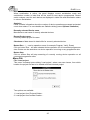
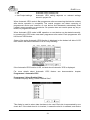
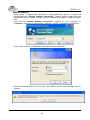
After the operating system has successfully started, the Pg4uwMC control
program will start automatically. When the Pg4uwMC is ready to work the
“Welcome” screen is displayed on graphical control unit.
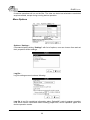
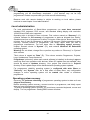
6. Click the OK button on “Welcome” screen to continue. The main screen with
menus and Status panel should appear on graphical control unit.
Checking if the sites are ready to be connected
7.
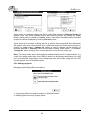
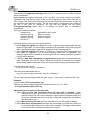
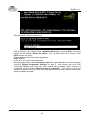
When first starting Stand-Alone multiprogramming system, or when error
message “Programmer Sites not found” is displayed, then programmer
software must be reinitialized by action “Search for Programmers...” available in
menu “Programmer / Search for Programmers...”.
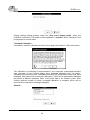
8. In dialog Search for Programmers use button “Search” to search for present
programmer sites. The result of search will be displayed in table Search results in
Search dialog. When programmer sites are successfully found, then programmer
type and its serial number is show in the table Search result. Detected
programmer can be accepted by pressing/touching Accept. If no complete
programmer was found, then “No Programmers found” message will be
displayed in table Search results and button Accept will be disabled.
9. If search result is “No Programmers found”, please try to turn off Stand-Alone
programmer, by menu “File / Shut down computer”, turn off the power button on
the back Side of programmer, wait for 15 seconds or more and start
programmer again. If the search result is still “No Programmers found”, please
refer to troubleshooting documentation.
Starting programmer sites
10. Each programmer site is uses its own hidden control application Pg4uw.
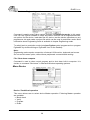
11. To start the hidden applications of control programmer sites, use menu
“Programmer / Connect Sites”.
12. The “Connecting sites“ indicator is displayed during connection of sites.
Additional information about site connection progress is displayed for each site in
panel Status on main screen.
13. Programmer sites are numbered from #1 to #8 in direction of physical placement
of programmer sites from left to right.
14. When connection process of programmer sites is complete, indicator
“Connecting Sites” will be hidden. Panel Status will contain information about
each site.
Loading project file
15. When site status after connection is “Ready” or “No project file is loaded“ user
can begin the Load project operation accessible from menu File / Load project.
The project file can be loaded from default directory [Projects] or from any other
location, for example from USB key. For more details about Load project, refer to
the chapter “Menu File“ and Load project. When Load project operation is
successfully done for all Sites, the “Ready“ status must be displayed in panel
Status on touch screen for all connected Sites. If there are some Sites with
different status, use troubleshooting documentation to resolve the problem.
Selection of predefined device operation
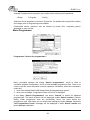
16. Use menu “Device / Predefined operation“ to select device Master operation.
Following Master operations are available:
Blank check
Verify
Program
Erase
21