1
PWS6300 Operation
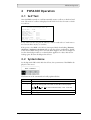
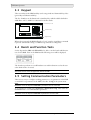
While the HMI is uploading, the following is displayed:
After uploading, select File/Reconstruct Source in ADP to display the Open dialog.
Open the uploaded application file (*.C64 or *.AA6). The application screen will be
displayed on the PC monitor. Finally, select File/Save As to save the application as a
*.V6F file. Thus a source file can serve the purposes of maintenance and modification.
Note:
When using the HMI for the first time, make sure to first run the application once, or else
the upload function will not work.
2.8 Copying an Application
To copy an application from one HMI to another, select F8 - Copy from the system
menu. Set the dip switch SW7 = ON and connect the two HMIs with a download
cable. After the self-test, the system menu will be displayed on the screen.
Select F8 - Copy in the system menu from the HMI with the application to be copied. The HMI will prompt for a password: enter the password set in ADP from Application/Workstation Setup. Once the correct password is entered, the HMI will
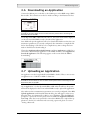
start to copy the application between the two HMIs. The following appears on the
screens during the copying:
Note:
If it is the first time to copy, please remember to run the application once, or else it will
not work.
2.9 Setting a Password
Scenario 1: Requiring a password to start the HMI
If the dip switch SW6 = ON, the user needs to enter a password to start the HMI.
For this purpose, the designer can use the object Action Button in ADP to create a
button which displays the password table on the HMI display. A user with the right
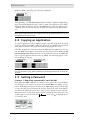
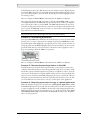
to access the table can register passwords and user levels in the table. In the illustration below, the TBL-button is an action button used to display the password table.
When the button is selected the password table is displayed on the screen for a user
with the right to access the table. Use
for entering a value.
13
to move and
to highlight an area
Beijer Electronics, MAEN847