1
Adding Clips to Documents
Once you have recorded an audio, video, or still image, you can paste it
into a clipboard-compliant file such as your e-mail, word processor,
spreadsheet, web page, or presentation tools. You can drag-and-drop
the clip icon to any application that supports drag-and-drop.
To add clips to documents, follow these steps:
1. Capture the clip according to the instructions in the previous
section.
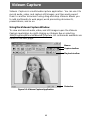
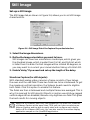
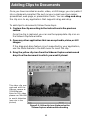
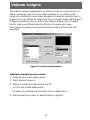
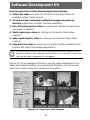
Once the clip is captured, you can see the appropriate clip icon on
the Videum Capture window.
2. Open any other application that can accept audio, video, or still
images.
If the drag-and-drop feature is not supported by your application,
use the Paste feature in the Edit menu to insert the clip.
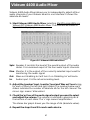
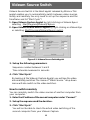
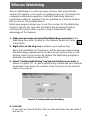
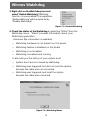
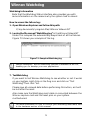
3. Drag the yellow clip icon from the Videum Capture window and
drop it on the document in which you want it placed.
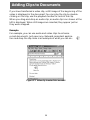
This video clip was
captured with the
Videum camera at
352x288 pixels.
Note: for PAL video
please use 384x288
to avoid distortion
(see coin in the
picture)
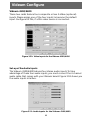
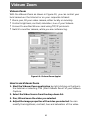
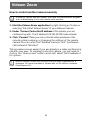
Figure 3.6 : Yellow clip icon displayed on the
Videum Capture window after recording
49