1
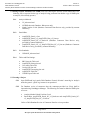
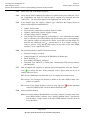
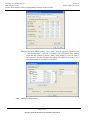
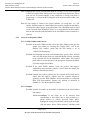
Procedure for GeneMapper® ID DNA Database Section Issued by DNA Database Forensic Scientist Manager and DNA Technical Leader Version 2 Effective Date: 04/18/2014 5.2.3 Select “File” and “Add samples to project.” 5.2.4 Locate the run folder containing the samples to be added to the project under the “Files” tab. Highlight the run folder (or select the specific samples to be analyzed) and select “Add to List.” The file(s) then appears on the right-hand side. Select “Add.” 5.2.5 In the Samples pane, the category “Sample Type” shall have the samples labeled as follows when amplified with Identifiler™: 5.2.6 The remaining categories shall be filled out as follows: 5.2.7 Ladder: Allelic Ladder 9947A (Positive Amplification Control): Positive Control Negative Amplification Control: Negative Control All other samples shall be “Samples” Note: Sample File names appear by well number (i.e., A12) followed by the sample name as entered by the DNA Database Forensic Scientist prior to electrophoresis. Also, until the samples are analyzed, the “Status” icon to the left of the Sample File name has the unanalyzed icon ( ) present next to it. If no “Status” category or icons are present, verify that the table setting (in top center of the main GMID window) is set to “AmpFLSTR Table.” Specimen Category: no export Analysis Method: G5_Advanced or NCSBI Robot (for Robot runs) Panel: Identifiler_v2 Size Standard: GS500LIZ_Advanced Instrument Type: ABI3130, or similar (note: automatically filled in by the software and instrument) Once all samples and categories are properly labeled and identified, select the “Analyze” icon ( ) to analyze the data. When prompted, create a project name for the set of samples and select “Save.” 5.2.7.1 Note: GMID auto-saves data after every 10 samples have been processed. 5.2.7.2 Note: The Genotypes tab becomes available in the main GMID window once analysis is complete. 5.2.7.3 Note: If any sample displays a solid red “stop” sign icon ( ) on the right-hand side of the GMID window, assess the data as described in 5.3. 5.2.8 Analysis and Plot Settings 5.2.8.1 Access the Analysis Method Editor by selecting “Analysis” from the menu in the main GMID window, and then select “Analysis Method Editor.” Note that the user must have a single sample in the main GMID window selected in order to access the Editor. Page 3 of 15 All copies of this document are uncontrolled when printed.