1
FireFiles Investigation Software - version 6.0.0
www.arsonsoftware.com
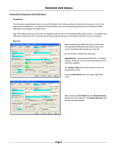
Field Name
Photo Source
Description
Select the source of the department where the
photos came from
The person that took the photos. When the
Search button is selected, the People Search
Screen opens to select the appropriate person
as the photographer.
Photographer’s Name
To enter a new photo into the FireFiles photo database, click on the New button. You will then be
prompted to enter a description of the photo. Then click on the Open File button which will take you
to your local machine to locate the photo. After entering each photo, click “APPLY” or “OK” button.
To view an existing, saved picture, highlight the picture description and the click “View”, or doubleclick the image. A full sized version of the picture will be displayed on your monitor. You may print
this image directly to your printer by selecting the “Print” button. (Some pictures will be
larger/smaller than others depending on the size that they were originally saved.)
You will have to enter each picture individually with this procedure. This creates a Case Photo report
DFI42 that arranges the photos six thumbnails to a page with the description below each photo.
FireFiles uses a Save Thumbnail Image program to automatically reduce the size of the image to
around 100k.
PLEASE NOTE: FireFiles limits uploaded images to a size of 100MB. Images larger than this
cannot be saved.
Re-titling Photos - You must Delete the photo and the description and then reenter the information to
change the discretion of the photo.
After entering each photo, click “APPLY” or “OK” button.
FireFiles Investigation Software - version 6.0.0
28
www.arsonsoftware.com