1
Software Installation
5-3
Windows 98
If you are a Windows 95 user upgrading to Windows 98
and have Sportster software installed already, you must
re-install the software. If you have an earlier version of the
software (5.3 or below), you will NOT be able to install it on
Windows 98. Visit the 3Com website
(http://www.3com.com) to obtain the latest software.
To uninstall the software, double click My Computer/
Control Panel from the Windows desktop. Select
Add/Remove Programs and choose the Sportster from
the scroll down list. Press the Add/Remove button.
If you have previously installed the Sportster from the
Microsoft Windows 98 CD-ROM, it is highly recommended
that you un-install that software and re-install the software
from the Sportster ISDN 128K Installation CD-ROM.
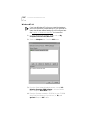
To uninstall the software, from the Windows desktop,
select My Computer/Control Panel. Double click on the
Network icon and select the Configuration tab. Highlight
the Sportster and press the Remove button.
To install the Sportster software, follow these steps:
1 Enter the Sportster Installation CD-ROM in your CD-ROM
drive.
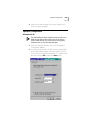
2 From the Windows desktop, select Start/Run. In the Open
field, enter the directory of your CD-ROM drive (i.e., D:\)
and enter Setup.exe and point to your CD-ROM drive.
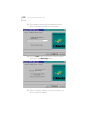
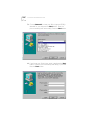
3 In the Welcome screen, press the Next button. The
Installation directory screen will display C:\Program
Files\Sportster ISDN 128K, the location where the
software will be installed. Press the Next button.
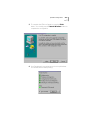
4 In the summary window, press the Start Copy button.
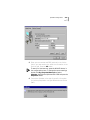
5 After the Sportster software has finished installing, you
must configure the adapter.