1
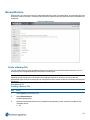
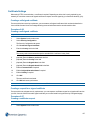
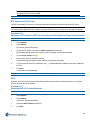
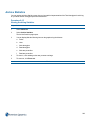
Procedure 5-14
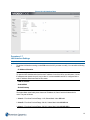
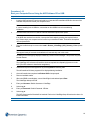
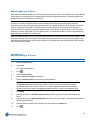
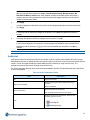
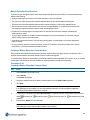
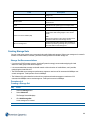
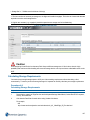
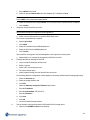
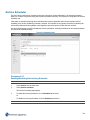
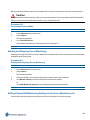
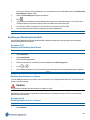
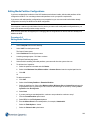
Creating an Archiving Schedule
Step
Action
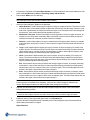
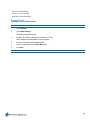
1
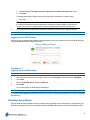
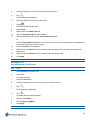
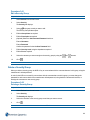
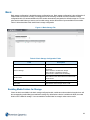
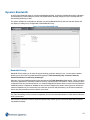
Select Archive from the main menu.
2
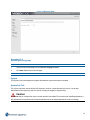
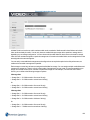
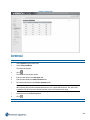
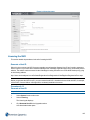
Select Archive Scheduler.
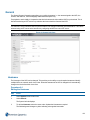
The Archive Schedules page displays.
3
Enter a name in the Schedule Name field.
4
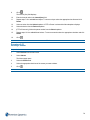
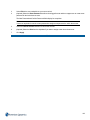
Click Create archiving schedule.
- End -
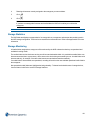
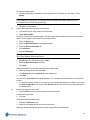
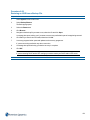
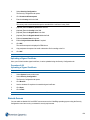
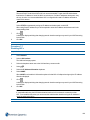
Procedure 5-15
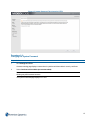
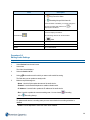
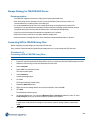
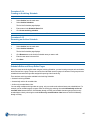
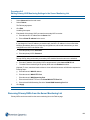
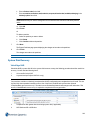
Renaming an Archive Schedule
Step
Action
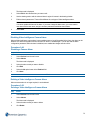
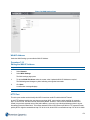
1
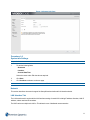
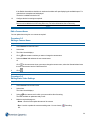
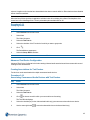
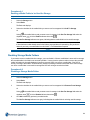
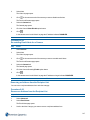
Select Archive from the main menu.
2
Select Archive Scheduler.
The Archive Schedules page displays.
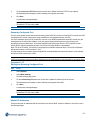
3
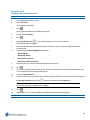
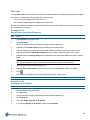
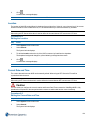
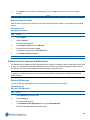
Click Rename next to the Archive Schedule name you want to edit.
4
Enter the new name in the text field.
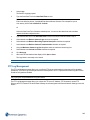
5
Click Save.
- End -
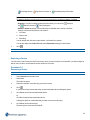
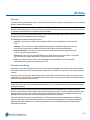
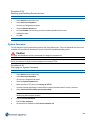
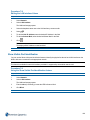
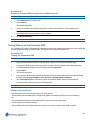
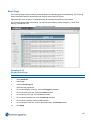
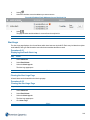
Schedule Editor and Group Editor Pages
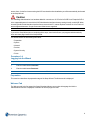
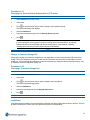
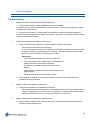
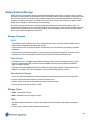
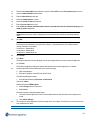
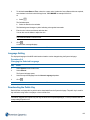
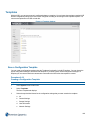
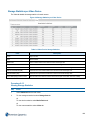
When you create an Archiving Schedule using the Archiving Scheduler, you need to assign cameras to that schedule,
these cameras form a group. Groups can consist of an individual camera or groups of cameras. Each group can have
scheduled times and archiving modes assigned for queuing video for archiving.
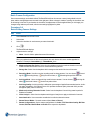
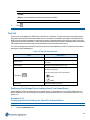
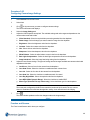
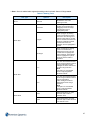
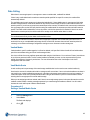
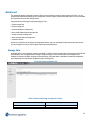
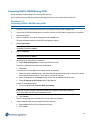
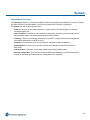
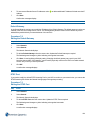
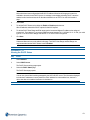
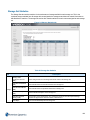
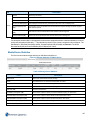
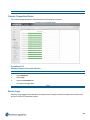
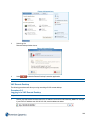
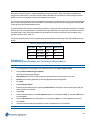
There are three archiving modes available in the Archiving Scheduler:
• Automatic archiving disabled
• Automatically archive all recorded video
• Archive only recorded alarm video.
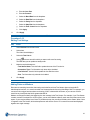
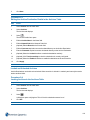
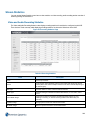
You can assign multiple archiving modes to a group, only one mode can be selected at any one scheduled time. For
example you can schedule a group to queue video for archiving by selecting the mode Automatically archive all
recorded video between 09:00 to 18:00 Monday through to Friday, and schedule the same group to archive only
recorded alarm video by selecting the mode Archive only recorded alarm video between 19:00-23:00 Monday
through to Friday.
127