1
500ML Lighting Control Console
Operation Guide
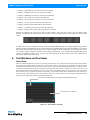
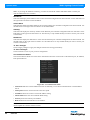
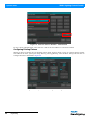
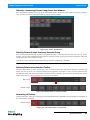
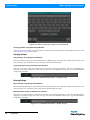
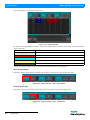
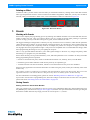
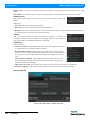
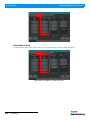
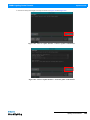
To store another cue into the same Cuelist, simply press the [REC] key again, followed by the Cuelist you would like
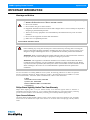
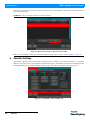
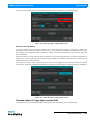
to add the cue to. If the Cuelist only contains one cue, a window (Figure 197) will pop up asking you what to do.
Select, Append As New Cue.
Figure 197: Create or Merge Cue? - Options Window
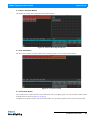
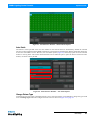
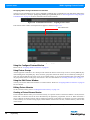
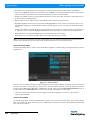
Storing Cues in Cuelists Using Cuelist Pool Window
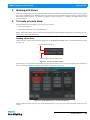
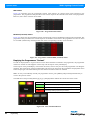
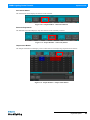
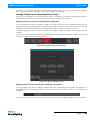
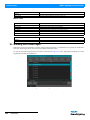
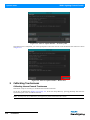
Once you created a look and wish to store it as a cue, press and hold the [REC] key and simultaneously press the
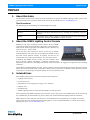
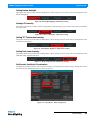
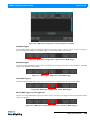
[CUELIST] key. The Cuelist Pool window (Figure 198) will open. Select a cuelist to store the cue.
Figure 198: Cuelists Pool Window
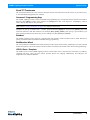
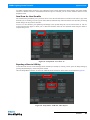
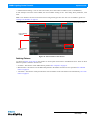
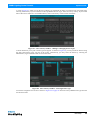
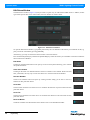
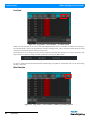
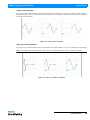
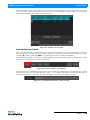
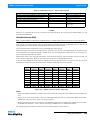
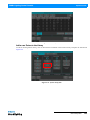
Alternatively, with an external monitor attached, you may directly record to a cuelist in a cuelist pool on the external
monitor by pressing [REC] followed by the desired cuelist in a Cuelist Pool window.
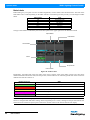
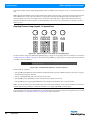
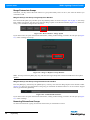
Storing Cues in Cuelists Using Command Line Interface
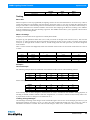
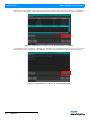
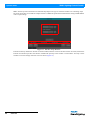
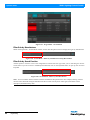
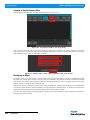
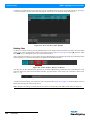
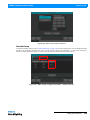
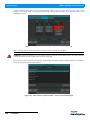
After creating a look, press the [REC] key followed by the [CUELIST] key. Type the number of the cuelist you would
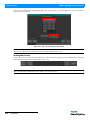
like to record the cue to - i.e., [1] followed by [ENTER] in to the command line (Figure 199).
Figure 199: Command Line Interface - Record Cuelist
110
Programming