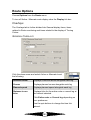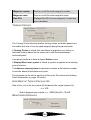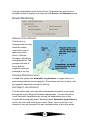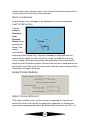
1
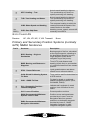
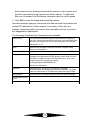
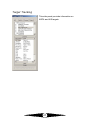
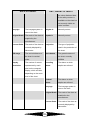
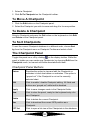
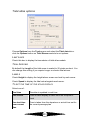
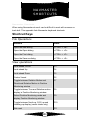
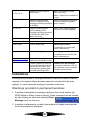
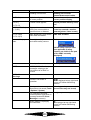
Rate of turn
AIS version
Status
Time stamp
Type of position fix
DTE available
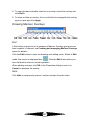
To Select an AIS target
You may wish to do this to view target information in the side panel and
display the target log, open a chart to display the target or to delete a
target.
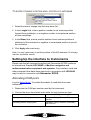
To select a target
on the
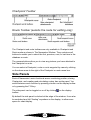
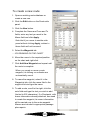
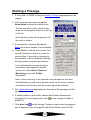
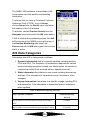
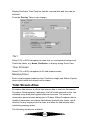
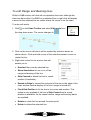
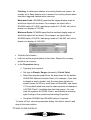
1. Ensure that you are in Target Tracking mode by clicking
Display Toolbar, by choosing Target Tracking panel from the View
menu, or by pressing <F12>.
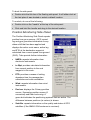
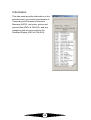
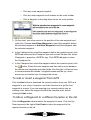
2. Click on any target in the AIS side panel target list, or
3. Click on any target on the chart.
Activating Targets
You can set parameters to automatically activate targets as described
below. If you wish to activate an individual target:
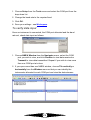
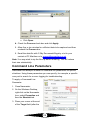
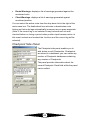
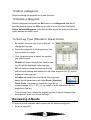
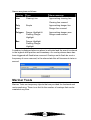
1. In the target list click the target you wish to activate and then click
the checkbox or press the spacebar.
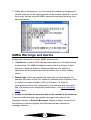
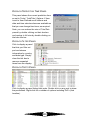
2. On the chart, click on a target to select it and then right click. From
the menu that appears select Properties and then the AIS Target
Summary tab. Select the Target Status field and change it’s setting
from sleep to active.
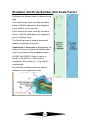
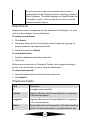
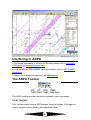
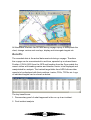
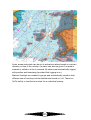
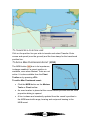
On activation the target is enlarged and a COG \ SOG vector, heading
marker and rate of turn indicator are displayed. If you have selected text
labels they will be displayed. The target is displayed in true scale if the
chart scale is large enough.
AIS alarms
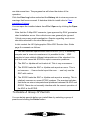
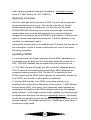
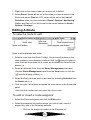
symbol is shown
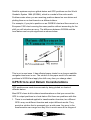
When a target is lost a
alongside the target name. You can
acknowledge this alarm by selecting the target
214