1
TV user guide
AT&T U-verse
TV user guide
• How to use the AT&T U-verse remote control
• Direct the show with your Total Home DVR®
• AT&T U-verse on your computer
• AT&T U-verse on your smartphone
• AT&T U-verse app for iPad
®
• Find shows fast with Channel Shortcuts
• How to use Parental Controls
• Optimize your TV experience
• On Demand
• Pay Per View
• Interactive features for TV, Internet, and Voice
• AT&T U-verse TV Apps
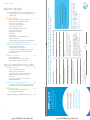
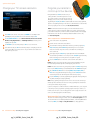
How to use the AT&T U‑verse remote control
Control devices
with mode
buttons
Record TV with
one click
Fast-forward in
set increments
Replay the last
few seconds of
a program
Go to recorded
TV programs list
Go to the On
Demand library
Explore, entertain,
and interact with
U-verse Apps
Return to
previous
menu screen
Go to main
Menu screen
Navigate channels,
menus, and screens
PiP browsing
Go to Program Info
screen
Exit from a
menu screen or
return to live TV
Go to Guide screen
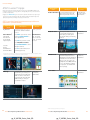
• Explore, Entertain, and Interact with U-verse Enabled Apps
• Quick tips about your AT&T U-verse TV service
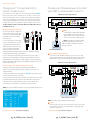
Change channel
Return to previously
viewed live TV
channel
Mute the sound
on your TV
Edit text on the
Search screen
Access the
Options menu
Upgrade to our
rechargeable
Easy Find Remote
Control or our Point
Anywhere RF Remote
Control for even more
convenience and cool
features. Learn more
at att.com/remotes.
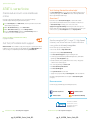
Your remote can control up to four devices
At the time of installation, your remote was set up to control your AT&T HD-ready receiver.
The remote is also capable of controlling up to three other devices, such as the TV, DVD
player, or home theater system. You can access step-by-step instructions on how to
program your TV or other devices by pressing MENU on your remote control and scrolling
to Help and selecting System Setup.
4
Visit att.com/uverse/newcustomer to learn more
pg_4_UVE509_Starter_Guide_REL
Visit att.com/uverse/newcustomer to learn more.
pg_5_UVE509_Starter_Guide_REL
5