1
Direct to Store Shipments
October - 2014
All direct to store purchase orders must be preapproved by your Stein Mart merchant. Direct to store PO(s) will list Stein
Mart Inc. stores in the following two segments:
1. Ship-To Party [N101 = ST]
2. Mark-For Location [N101 = Z7]
How to Ship UPS Consignee Billing On the Internet
All POs written direct to store will ship UPS Consignee Billing.
One of the perks of Consignee Billing is that it does NOT REQUIRE the Stein Mart account number. For more information on how to
ship consignee billing, please follow the instructions below.
1. Go to www.ups.com and log in with your User ID and password. If you are new to our site, click on Register
which is on the top right of the screen. If you are already registered, please skip to Step 7.
2. Once you have logged in, click on My UPS at the top right corner of your screen.
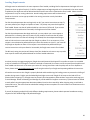
3. The screen that appears is separated into four groups. The first one on the left side is Manage My UPS. Inside
this box is Account Summary. Click on that.
4. On this new screen titled Account Summary, you will see a blue link; Add a UPS Account, click on this.
5. Enter your account information in the provided spaces, and click on Add.
6. If you entered your information correctly, your next screen should read, Account Added.
7. Now at the top right of your screen you will see the Address Book button, click on this.
8. When this page loads, please click on Add Address.
9. Enter the “ship to” address exactly as our UPS Consignee Billing department provided it to
you.
***Keep in mind, the company name and body of the address must be exactly as it appears in the UPS database. If the address is
not entered exactly, it may result in your account being charged for the shipping as well as a $10 unauthorized Consignee Billing
charge back.
10. At the bottom of this page, click on the box indicating Consignee Billable, then click on Save.
11. You are now back at the beginning screen of your Address Book.
12. Now click on the Shipping Tab at the top left corner of your screen. Choose the Create a Shipment link that
appears in the tab.
13. On this page choose the address you just added from the drop down menu that says Select One.
14. You will see a message appear across the top of this screen, “Your payment method has been set to UPS
Consignee Billing”. This means everything you’ve done so far is correct!
15. Fill out this entire page with your package information.
16. Finally, click on Ship Now and follow the prompts from there.
If you have any technical problems while processing this, please contact UPS Technical Support at 1-877-289-6418.
If you have any questions about these instructions, please contact UPS Consignee Billing at 1-800-354-7527.
Page | 47
Please visit our vendor website at http://vendors.steinmart.com to ensure you are referencing the most recent version
of this document.