1
Network Management Card
3.1.6 SNMPv3 User Management
To enhance security users can enable SNMPv3 management mechanism,
NMC can add SNMPv3 user through setting user name and validate
password.
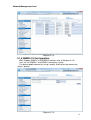
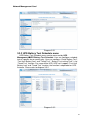
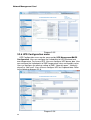
EnterSettingsNMC System, select SNMP Support to SNMPv3, the
SNMPv3 menu option will appear to the left window, and then select settings
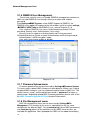
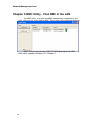
SNMPv3 USM Table to add SNMPv3 user, refer to Diagram 3.1.6.
User need set SNMPv3 user name, Authentication password, Private
password, Security level, Authentication, User status.
Security level can choose no Authentication no Private password,
Authentication but no Private, or both Authentication and Private password;
Authentication is MD5 encryption mode;
User status can choose enable or disable.
Diagram 3.1.6
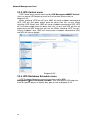
3.1.7 Firmware Upload menu
Firmware upload menu can be accessed by Settings
Firmware Upload.
This menu offers upload NMC firmware via web browser. When user is going
to upload NMC firmware, user has to become administrator of NMC first. The
default name is “root”, and the default password is “password” for login as
administrator. Regarding upload NMC firmware procedure, please refer to the
file NMC Firmware Upgrade SOP.pdf for detail information.
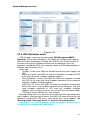
3.1.8 File Management menu
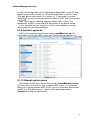
NMC file management menu can be accessed by Settings
File
Management. The function of this menu is uploading files for the same
configuration for different NMC. Only confsnmp.cfg (about NMC parameters)
and confups.cfg (about UPS parameters set by NMC) these two files are
available for application. After uploaded files NMC has to reboot immediately
14