1
DDE logging setup
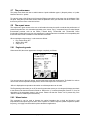
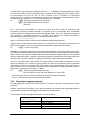
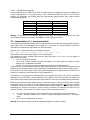
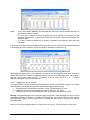
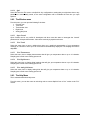
Click the DDE Excel checkbox, as illustrated here:
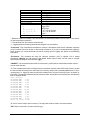
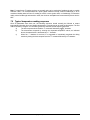
Then, you will get an invitation to specify the location of your Excel application (excel.exe). Once the Excel
3
location and language selection are confirmed (look into “C:\Program files\Microsoft Office\OfficeXX”),
logging will start as described below.
If you are using Office 2007 or later, make sure to check the box “.xlsx format”. With Office 2007 or later, files
can be saved only in the new format .xlsx.
DDE logging
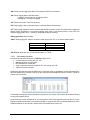
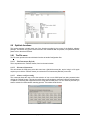
Click the START button to start the logging process. The Excel application will open, and you will be able to
see the data being written to the file. Do not close this Excel sheet; however you may minimize it without
any problem.
To stop logging, click the STOP button in OptiLink; this will automatically close the Excel sheet and
application. Do not close the Excel application yourself!
Otherwise, the DDE logging is very similar to logging to a .tem file, as described above. Acquisition rate is
limited to 1 second.
9.4.2 Viewing temperature data
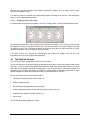
Temperature values can be displayed on your computer screen in a number of ways. Click one of the four
“Chart” button to active one or more of these windows.
Note that more than one window type can be displayed simultaneously; in addition, you can log temperatures
to a file independently from these display windows. Note that each of these 2 modes have each then own
acquisition time base.
9.4.2.1
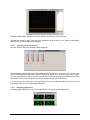
Displaying temperature trends
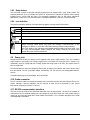
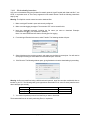
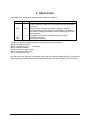
Click the “Chart” button to get the following window.
3
You have two choices: English or French. If you are using Excel in another language, you must select
English.
Document no. G1006r08
Copyright Neoptix Canada LP
38