1
Page from CMOS Circuit Design, Layout, and Simulation, Second Edition
By R. Jacob Baker, Copyright Wiley-IEEE
Chapter 1 Introduction to CMOS Design
9
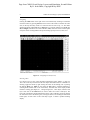
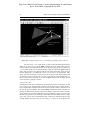
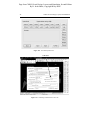
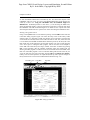
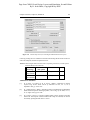
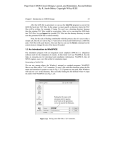
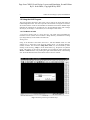
Figure 1.9 Drawing a box using LASI.
Moving and Resizing
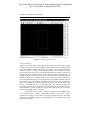
Moving or resizing an object consists of getting the object using, among others, the Get
command, moving the object using the Mov command, and putting (or deselecting) the
object using the Put command. For example, say we want to move the right edge of the
n-well box in Fig. 1.9. To begin, select the Get command. This is followed by clicking
the left button of the mouse on one side of the edge followed by clicking (the mouse) on
the other side of the edge (the selected or “Got” edge then becomes highlighted). Using
the Mov command, we can then use the mouse in the same manner to move the edge. To
deselect the edge, we use the Put command (again, in the same manner with the two
clicks of the left mouse button) or we simply press the all put (Aput) command. Note that
movement is relative to the clicking of the mouse (we don’t have to click on the selected
edge). If, for example, the mouse is left-clicked somewhere in the drawing window and
then, in a horizontal distance of 5, left-clicked again, the selected edge will move
horizontally a distance of 5. (The user should experiment with these commands until they
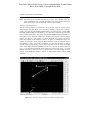
feel comfortable.) To move the entire box, we get all four sides of the box or any part of
the box using the Fget (full get) command.
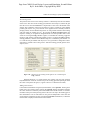
To reduce the amount of mouse clicking it is helpful to use the Qmov (quick
move) command. This command automatically performs the get, move, and put
commands in sequence so the user doesn’t have to keep clicking menu items. The reader
should try out the Qmov command in LASI. Qmov can save considerable time when
making edits to layouts.