1
EFILive V7 Scan Tool for GM Vehicles
APPENDIX-G
HOW TO OPTIMIZE DATA LOGGING
If you have a slow PC (less than 500MHz) you may need to optimize the Scan Tool to obtain the best
scan speeds. The following is a list of settings that you can configure to help speed up data logging.
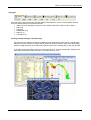
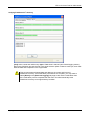
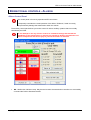
1. Display the [OBD II (F7)] tab page while logging data.
By not displaying data, dashboards or the console during data logging, the load on the PC’s CPU is
greatly reduced. This is by far the best way to speed up data logging.
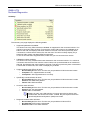
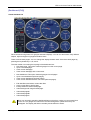
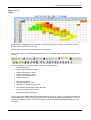
2. If you need to watch the data while recording, then display the [Data (F8)] tab page, or
a. Only have three or four gauges visible in the virtual dashboard.
b. Configure gauges as digital gauges instead of analog.
c. Don’t use auto size fonts in dashboard items.
d. Only have one or two charts visible in the virtual dashboard.
e. Zoom charts in so that less data points are plotted on the screen.
f. Increase the following settings:
Properties->Playback->Charts->Update frequency.
Properties->Playback->Gauges->Update frequency.
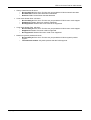
3. Turn off console display by unchecking:
Properties->Console->Message display->Console display enabled.
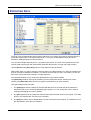
4. Unselect calculated PIDs while data logging. Calculated PIDs may be added and/or removed once
data logging is complete.
5. Use Stream scan modes where supported.
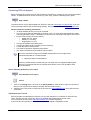
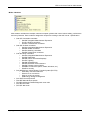
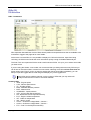
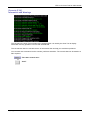
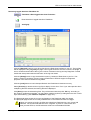
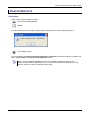
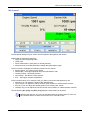
Display the Profiler window, which shows the scan speed and dropped frame counts to
measure the effectiveness of different settings.
View->Profile window
Ctrl+Y
See also: Appendix-E Scan mode
[email protected]
- 188 -
www.efilive.com