1
iTOOLS VERSION 6.20: HELP MANUAL
7.4.1
Using function blocks
INTRODUCTION
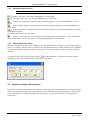
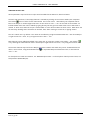
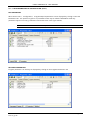
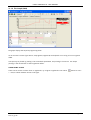
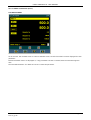
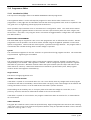
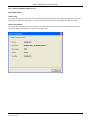
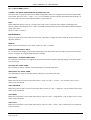
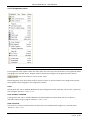
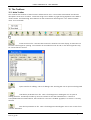
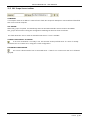
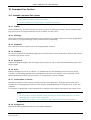
If a function block is not 'faded' in the tree, then it can be dragged into the diagram. Once in the diagram, it
can be moved by click-dragging with the mouse, or the selected item can be moved using the keyboard left,
right, up and down keys. Blocks can be deleted using the right mouse-click 'context' menu or by operating the
<Delete> key.
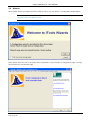
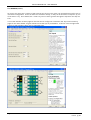
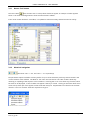
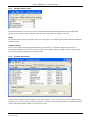
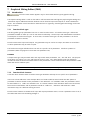
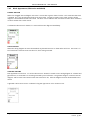
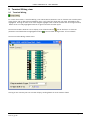
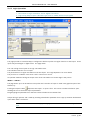
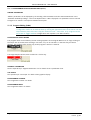
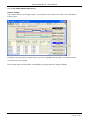
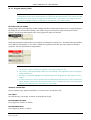
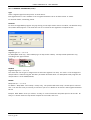
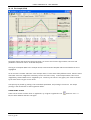
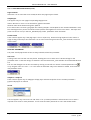
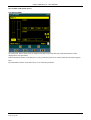
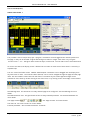
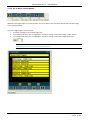
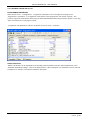
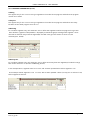
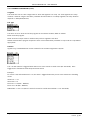
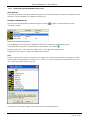
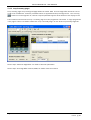
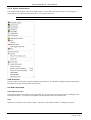
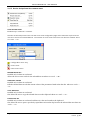
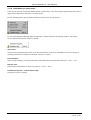
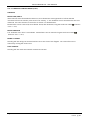
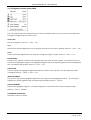
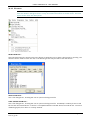
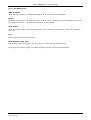
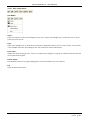
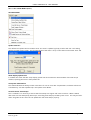
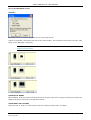
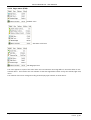
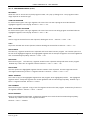
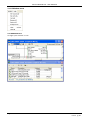
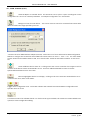
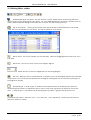
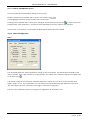
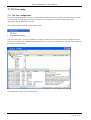
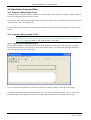
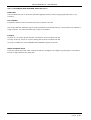
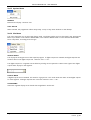
A block labelled 'Loop' is depicted below, where 'Loop' is the name of the block instance.
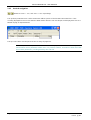
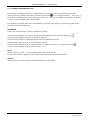
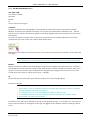
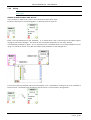
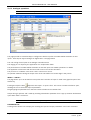
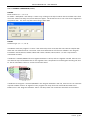
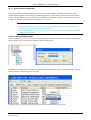
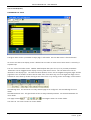
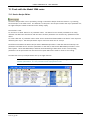
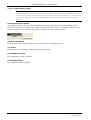
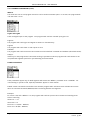
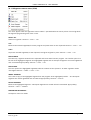
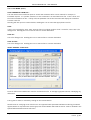
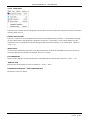
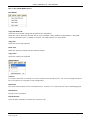
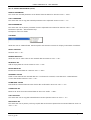
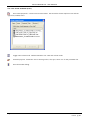
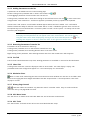
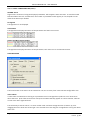
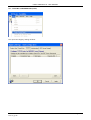
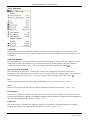
Hovering the mouse cursor over the block, causes 'tooltips' to appear. In the figure below the tooltip for 'Main
PV' is shown as an example.
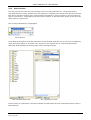
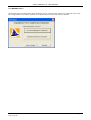
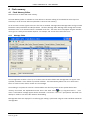
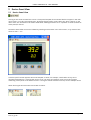
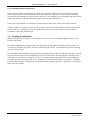
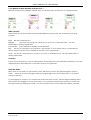
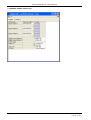
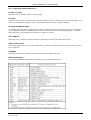
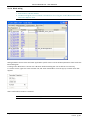
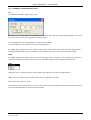
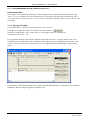
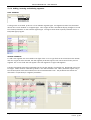
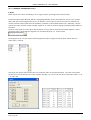
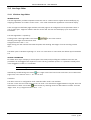
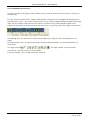
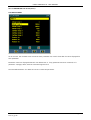
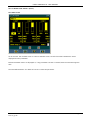
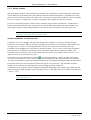
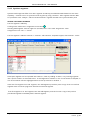
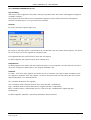
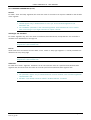
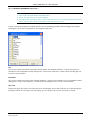
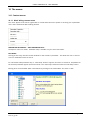
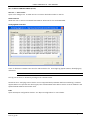
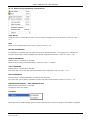
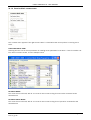
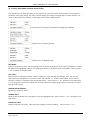
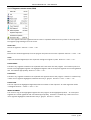
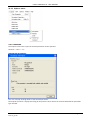
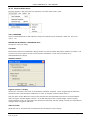
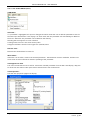
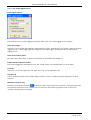
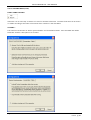
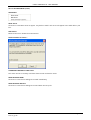
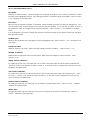
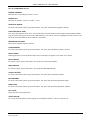
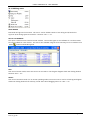
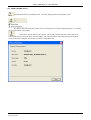
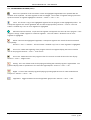
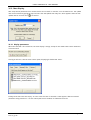
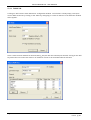
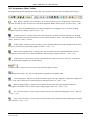
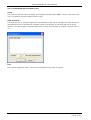
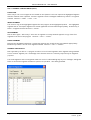
If the Block Type information is editable, clicking on the adjacent down arrow, causes a pop-up window to
appear, allowing the user to select or enter a new value:
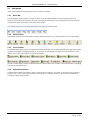
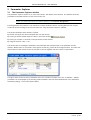
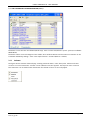
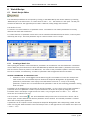
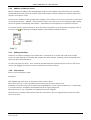
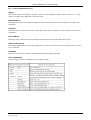
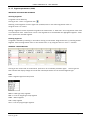
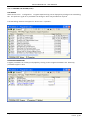
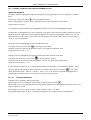
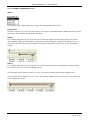
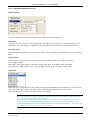
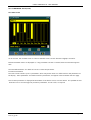
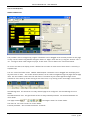
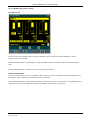
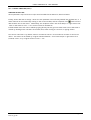
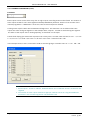
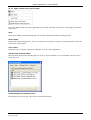
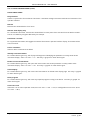
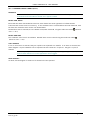
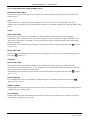
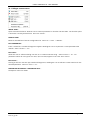
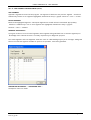
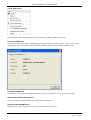
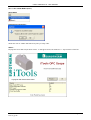
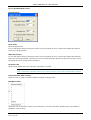
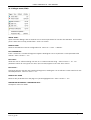
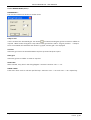
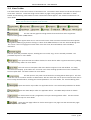
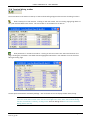
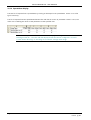
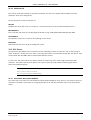
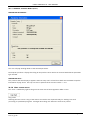
The inputs and outputs which are commonly of most use appear within the body of the block. Further
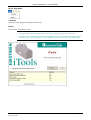
parameters can be selected by clicking on the 'Select Output' icon at the bottom right of the block.
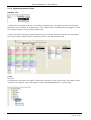
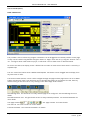
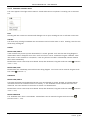
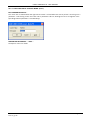
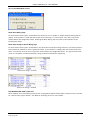
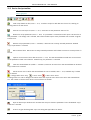
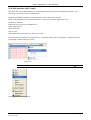
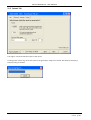
Generally, for blocks to be of use, parameters must be 'wired' to other parameters. To start a wire from a
recommended output, click on the output parameter, then move the mouse cursor to the destination point, and
click again on the required input.
HA028838
Issue 2 Jly 05
Page 27