1
VOIIS V6 User Manual 4. Symbol Overview on Home Screen English Rev. 1.0
I.
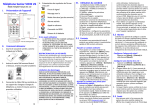
Signal strength Device Overview Flash Light On/OFF III. Handset Operation Unread message ‐
Silent mode (No ringer) ‐
Alarm on ‐
‐
Power On/Off
Missed call Connected via GPRS Battery power ‐
‐
‐
‐
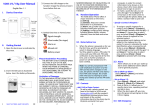
Please Read Before Proceeding Flash Light SOS Button USB charge Port
II.
-
-
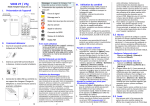
Getting Started 1. Open the back cover as indicated by the arrow. THE BATTERY IS NOT CHARGED WHEN YOU TAKE IT OUT OF THE BOX. DO NOT REMOVE THE BATTERY PACK WHEN THE PHONE IS CHARGING. YOUR WARRANTY IS INVALIDATED IF YOU DISASSEMBLE OR ATTEMPT TO DISASSEMBLE THE DEVICE. Privacy Restrictions 2. Insert the SIM card as illustrated below. Insert the battery afterwards. Some countries require full disclosure of recorded telephone conversations, and stipulate that you must inform the person with whom you are speaking that the conversation is being recorded. Always obey the relevant laws and regulations of your country when using the recording feature of your phone. Limitation of Damages 3. Connect the USB charger to the handset. Charge the phone at least 6 hours before first use. TO THE MAXIMUM EXTENT PERMITTED BY APPLICABLE LAW, IN NO EVENT SHALL MOBILE ACTION OR ITS PROVIDERS BE LIABLE TO USER OR ANY THIRD PARTY FOR ANY INDIRECT, SPECIAL, CONSEQUENTIAL, INCIDENTAL OR PUNITIVE DAMAGES OF ANY KIND, IN CONTRACT OR TORT, INCLUDING, BUT NOT LIMITED TO, INJURY, LOSS OF REVENUE, LOSS OF GOODWILL, LOSS OF BUSINESS OPPORTUNITY, LOSS OF DATA, AND/OR LOSS OF PROFITS ARISING OUT OF, OR RELATED TO, IN ANY MANNER, OR THE DELIVERY, PERFORMANCE OR NONPERFORMANCE OF OBLIGATIONS, OR USE OF THE WEATHER INFORMATION, DATA OR DOCUMENTATION HEREUNDER REGARDLESS OF THE FORESEEABILITY THEREOF. The VOIIS Senior Phone offers 8 major functions on the menu: [1] Message: edit and send text message. [2] Weather: acquire the weather forecast. [3] Call Log: log your call history. [4] Contacts: keep your contact information in a phonebook. [5] Alarm: set up wake‐up calls for reminder/notification purpose. [6] Health: log your health records. [7] Calculator [8] Settings: configure basic and advanced settings including Sync, Network, SOS and security settings. 3.1 Contacts Contacts allows you to input 8 photo contacts (quick‐dial contact) and 300 general contacts. ‐ Add a General Contact ‐ 1. To add a general contact for the first time, press [Menu], scroll down the menu using the up (︿) and down (﹀) arrow keys and select [Contacts], then press [Add] to create a new contact. To add a contact to an existing contacts list, press: [Menu] > [Contacts] > [Options] > [New contact]. 2. Use the up (︿) and down (﹀) arrows to select the field you want to input for this contact, and press [Edit]. Select a photo or ringtone for this contact if needed, and press [Select] to complete your edits. Press [Back] to save the contact information. ‐ Add a Photo Contact for Quick‐Dial ‐ 1. Press [Menu] > [Contacts], and you’ll see 8 sets of photo contacts that can be edited as quick‐dial contacts. Scroll down 1 through 8, and press [Edit] to edit the contact information. 2. To change the photo for photo contacts, you have to first login to VOIIS server (www.voiis.com), and 3.
import the photos (up to 16 photos) from your computer. Start synchronizing the data from VOIIS server to your phone, and you may update the photo on your phone. Ringtone can also be updated the same way via data synchronization with VOIIS server. (See 3.6 for more details about data synchronization) To make a quick‐dial call, you can press the up (︿) and down (﹀) arrow keys on the main screen, and press the number (1 to 8) of photo contact from the list to make the call quickly. 3.2 Alarm Alarm allows you to set up 1 wake‐up alarm and 3 additional alarms (Alarm 1‐3) for general purposes. Each of Alarm 1 ‐3 further allows you to set up 4 different sub‐alarms for reminders and notifications at different times, which is good for recoding health‐check measurements. ‐ Set up Wake‐up Alarm ‐ Press [Menu] > [Alarm], and select [Wake‐up alarm]. ‐ Set up Alarm 1‐3 ‐ 1. Press [Menu] > [Alarm], and select [Alarm1], [Alarm2] or [Alarm3]. 2. Each of Alarm 1‐3 allows you to further set up 4 different sub‐alarms for reminders of various purposes. To set up an alarm for health‐check measurement purpose, you may select: [Alarm 1‐3] > [Health Record], select the health‐check item that you want to be reminded of (i.e. blood pressure, pulse rate, blood sugar, etc.). 3. When the alarm rings, stop the ringing, and you’ll be prompted to enter the measurements you got for the selected health‐check items previously. 3.3 Health 1 SAVE THE TREES, SAVE THE EARTH EN 2 3 4 1.
2.
Here you can input the measurements of your health‐check items and view your history records in 7 days, 30 days or one year: Press [Menu], and select [Health]. Select one of the listed health‐check options to input data or view history records. 3.4 Weather 1.
To acquire the real‐time weather of your current location, you may: Press [Menu], and select [Weather]. The weather report will be obtained shortly and displayed on the screen. Note: To acquire the weather report, your phone must be able to access the Internet via GPRS connection by your mobile service provider. See Network Connectivity section for more details on setting up your network via GPRS connection. 2.
3.
To check the weather forecast of your location, you may press [Options], and select [Tomorrow], [The day after tomorrow] or [Three days from now], or simply scroll up or down with the arrow keys to see the weather report of different dates. To change the location for weather query, you may press [Options], select [Location] > [Other country], choose a country from the list, and then choose a city in your preference. 3.5 Advanced Settings 3.5.1 Network Connectivity 1. Press [Menu], and select [Settings] > [Advanced settings] > [Network settings] > [Connectivity] > [Internet settings]. 2. A list of service provider’s names pre‐configured for your phone’s mobile service plan will then appear for selection. Select an option from the list to complete your setup, or select [User defined], and press [Options] > [Edit] to input your account information manually for Internet access. Note: Please contact your service provider for details of your network settings (GPRS connection). 3.
can log in. Select [Advanced setting password], and you may change the password for your login at VOIIS server (www.voiis.com). Select [PIN Code], and you can change the PIN code of the SIM card, and enable [PIN check] at power‐on for better security. [Advanced settings] > [Sync settings] and enable [Remote sync]. In [Sync settings], select [Sync data] to choose the type of data you want to synchronize between the phone and VOIIS server. On the phone, select [Start to Sync] to start synchronizing configurations to your account on VOIIS server. 4.
3.5.2 SOS Settings 4.
1. Press [Menu], and select [Settings] > 5.
[Advanced settings] > [SOS settings]. 2. Select [SOS recipient] to input up to 5 sets of phone number for SOS call‐out. ‐ Set up Sync Period ‐ 3.5.5 Menu Control 3. Select [Position info], and determine In [Sync settings], select [Sync period] Functions that appear on the main whether or not your position and determine whether you want data menu can be customized. Press information should be included in the to be synchronized [By request], [Daily], [Menu], and select [Settings] > SOS message to be sent out. or [Weekly]. [Advanced settings] > [Menu 4. Select [Advanced settings] > [Position control]. Select and enable the Query] > [Allow]. This allows SOS function(s) in your preference. ‐ Sync via SMS by SOS contact ‐ recipients to query the VOIIS phone’s Consequently, the main menu will Data synchronization can be done via a location by sending a text message then only contain enabled functions. SMS sent from one of your SOS contact including FIND in message content numbers. Ask one of your SOS recipients (regardless of upper or lower case). to send you a text message including 3.5.6 Undisturbed Interval 5. Select [SOS message] to edit the only SYNC (regardless of upper or lower To avoid any incoming calls during content of SOS message to be sent case) in message content, and the some certain periods, you may set up out in case of emergency. phone will start data synchronization undisturbed intervals to prevent the 6. In addition to SOS call‐outs, you can automatically as soon as the message is phone from receiving calls. To do so: also receive SOS call‐ins in case of received. 1. Press [Menu], and select [Settings] > emergency while the phone is [Advanced settings] > [Special switched off. To do so, press SAR Information control] > [Undisturbed interval]. [Advanced settings] > [Special Band Position SAR 10g (W/kg) GSM 900 Head 2. Select a day of the week, and press 0.489 Control] > [Power‐off mode] and Body(1.5cm Gap) 0.384 check the [Allow SOS call‐in] option. [Options] > [Edit] to further set up GSM 1800 Head 0.491 the time period (up to 6 periods) Note: Please make sure the battery is Body(1.5cm Gap) 0.305 when you do not want to be removed during a flight to avoid disturbed. unexpected SOS call‐ins. WEEE 3.6 Synchronization with VOIIS 3.5.3 Event Alert Note on environmental protection: Server 1. Press [Menu], and select [Settings] > After the implementation of the European Directive 2002/96/EU in VOIIS allows you to synchronize data [Advanced settings] > [Event Alert]. the national legal system, the following applies: between the phone and VOIIS server Electrical and electronic devices may not be disposed of with 2. Select an event option and input the in 3 different ways: domestic waste. alert criteria values. Consumers are obliged by law to return electrical and electronic 3. An alert message will be sent out to devices at the end of their service lives to the public collecting ‐ Start to Sync ‐ alert recipients, if inputted data in points set up for this purpose or point of sale. Details to this are defined by the national law of the respective country. This symbol Health exceeds the alert criteria values 1. Login to www.voiis.com with your on the product, the instruction manual or the package indicates IMEI/name and password (which can configured in Event Alert. that a product is subject to these regulations. By recycling, reusing be found in your phone: [Advanced the materials or other forms of utilizing old devices, you are making settings] > [Security] > [Server Info]). an important contribution to protecting our environment. 3.5.4 Security 2. Configure all the information on VOIIS 1. Press [Menu], and select [Settings] > server as you do on your handset, [Advanced settings] > [Security]. such as upload ringtones, add new 2. Select [Server Info], and you may see contacts, change wallpaper, view the default password for your web health information, set up alarm, etc. access, and the web address of VOIIS 3. On your phone, press [Menu], select server (www.voiis.com) where you 5 6 7 8