1
The Deadlines Calendar
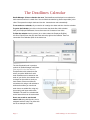
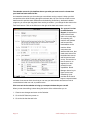
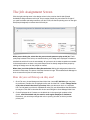
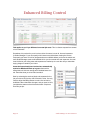
Studio Manager 10 has a calendar view now. Task deadlines are displayed on a calendar for
each month as well as in a week view. You can filter that calendar by person responsible, job or
client. The square for today’s date has a blue tint. Late tasks turn red automatically.
To see tasks on a calendar, all you need to do is assign due dates and then view the calendar.
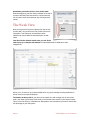
To get to the Calendar, just click on the icon button that looks like a little calendar
from your Employee Dashboard, from a client record in Contacts or from Jobs.
To filter the calendar view by person, job or client, select the Employee ID (Who),
Job ID or Client ID from the pop-down lists at the top right on the calendar. There is a
convenient Print Calendar option in the button bar.
The Job Schedule found in previous
versions of Studio Manager is still there.
[See page 35 in the User Manual.]
Compare that to this calendar to see
which you prefer. While the 2 and 4
week schedules can be started on the
week of your choice, the calendar view
is always for the month or week you
have chosen. Since most folks are
accustomed to using a wall calendar or
software that offers you month and
week views, we added this, using only
the scripting and layout tools within
FileMaker. The result is a calendar that
works fast and that can be customized.
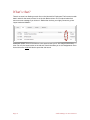
Hover over a task to see the task
name in full along with the Job, who is
assigned and their roles. The yellow info
box is an example of a Tooltip.
Page 9
Studio Manager 10 New Features