1
Shifts
Dealing with shifts works the same in both Templates and Schedules.
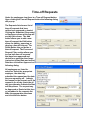
To Add a shift to an employee either left click in the time slot you
want the employees shift to start and press the Ctrl + Insert keys on
the keyboard or right click in the time slot you want the employees
shift to start and select the Add menu item from the pop up menu.
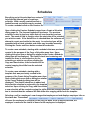
Either choice pops up a Shift Dialog. Since the 7:30am time
slot was clicked the Start Time automatically fills with a
7:30am. A Stop Time needs to be entered. The skill defaults
to the employees skill; however, a different skill may be
selected for the shift being added. Once the appropriate data
has been selected click the Save button to add the shift. If
3:30pm was selected for the Stop Time the shift whould look
like the following:
Left clicking on
the shift selects
the shift and puts
a broken line border around the shift. Selecting the shift and pressing the Ctrl + Enter keys on
the keyboard, or selecting the shift and right clicking the shift and choosing the Edit menu
item, or double-clicking the shift all pop up the Shift Dialog. If you click on a shift with the left
mouse button and keep the button held down, you
may move the mouse left or right to change the
shift. While moving the entire shift the changing Start Time is displayed. If you move the
mouse to either end of the shift until the mouse changes to a left/right arrow you may click
and hold the mouse button to change either the Start or End Time only. The following
keyboard functions show how to manipulate a selected shift:
Left Arrow
move shift 1 minute
left
Down Arrow
Right Arrow move shift 1 minute
right
Up Arrow
w/ Ctrl
move start of shift 1
minute left
move start of shift 1
minute right
move end of shift 1
minute right
move end of shift 1
minute left
w/ Shift
w/ Ctrl + Shift
move shift 15 minutes move start of shift 15
left
minutes left
move start of shift 15
minutes right
move shift 15 minutes move end of shift 15
right
minutes right
move end of shift 15
minutes left
To delete a shift either select it and press the Ctrl + Delete keys on the keyboard or select it
and then choose Delete from the pop up menu. Shifts may also cut/copied and pasted to the
same employee or a different employee.