1
4. Operating
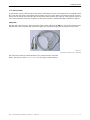
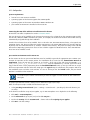
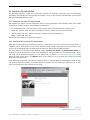
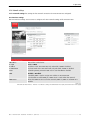
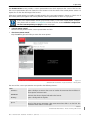
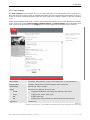
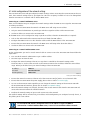
The Remote Pointer screen provides a screen representation area which represents the screen of the host PC.
The screen representation does not show the screen content. To see the effect of the remote pointer actions it is
required to see the decoded image of the host PC.
If the Barco remote pointer Java applet is loaded properly, the screen representation is shown as a black area. If
the remote pointer java applet is not running then the screen representation is shown as a gray area.
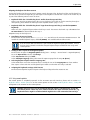
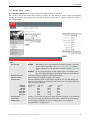
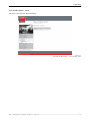
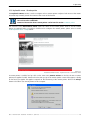
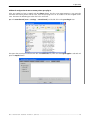
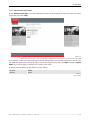
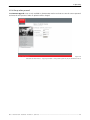
If the screen representation remains gray instead of black, re-check the remote pointer configuration; please refer to section 4.2.1 Configuration and check also the section Additional configuration
for Barco remote pointer Java plug-in on the next pages.
•
activate remote control
Move the mouse pointer into the screen representation and click.
•
deactivate remote control
Keep the Ctrl-key pressed while you move the mouse pointer.
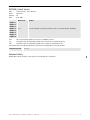
Figure 4-13
TRANSFORM SCN web interface – keyboard & mouse – remote pointer
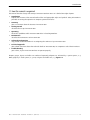
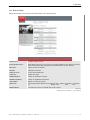
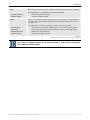
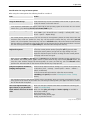
The menu of the screen representation area provides the following features:
Menu
Connect to…
opens a dialog to connect to the screen of another host PC. Enter the IP address of
the respective TRANSFORM SCN.
Ctrl+Alt+Del
transmits the shortcut key Ctrl+Alt+Del to the host PC
Show log…
opens a dialog with the log files
Mouse Settings
Speed
Speed of the mouse movement; slow movement when slider is on the left, fast
movement when slider is on the right.
Table 4-1
TRANSFORM SCN web interface – menu of remote pointer screen
Barco – TransForm SCN – R5976968 – Revision 02 – June 2006
_______________________________________________________________________________________________
4-17